[UPDATE] Group booking – Upgrade performance for create & edit, fix bug – View Group booking & Subgroups
3. View Group booking & Subgroups
3.1 Reservation type is “Cancelled”.
At Group booking list screen, when user selects a row of Cancelled Group booking →
Displays corresponding action buttons:
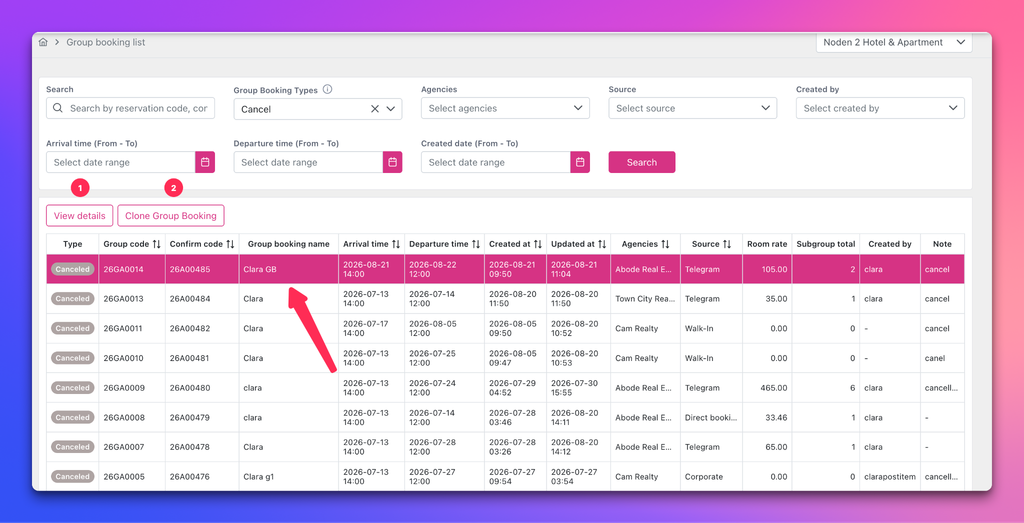
View details button (1): Click to access Group booking detail screen.
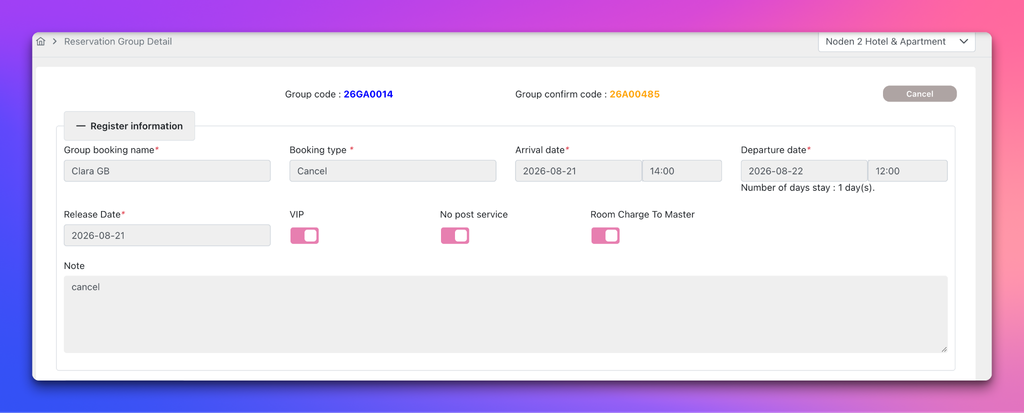
Register Information section: all features are disabled
* Note reason is displayed when proceeding cancellation group process.
Billing Information section: all features are disabled

Sales Information section: all features are disabled

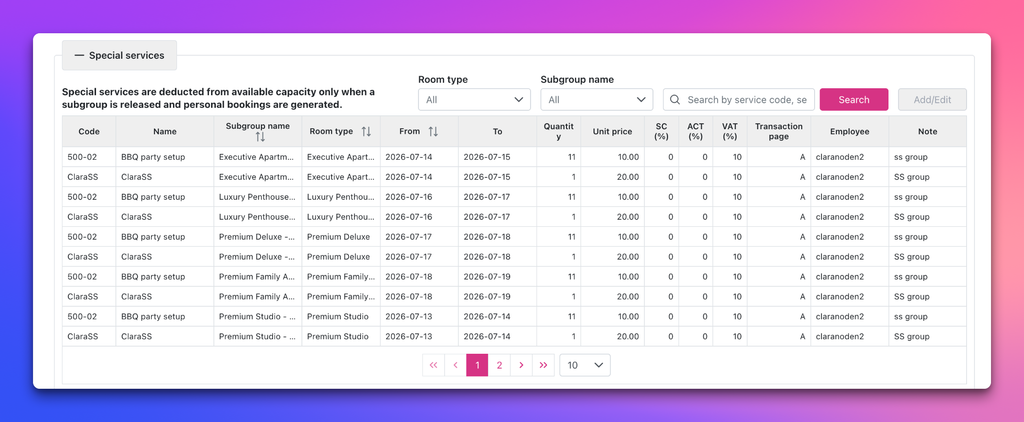
Special Service section is disabled
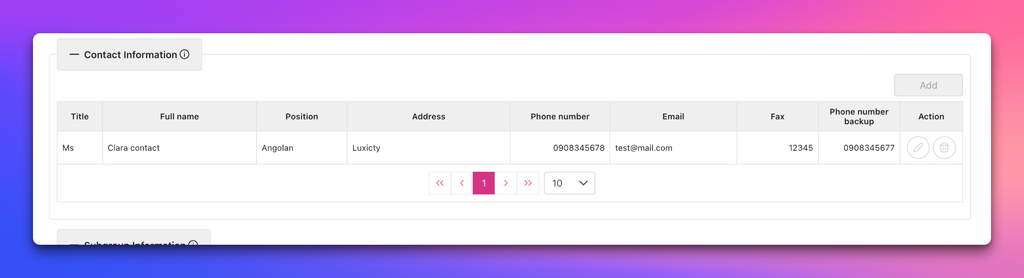
Contact Information section is disabled
Subgroup Information section: Except View subgroup detail, all features are disabled.
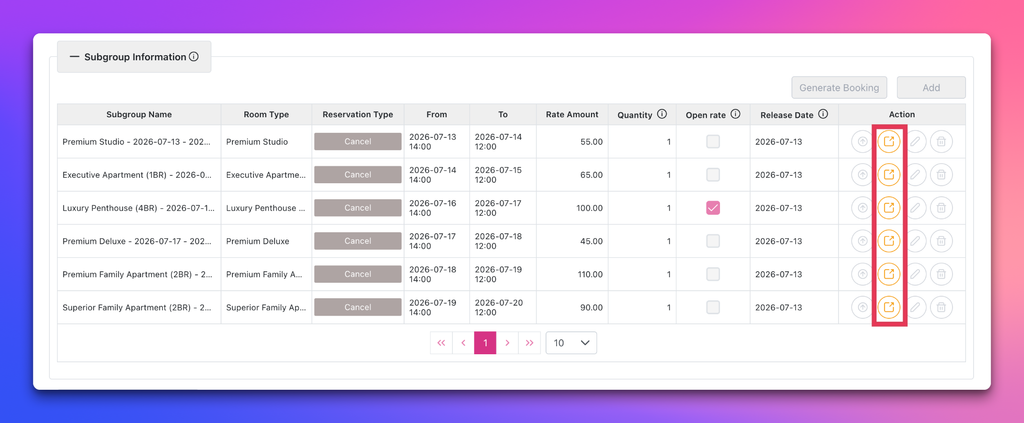
Display of Subgroup page is cancelled:
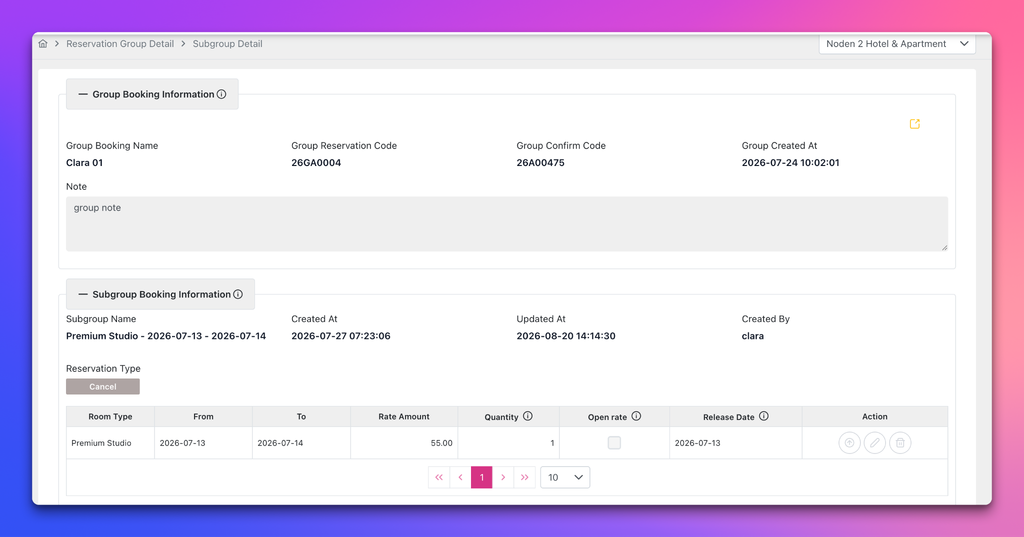
Search, Export to excel, Download Template button (Customer Information section) and Search button (Related Bookings) are enabled and operate if grid has data:
- Not release subgroup yet:
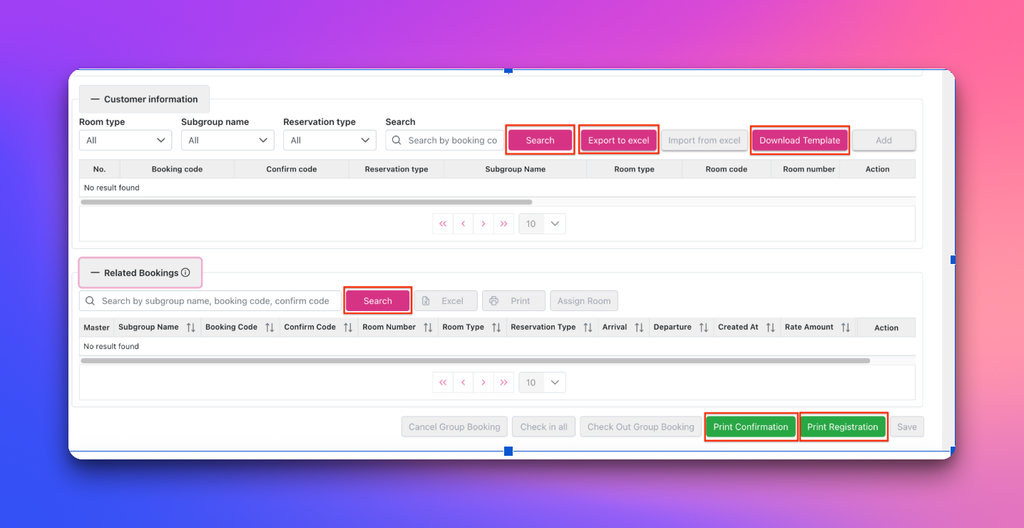
Released Subgroup:
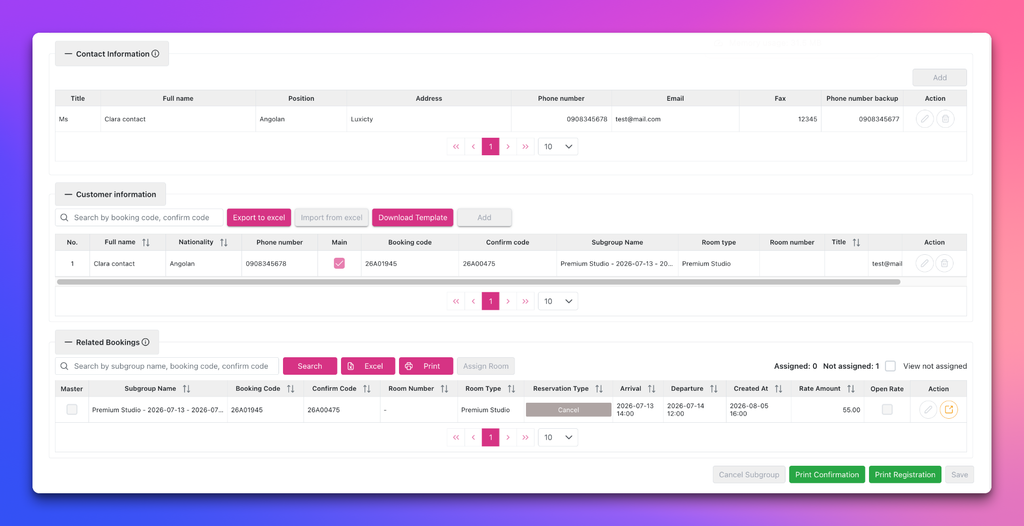
3.2 Reservation type is “Definite”, “Tentative”.
At Group booking list screen, when user selects a row of Definite or Tentative Group booking →
Displays corresponding action buttons:
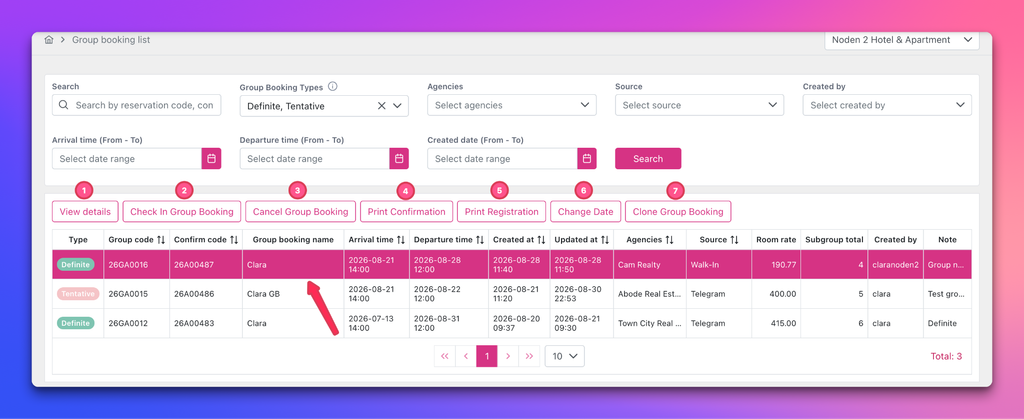
View details button (1): Click to access Group booking detail screen.
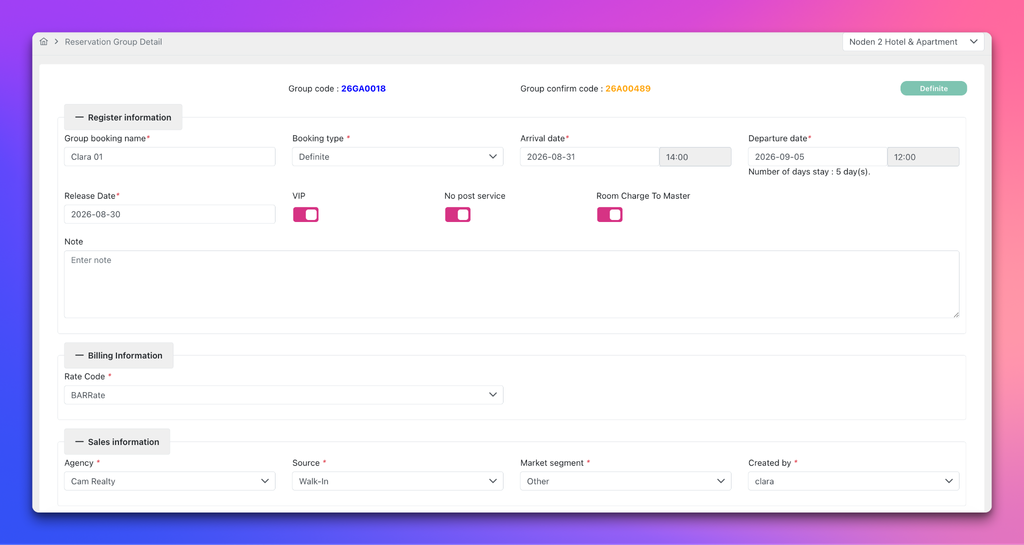
Before releasing Subgroup:
Register Inf Section:
- Editable fields: Group booking name, Booking type, Departure date, Release Date, Guest type, VIP, No post service, Room Charge to Master, Note, Arrival date
Billing Inf Section: Rate code can edit
Sale inf section: When subgroups has not been released. Agency, MS, Source, Created by can edit
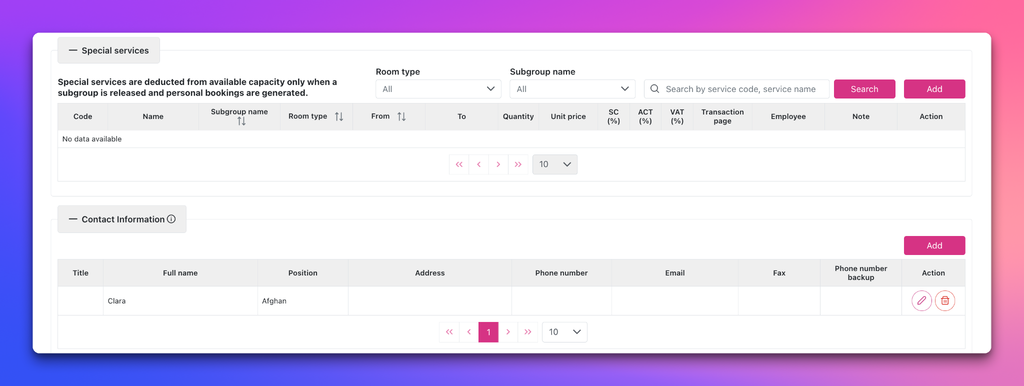
Special service section: can edit
Contact inf section: can edit
Subgroup inf section:
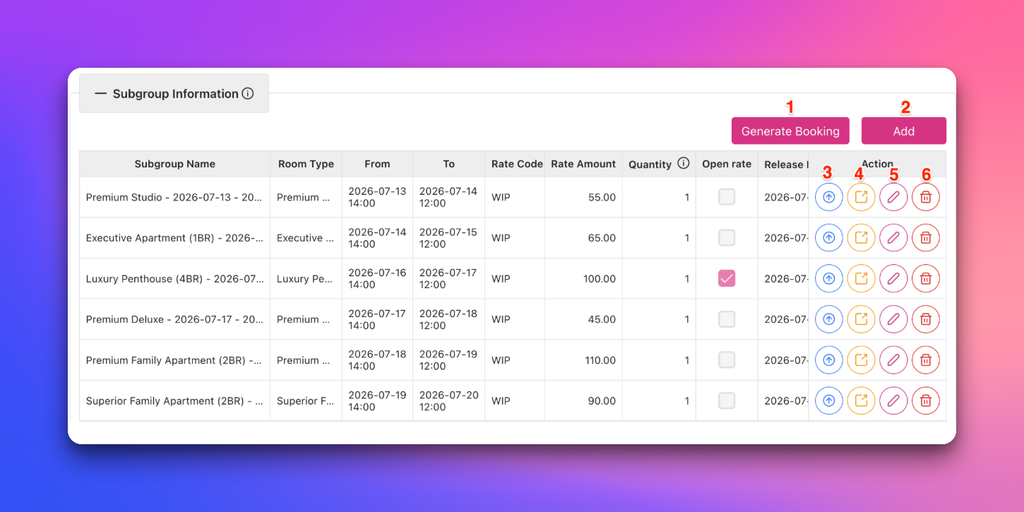
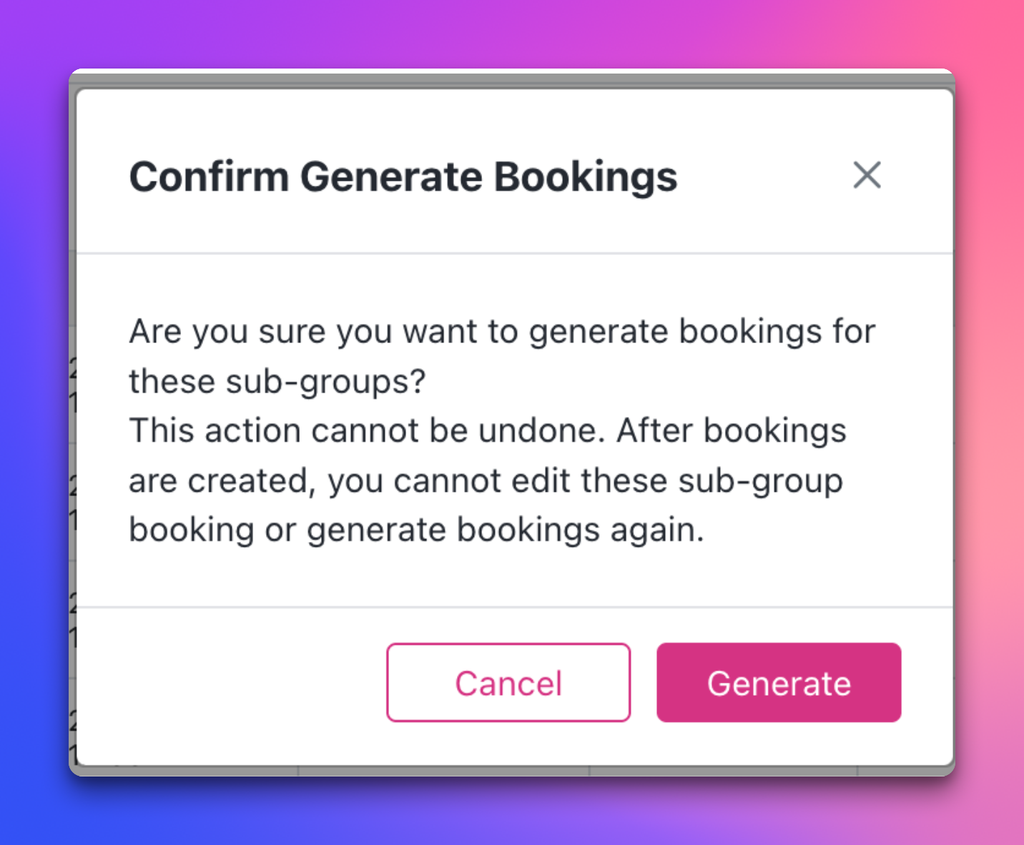
Generate Booking (1): User can generate the entire subgroup. Click “Generate” button to confirm this process.
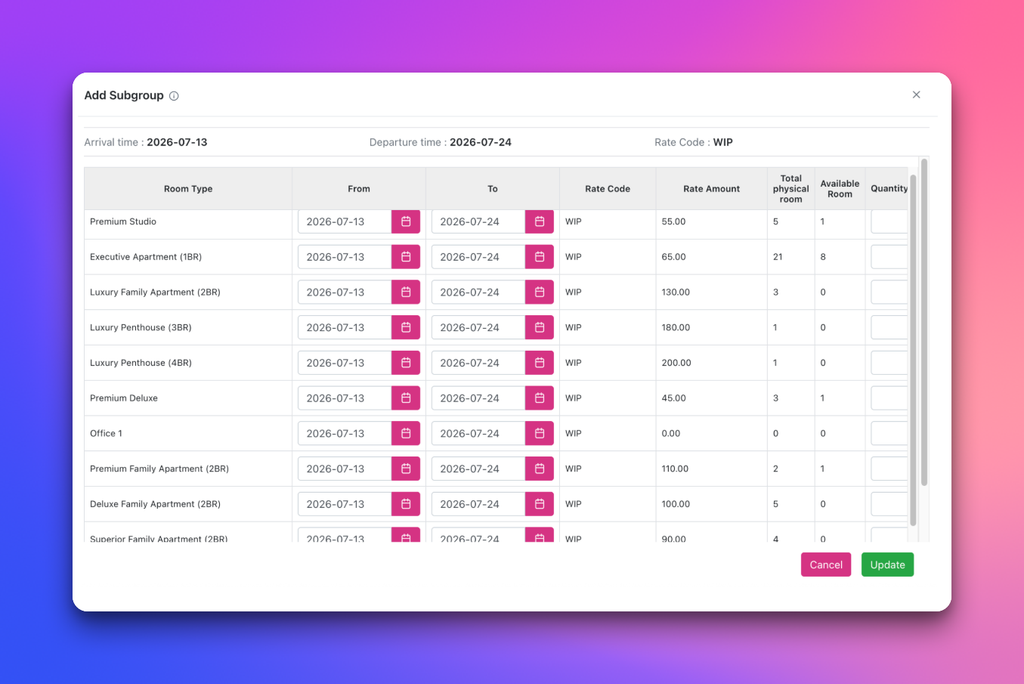
Add (2): User can add more a new subgroup or subgroups. When clicking Add button, a pop up will display ( please refer procedure at 2.6 Subgroup Information ).
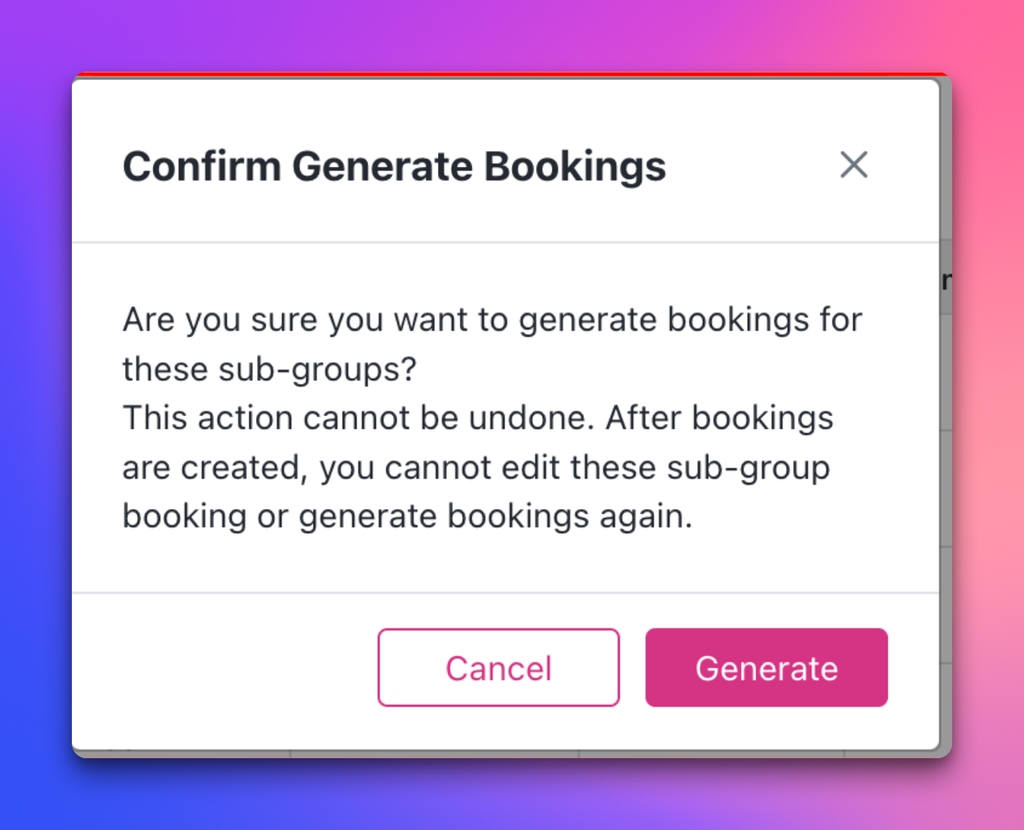
Generate each subgroup (3): Instead of generating whole subgroups, user can generate each subgroup individually by clicking “Release subgroup” icon and clicking “generate” button to confirm
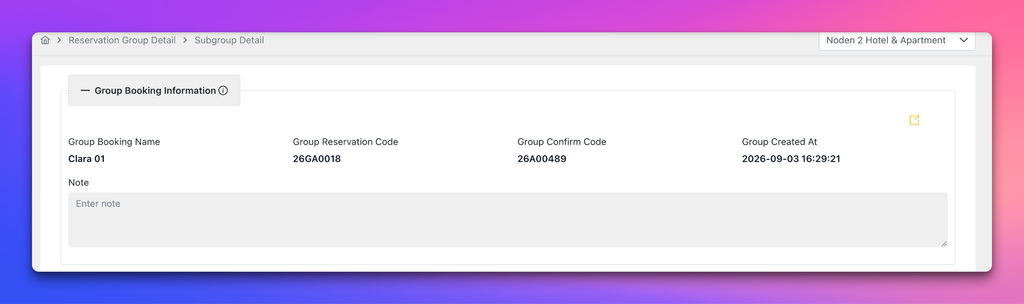
Subgroup Detail (4): When clicking this button, system will direct user to Subgroup Detail screen.
It includes sections:
- Group Booking information
- Subgroup information
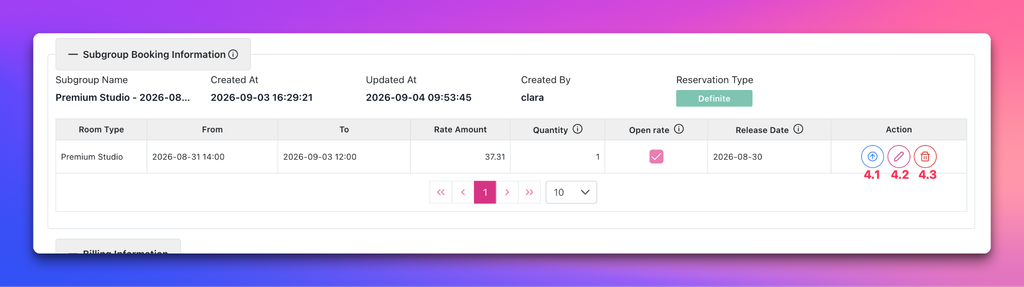
(4.1) generate subgroup:
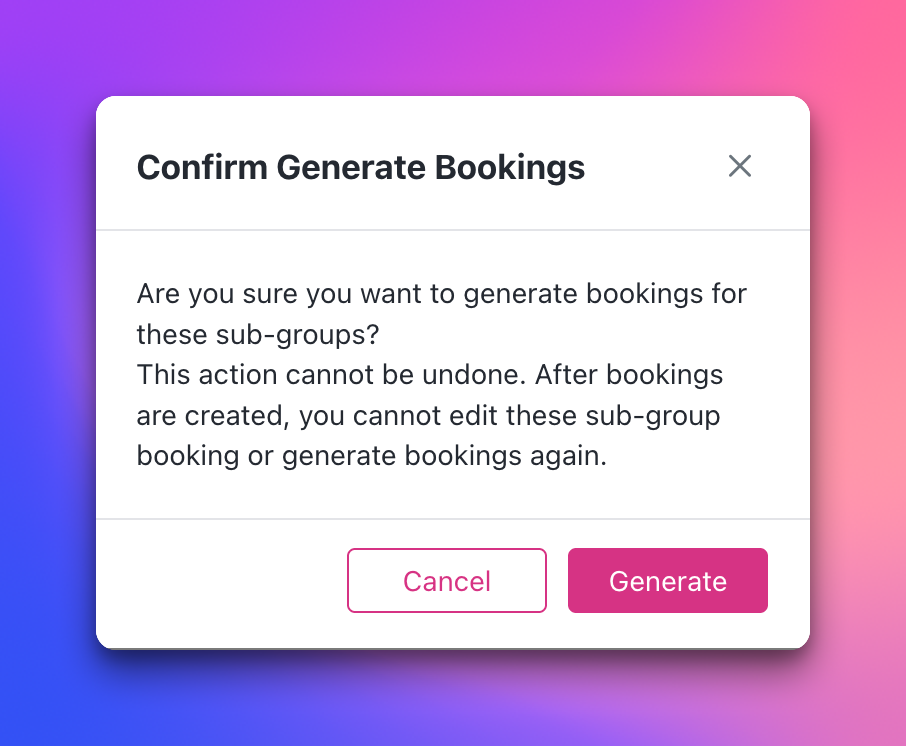
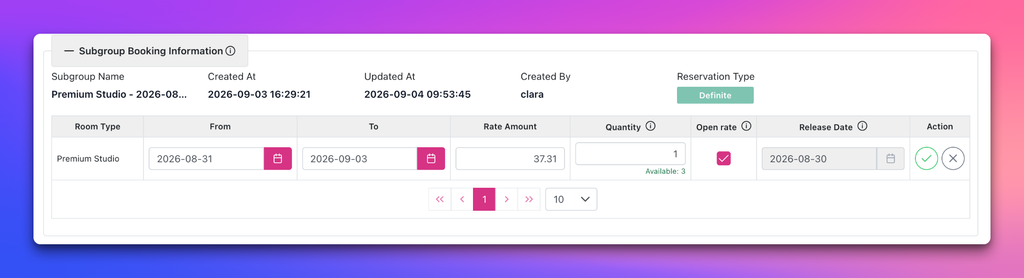
(4.2) Modify subgroup: arrival date, departure date, quantity, rate amount.
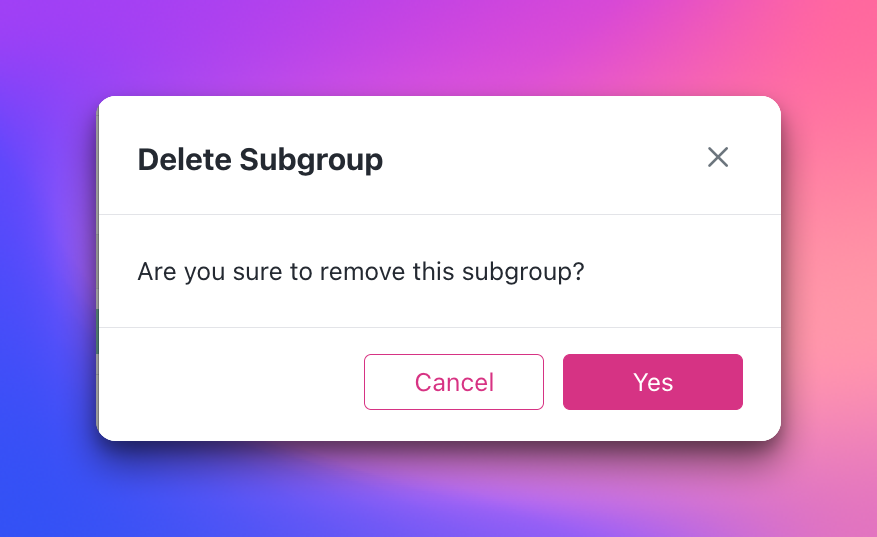
(4.3) Delete subgroup:
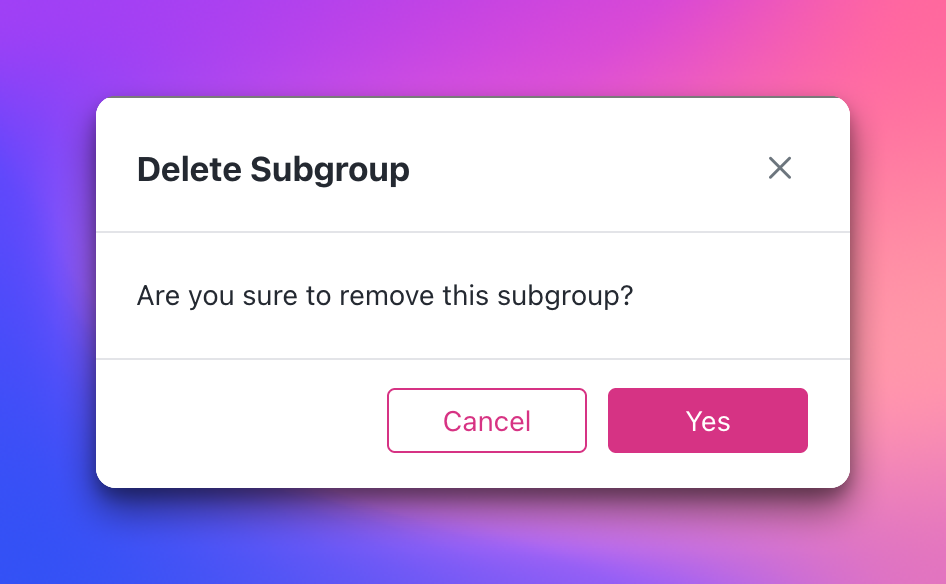
In case, Group just has only a subgroup → after deleting this subgroup successfully → Screen re-direct to Group Reservation Detail.
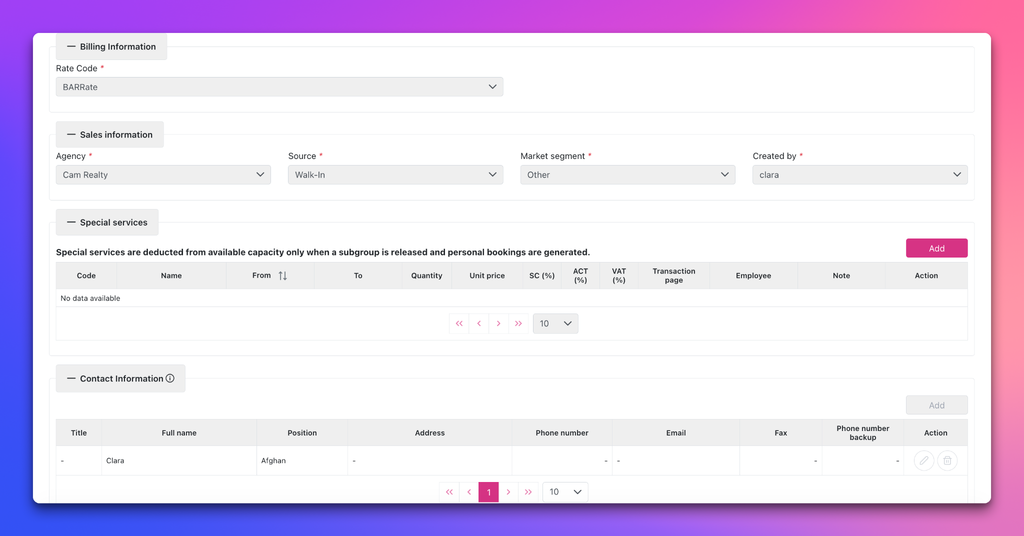
- Billing information: Disabled. Only modify at Group Reservation detail screen.
- Sales information: Disabled. Only modify at Group Reservation detail screen.
- Special services: Can add new/ edit
- Contact information: Disabled
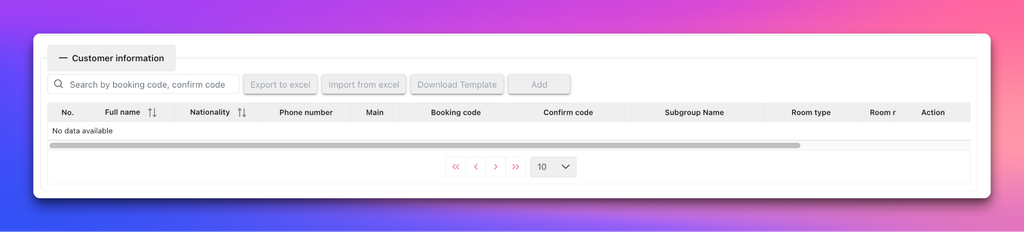
- Customer information: suspended only display data when subgroup has been released.
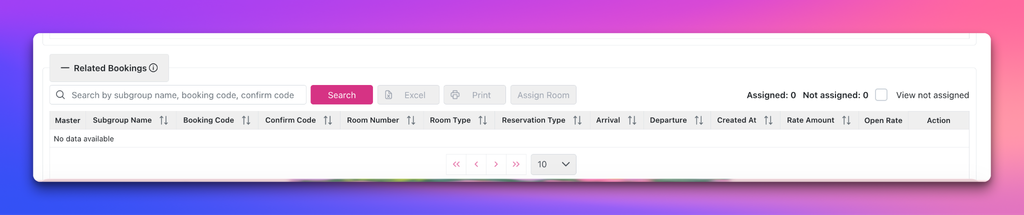
- Related bookings: Only displays data when subgroup has been released
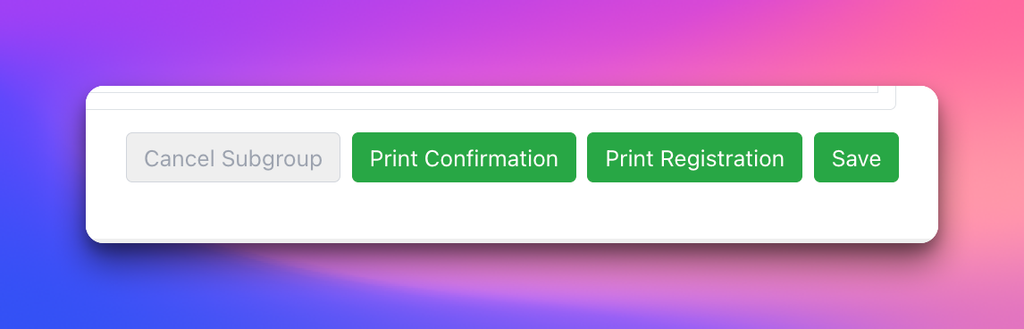
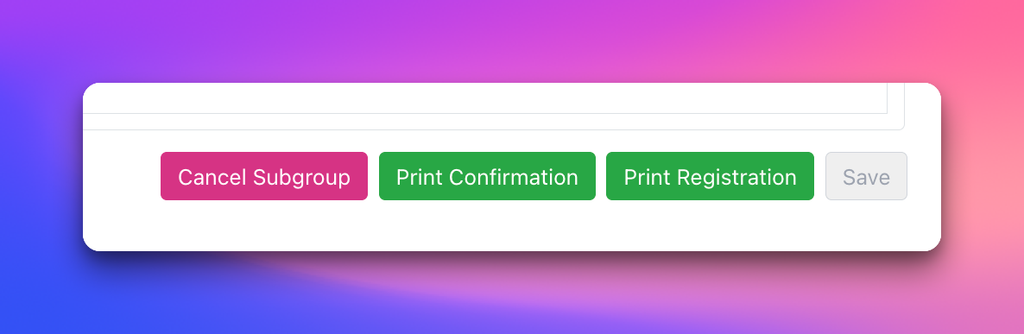
- Enabled action buttons: Print confirmation, Print registration, Save
- Disabled action buttons: Cancel subgroup (enabled when this subgroup was released).
Subgroup inf section at Group Reservation Detail screen
Edit (5) subgroup: Subgroup name, From – To, Rate amount, quantity, Open rate.
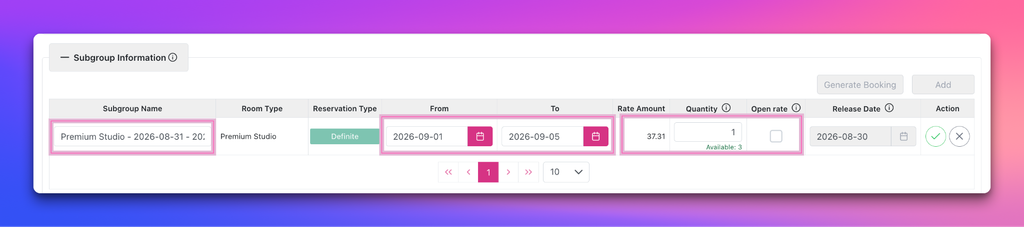
Delete Subgroup (6):
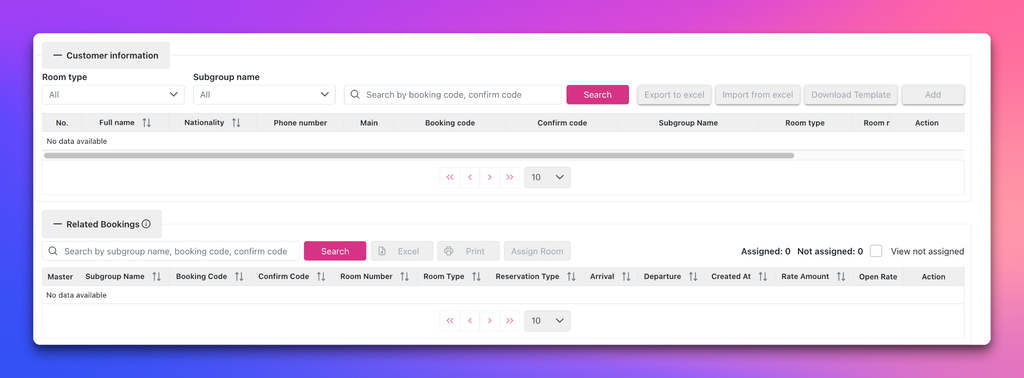
- Customer information: Only display data when subgroup was released
- Related bookings: Only display data when subgroup was released
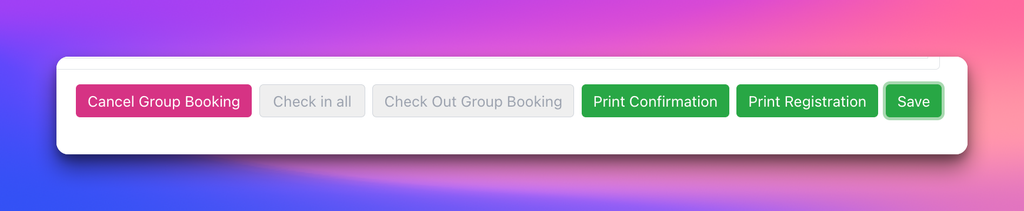
- Enabled action buttons: Cancel Group Booking, Print confirmation, Print registration, Save
- Disabled action buttons: Check in all, Check out Group booking ( enabled when subgroups are released)
After releasing subgroup:
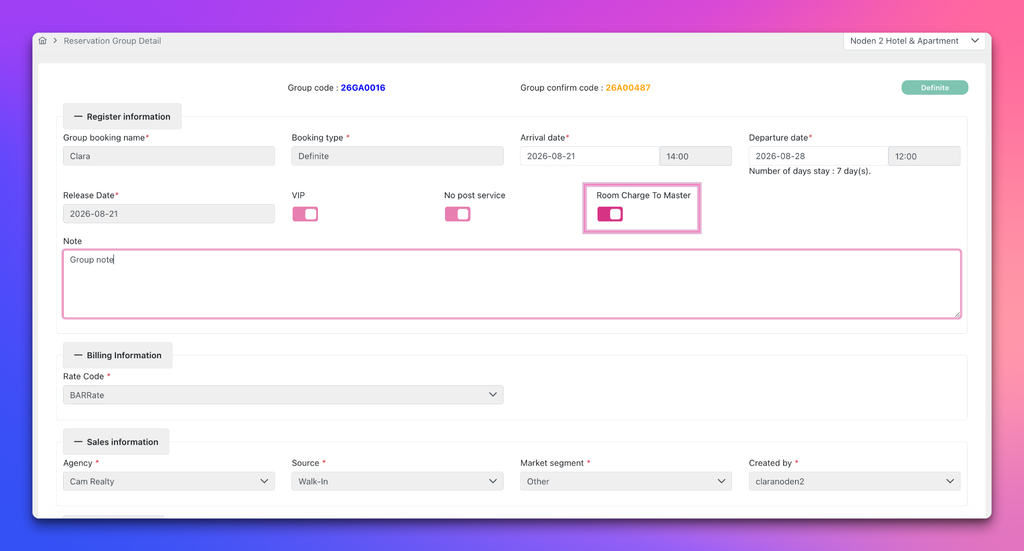
Register Inf Section:
- Editable fields: Arrival date, Departure date, Room Charge to Master, Note.
- Disabled field: Group booking name, Booking type, Release Date, VIP, No post service,
- Billing Inf Section: Rate code is disabled
- Sale inf section: When subgroups are released completely. Agency, MS, Source, Created by are disabled, can not edit
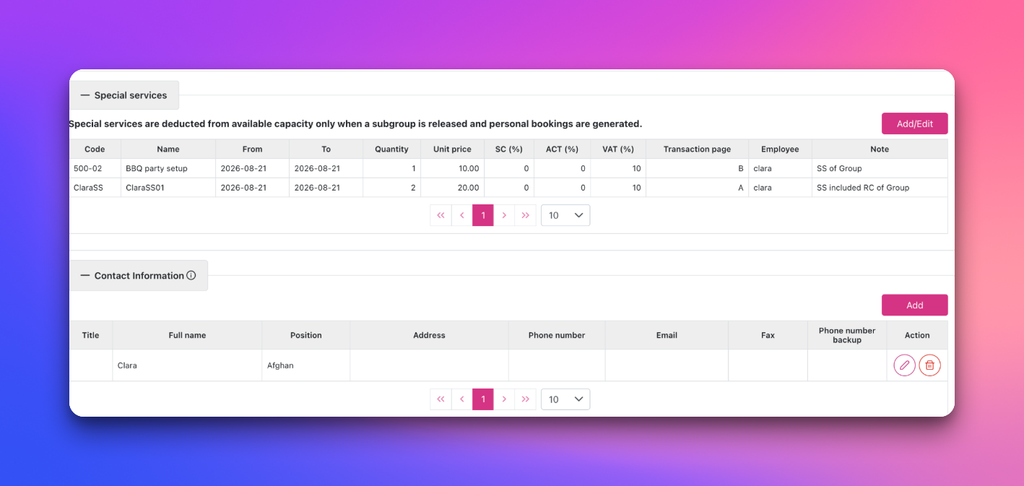
Special service section: can edit
Contact inf section: can edit
- Subgroup information
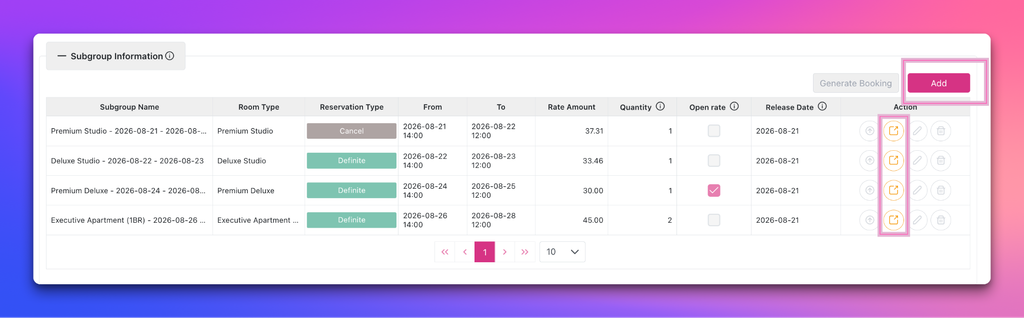
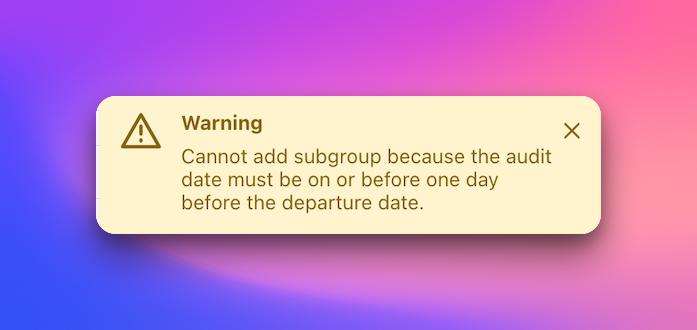
- Add button: enabled. There are 2 cases:
- Departure date < or = audit date → Failed and display failed message
- Departure date > Audit date → Add more subgroup successfully
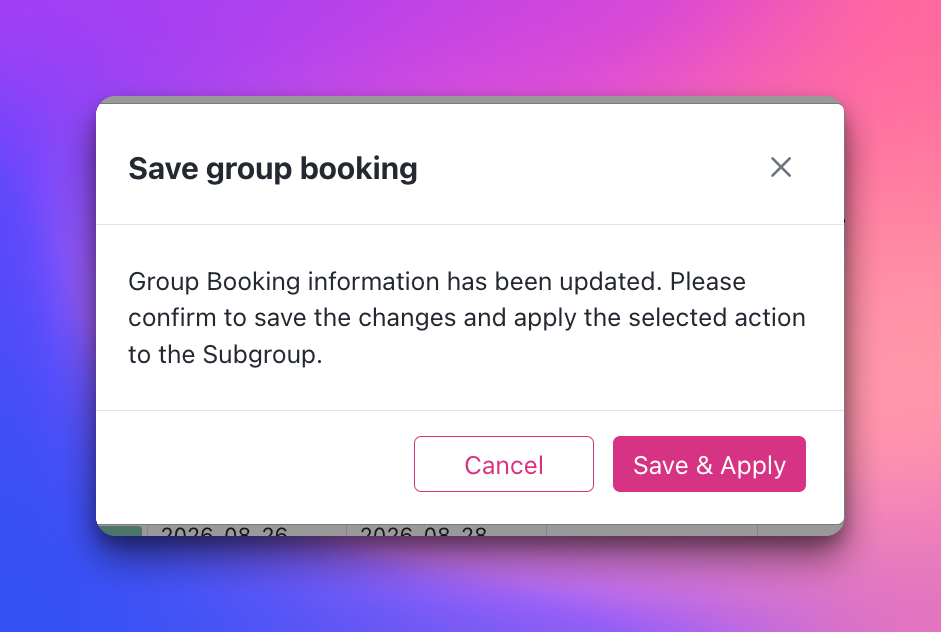
Click Save & Apply:
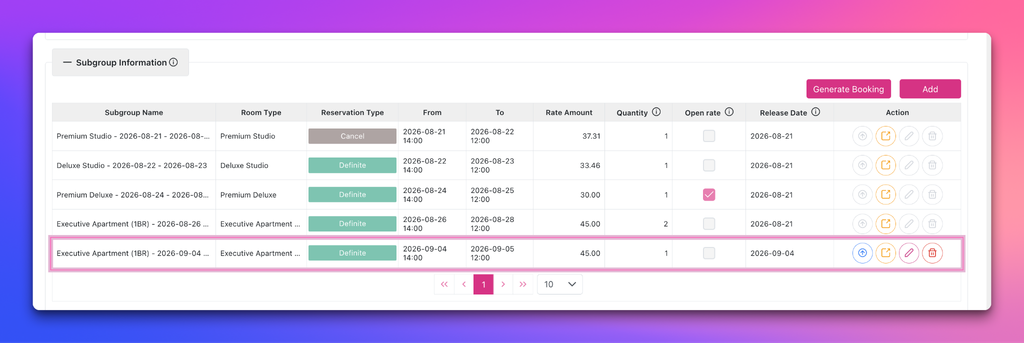
Action: Open subgroup detail:

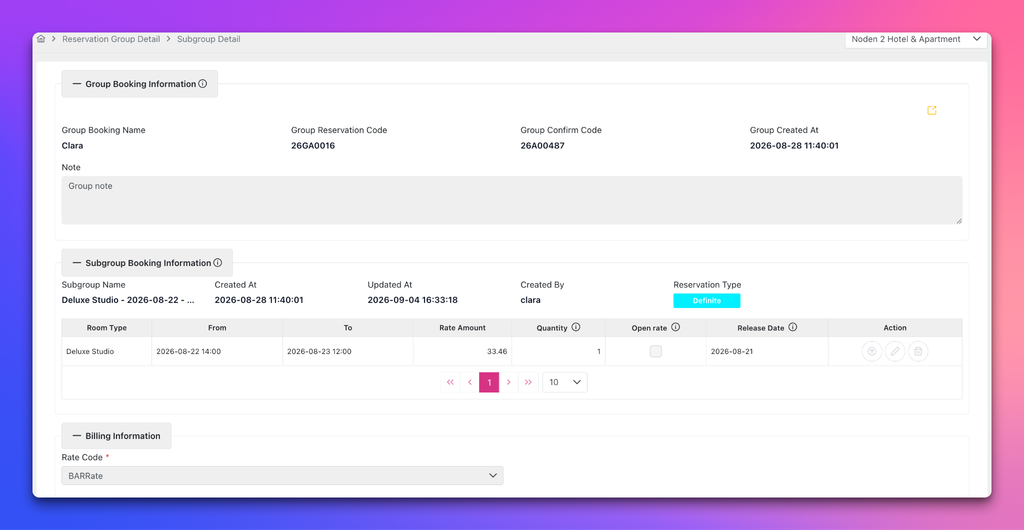
- Group booking information
- Subgroup information: disabled
- Billing information: disabled
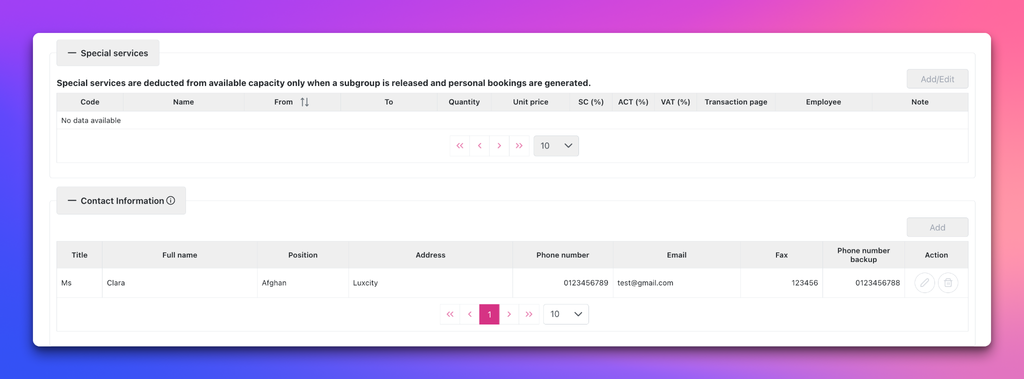
- Special services
- Contact information
- Customer information
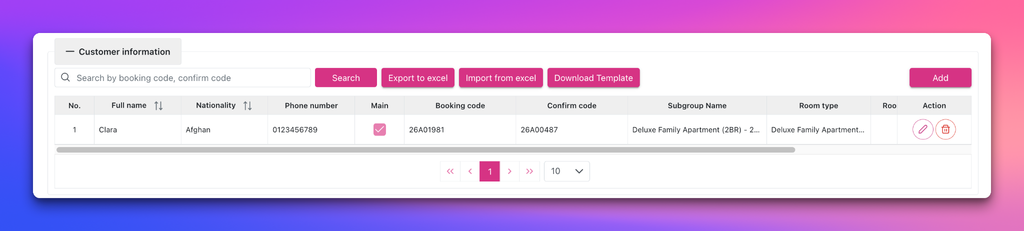
- Export to excel: Booking Group Customer
- Import from excel:
- Download Template: Booking Group Customer Template
- Add:
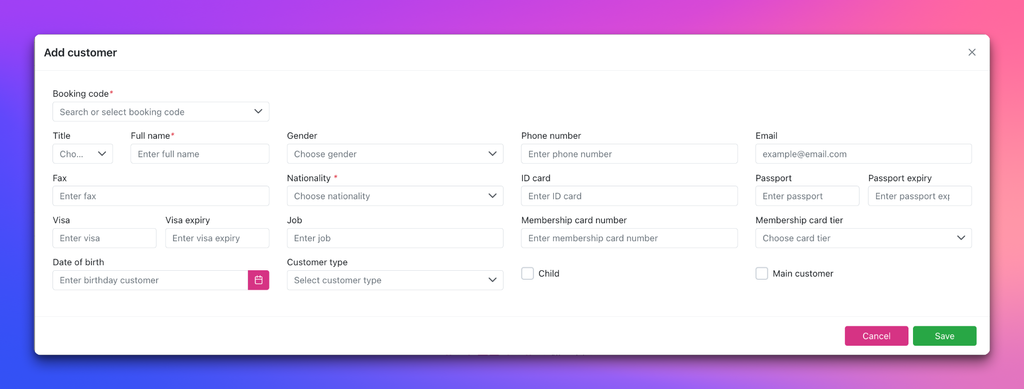
- Edit:
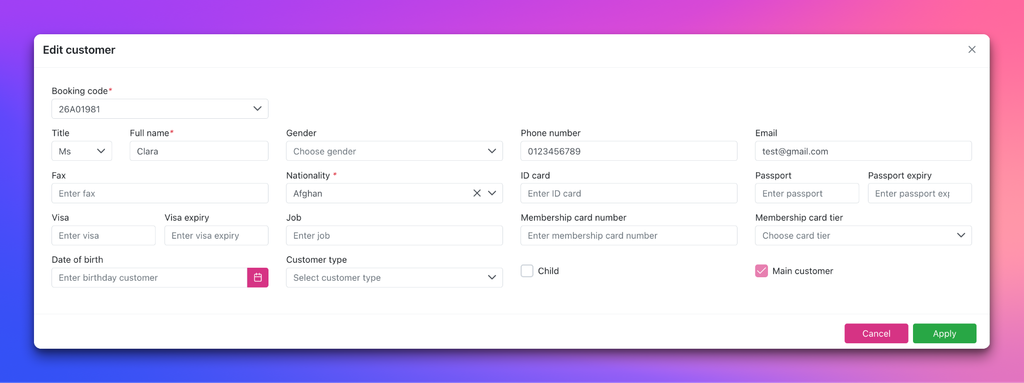
- Related bookings:
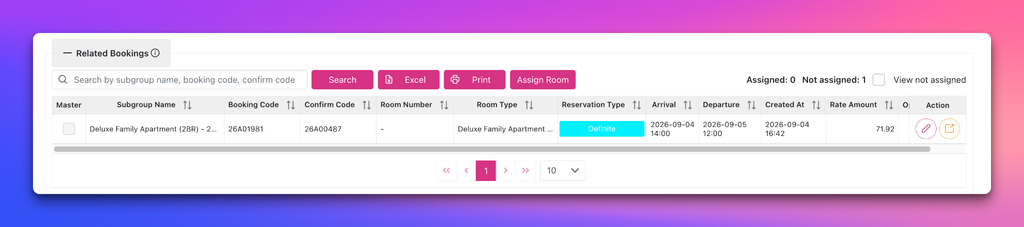
- Excel: Related Bookings
- Print:
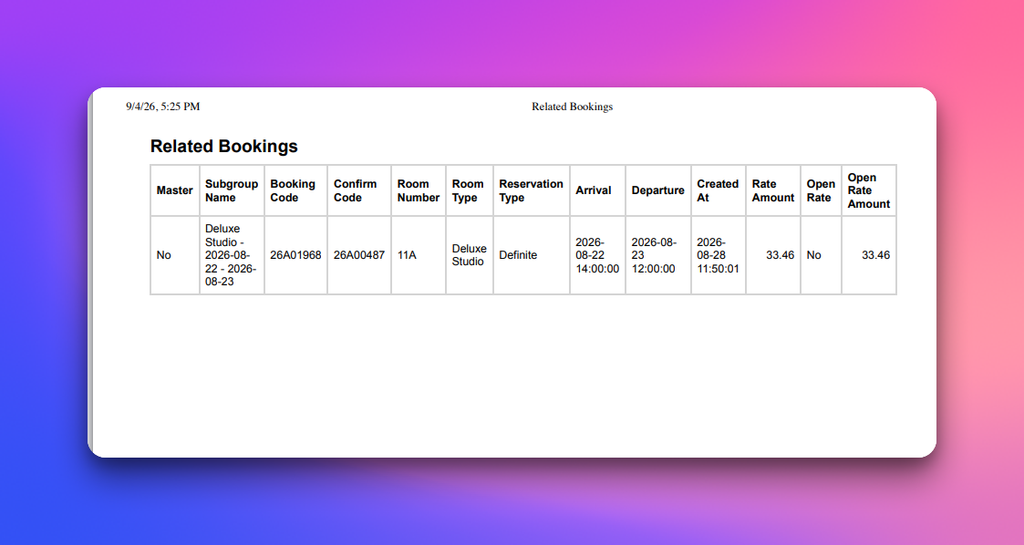
- Assign Room: Only affect on Booking Reservation type: Definite, Tentative
- Action buttons
- Customer Information at Group Reservation Detail screen:
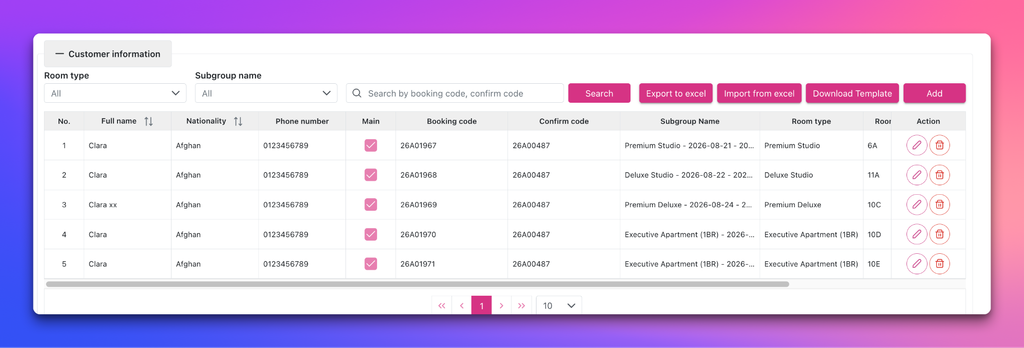
- Search: booking code, confirm code
- Export to excel: Booking Group Customer
- Import from excel
- Download template: Booking Group Customer Template
- Related bookings
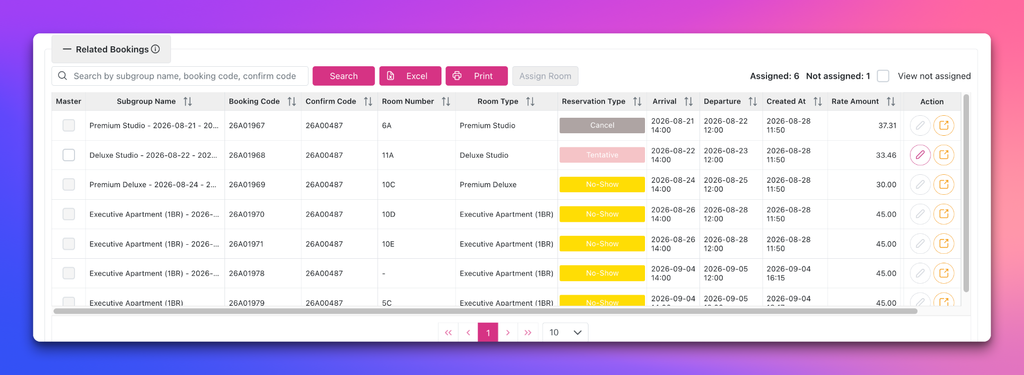
- Search: subgroup name, booking code, confirm code
- Excel: Related Bookings
- Print:
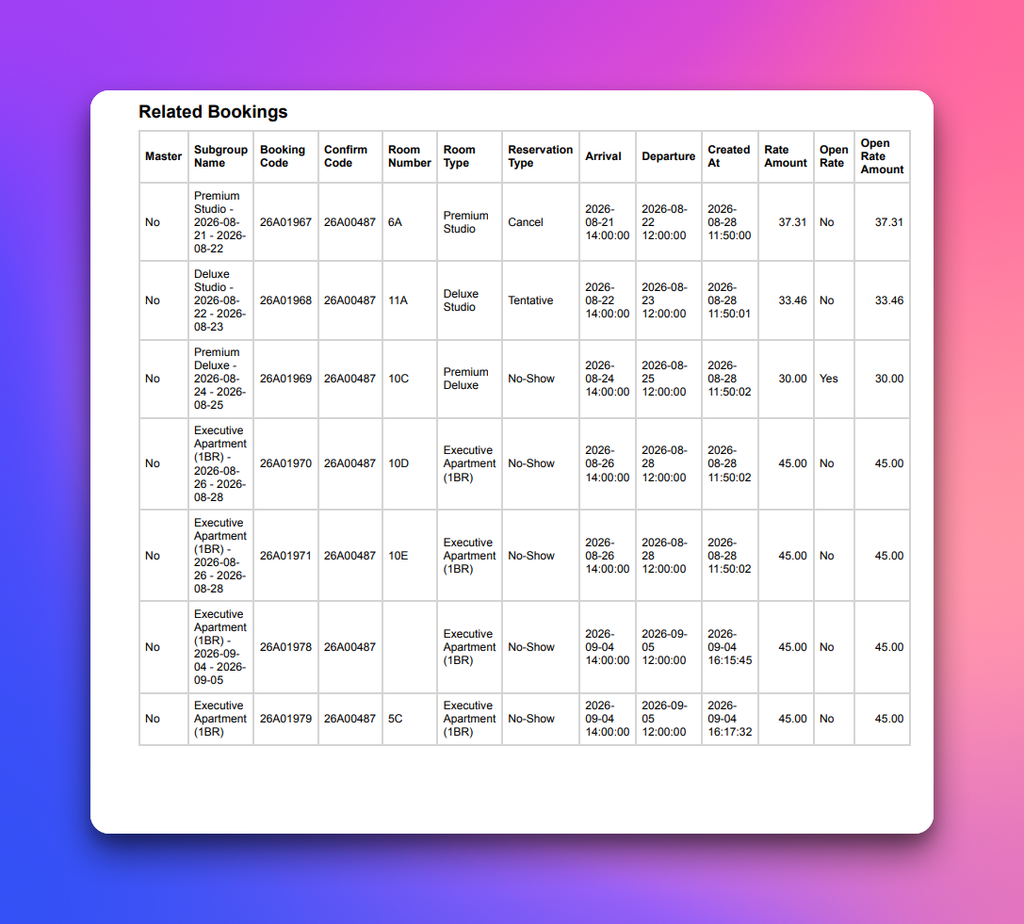
- Edit child booking: Select/ Re-select room number
- View child booking:
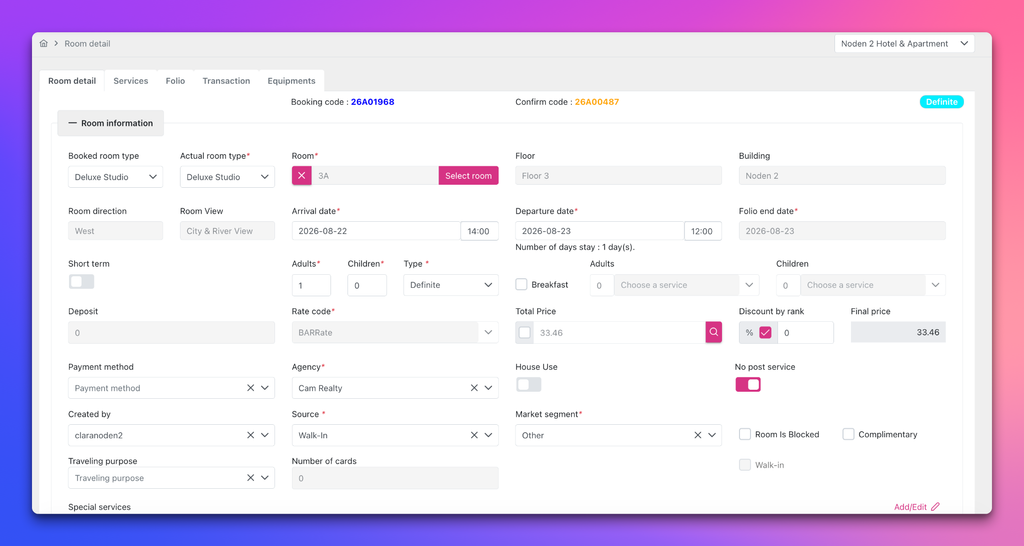
- Action buttons:

- Enabled buttons:
- Cancel Group Booking
- Check in all
- Print Confirmation:
- Print Registration:
- Save
- Disabled button: Check out Group Booking