Housekeeping service
Menu path: Room > Housekeeping > Task assignment > Housekeeping service
Use the Housekeeping service tab to charge housekeeping items (cleaning fee, laundry, minibar, lost and damage) to a checked-in booking. You can also view, edit or void the charges. Template A wasn’t included, so I used the structure from your instructions.
Screen overview
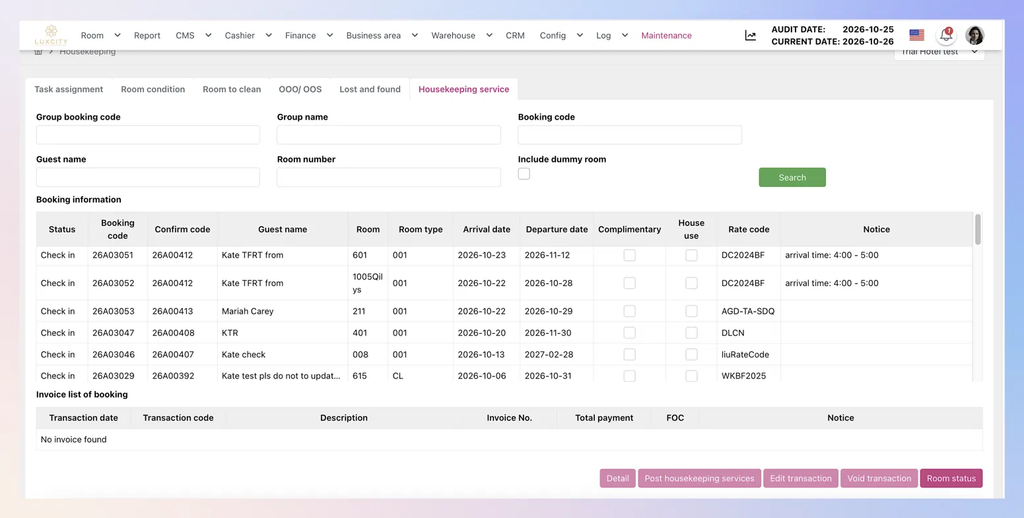
- A. Tabs: Task assignment, Room condition, Room to clean, OOO/ OOS, Lost and found and Housekeeping service (the active tab).
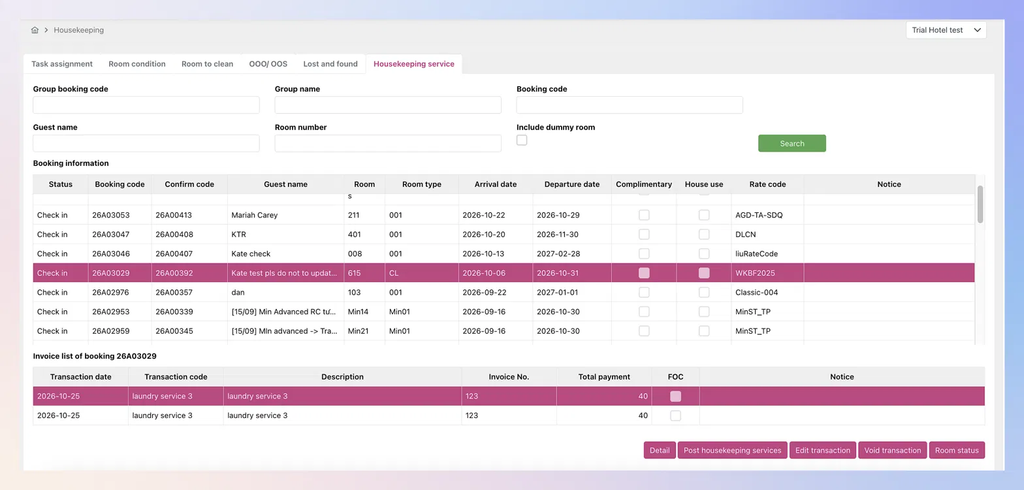
- B. Search fields: Group booking code, Group name, Booking code, Guest name, Room number.
- C. Include dummy room: A checkbox that adds dummy rooms to the results.
- D. Search button: Runs the search.
- E. Booking information: The matching bookings, with Status, Booking code, Confirm code, Guest name, Room, Room type, Arrival date, Departure date, Complimentary, House use, Rate code and Notice.
- F. Invoice list of booking: The charges already posted to the selected booking. Its title shows the booking code, for example Invoice list of booking 26A03047. Columns are Transaction date, Transaction code, Description, Invoice No., Total payment, FOC and Notice.
- G. Action buttons: Detail, Post housekeeping services, Edit transaction, Void transaction and Room status.
Button rules:
- Post housekeeping services turns on when you select a booking in E.
- Detail, Edit transaction and Void transaction turn on only when you select a charge in F.
- Room status is always available.
Find a booking
You can search with one field or combine several.
| Option | What it does | Value you enter | Short example |
|---|---|---|---|
| Group booking code | Finds the bookings in one group | The group’s booking code | (your group code) |
| Group name | Finds the bookings in a named group | The group name | (your group name) |
| Booking code | Finds one booking | The booking code | 26A03047 |
| Guest name | Finds bookings by guest | The guest’s name | Mariah Carey |
| Room number | Finds the booking in a room | The room number | 401 |
| Include dummy room (checkbox) | Includes dummy rooms in the results | Tick the box | n/a |
- Enter a value in one or more search fields.
- Tick Include dummy room only if you need dummy rooms.
- Select Search.
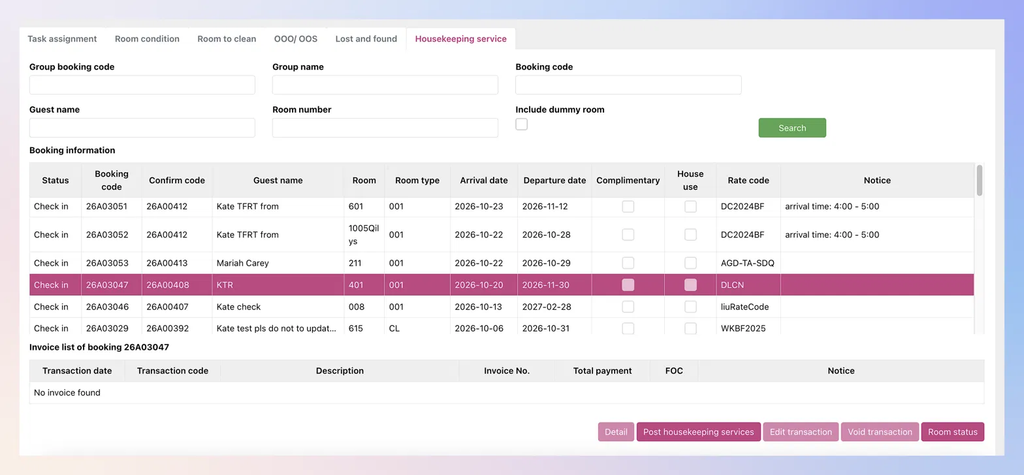
- Select the booking row in E.
Result: The booking row is highlighted and F shows its charges. If the booking has none, F shows No invoice found. The source says only checked-in bookings can be searched.
Post a housekeeping service
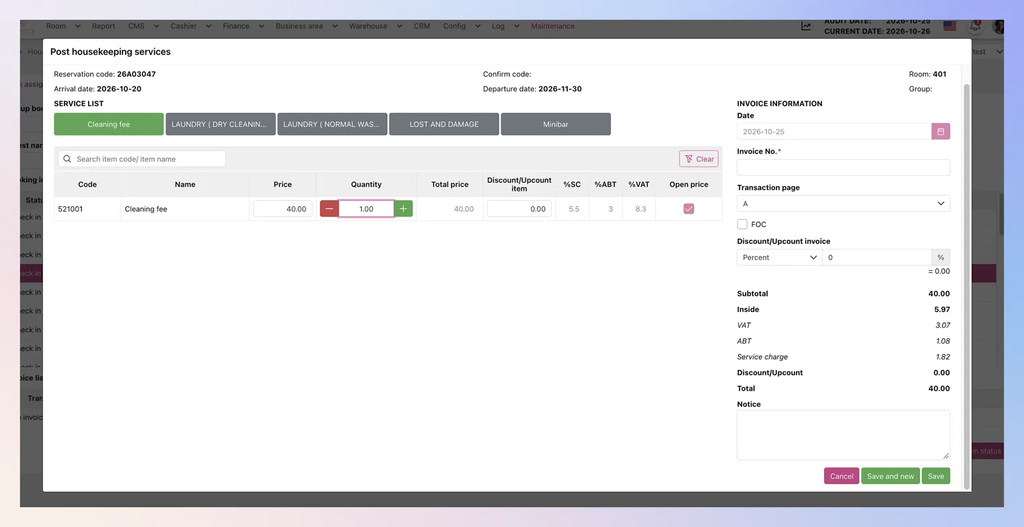
- Select the booking in E, then select Post housekeeping services. The popup shows the reservation code, confirm code, room, arrival and departure dates and group.
- In SERVICE LIST, select a category: Cleaning fee, LAUNDRY (DRY CLEANING), LAUNDRY (NORMAL WASH), LOST AND DAMAGE or Minibar. To look for a specific item, type its code or name in the search box. Select Clear to reset the search.
- In the item row, set the Quantity with the − and + buttons. Enter a Discount/Upcount item if one applies. You can edit the Price only when Open price is ticked for that item.
- In INVOICE INFORMATION, enter the Invoice No. (required). Choose a Transaction page, tick FOC if the charge is free of charge, and set a Discount/Upcount invoice (Percent and a value). You can add a Notice.
- Select Save to post the charge and close the popup, or Save and new to post it and start another. Select Cancel to close without posting.
Result: The charge appears in the invoice list of the booking, with the invoice number and total payment you entered.
Rules:
- The Date defaults to the audit date, 2026-10-25 in the example.
- The popup shows the totals as you work: Subtotal, Inside, VAT, ABT, Service charge, Discount/Upcount and Total.
Check the tax breakdown
The taxes are already inside the price, so they are not added on top.
Example: You post 1 × Cleaning fee at 40.00 with no discount.
| Line | Amount |
|---|---|
| Subtotal | 40.00 |
| VAT | 3.07 |
| ABT | 1.08 |
| Service charge | 1.82 |
| Inside (VAT + ABT + Service charge) | 5.97 |
| Discount/Upcount | 0.00 |
| Total | 40.00 |
The guest pays 40.00. The 5.97 is the part of that amount that is tax and service charge.
View a charge’s details
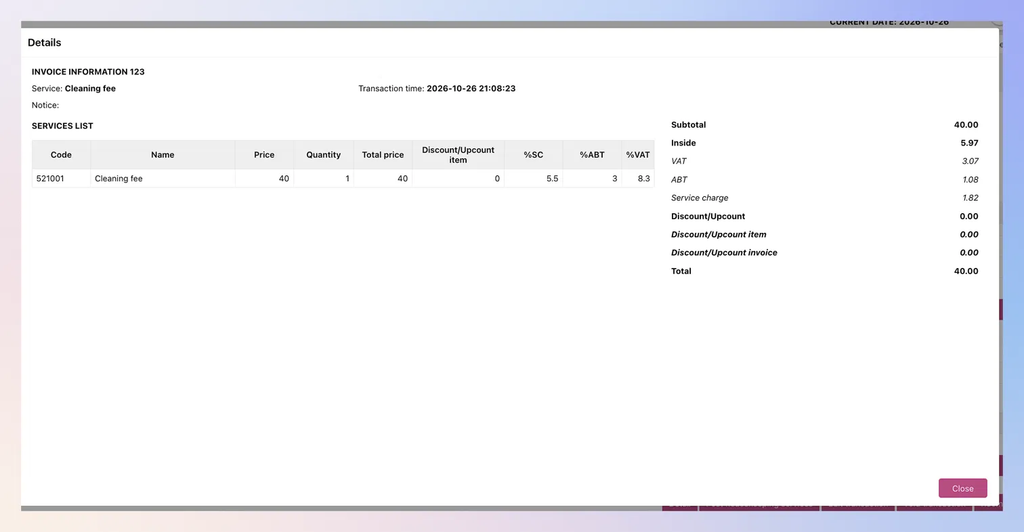
- Select the booking in E, then select the charge in F.
- Select Detail.
- Review the information, then select Close.
Result: The Details popup shows the invoice number, service, transaction time, notice, the service line (code, name, price, quantity, total price, discount, %SC, %ABT, %VAT) and the totals.
Edit a charge
- Select the booking in E, then select the charge in F.
- Select Edit transaction.
- Change the Price, Qty, Discount or Invoice No. [Confirm: I don’t have a screenshot of this popup.]
- Select Save.
Result: The charge shows the updated values.
Void a charge
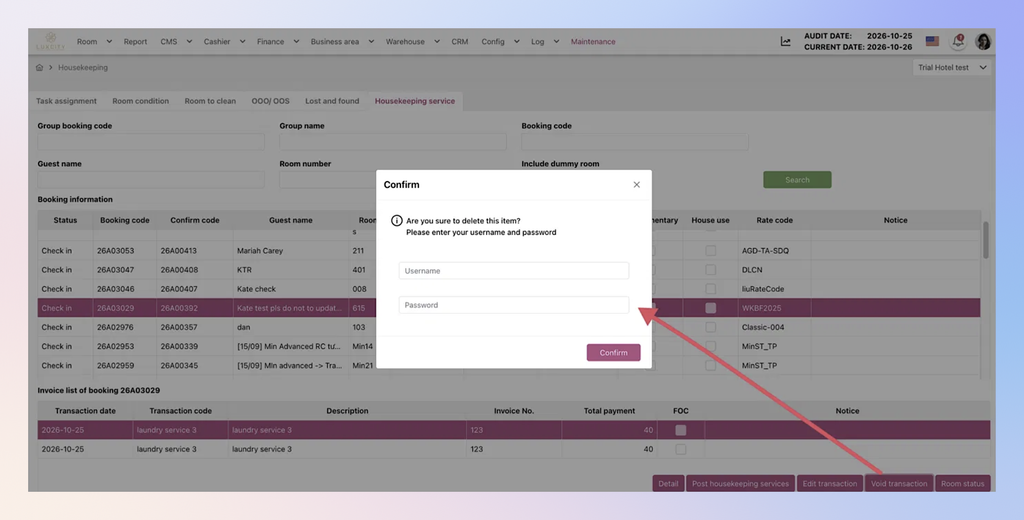
Only users with the void permission can void a charge. You enter their credentials during the process.
- Select the booking in E, then select the charge in F.
- Select Void transaction.
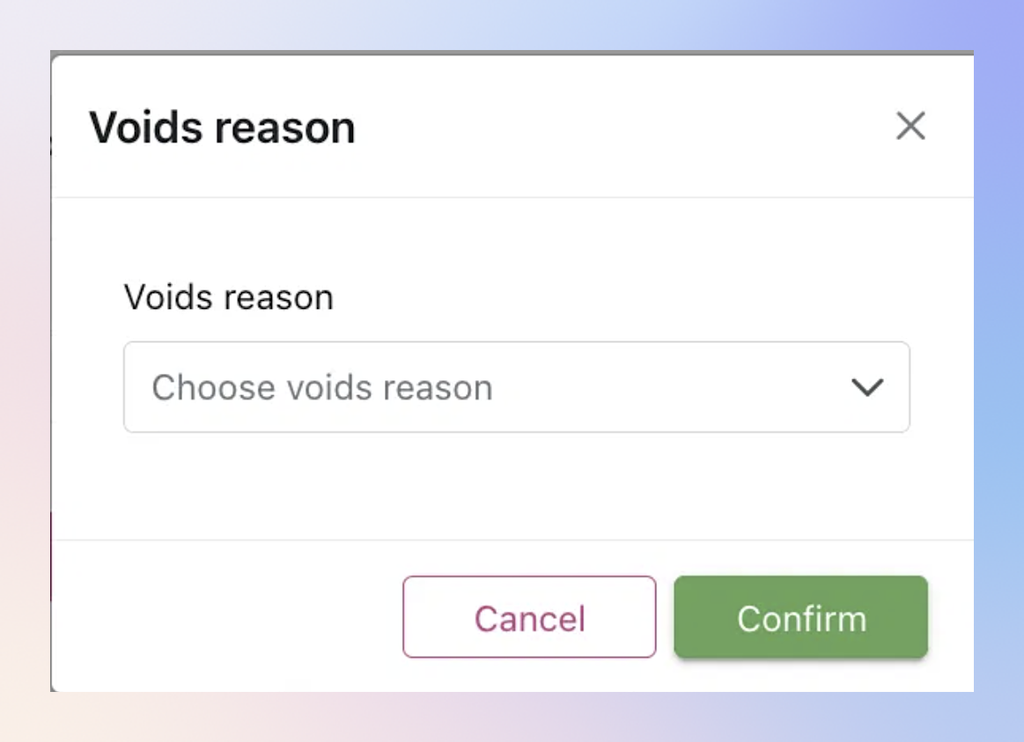
- In the Voids reason popup, choose a reason from Choose voids reason, then select Confirm.
- In the Confirm popup (Are you sure to delete this item?), enter your Username and Password, then select Confirm. [Confirm the order of steps 3 and 4. The source lists the reason first.]
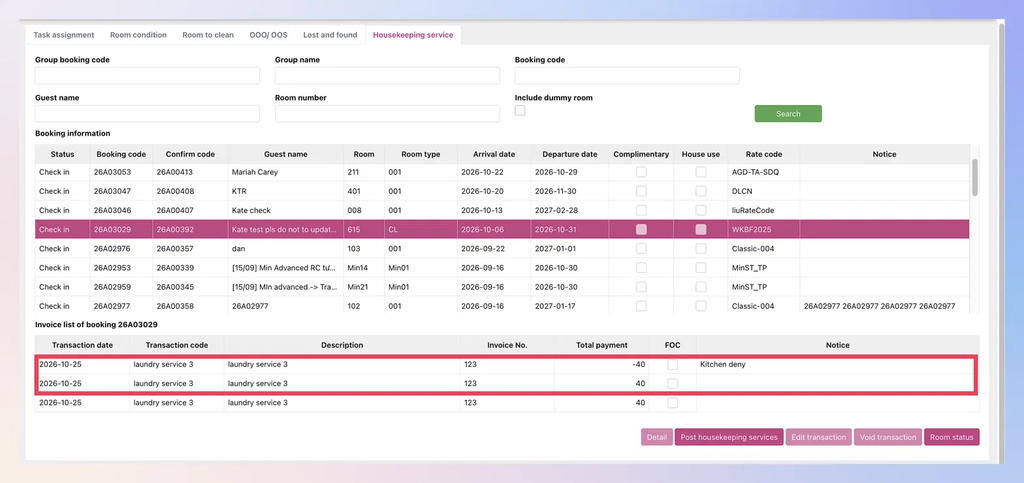
Result: The system adds a new line with a negative amount and your reason in the Notice column. The original line stays in the list. For example, booking 26A03029 had two charges of 40 on invoice 123. After one was voided with the reason Kitchen deny, the list shows -40, 40 and 40, so the booking owes 40.
Open Room status
Select Room status.
Result: The page reloads and opens the room status view.