-
Update PMS
-
- HM-2400 [UPDATE] Total Transaction Report - Change the display format for droplist Room/Table
- HM - 4767 Inhouse guest report - Filter by guest type
- HM-5505: [UPDATE] CMS - Update cancel policies
- HM-5586: [UPDATE] Menu Item Sales Report - Add Shift filter
- HM-5428 [UPDATE] Booking - Can cancel Booking that have not been CI and Balance = 0
- HM-4059[UPDATE] Report - Allow to view final bill in FnB Revenue report
- HM-4703 [UPDATE] KTV - Display the percentage (%) when the user adds a discount or surcharge to an item or order
- HM-4627 [UPDATE] FNB-Display the percentage (%) when the user adds a discount or surcharge to an item or order
- HM-4275 [UPDATE] - [FnB Report] - Combine data from the "FnB post to room" report into the "FnB revenue/ discount/ payment" report
- HM-5063 [UPDATE] FNB bill - Change line ABT & VAT tax
- HM-2300 [NEW] FNB - Allow to add Open item
- HM-4249 [HF] Add Reason when using Open discount FNB
- HM-987 [PROD] - [FnB/KTV] - Allow searching Vietnamese with diacritics
- HM-4640 [NEW] BUSINESS AREA - Allow configuring specific payment types for each Business Area
- HM-5428 [UPDATE] Booking - Can cancel Booking that have not been CI and Balance = 0
- HM-2088 [NEW] REPORT - Cancelled/ Noshow Reservation report
- HM-3551: [Update] - Create/Edit booking/Confirmation form - Add formal titles before surname/full name
- UPDATE] HM-2400 Total Transaction Report - Change the display format for droplist Room/Table
- [HM-5498] [UPDATE] OTA - Create a price configuration with tax for OTA
- Show Remaining Articles (4) Collapse Articles
-
- HM-3657 QC - [Update] - [FnB Report] - Add a filter function to get data by night audit date
- HM5301- [UPDATE] Tab Transaction > Booking Details - Allow the user to edit the Note field
- HM-3931 : [UPDATE] List reservation - Display all guest names on screen for personal booking
- HM-3126: [UPDATE] Notification - Alert when there is FnB or HK service post to room
- HM-5744: [UPDATE] FOLIO - Allow to change transaction page when booking's reservation type is Checkout/ Noshow/ Cancelled
- HM4851- [UPDATE] Room occupancy - Display number of available Special
- HM-5041 [NEW] Room status - Open popup when click on special service
- HM-4670 [UPDATE] DASHBOARD - Fix the display logic of the ‘Move Room’ field in the ‘Activity’ section of the ‘House Status’ screen
- HM-5790: Booking report - Add "Rental type" filter, "Rental type" column and report's subtitle
- HM-5813 [UPDATE] REPORT - Hide the "Search by" filter for the Breakfast report
- HM-5855 [UPDATE] DETAIL RESERVATION - Fix bug about displaying payment note after edited
- HM-3336 FnB - Add option View details at Bill list > Payment bills tab
- HM-5032: [PROD] Booking Detail - Room Detail - Optimize
- HM - 5683: [PROD] Report - Incorrect display of Booking status information.
- HM-5847 [UPDATE] Booking report - Remove the requirement to filter by From–To Date fields
- HM-5789: [UPDATE] Add column rate_change to payment_details
- HM-5700 [UPDATE] Report - FNB/KTV Menu item sales report update performance
- HM -3978 [UPDATE] Report - Breakdown Revenue for FnB reports
- HM-5636 [UPDATE] BUSINESS AREA/ RESERVATION - Automatically convert the payable amount when changing the currency type in the payment popup.
- [UPDATE] HM-5798 Room schedule - Do not allow deletion of a room if it has an OOO/OOS configuration.
- Show Remaining Articles (5) Collapse Articles
-
- HM -3978 [UPDATE] Report - Breakdown Revenue for FnB reports
- UPDATE] HM-5788 Report - Add Rental type and Rate code column to Total Transaction Report
- HM-5357 [UPDATE] Booking Service - Add function "Confirm and Print miscellaneous"
- HM-5317 [UPDATE] Night audit - Add function Export in Check rate code popup
- HM-5954 [UPDATE] Arrival report - add column Nationality
- [UPDATE] FNB/KTV/SPA - Configure to display voided items in bill/pre-check
- [UPDATE] Dashboard/ List reservation - Display room status on the “Arrival Expected” popup and the List reservation
-
- [UPDATE]-5607 Dashboard/ List reservation - Display room status on the “Arrival Expected” popup and the List reservation
- HM-5748 [UPDATE] BOOKING - Add "Walk in" checkbox on the Create/ Detail reservation/ Reservation list
- HM-4434 : [NEW] REPORT - Actual Walk-In Report
- HM-5609 [UPDATE] Cashier Transaction - Add a “Due out” checkbox to the filter section
- HM-5851 : [PRO] - Add column Transaction date in Report Move room log report
- [NEW] REPORT-H4434 - Actual Walk-In Report
- [UPDATE] BOOKING - Add "Walk in" checkbox on the Create/ Detail reservation/ Reservation list
- [UPDATE] Cashier Transaction - Add a “Due out” checkbox to the filter section
- [UPDATE] Create/Edit/Detail booking - Remove require of Guest Types and Payment method
- FNB - E-MENU FOR CUSTOMER
-
- HM-6083- [UPDATE] Booking Service - Not allow using the “Open Price” already been audited
- HM-2266: [NEW] REPORT - Detail Folio By Departure Date Report
- HM-6136 [UPDATE] Housekeeping - Room to clean fix sort by room number
- HM-6049: [UPDATE] CONFIGURATION - Allow configuring the rate code for specific room types
- HM-5243 [UPDATE] BOOKINGS - Add "Save and Checkin" button to the Create reservation/ Reservation detail screen
- HM-4880-02: [UPDATE]: Transfer/ Room charge to master/ Routing - update business logic - tunning code
- HM-4880-01: [UPDATE]: Transfer/ Room charge to master/ Routing - update business logic - tunning code
- HM-5468 01: E-Menu for Customer
- HM - 4267: [UDPATE] CMS - Add the "Include commission" column on the Config OTA screen
- [NEW] HM-6045 REPORT - Cancelled/ No-show reservation report
- Update “Search by” filter: Add “Cancellation date and “No-show date” option
-
- [UPDATE] FOLIO - Allow refunding deposits via a different payment method
- [UPDATE] CMS - Hide the room which have the "number of room sell on CMS" = 0 on the OTA room sale
- [Update] FnB - Add some fields in the "Update information" popup, Create the Customer Visits, Revenue & Source by Customer report, and Create the guest birthday notification feature
- Key card - Auto post service when post Lost key
- [UPDATE] Access Control - Update the text of permission "Room status update"
- [UPDATE] HOUSEKEEPING - Allow to select multiple rooms for the Room filter on the Task assignment/ Room condition/ Room to clean screen
- [NEW] REPORT - Deposit Ledger report
- [NEW] Warehouse/Report - Add a new report for inventory export management
- [UPDATE] Booking report - Add room type droplist
- [UPDATE] CRM - Customer - Allow to search by Phone number
- HM-5282: [UPDATE] Payment report - Add droplist "Payment / Paid out Type"
- HM-5610 [UPDATE] Cashier Transaction - Add a “Balance” column and the "Non-zero balance" checkbox to the Booking section
-
- FnB - Display all guests in booking when selecting room to post
- [NEW] CONFIGURATION - Add the "Feedback link" section and the feedback email flow
- [UPDATE] Booking Engine - Fix the way to display email when the hotel sends the booking confirmation
- [UPDATE] List reservation - Change position of icon OTA
- [UPDATE] Housekeeping - Allow to select "Reservation code" when posting room damage
-
-
Dashboard
-
Room
-
Housekeeping
-
CMS
-
Report
-
Cashier
-
Finance
-
Bussiness Area
-
- Articles coming soon
-
CRM
-
Configuration
-
- Articles coming soon
-
Log
< All Topics
Print
[CMS] – Revenue Manager can manage Extra Rate for BE and OTA on OTA room sale screen so that additional guest charges can be configured by date and synchronized consistently
Posted
Updated
ByKim Admin
- Update: Add a unified checkbox- driven “View more” for Restriction ( both OTA and BE). It also lets users edit Extra rate and Room rate for a single day on the grid, and keeps the data consistent with its source (Bulk update restriction / Dynamic price) and downstream OTA channels.
- Navigation: CMS > OTA Room sale
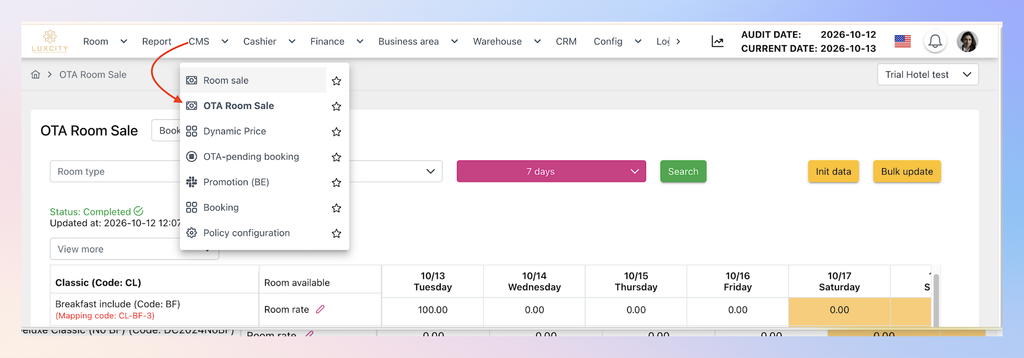
- Edit/Save/Cancel buttons are aligned in position
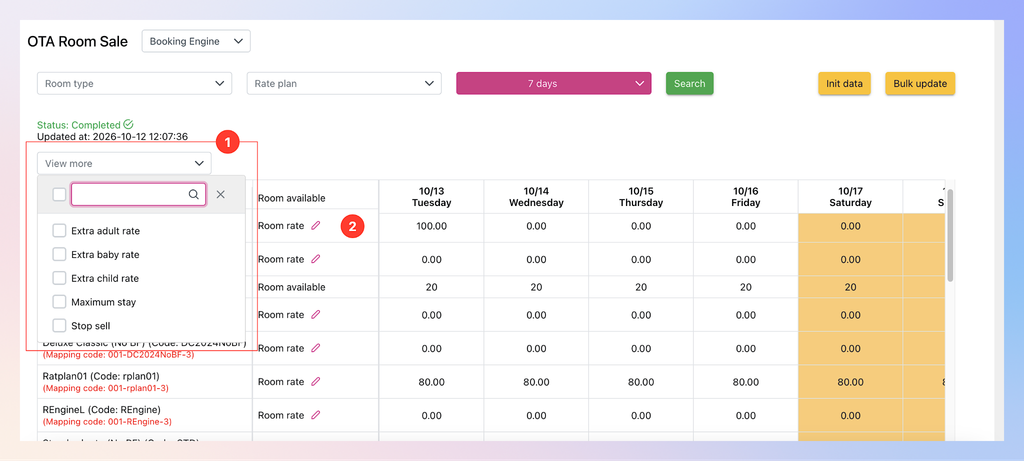
- “View more” dropdown list (1) includes: Extra adult rate, Extra baby rate, Extra child rate, Maximum stay, Stop stay.
- Default is unchecked.
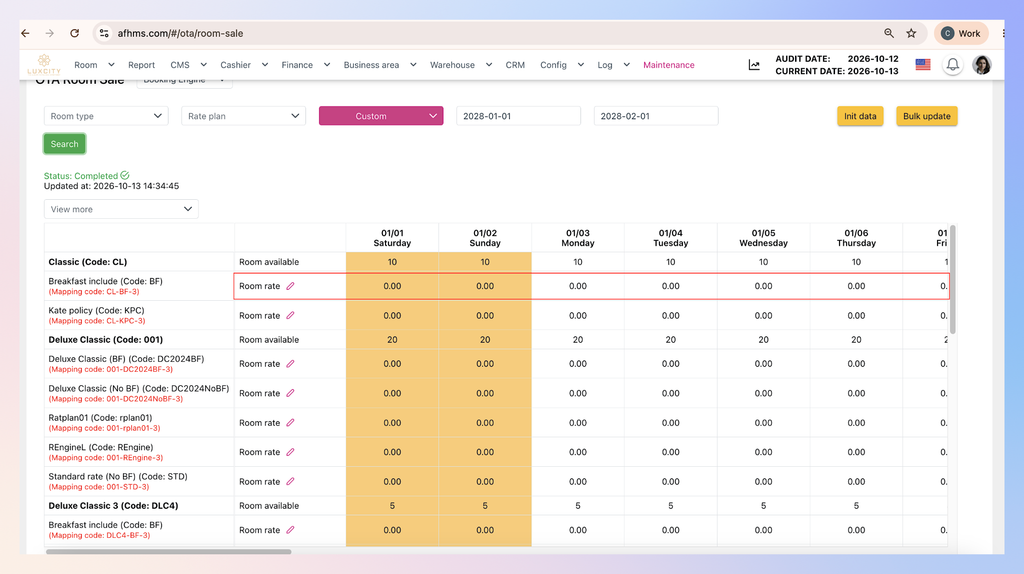
- Room rate is displayed 0 belongs to 3 situations:
- Not yet init data to display the latest price
- Room rate is out of the period of dynamic price of corresponding rate plan
- Dynamic price is inactive
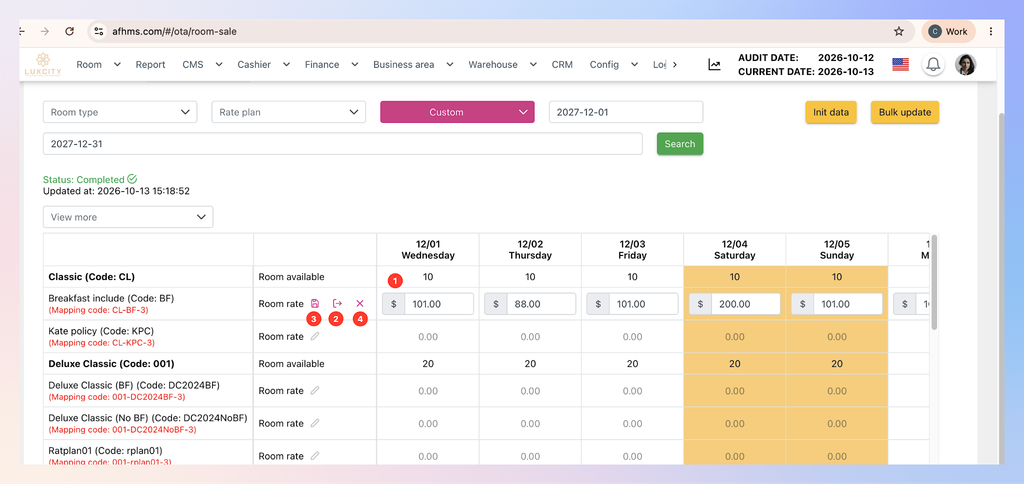
- Edit Room rate
- Click the pencil to edit room rate following these steps:
- Adjust rate per day (1)
- Click (2) to synchronize price for whole filtered day range
- Click (3) to save the adjustment
- Click (4) to cancel the change
- The Display of room rate depends on the newest update of rate configuration ( Dynamic price/ Edit room rate at OTA room sale screen)
- Click the pencil to edit room rate following these steps:
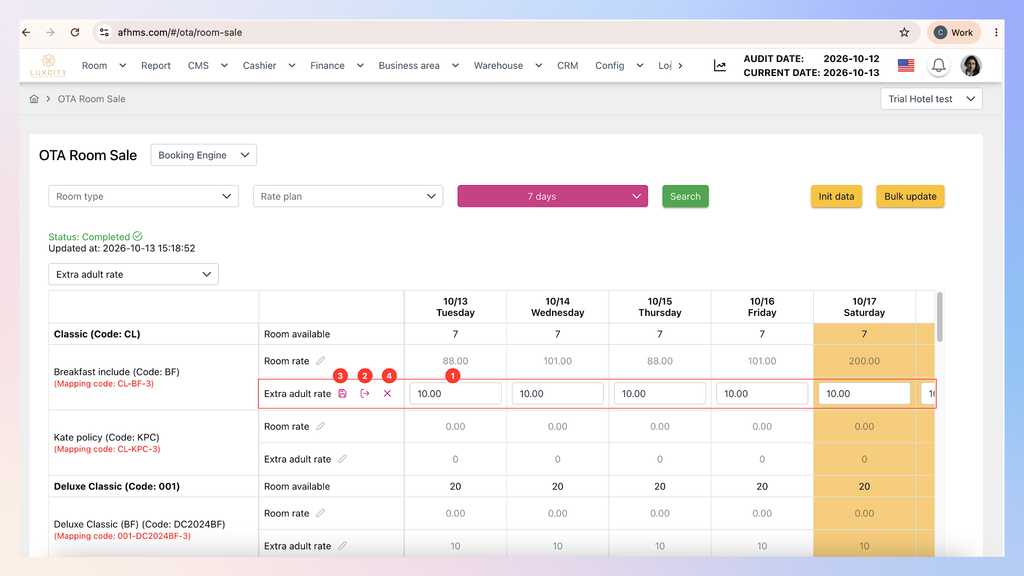
- Edit extra adult rate
- Click the pencil to edit extra adult rate following these steps:
- Adjust rate per day (1)
- Click (2) to synchronize price for whole filtered day range
- Click (3) to save the adjustment
- Click (4) to cancel the change
- The Display of extra adult rate depends on the newest update of rate configuration (Bulk Update (Extra rate/Daily extra rate)/ Edit extra adult rate at OTA room sale screen/ Bulk update )
- Click the pencil to edit extra adult rate following these steps:
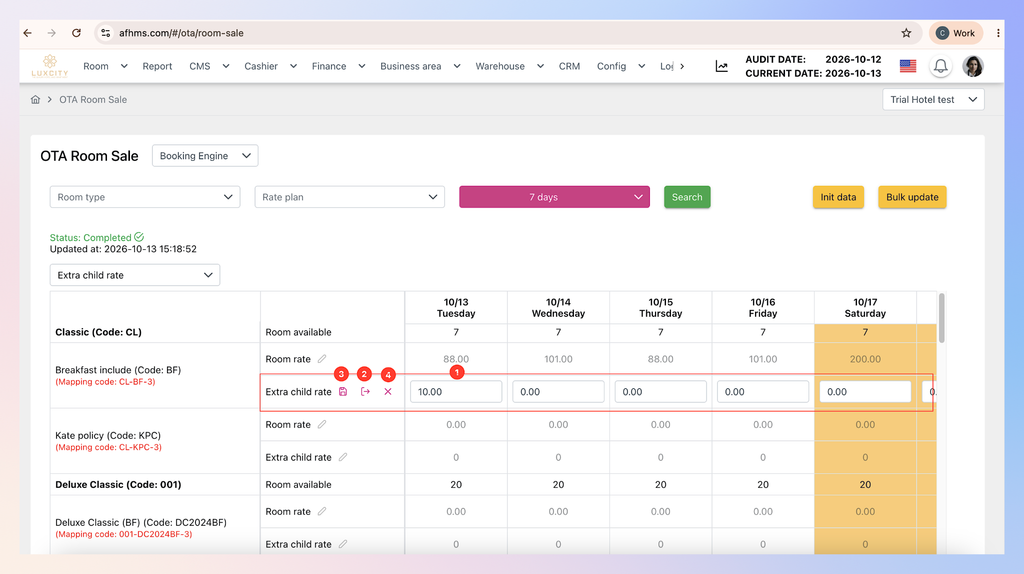
- Edit extra child rate
- Click the pencil to edit extra child rate following these steps:
- Adjust rate per day (1)
- Click (2) to synchronize price for whole filtered day range
- Click (3) to save the adjustment
- Click (4) to cancel the change
- The Display of extra child rate depends on the newest update of rate configuration (Bulk Update (Extra rate/Daily extra rate)/ Edit extra child rate at OTA room sale screen/ Bulk update )
- Click the pencil to edit extra child rate following these steps:
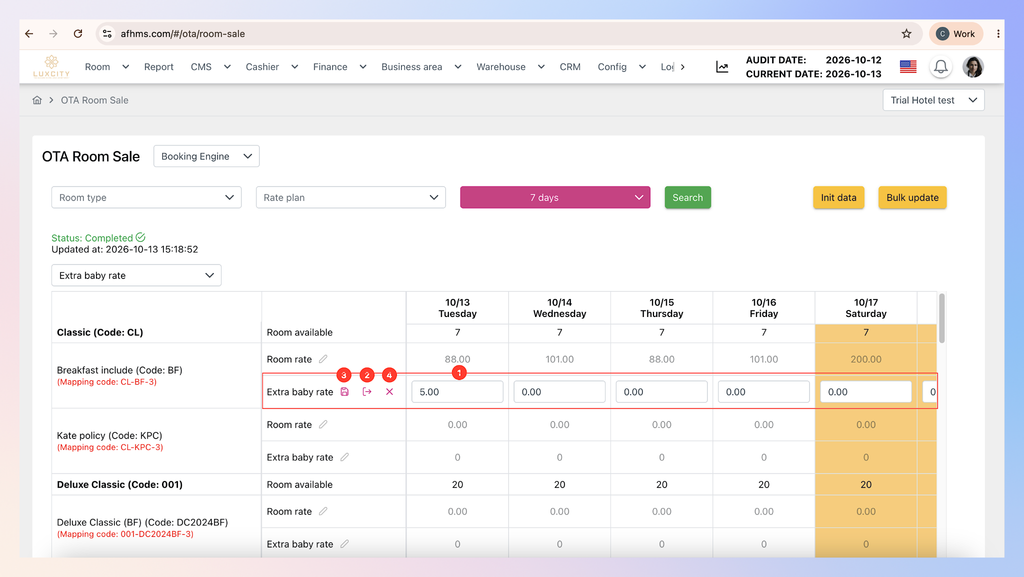
- Edit extra baby rate
- Click the pencil to edit extra baby rate following these steps:
- Adjust rate per day (1)
- Click (2) to synchronize price for whole filtered day range
- Click (3) to save the adjustment
- Click (4) to cancel the change
- The Display of extra baby rate depends on the newest update of rate configuration (Bulk Update (Extra rate/Daily extra rate)/ Edit extra baby rate at OTA room sale screen/ Bulk update)
- Click the pencil to edit extra baby rate following these steps:
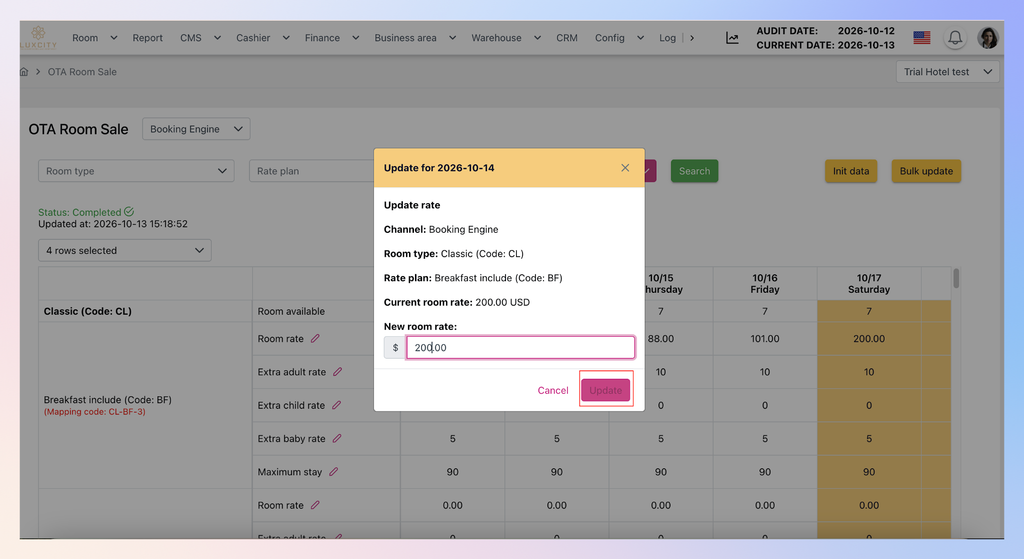
- Edit rate for a single day
- Click price of room rate/ extra adult rate/ extra child rate/ extra baby rate on specific day to show Edit pop up
- Input the new amount
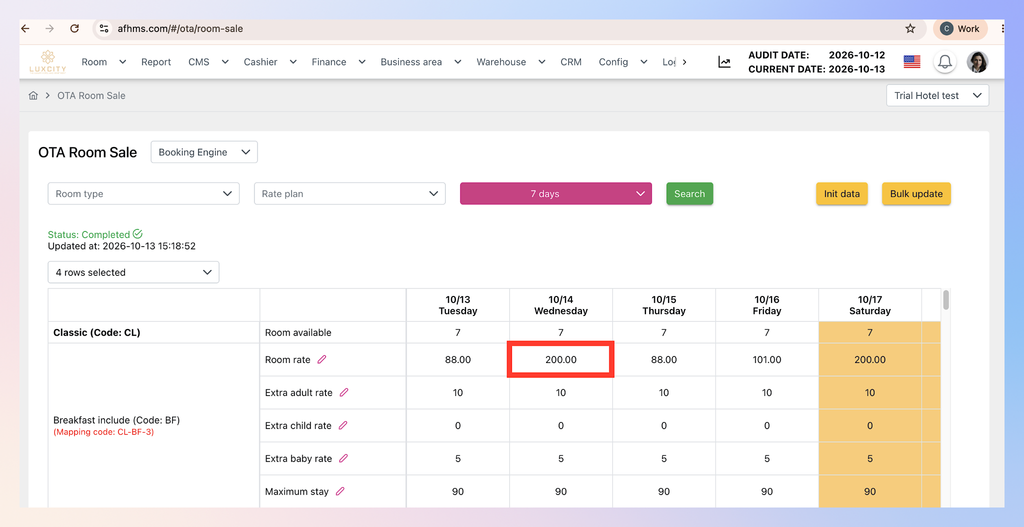
- Save to change rate
- After saving, the price is updated:
5. Booking detail on BE
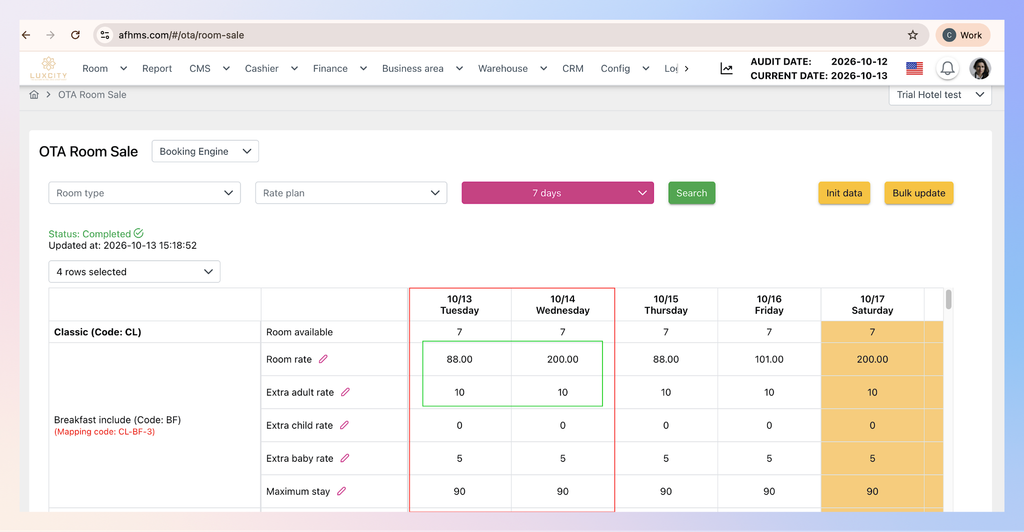
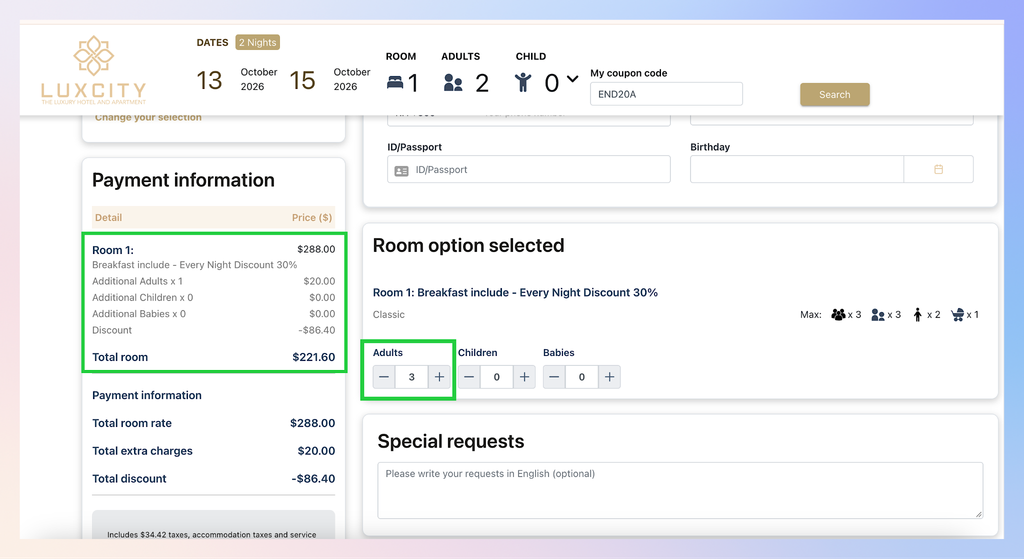
For example: Guest books 1 room, 2 nights ( From Oct13th, 2026 To Oct15th, 2026) for 2 adults, 0 children, room type is Classic, Rate plan is Breakfast include (BF):
Room option selected displays max guest quantity of this Room type:
Max guest: 3, Max adult: 3, Max child: 1, Max baby: 0 → Max adult is 3 while standard adult is 2 → An extra adult will be charged based on Bulk Update configuration from 13/10/2026 – 15/10/2026 (2 nights) = 20$
6. User activity log (UAL)
- Activity group: OTA
- Action:
- Update extra baby rate by date
- Update extra adult rate by date
- Update extra child rate by date
- Update room rate by date
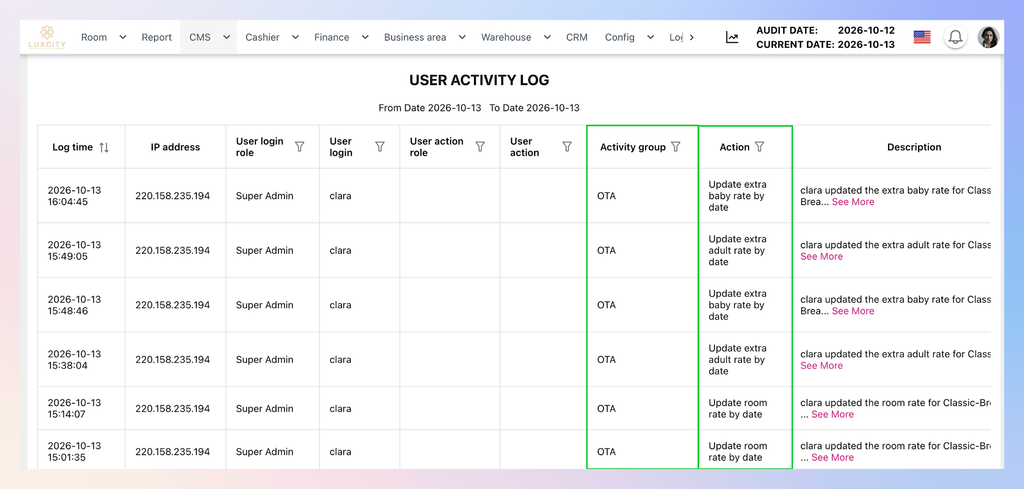
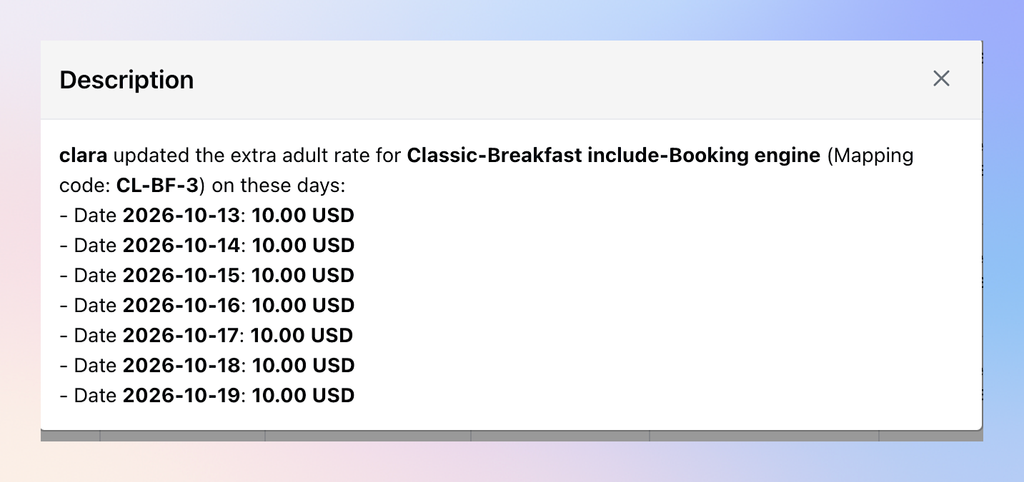
- Detail: