Task
English below
| Chức năng (Function description) | Tính năng Task trên màn hình Config > Task cho phép người dùng tạo, chỉnh sửa và quản lý nhóm task và task nhằm phục vụ việc giao nhiệm vụ cho nhân viên |
|---|---|
| Phiên bản (Version) | v1.0 |
| Ngày tạo (Created at) | Mar 30, 2026 |
| Điều kiện sử dụng (Prerequisites) | Thiết bị đã được whitelist IP address, có VPN và có kết nối mạng ổn địnhĐã có tài khoản đăng nhập vào PMS. Trường hợp người dùng chưa có tài khoản, cần liên hệ Support team hoặc Admin để tạo tài khoản.Người dùng đã được phân quyền sử dụng chức năng Config tasks |
I. Giới Thiệu và Mục Tiêu
1. Giới thiệu
Tính năng Task trên sub-tab Task trong PMS cho phép người dùng tạo, chỉnh sửa, xóa và quản lý danh sách các nhóm task và task con, nhằm chuẩn bị và phân công nhiệm vụ cho nhân viên một cách trực quan và có hệ thống. Màn hình Task được thiết kế với cấu trúc cây (Tree View) giúp người dùng dễ dàng nắm bắt mối quan hệ giữa nhóm task và các task con, đồng thời hỗ trợ thao tác nhanh chóng trên từng task hoặc nhóm task.
2. Mục tiêu
- Quản lý danh sách nhiệm vụ và nhóm nhiệm vụ theo cấu trúc Nhóm task → Task.
- Hỗ trợ việc tạo mới, chỉnh sửa, xóa task hoặc nhóm task nhanh chóng và trực quan.
- Là tiền đề cho tính năng Create Task dành cho nhân viên, đảm bảo dữ liệu nhiệm vụ đầy đủ và chính xác.
- Tăng hiệu quả vận hành nhờ khả năng tìm kiếm, sắp xếp và quản lý task dễ dàng.
II. Các Tính Năng Chính
- Danh sách Task theo nhóm:
- Hiển thị toàn bộ các nhóm task và task con trong một danh sách cây.
- Cho phép mở rộng hoặc thu gọn nhóm để quan sát tổng thể hoặc chi tiết từng nhóm task.
- Tạo và chỉnh sửa Task / Nhóm Task:
- Màn hình chi tiết cung cấp các trường:
- Name: Tên task hoặc nhóm task.
- Group: Nhóm mà task thuộc về; bỏ trống để tạo nhóm task mới.
- Description: Mô tả chi tiết nhiệm vụ, giúp nhân viên nắm rõ nội dung công việc.
- Cho phép chỉnh sửa thông tin của task hoặc nhóm task hiện có.
- Màn hình chi tiết cung cấp các trường:
- Các thao tác chính:
- Add: Tạo task mới hoặc nhóm task mới.
- Save: Lưu các thông tin vừa tạo hoặc chỉnh sửa.
- Delete: Xóa task hoặc nhóm task; hệ thống yêu cầu xác nhận trước khi xóa để tránh mất dữ liệu.
- Search: Tìm kiếm nhanh task hoặc nhóm task theo từ khóa, giúp định vị task dễ dàng trong danh sách lớn.
- Thông báo trạng thái thao tác:
- Hiển thị thông báo thành công hoặc lỗi khi tạo, chỉnh sửa, xóa task.
III. Các Bước Thao Tác Cơ Bản Trên Màn Hình
Dưới đây là các bước thao tác tiêu chuẩn để sử dụng chức năng. Thực hiện theo thứ tự để đảm bảo hiệu quả.
- Truy cập màn hình Task
- Đăng nhập vào hệ thống PMS.
- Nhấn vào menu “Config” trên thanh Header.
- Chọn Business area > Task > Task.
- Hệ thống hiển thị màn hình Task.
- Tạo task mới:
- Nhấn Add → màn hình chi tiết hiện ra.
- Nhập Name (bắt buộc).
- Chọn Group nếu task thuộc nhóm có sẵn, hoặc để trống nếu muốn tạo nhóm task mới.
- Nhập Description để mô tả chi tiết nhiệm vụ.
- Nhấn Save để lưu.
- Chỉnh sửa task hoặc nhóm task:
- Chọn task hoặc nhóm task từ danh sách → màn hình chi tiết hiện ra.
- Thay đổi thông tin Name, Group, Description.
- Nhấn Save để cập nhật.
- Xóa task hoặc nhóm task:
- Chọn task hoặc nhóm task cần xóa → nhấn Delete.
- Xác nhận hành động để tránh xóa nhầm.
- Hệ thống thông báo khi xóa thành công hoặc thất bại.
- Tìm kiếm task:
- Nhập từ khóa vào ô Search → danh sách tự động lọc kết quả phù hợp.
- Giúp nhanh chóng tìm task trong danh sách dài mà không cần duyệt toàn bộ cây task.
IV. Mô Tả GUI (Giao Diện Người Dùng)
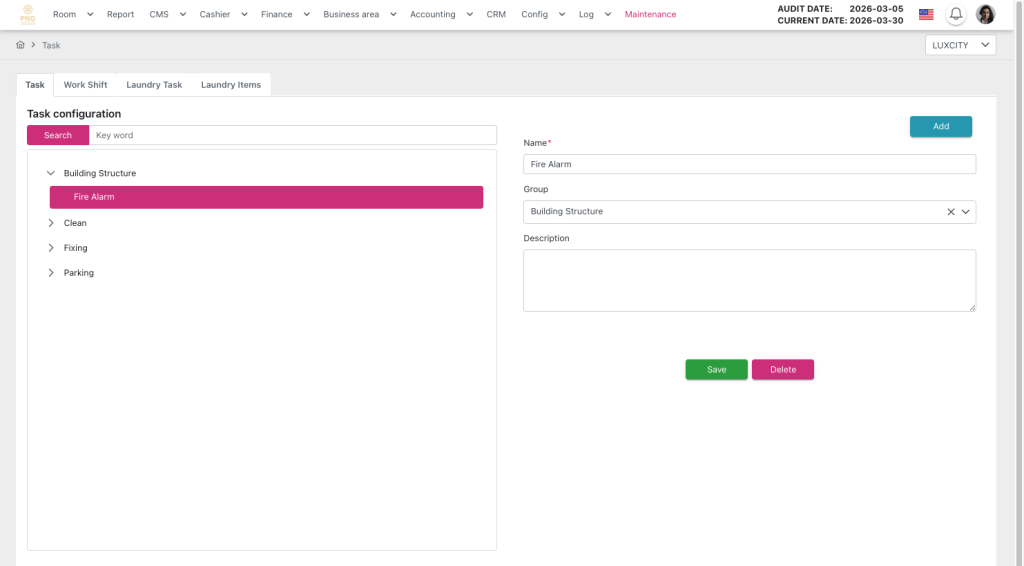
Màn hình Task gồm:
- Header:
- Hiển thị thông tin ngày audit hiện tại và các chức năng chính của màn hình như điều hướng menu, truy cập nhanh các thao tác quản lý hóa đơn.
- Danh sách Task:
- Cấu trúc hiển thị Nhóm task → Task, với biểu tượng mở rộng/thu gọn.
- Nhóm task có thể chứa nhiều task con; task con hiển thị thụt vào dưới nhóm tương ứng.
- Màn hình chi tiết Task / Nhóm Task:
- Name: Trường nhập tên task hoặc nhóm task.
- Group: Trường lựa chọn nhóm; bỏ trống để tạo nhóm mới.
- Description: Mô tả nhiệm vụ, hỗ trợ nhân viên hiểu rõ công việc.
- Các trường đều có thông báo lỗi nếu nhập thiếu thông tin bắt buộc.
- Nút thao tác:
- Add: Nằm trên thanh công cụ hoặc cạnh danh sách, nhấn để tạo task hoặc nhóm task mới.
- Save: Lưu các thay đổi sau khi tạo hoặc chỉnh sửa.
- Delete: Xóa task hoặc nhóm task đã chọn.
- Search: Ô tìm kiếm nhanh, thường đặt ở góc trên bên phải danh sách.
- Thông báo trạng thái:
- Thông báo dạng popup hoặc banner trên màn hình:
- Thành công: “Task đã được lưu thành công.”
- Lỗi: “Tên task không được để trống.”
- Xóa xác nhận: “Bạn có chắc chắn muốn xóa task này không?”
- Thông báo dạng popup hoặc banner trên màn hình:
| Function description | The Task feature on the Config > Task screen allows users to create, edit, and manage task groups and tasks to facilitate assigning tasks to employees. |
|---|---|
| Version | v1.0 |
| Created at | Mar 30, 2026 |
| Prerequisites | The device must have a whitelisted IP address, a VPN, and a stable internet connection.The user must have a PMS account. If the user does not have an account, contact the Support team or Admin to create one.The user must be Config Tasks function. |
I. Introduction and Objectives
1. Introduction
The Task feature on the Task sub-tab in PMS allows users to create, edit, delete, and manage lists of task groups and sub-tasks, providing a clear and organized way to prepare and assign tasks to employees. The Task screen is designed with a Tree View structure, enabling users to easily understand the relationship between task groups and their sub-tasks, while also supporting quick actions on individual tasks or groups.
2. Objectives
- Manage tasks and task groups following a Task Group → Task structure.
- Support quick and intuitive creation, editing, and deletion of tasks or task groups.
- Serve as a foundation for the Create Task feature for employees, ensuring complete and accurate task data.
- Improve operational efficiency through easy search, sorting, and task management
II. Primary features
- Task List by Group:
- Displays all task groups and sub-tasks in a tree view.
- Allows expanding or collapsing groups to view an overview or detailed tasks within a group.
- Create and Edit Task / Task Group:
- The detail screen provides the following fields:
- Name: The name of the task or task group.
- Group: The group the task belongs to; leave blank to create a new task group.
- Description: A detailed description of the task to help employees understand their work.
- Supports editing information for existing tasks or groups.
- The detail screen provides the following fields:
- Main Actions:
- Add: Create a new task or task group.
- Save: Save newly created or edited information.
- Delete: Delete a selected task or group; the system requires confirmation to prevent accidental data loss.
- Search: Quickly find tasks or task groups by keyword, making it easy to locate tasks in large lists.
- Operation Status Notifications:
- Displays success or error messages when creating, editing, or deleting tasks.
III. Basic operations on the screen
Follow the steps below in order to ensure efficient and accurate operation.
- Access the Task Screen:
- Log in to the PMS system.
- Click the Config menu on the header.
- Navigate to Business area → Task → Task.
- The Task screen is displayed.
- Create a New Task:
- Click Add → the detail screen appears.
- Enter Name (required).
- Select Group if the task belongs to an existing group, or leave blank to create a new task group.
- Enter Description to provide details about the task.
- Click Save to save the task.
- Edit a Task or Task Group:
- Select a task or group from the list → the detail screen appears.
- Modify Name, Group, and Description.
- Click Save to update.
- Delete a Task or Task Group:
- Select the task or group to delete → click Delete.
- Confirm the action to avoid accidental deletion.
- The system will notify you whether the deletion was successful or failed.
- Search for a Task:
- Enter a keyword into the Search box → the list automatically filters matching results.
- Allows quickly locating a task without browsing the entire tree.
IV. GUI Description (User Interface)
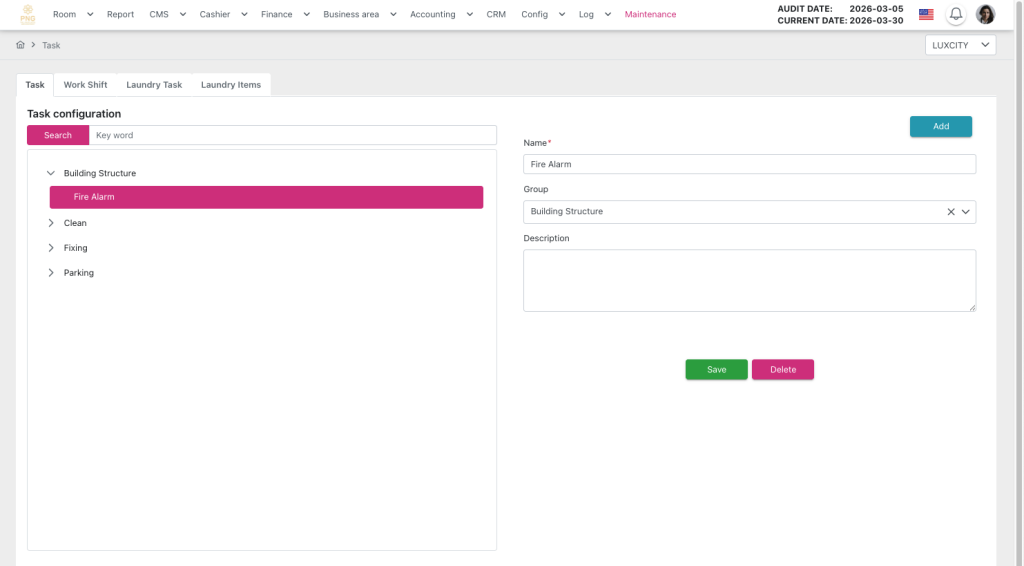
Task screen overview
- Header
- Displays the current audit date and the main functions of the screen, such as menu navigation and quick access to transaction management actions.
- Task List:
- Tree structure showing Task Group → Task, with expand/collapse icons.
- Task groups may contain multiple sub-tasks; sub-tasks are indented under their respective group.
- Task / Task Group Detail Screen:
- Name: Field to enter the task or group name.
- Group: Field to select a group; leave blank to create a new group.
- Description: Provides task details to help employees understand their work.
- All fields show error messages if required information is missing.
- Action Buttons:
- Add: Located on the toolbar or next to the list to create a new task or group.
- Save: Saves changes after creating or editing a task/group.
- Delete: Deletes the selected task or group.
- Search: Quick search box, usually at the top-right corner of the list.
- Operation Notifications:
- Pop-up or banner messages appear on the screen:
- Success: “Task has been successfully saved.”
- Error: “Task Name cannot be empty.”
- Delete confirmation: “Are you sure you want to delete this task?”
- Pop-up or banner messages appear on the screen:
V. General Instructions and Support
- Usage tips:
- Always carefully check the figures before and during running Night Audit.
- Ensure that all mandatory steps have been completed.
- Support: If you encounter a problem, contact email support@airfeedkh.com.
- Updates: This guideline may change. Please check the latest version in the “Help” section.