VAT tax
English below
| Chức năng (Function description) | Tính năng VAT tax configuration trên màn hình Config > Tax > VAT tax cho phép bạn tạo, chỉnh sửa và quản lý các loại thuế VAT để áp dụng cho booking và các dịch vụ trong hệ thống. |
|---|---|
| Phiên bản (Version) | v1.0 |
| Ngày tạo (Created at) | Mar 31, 2026 |
| Điều kiện sử dụng (Prerequisites) | Thiết bị đã được whitelist IP address, có VPN và có kết nối mạng ổn địnhĐã có tài khoản đăng nhập vào PMS. Trường hợp người dùng chưa có tài khoản, cần liên hệ Support team hoặc Admin để tạo tài khoản.Người dùng đã được phân quyền sử dụng chức năng Config tax |
I. Giới Thiệu và Mục Tiêu
1. Giới thiệu
Tính năng VAT tax configuration trên màn hình Tax cho phép người dùng tạo và quản lý các loại thuế VAT trong hệ thống, làm cơ sở để áp dụng vào booking và các dịch vụ như F&B, KTV hoặc các dịch vụ đặc biệt.
2. Mục tiêu
- Quản lý danh sách thuế VAT một cách tập trung và dễ sử dụng.
- Hỗ trợ tạo mới, chỉnh sửa và xóa thuế VAT nhanh chóng.
- Đảm bảo dữ liệu thuế VAT sẵn sàng để áp dụng vào các nghiệp vụ trong hệ thống.
II. Các Tính Năng Chính
- Quản lý danh sách thuế VAT:
- Hiển thị danh sách các thuế VAT đã được cấu hình theo tên.
- Giúp người dùng dễ dàng theo dõi và lựa chọn để xem chi tiết.
- Tạo và chỉnh sửa thuế VAT:
- Cho phép nhập các thông tin cơ bản như: ID, Code, Name, Tax Rate và Description.
- Hỗ trợ cập nhật thông tin khi có thay đổi.
- Các thao tác chính:
- Add new: Tạo mới thuế VAT.
- Save: Lưu thông tin đã nhập hoặc chỉnh sửa.
- Delete: Xóa thuế VAT không còn sử dụng.
III. Các Bước Thao Tác Cơ Bản Trên Màn Hình
Dưới đây là các bước thao tác tiêu chuẩn để sử dụng chức năng. Thực hiện theo thứ tự để đảm bảo hiệu quả.
- Truy cập màn hình Tax
- Đăng nhập vào hệ thống PMS.
- Nhấn vào menu “Config” trên thanh Header.
- Chọn Config > Tax > VAT tax.
- Hệ thống hiển thị màn hình Tax.
- Tạo thuế VAT mới:
- Nhấn Add new.
- Nhập thông tin cần thiết.
- Nhấn Save để lưu.
- Chỉnh sửa thuế VAT:
- Chọn thuế VAT từ danh sách.
- Cập nhật thông tin.
- Nhấn Save để lưu thay đổi.
- Xóa thuế VAT:
- Chọn thuế VAT cần xóa.
- Nhấn Delete và xác nhận.
IV. Mô Tả GUI (Giao Diện Người Dùng)
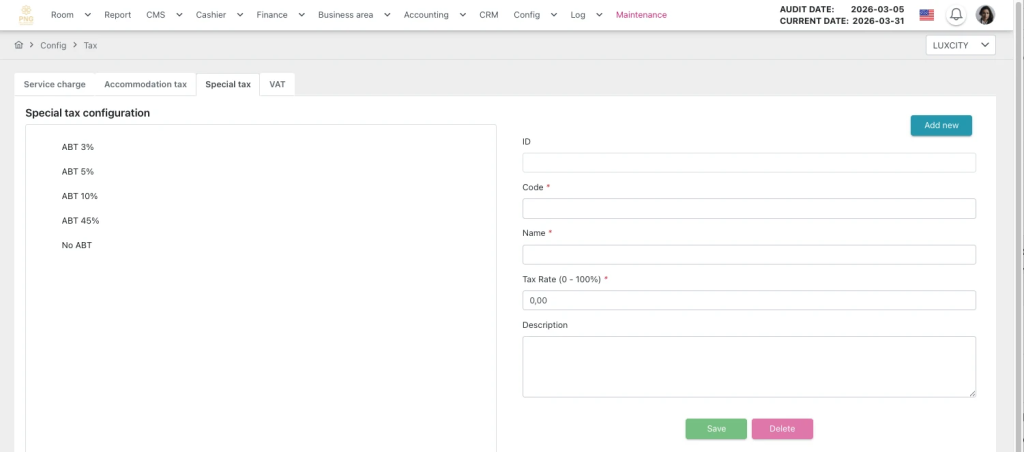
Màn hình VAT tax configuration gồm:
- Header:
- Hiển thị thông tin ngày audit hiện tại và các chức năng chính của màn hình như điều hướng menu, truy cập nhanh các thao tác quản lý hóa đơn.
- Danh sách dữ liệu:
- Hiển thị theo tên của thuế VAT đã được cấu hình.
- Chọn từng dòng để xem hoặc chỉnh sửa.
- Màn hình chi tiết:
- Bao gồm các trường thông tin:
- ID: Hệ thống tự sinh mã duy nhất, người dùng không thể chỉnh sửa.
- Code: Mã ký hiệu ngắn gọn để nhận diện thuế VAT trong các thao tác và báo cáo.
- Name: Tên hiển thị của thuế VAT trong danh sách và khi áp dụng.
- Tax Rate (0 – 100%): Tỷ lệ phần trăm thuế áp dụng cho thuế VAT; công thức tính = Tax Rate (%) × phí dịch vụ nguyên giá được cấu hình.giúp hệ thống tự động tính số tiền thuế VAT dựa trên tỷ lệ đã cấu hình.
- Description: Mô tả chi tiết về thuế VAT, giúp người dùng hiểu rõ mục đích và cách áp dụng.
- Thông báo lỗi nếu thông tin bắt buộc bị bỏ trống.
- Bao gồm các trường thông tin:
- Nút thao tác:
- Add new: Thêm mới.
- Save: Lưu dữ liệu.
- Delete: Xóa dữ liệu.
- Search / Filter: Tìm kiếm hoặc lọc dữ liệu.
- Thông báo trạng thái:
- Popup hoặc toast thông báo:
- Khởi tạo thành công: “Save successfully”
- Xác nhận xóa: “Are you sure to delete this item?”
- Popup hoặc toast thông báo:
| Function description | The VAT tax configuration feature on the Config > Tax > VAT tax screen allows you to create, edit, and manage VAT taxs for application to bookings and other services within the system. |
|---|---|
| Version | v1.0 |
| Created at | Mar 31, 2026 |
| Prerequisites | The device must have a whitelisted IP address, a VPN, and a stable internet connection.The user must have a PMS account. If the user does not have an account, contact the Support team or Admin to create one.The user must be Config tax function. |
I. Introduction and Objectives
1. Introduction
The VAT tax configuration feature on the Tax screen allows users to create and manage VAT taxs within the system, serving as a basis for applying them to bookings and services such as F&B, KTV, or other VAT services.
2. Objectives
- Centrally manage the list of VAT taxs in a user-friendly way.
- Support quick creation, editing, and deletion of VAT taxs.
- Ensure VAT tax data is ready to be applied in system operations.
II. Primary features
- VAT tax List Management:
- Displays a list of configured VAT taxs by name.
- Allows users to easily track and select items to view details.
- Create and Edit VAT taxs:
- Supports entering basic information such as ID, Code, Name, Tax Rate, and Description.
- Allows updating information when changes occur.
- Main Actions:
- Add new: Create a new VAT tax.
- Save: Save newly entered or edited information.
- Delete: Delete VAT taxs no longer in use.
III. Basic operations on the screen
Follow the steps below in order to ensure efficient and accurate operation.
- Access the Tax Screen:
- Log in to the PMS system.
- Click the Config menu on the header.
- Navigate to Config → Tax → VAT tax.
- The Task screen is displayed.
- Create a New VAT tax:
- Click Add new.
- Enter the required information.
- Click Save to save.
- Edit a VAT tax:
- Select a VAT tax from the list.
- Update the necessary information.
- Click Save to save changes.
- Delete a VAT tax:
- Select the VAT tax to delete.
- Click Delete and confirm.
IV. GUI Description (User Interface)
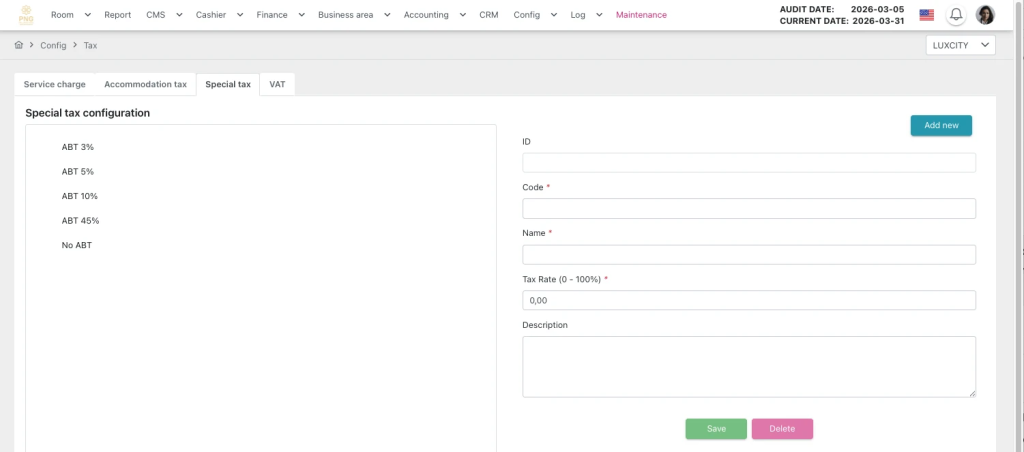
Tax screen overview
- Header
- Displays the current audit date and the main functions of the screen, such as menu navigation and quick access to transaction management actions.
- Data List:
- Displays configured VAT taxs by name.
- Select each row to view or edit details.
- Detail Screen:
- Fields include:
- ID: System-generated unique identifier; cannot be edited by the user.
- Code: Short code to identify the VAT tax in operations and reports.
- Name: Display name of the VAT tax in the list and when applied.
- Tax Rate (0 – 100%): Percentage of tax applied to the VAT tax; calculated as: Service Charge =Tax Rate (%) × Base Service FeeThe system automatically calculates the VAT tax amount based on the configured rate.
- Description: Detailed description of the VAT tax to help users understand its purpose and usage.
- Error notifications appear if required information is missing.
- Fields include:
- Action Buttons:
- Add new: Create a new VAT tax.
- Save: Save the data.
- Delete: Delete the selected data.
- Search / Filter: Quickly search or filter data.
- Status Notifications:
- Popup or toast messages:
- Creation success: “Save successfully”
- Delete confirmation: “Are you sure to delete this item?”
- Popup or toast messages:
V. General Instructions and Support
- Usage tips:
- Always carefully check the figures before and during running Night Audit.
- Ensure that all mandatory steps have been completed.
- Support: If you encounter a problem, contact email support@airfeedkh.com.
- Updates: This guideline may change. Please check the latest version in the “Help” section.