Dynamic Price
Part 1: Screen hub
Menu path: CMS > Dynamic Price
Use the Dynamic Price tab to set the price of a CMS rate plan from your room occupancy or the number of rooms still available. Each dynamic price applies to one rate plan and one room type, and to the OTA and booking engine channels that sell that rate plan. From this screen you can add, find, edit, copy and delete dynamic prices.
Before you start
- The rate plan you want to price must already exist in the CMS.
- A dynamic price covers one rate plan and one room type. To price another room type, add another dynamic price (or copy an existing one).
Screen overview
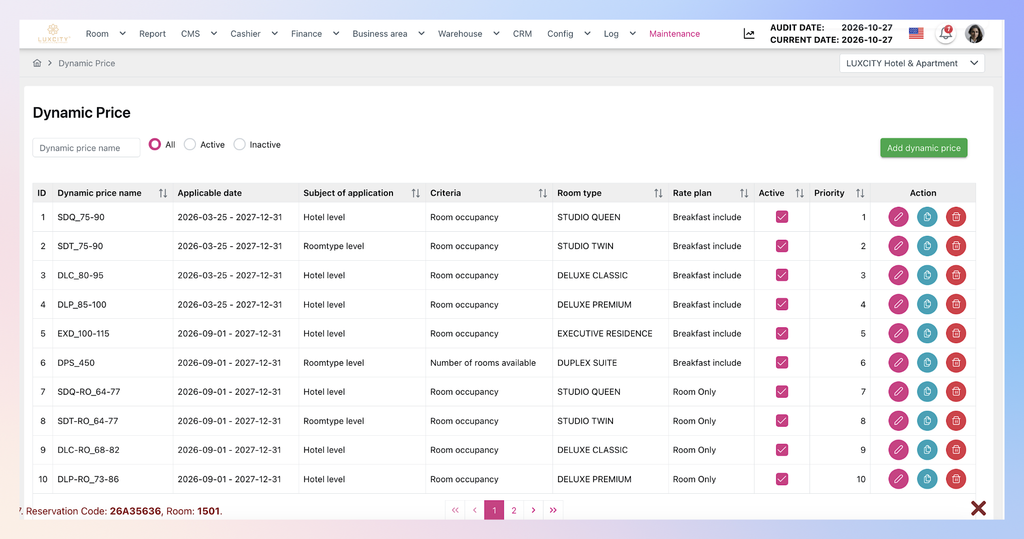
| Callout | Element | What it does |
|---|---|---|
| A | Add Dynamic Price button | Opens the form to create a dynamic price. |
| B | Name search box | Finds a dynamic price by name. |
| C | Status buttons: All, Active, Inactive | Filter the list by status. |
| D | Row checkbox | Selects a dynamic price so you can act on it. |
| E | Action menu: Edit, Copy, Delete | Changes, duplicates or removes the selected dynamic price. |
| F | List | Shows your dynamic prices. |
Add a dynamic price
Click Add Dynamic Price (A) and complete the form. Adding one takes more than five steps, so the full procedure is in Part 2: Add a dynamic price.
Result: The new dynamic price appears in the list.
Find a dynamic price
- Type the dynamic price name in the search box (B).
- Click All, Active or Inactive (C) to filter by status.
Result: The list shows only the dynamic prices that match.
Edit a dynamic price
- Find the dynamic price (see above).
- Tick its checkbox (D).
- Open the action menu (E) and click Edit.
- Change the fields you need and save.
Result: The dynamic price keeps your changes.
Copy a dynamic price
- Find the dynamic price and tick its checkbox (D).
- Open the action menu (E) and click Copy.
Result: A new dynamic price is created with the same information as the original. Use it to price another room type or rate plan without filling the form again.
Delete a dynamic price
- Find the dynamic price and tick its checkbox (D).
- Open the action menu (E) and click Delete.
Result: The dynamic price is removed from the list.
Related articles
- Add a dynamic price (Part 2 below)
Part 2: Add a dynamic price
Menu path: CMS > Dynamic Price
A dynamic price sets the rate of one rate plan and one room type by occupancy or by rooms left. It is shown on the OTA and booking engine channels you select.
Steps
- Click Add Dynamic Price.
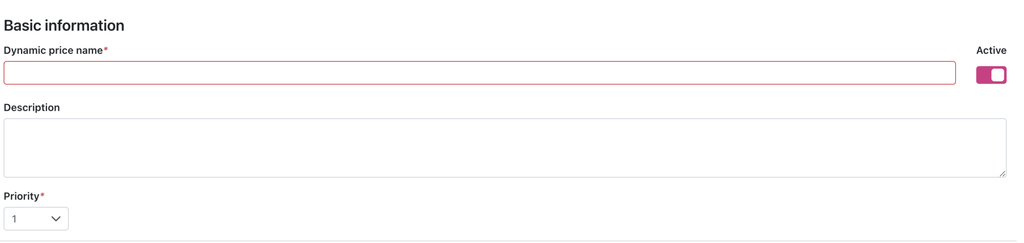
Result: The form opens. - Under basic information, enter the Dynamic price name (required) and, if you want, a Description. Enter the Priority (required).
Result: The dynamic price has a name and a priority. - Under the price calculation formula, choose the Criteria and the Subject of application (see the table below).
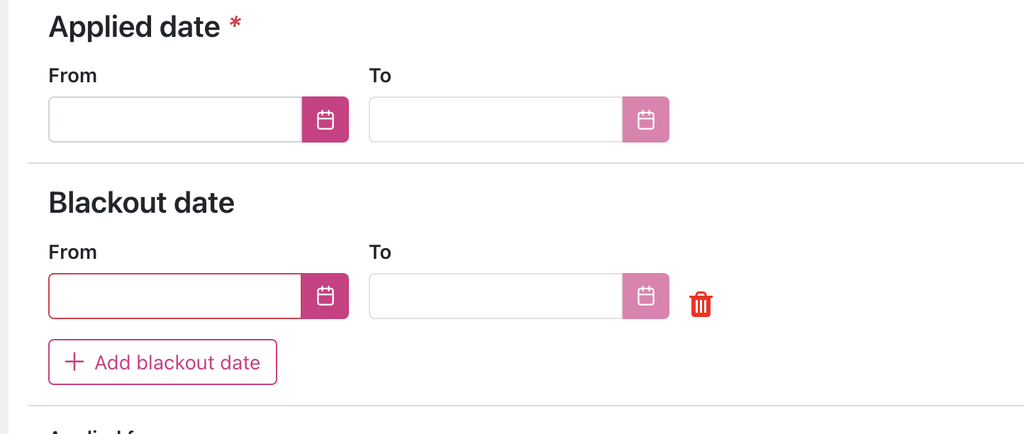
Result: The form shows the occupancy or rooms-available columns that match your choice. - Under Applies date, select the date range in which the rate plan is shown on the OTA and booking engine channels. Under Blackout date, select any dates when the hotel does not want to sell this rate plan.
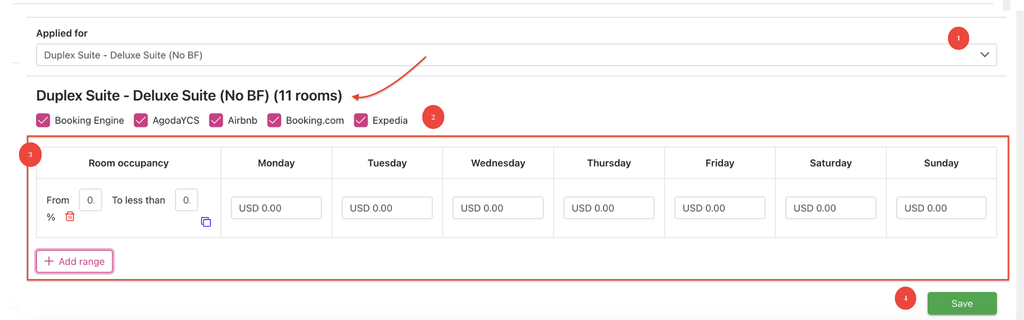
Result: The rate plan is sold only inside the applies dates and never on blackout dates. - Under Applied for, select the rate plan in the drop-down list (1). Tick the OTA or channel checkboxes (2) that sell this rate plan.
Result: The dynamic price is tied to that rate plan and those channels. - Click Add range and complete the table (3). Fill in the occupancy column. In the day columns, type an amount for each day, or type it in the Monday column and click the Copy icon to fill the following days with the same amount.
Result: Each row holds the amounts for one occupancy range, for every day of the week. - Click Save (4).
Result: The dynamic price is saved and appears in the list.
[Screenshot: Add Dynamic Price form, basic information]
[Screenshot: Price calculation formula, Criteria and Subject of application]

[Screenshot: Applies date and Blackout date]
[Screenshot: Applied for, channel checkboxes, range table and Save, marked (1) to (4)]
Choose how the price is calculated
| Option | What it does | Value you enter | Short example |
|---|---|---|---|
| Criteria: Room occupancy | Changes the price as the hotel fills up. | Occupancy ranges in the table | One row for each occupancy range, each with its own amounts. |
| Criteria: Number of rooms available | Changes the price as the number of free rooms changes. | Rooms-available ranges in the table | One row for each range of free rooms, each with its own amounts. |
| Subject: Room type level | Counts occupancy or availability for the room type of the dynamic price. | None. Choose the option. | A “Classic” dynamic price reacts to Classic rooms only. |
| Subject: Hotel level | Counts occupancy or availability across the whole hotel. | None. Choose the option. | A dynamic price reacts to the hotel’s total occupancy. |