-
Update PMS
-
- HM-2400 [UPDATE] Total Transaction Report - Change the display format for droplist Room/Table
- HM - 4767 Inhouse guest report - Filter by guest type
- HM-5505: [UPDATE] CMS - Update cancel policies
- HM-5586: [UPDATE] Menu Item Sales Report - Add Shift filter
- HM-5428 [UPDATE] Booking - Can cancel Booking that have not been CI and Balance = 0
- HM-4059[UPDATE] Report - Allow to view final bill in FnB Revenue report
- HM-4703 [UPDATE] KTV - Display the percentage (%) when the user adds a discount or surcharge to an item or order
- HM-4627 [UPDATE] FNB-Display the percentage (%) when the user adds a discount or surcharge to an item or order
- HM-4275 [UPDATE] - [FnB Report] - Combine data from the "FnB post to room" report into the "FnB revenue/ discount/ payment" report
- HM-5063 [UPDATE] FNB bill - Change line ABT & VAT tax
- HM-2300 [NEW] FNB - Allow to add Open item
- HM-4249 [HF] Add Reason when using Open discount FNB
- HM-987 [PROD] - [FnB/KTV] - Allow searching Vietnamese with diacritics
- HM-4640 [NEW] BUSINESS AREA - Allow configuring specific payment types for each Business Area
- HM-5428 [UPDATE] Booking – Can cancel Booking that have not been CI and Balance = 0
- HM-2088 [NEW] REPORT - Cancelled/ Noshow Reservation report
- HM-3551: [Update] - Create/Edit booking/Confirmation form - Add formal titles before surname/full name
- UPDATE] HM-2400 Total Transaction Report - Change the display format for droplist Room/Table
- [HM-5498] [UPDATE] OTA - Create a price configuration with tax for OTA
- Show Remaining Articles (4) Collapse Articles
-
- HM-3657 QC - [Update] - [FnB Report] - Add a filter function to get data by night audit date
- HM5301- [UPDATE] Tab Transaction > Booking Details - Allow the user to edit the Note field
- HM-3931 : [UPDATE] List reservation - Display all guest names on screen for personal booking
- HM-3126: [UPDATE] Notification - Alert when there is FnB or HK service post to room
- HM-5744: [UPDATE] FOLIO - Allow to change transaction page when booking's reservation type is Checkout/ Noshow/ Cancelled
- HM4851- [UPDATE] Room occupancy - Display number of available Special
- HM-5041 [NEW] Room status - Open popup when click on special service
- HM-4670 [UPDATE] DASHBOARD - Fix the display logic of the ‘Move Room’ field in the ‘Activity’ section of the ‘House Status’ screen
- HM-5790: Booking report - Add "Rental type" filter, "Rental type" column and report's subtitle
- HM-5813 [UPDATE] REPORT - Hide the "Search by" filter for the Breakfast report
- HM-5855 [UPDATE] DETAIL RESERVATION - Fix bug about displaying payment note after edited
- HM-3336 FnB - Add option View details at Bill list > Payment bills tab
- HM-5032: [PROD] Booking Detail - Room Detail - Optimize
- HM - 5683: [PROD] Report - Incorrect display of Booking status information.
- HM-5847 [UPDATE] Booking report - Remove the requirement to filter by From–To Date fields
- HM-5789: [UPDATE] Add column rate_change to payment_details
- HM-5700 [UPDATE] Report - FNB/KTV Menu item sales report update performance
- HM -3978 [UPDATE] Report - Breakdown Revenue for FnB reports
- HM-5636 [UPDATE] BUSINESS AREA/ RESERVATION - Automatically convert the payable amount when changing the currency type in the payment popup.
- [UPDATE] HM-5798 Room schedule - Do not allow deletion of a room if it has an OOO/OOS configuration.
- Show Remaining Articles (5) Collapse Articles
-
- HM -3978 [UPDATE] Report - Breakdown Revenue for FnB reports
- UPDATE] HM-5788 Report - Add Rental type and Rate code column to Total Transaction Report
- HM-5357 [UPDATE] Booking Service - Add function "Confirm and Print miscellaneous"
- HM-5317 [UPDATE] Night audit - Add function Export in Check rate code popup
- HM-5954 [UPDATE] Arrival report - add column Nationality
- [UPDATE] FNB/KTV/SPA - Configure to display voided items in bill/pre-check
- [UPDATE] Dashboard/ List reservation - Display room status on the “Arrival Expected” popup and the List reservation
-
- [UPDATE]-5607 Dashboard/ List reservation - Display room status on the “Arrival Expected” popup and the List reservation
- HM-5748 [UPDATE] BOOKING - Add "Walk in" checkbox on the Create/ Detail reservation/ Reservation list
- HM-4434 : [NEW] REPORT - Actual Walk-In Report
- HM-5609 [UPDATE] Cashier Transaction - Add a “Due out” checkbox to the filter section
- HM-5851 : [PRO] - Add column Transaction date in Report Move room log report
- [NEW] REPORT-H4434 - Actual Walk-In Report
- [UPDATE] Cashier Transaction - Add a “Due out” checkbox to the filter section
- [UPDATE] Create/Edit/Detail booking - Remove require of Guest Types and Payment method
- FNB - E-MENU FOR CUSTOMER
-
- HM-6083- [UPDATE] Booking Service - Not allow using the “Open Price” already been audited
- HM-2266: [NEW] REPORT - Detail Folio By Departure Date Report
- HM-6136 [UPDATE] Housekeeping - Room to clean fix sort by room number
- HM-6049: [UPDATE] CONFIGURATION - Allow configuring the rate code for specific room types
- HM-5243 [UPDATE] BOOKINGS - Add "Save and Checkin" button to the Create reservation/ Reservation detail screen
- HM-4880-02: [UPDATE]: Transfer/ Room charge to master/ Routing - update business logic - tunning code
- HM-4880-01: [UPDATE]: Transfer/ Room charge to master/ Routing - update business logic - tunning code
- HM-5468 01: E-Menu for Customer
- HM - 4267: [UDPATE] CMS - Add the "Include commission" column on the Config OTA screen
- [NEW] HM-6045 REPORT - Cancelled/ No-show reservation report
- Update “Search by” filter: Add “Cancellation date and “No-show date” option
-
- [UPDATE] FOLIO - Allow refunding deposits via a different payment method
- [UPDATE] CMS - Hide the room which have the "number of room sell on CMS" = 0 on the OTA room sale
- [Update] FnB - Add some fields in the "Update information" popup, Create the Customer Visits, Revenue & Source by Customer report, and Create the guest birthday notification feature
- Key card - Auto post service when post Lost key
- [UPDATE] Access Control - Update the text of permission "Room status update"
- [UPDATE] HOUSEKEEPING - Allow to select multiple rooms for the Room filter on the Task assignment/ Room condition/ Room to clean screen
- [NEW] REPORT - Deposit Ledger report
- [NEW] Warehouse/Report - Add a new report for inventory export management
- [UPDATE] Booking report - Add room type droplist
- [UPDATE] CRM - Customer - Allow to search by Phone number
- HM-5282: [UPDATE] Payment report - Add droplist "Payment / Paid out Type"
- HM-5610 [UPDATE] Cashier Transaction - Add a “Balance” column and the "Non-zero balance" checkbox to the Booking section
-
- FnB - Display all guests in booking when selecting room to post
- [NEW] CONFIGURATION - Add the "Feedback link" section and the feedback email flow
- [UPDATE] Booking Engine - Fix the way to display email when the hotel sends the booking confirmation
- [UPDATE] List reservation - Change position of icon OTA
- [UPDATE] Housekeeping - Allow to select "Reservation code" when posting room damage
-
- [CMS] - Revenue Manager can manage Extra Rate for BE and OTA on OTA room sale screen so that additional guest charges can be configured by date and synchronized consistently
- [CMS] Revenue Manager can set Max Stay restrictions by date for BE and OTA so that they can adjust Max Stay without leaving the OTA room sale screen
- [CMS] Revenue Manager can set Max Stay Configuration by date range in Bulk Update Restrictions
- [UPDATE] HM-3509 Create/ Detail booking/ List reservation - Add ID card and Gender field in Registration form
- [FnB/KTV] Allow users to split a finalized paid bill by item allocation
- View in-house and next booking dates on Task assignment
- [FnB/KTV] User can skip Precheck Bill printing so that the bill can proceed without printing
- [REPORT] User can filter COMP/HU reservations and view COMP/HU information on the Total transaction report so that relevant transactions are easily identified
-
-
Dashboard
-
Room
-
Housekeeping
-
CMS
-
Report
-
Cashier
-
Finance
-
Bussiness Area
-
- Articles coming soon
-
CRM
-
Configuration
-
- Articles coming soon
-
Log
[FnB/KTV] User can skip Precheck Bill printing so that the bill can proceed without printing
Screen hub
Menu path: Business area > FnB/KTV
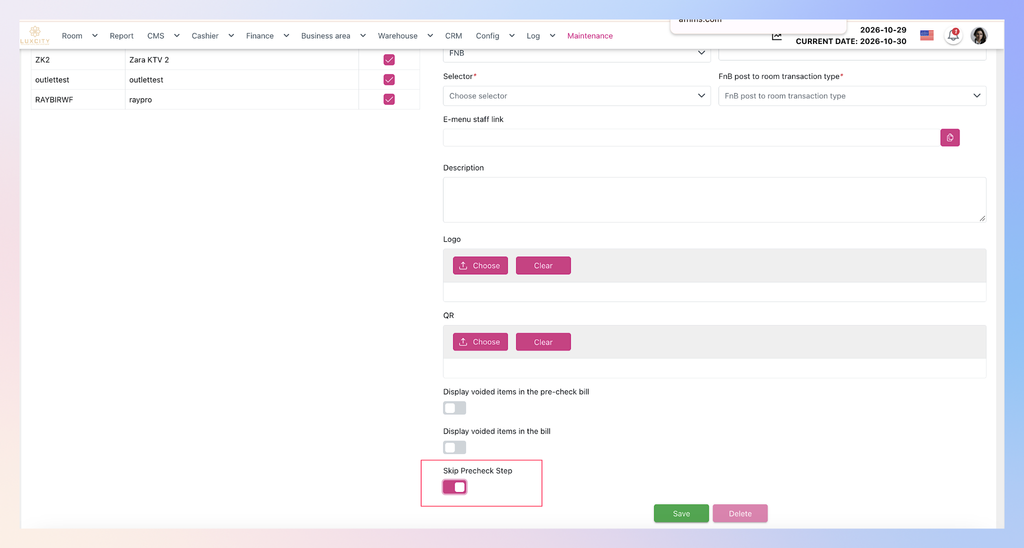
You can now decide whether an FnB or KTV outlet needs a printed Precheck Bill before payment. Each outlet has a Skip Precheck Step switch in its configuration. With the switch off, the Precheck flow stays as it was and you can discard the Precheck printing when a printed bill is not needed. With the switch on, the Precheck button disappears from the order and the system performs the Precheck for you when you confirm payment.
Before you start
- You need permission to configure the outlet to change the switch.
- The Pay button is enabled only when the order has at least one valid service. A voided or cancelled service does not count. This is true for both switch settings.
- The Precheck Bill never carries a dynamic bank or payment QR code. If a payment QR code is needed, it comes from the payment or invoice flow.
Screen overview
| Callout | Element | What it does |
|---|---|---|
| A | Skip Precheck Step switch (Outlet configuration) | Chooses the Precheck flow for the outlet: off keeps it, on skips it. |
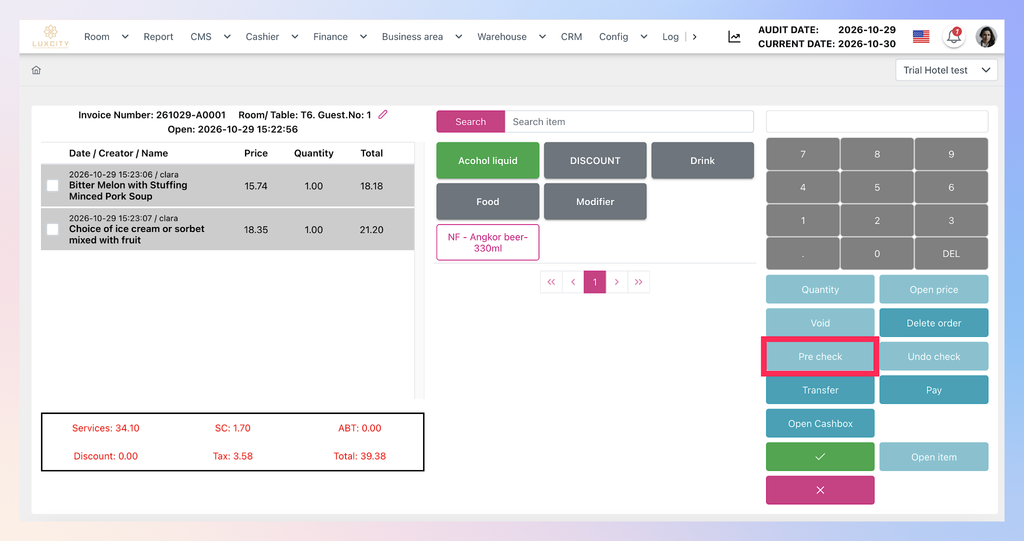
| B | Precheck button (Order Details) | Opens the Precheck popup. Shown only when Skip Precheck Step is off. |
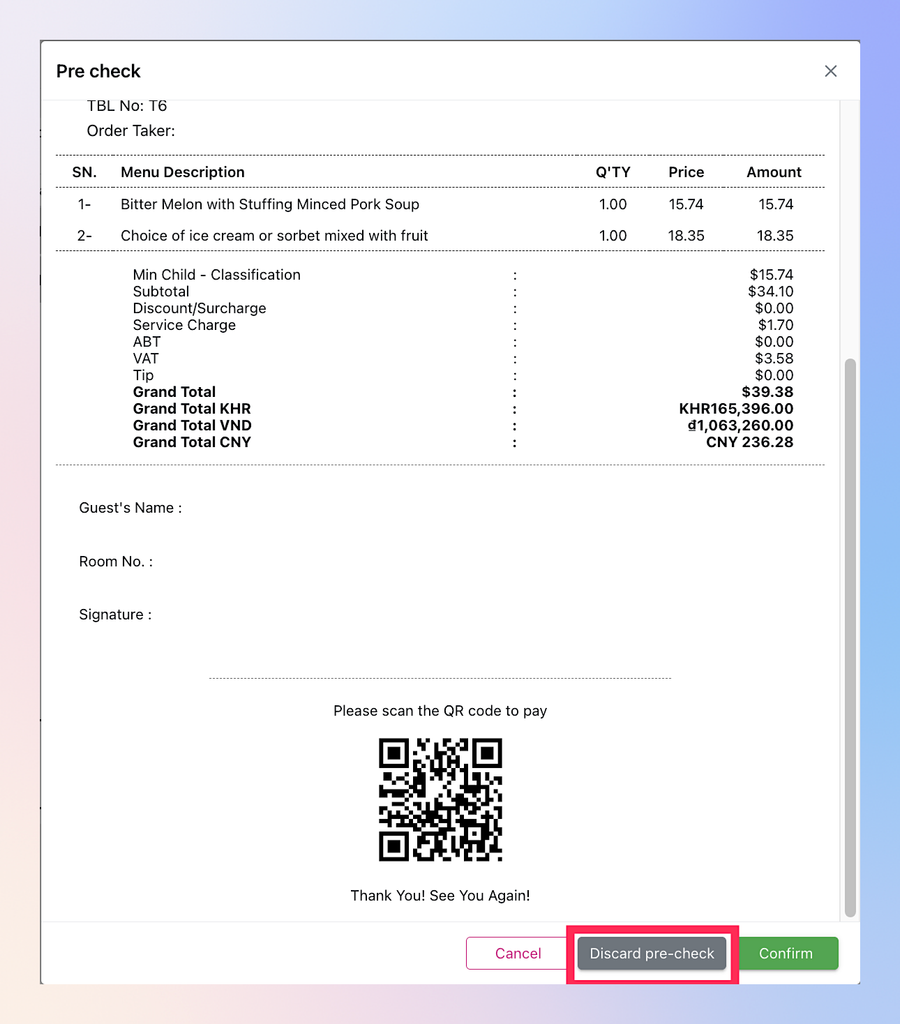
| C | Discard Precheck button (Precheck popup) | Skips the Precheck printing. Shown only when Skip Precheck Step is off. |
| D | Pay button (Order Details) | Opens the Pay popup. Enabled only when the order has a valid service. |
| E | Payment fields (Pay popup) | Payment amount and payment method. |
| F | Confirm button (Pay popup) | Completes the payment. With Skip Precheck Step on, it also completes the Precheck. |
Choose how the Precheck step works
| Option | What it does | Value you enter | Short example |
|---|---|---|---|
| Skip Precheck Step: Off | Keeps the standard Precheck flow. The Precheck button stays, and the Precheck popup has a Discard Precheck button. | Switch off | A guest does not need a printed bill. Open Precheck, click Discard Precheck, then pay. |
| Skip Precheck Step: On | Hides the Precheck button. The system does the Precheck together with the payment. | Switch on | Click Pay, choose the method, click Confirm. Precheck and payment happen in one step. |
Set the Skip Precheck Step switch
- Open the outlet configuration (Outlet config).
- Find the Skip Precheck Step switch (A).
- Turn it on to skip the Precheck step, or off to keep it.
Result: The outlet uses the flow you chose, for FnB and KTV outlets alike. With the switch off, orders show the Precheck button. With the switch on, orders do not show it.
Discard the Precheck printing
Use this when Skip Precheck Step is off and the guest does not need a printed Precheck Bill.
- Open the order and click Precheck (B).
- In the Precheck popup, click Discard Precheck (C).
Result: The message “Discard Precheck successfully” appears. Pay (D) becomes enabled if the order has at least one valid service, and you can pay without printing the Precheck Bill. The Precheck Bill not being printed never blocks the payment.
Pay without a Precheck step
Use this when Skip Precheck Step is on.
- Open the order. The Precheck button is not shown.
- Click Pay (D). It is enabled only when the order has at least one valid service.
- In the Pay popup, enter the payment amount and select the payment method (E).
- Click Confirm (F).
Result: The system completes the Precheck and then processes the payment. The order counts as paid only when both succeed.
Retry a failed payment
When Skip Precheck Step is on and the payment does not go through:
- If the Precheck fails, the payment is not successful.
- If the Precheck succeeds but the payment fails, the order keeps its real transaction state. Click Pay and try again, following the usual payment rules.
- Retrying does not create a second payment transaction.
Why Pay is disabled
Pay stays disabled when the order has no valid service, whichever switch setting you use. A service that was voided or cancelled is not valid. Add a valid service to the order to enable Pay.