Invoice list
English below
| Chức năng (Function description) | Tài liệu này hướng dẫn người dùng cuối sử dụng màn hình Business Area > Invoice List cho phép người dùng xem, tìm kiếm, lọc và quản lý danh sách tất cả các hoá đơn phát sinh trong hệ thống theo từng nhà hàng, bao gồm các thông tin: mã hóa đơn, tên khách hàng, loại hình kinh doanh, số tiền, ngày tạo và các dữ liệu liên quan, đồng thời hỗ trợ thực hiện các thao tác nghiệp vụ như xem chi tiết, in đơn hàng, chia đơn hàng, xuất dữ liệu theo quyền truy cập của người dùng. |
|---|---|
| Phiên bản (Version) | v1.0 |
| Ngày tạo (Created at) | |
| Điều kiện sử dụng (Prerequisites) | Thiết bị đã được whitelist IP address, có VPN và có kết nối mạng ổn địnhĐã có tài khoản đăng nhập vào PMS. Trường hợp người dùng chưa có tài khoản, cần liên hệ Support team hoặc Admin để tạo tài khoản.Người dùng đã được phân quyền sử dụng chức năng FnB invoice |
1. Giới thiệu
Màn hình Invoice list trong khu vực Business area là nơi tập trung hiển thị tất cả các hóa đơn (invoice) liên quan đến các giao dịch kinh doanh. Màn hình này được thiết kế để người dùng có thể dễ dàng theo dõi, tìm kiếm, lọc và quản lý thông tin các hóa đơn một cách trực quan và hiệu quả. Đây là màn hình nền tảng giúp các nhân viên kế toán, quản lý tài chính và các bộ phận liên quan nhanh chóng nắm bắt trạng thái và chi tiết của các giao dịch mà không cần truy cập nhiều màn hình khác.
2. Mục tiêu
- Tập trung thông tin: Hiển thị đầy đủ các thông tin cần thiết của mỗi hóa đơn như mã hóa đơn, tên khách hàng, ngày khởi tạo, ca làm việc, tổng giá trị đơn hàng,…
- Tối ưu thao tác người dùng: Hỗ trợ các chức năng tìm kiếm, lọc và truy cập chi tiết hóa đơn nhanh chóng, giảm thiểu thao tác thừa và tăng hiệu quả làm việc.
- Đảm bảo chuẩn UX/UI: Thiết kế giao diện trực quan, nhất quán với guideline của hệ thống, giúp người dùng dễ hiểu và dễ thao tác, giảm thiểu lỗi sử dụng.
- Hỗ trợ quyết định và báo cáo: Cung cấp dữ liệu chính xác, cập nhật kịp thời để phục vụ công tác báo cáo, theo dõi tình trạng thanh toán và quản lý doanh thu.
II. Các Tính Năng Chính
- Hiển thị danh sách hóa đơn: Hiển thị tất cả hóa đơn với thông tin cơ bản và trạng thái để người dùng theo dõi nhanh.
- Tìm kiếm và lọc hóa đơn: Cho phép tìm kiếm theo mã, khách hàng, ngày và lọc nâng cao để nhanh chóng tìm hóa đơn cần thiết.
- Truy cập và thao tác nhanh trên chi tiết hóa đơn: Mở chi tiết, chỉnh sửa, tạo mới hoặc xuất hóa đơn trực tiếp từ danh sách.
- Phân trang và tải dữ liệu: Quản lý hiển thị danh sách lớn với phân trang hoặc cuộn vô hạn, tối ưu tốc độ tải.
- Thông báo và cảnh báo: Hiển thị cảnh báo, highlight các hóa đơn bị huỷ hoặc cần chú ý để người dùng phản hồi kịp thời.
III. Các Bước Thao Tác Cơ Bản Trên Màn Hình
Dưới đây là các bước thao tác tiêu chuẩn để sử dụng chức năng. Thực hiện theo thứ tự để đảm bảo hiệu quả.
- Truy cập màn hình Group reservation list:
- Đăng nhập vào hệ thống PMS.
- Nhấn vào menu “Business area” trên thanh Header.
- Chọn mục “Invoice list” trong danh sách menu con.
- Hệ thống sẽ điều hướng đến màn hình Invoice list.
- Xem danh sách hóa đơn:
- Khi màn hình được mở, hệ thống sẽ tự động tải danh sách hóa đơn theo bộ lọc mặc định.
- Người dùng có thể xem nhanh các thông tin chính của từng hóa đơn trong bảng danh sách.
- Các hóa đơn có trạng thái “Undo-paid” được hiển thị bằng màu sắc đỏ để dễ nhận biết.
- Nhấn vào giá trị “Check num” của hoá đơn để xem chi tiết hoá đơn đó.
- Tìm kiếm hóa đơn:
- Tại ô Search by check numb, nhập thông tin để tìm kiếm hoá đơn theo “Check numb”
- Hệ thống sẽ tự động tìm kiếm và hiển thị các kết quả phù hợp với từ khóa tìm kiếm.
- Người dùng có thể xóa từ khóa tìm kiếm để quay lại danh sách hóa đơn đầy đủ.
- Lọc danh sách hóa đơn:
- Sử dụng các bộ lọc có sẵn trên màn hình (ví dụ: tên cửa hàng, ngày theo ca làm việc, trạng thái hoá đơn, số ca làm việc).
- Chọn giá trị lọc phù hợp với nhu cầu.
- Hệ thống sẽ cập nhật danh sách hóa đơn theo điều kiện lọc đã chọn.
- Xem chi tiết hóa đơn:
- Tại danh sách hóa đơn, nhấp vào dòng chứa hóa đơn cần xem.
- Hệ thống sẽ mở màn hình Bill Final để hiển thị đầy đủ thông tin của hóa đơn, bao gồm các khoản mục chi tiết, trạng thái thanh toán và các thông tin liên quan.
- Từ màn hình chi tiết, người dùng có thể thực hiện các thao tác tiếp theo như chỉnh sửa, cập nhật hoặc xuất hóa đơn (tùy theo quyền truy cập).
- Điều hướng và phân trang dữ liệu:
- Nếu danh sách hóa đơn có nhiều dữ liệu, hệ thống sẽ chia thành các trang.
- Người dùng có thể sử dụng các nút <<, >> hoặc chọn trực tiếp số trang để chuyển đến trang dữ liệu mong muốn.
- Khi chuyển trang, hệ thống sẽ tải dữ liệu tương ứng và hiển thị trên màn hình.
IV. Mô Tả GUI (Giao Diện Người Dùng)
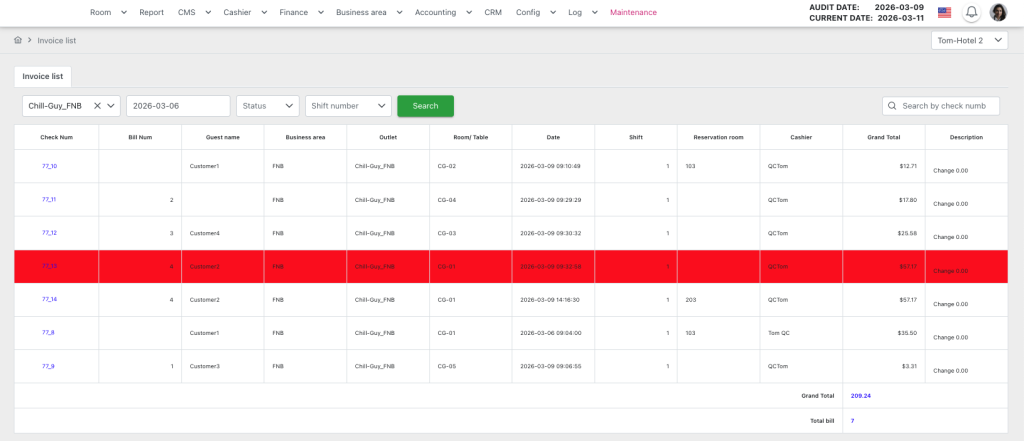
Màn hình “Invoice list” gồm:
- Header: Thông tin về ngày audit hiện tại và các tính năng chủ
- Bộ lọc và tìm kiếm:
- Nằm ngay trên bảng danh sách hóa đơn, bao gồm các trường:
- Outlet: dropdown chọn outlet (ví dụ Chill-Guy_FNB).
- Ngày: chọn ngày của ca làm việc.
- Status: dropdown trạng thái hóa đơn bao gồm “Paid” và “Undo Paid”.
- Shift number: dropdown để chọn số ca làm việc trong ngày.
- Nút Search màu xanh lá để áp dụng bộ lọc.
- Thanh tìm kiếm nhanh (Search by check num): cho phép tìm kiếm Check Num.
- Nằm ngay trên bảng danh sách hóa đơn, bao gồm các trường:
- Bảng danh sách hóa đơn (Invoice Table): hiển thị các cột thông tin cơ bản của hóa đơn:
- Check Num: mã hoá đơn, là link để mở chi tiết hoá đơn trong popup Final Bill
- Bill Num: số lần in print-check của hóa đơn
- Guest Name: tên khách hàng
- Business Area: khu vực kinh doanh
- Outlet: tên nhà hàng
- Room/Table: tên bàn)
- Date: thời gian cập nhật lần cuối
- Shift: ca làm việc
- Reservation Room: tên phòng nếu hoá đơn được gán cho phòng của khách sạn
- Cashier: tên thu ngân
- Grand Total: tổng tiền hóa đơn
- Description: thông tin ghi chú
- Đặc điểm nổi bật:
- Các hóa đơn có trạng thái “Undo-paid” được hiển thị bằng màu sắc đỏ để dễ nhận biết.
- Cột Check Num là link giúp người dùng truy cập nhanh chi tiết hóa đơn.
- Bảng hỗ trợ phân trang và hiển thị tổng tiền Grand Total cũng như tổng số hóa đơn Total bill ở cuối bảng.
V. Mẹo Sử Dụng:
- Luôn kiểm tra kỹ các số liệu trước và trong khi chạy Night Audit.
- Đảm bảo tất cả các bước bắt buộc đã được hoàn thành.
- Hỗ Trợ: Nếu gặp vấn đề, liên hệ email support@airfeedkh.com.
- Cập Nhật: Guideline này có thể thay đổi. Vui lòng kiểm tra phiên bản mới nhất trong phần “Help”.
| Function description | This document guides end users on how to use the Business Area > Invoice List screen, which allows users to view, search, filter, and manage the list of all invoices generated in the system for each restaurant. It includes information such as invoice code, customer name, business type, amount, creation date, and other related data, while also supporting operational actions such as viewing details, printing invoices, splitting orders, and exporting data according to the user’s access permissions. |
|---|---|
| Version | v1.0 |
| Created at | |
| Prerequisites | The device must have a whitelisted IP address, a VPN, and a stable internet connection.The user must have a PMS account. If the user does not have an account, contact the Support team or Admin to create one.The user must be FnB invoice function. |
I. Introduction and Objectives
1. Introduction
The Invoice List screen in the Business Area is the central location for displaying all invoices related to business transactions. This screen is designed to allow users to easily monitor, search, filter, and manage invoice information in a visual and efficient way. It serves as a foundational screen that helps accounting staff, financial managers, and other relevant departments quickly understand the status and details of transactions without navigating multiple screens.
2. Objectives
- Centralized Information: Displays all necessary information for each invoice, such as invoice code, customer name, creation date, work shift, total order value, and more.
- Optimized User Interaction: Supports functions like searching, filtering, and quick access to invoice details, minimizing redundant steps and improving work efficiency.
- UX/UI Compliance: Features a clear and consistent interface aligned with the system’s guidelines, making it easy for users to understand and operate while reducing usage errors.
- Decision Support and Reporting: Provides accurate and timely data to support reporting, monitoring payment status, and managing revenue.
II. Primary features
- Display Invoice List: Shows all invoices with basic information and status, allowing users to quickly monitor.
- Search and Filter Invoices: Allows searching by invoice code, customer, date, and provides advanced filters to quickly locate the required invoices.
- Quick Access and Actions on Invoice Details: Open invoice details, edit, create new invoices, or export invoices directly from the list.
- Pagination and Data Loading: Manages large lists with pagination or infinite scrolling to optimize loading speed.
- Notifications and Alerts: Displays warnings and highlights invoices that are canceled or require attention, enabling timely user response.
III. Basic Operations on the Dashboard
Below are the standard operation steps to use this function. Perform them in order to ensure effectiveness.
- Access the Invoice List Screen
- Log in to the PMS system.
- Click the “Business Area” menu on the header bar.
- Select “Invoice List” from the submenu.
- The system will navigate to the Invoice List screen.
- View the Invoice List
- When the screen opens, the system automatically loads invoices based on the default filter.
- Users can quickly view the key information of each invoice in the table.
- Invoices with the status “Undo-paid” are displayed in red for easy identification.
- Click on the “Check Num” value of an invoice to view its details.
- Search for Invoices
- In the Search by Check Num field, enter information to search for invoices by Check Number.
- The system will automatically display results that match the search keyword.
- Users can clear the search keyword to return to the full invoice list.
- Filter the Invoice List
- Use the available filters on the screen (e.g., store name, shift date, invoice status, work shift number).
- Select the appropriate filter values according to your needs.
- The system will update the invoice list based on the selected filter criteria.
- View Invoice Details
- In the invoice list, click the row of the invoice you want to view.
- The system will open the Bill Final screen to display full invoice information, including detailed line items, payment status, and related information.
- From the detail screen, users can perform further actions such as edit, update, or export the invoice (depending on access permissions).
- Navigation and Pagination
- If the invoice list contains a large number of records, the system divides it into pages.
- Users can use the <<, >> buttons or select a page number directly to navigate to the desired page.
- When switching pages, the system loads the corresponding data and displays it on the screen.
IV. GUI Description (User Interface)
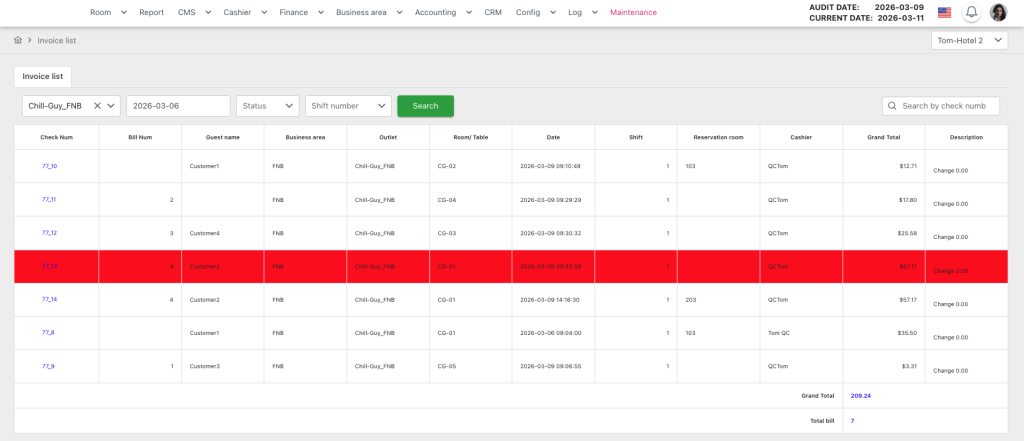
Invoice List Screen Structure
The “Invoice List” screen includes the following sections:
Header
Displays the current audit date and main system functions.
Filters and Search
Located above the invoice list table, including the following fields:
- Outlet: Dropdown to select the outlet (e.g., Chill-Guy_FNB).
- Date: Select the working shift date.
- Status: Dropdown for invoice status, including “Paid” and “Undo Paid”.
- Shift Number: Dropdown to select the shift number within the day.
- Search Button: A green Search button to apply the selected filters.
- Quick Search (Search by Check Num): Allows users to search by Check Number.
Invoice Table
Displays the basic invoice information with the following columns:
- Check Num: Invoice code; acts as a link to open the invoice detail in the Final Bill popup.
- Bill Num: Number of times the invoice has been printed (print-check count).
- Guest Name: Customer name.
- Business Area: Business area where the transaction occurs.
- Outlet: Restaurant or outlet name.
- Room/Table: Table name.
- Date: Last updated date and time.
- Shift: Working shift.
- Reservation Room: Room name if the invoice is linked to a hotel room reservation.
- Cashier: Cashier name.
- Grand Total: Total invoice amount.
- Description: Notes or additional information.
Key Highlights
- Invoices with the “Undo-paid” status are displayed in red for easy identification.
- The Check Num column acts as a quick link for users to access invoice details.
- The table supports pagination and displays the Grand Total amount as well as the Total Bill count at the bottom of the table.
V. General Instructions and Support
- Usage tips:
- Always carefully check the figures before and during running Night Audit.
- Ensure that all mandatory steps have been completed.
- Support: If you encounter a problem, contact email support@airfeedkh.com.
- Updates: This guideline may change. Please check the latest version in the “Help” section.