Lost and found
English below
| Chức năng (Function description) | Tính năng Lost and Found trong sub-tab Lost and Found (màn hình Housekeeping) của PMS cho phép nhân viên buồng phòng ghi nhận, theo dõi và quản lý chi tiết các vật dụng thất lạc, hư hỏng, bẩn, bị phá hoại hoặc được trả lại bởi khách hàng, bao gồm danh sách hiển thị, bộ lọc tìm kiếm, các thao tác xử lý và popup tạo/chỉnh sửa thông tin với đầy đủ dữ liệu liên quan như phòng, đặt phòng, loại vật dụng, trạng thái, người tìm thấy, thời gian, hình ảnh và tài liệu đính kèm. |
|---|---|
| Phiên bản (Version) | v1.0 |
| Ngày tạo (Created at) | Apr 13, 2026 |
| Điều kiện sử dụng (Prerequisites) | Thiết bị đã được whitelist IP address, có VPN và có kết nối mạng ổn địnhĐã có tài khoản đăng nhập vào PMS. Trường hợp người dùng chưa có tài khoản, cần liên hệ Support team hoặc Admin để tạo tài khoản.Người dùng cần có quyền truy cập tính năng Housekeeping > Lost and found |
I. Giới Thiệu và Mục Tiêu
1. Giới thiệu
Tính năng Lost and Found trên sub-tab Lost and Found (màn hình Housekeeping) trong PMS là một công cụ hỗ trợ vận hành dành cho nhân viên buồng phòng, giúp ghi nhận và lưu trữ tập trung tất cả các trường hợp liên quan đến vật dụng được phát hiện trong khu vực phòng hoặc khuôn viên khách sạn nhưng không thuộc quyền sở hữu trực tiếp tại thời điểm phát hiện. Các trường hợp này bao gồm vật dụng khách để quên, thất lạc, bị hư hỏng, bị bẩn, bị phá hoại hoặc được khách/nhân viên trả lại trong quá trình vận hành.
Tính năng được xây dựng nhằm thay thế các phương thức ghi nhận thủ công, giúp chuẩn hóa quy trình tiếp nhận – lưu trữ – xử lý thông tin Lost and Found trên hệ thống PMS, đảm bảo dữ liệu được quản lý tập trung, có lịch sử rõ ràng và dễ dàng truy xuất khi cần thiết. Đồng thời, hệ thống cũng hỗ trợ việc phối hợp giữa các bộ phận liên quan trong khách sạn thông qua việc cung cấp thông tin minh bạch và nhất quán theo từng trường hợp cụ thể.
2. Mục tiêu
- Chuẩn hóa quy trình ghi nhận và quản lý các trường hợp Lost and Found trong toàn bộ khách sạn trên một hệ thống thống nhất
- Đảm bảo mọi thông tin liên quan đến vật dụng được phát hiện đều được lưu trữ đầy đủ, có cấu trúc và dễ truy xuất
- Hỗ trợ theo dõi xuyên suốt vòng đời xử lý của từng vật dụng từ thời điểm phát hiện đến khi hoàn tất xử lý (trả lại, lưu kho hoặc đóng hồ sơ)
- Giảm thiểu sai sót và thất lạc thông tin do ghi nhận thủ công hoặc xử lý rời rạc giữa các bộ phận
- Tăng cường khả năng phối hợp giữa Housekeeping và các bộ phận liên quan trong việc xử lý tài sản của khách
- Cung cấp nguồn dữ liệu tập trung phục vụ tra cứu, kiểm soát nội bộ và báo cáo vận hành khi cần thiết
II. Các Tính Năng Chính
- Quản lý danh sách Lost and Found
- Hiển thị danh sách tất cả các bản ghi Lost and Found trong hệ thống
- Mỗi bản ghi bao gồm đầy đủ thông tin:
- Reservation code (mã booking liên quan)
- Guest name (tên khách hàng)
- Found item (vật dụng được ghi nhận)
- Found date (ngày phát hiện)
- Return date (ngày trả lại, nếu có)
- Found by (người phát hiện)
- Type (loại tình trạng vật dụng)
- Room (phòng liên quan)
- Arrival / Departure (ngày check-in / check-out)
- Status (trạng thái xử lý)
- Description (mô tả chi tiết)
- Tìm kiếm và lọc dữ liệu
- Cho phép lọc danh sách theo các tiêu chí:
- Guest name
- Found date
- Type
- Item name
- Room
- Status
- Hỗ trợ tìm kiếm nhanh theo từ khóa
- Cho phép lọc danh sách theo các tiêu chí:
- Thao tác trên danh sách
- Xuất dữ liệu ra file Excel
- Tìm kiếm bản ghi
- Thêm mới Lost and Found (chỉ khả dụng khi không chọn một bản ghi)
- Chỉnh sửa thông tin (chỉ khả dụng khi chọn một bản ghi)
- Thực hiện thao tác Return (trả lại vật dụng) khi chọn bản ghi phù hợp (chỉ khả dụng khi chọn một bản ghi)
- Quản lý trạng thái:
- Hệ thống hỗ trợ 3 trạng thái chính:
- Processing: đang xử lý
- Canceled: đã hủy
- Completed: đã hoàn tất
- Hệ thống hỗ trợ 3 trạng thái chính:
- Thêm và chỉnh sửa Lost and Found
- Popup tạo/chỉnh sửa cho phép nhập và quản lý thông tin chi tiết:
- Thông tin hệ thống (tự động điền):
- Added by (người tạo)
- Arrival / Departure
- Enter time
- Last changed by
- Last changed time
- Thông tin liên quan booking:
- Room / Location (*bắt buộc, tự động fill theo cấu hình hoặc chọn từ reservation)
- Cho phép mở popup Search Reservation để chọn booking trong hệ thống
- Thông tin vật dụng:
- Item type (Lost / Damage / Dirty / Destroy / Return)
- Item status (Processing / Canceled / Completed)
- Finder (người phát hiện)
- Return by (người trả lại)
- Date (ngày ghi nhận)
- Return date (ngày trả lại)
- Danh sách vật dụng:
- Cho phép thêm nhiều item trong một bản ghi
- Mỗi item gồm:
- Item name
- Quantity
- Description
- Tệp đính kèm:
- Upload hình ảnh liên quan
- Upload file tài liệu bổ sung
III. Các Bước Thao Tác Cơ Bản Trên Màn Hình
Dưới đây là các bước thao tác tiêu chuẩn để sử dụng chức năng. Thực hiện theo thứ tự để đảm bảo hiệu quả.
- Truy cập màn hình Lost and found
- Đăng nhập vào hệ thống PMS.
- Nhấn vào menu “Room” trên thanh Header.
- Chọn Room > Housekeeping > Lost and found.
- Xem danh sách Lost and Found
- Truy cập sub-tab Lost and Found trong màn hình Housekeeping
- Hệ thống hiển thị toàn bộ danh sách bản ghi hiện có
- Sử dụng bộ lọc để tìm kiếm nhanh theo nhu cầu
- Thêm mới Lost and Found
- Nhấn nút Add
- Hệ thống mở popup tạo mới
- Nhập đầy đủ thông tin theo các trường yêu cầu
- Thêm danh sách item nếu có nhiều vật dụng
- Đính kèm hình ảnh hoặc file (nếu cần)
- Nhấn Save để lưu hệ thống
- Chỉnh sửa thông tin
- Chọn một bản ghi trên danh sách
- Nhấn nút Edit
- Cập nhật thông tin trong popup
- Nhấn Save để lưu thay đổi
- Thực hiện trả lại vật dụng (Return)
- Chọn bản ghi cần xử lý
- Nhấn nút Return
- Cập nhật thông tin người trả và ngày trả
- Xác nhận hoàn tất để chuyển trạng thái sang Completed (hoặc trạng thái tương ứng)
- Xuất dữ liệu
- Nhấn nút Excel
- Hệ thống xuất toàn bộ danh sách theo bộ lọc hiện tại ra file Excel
IV. Mô Tả GUI (Giao Diện Người Dùng)
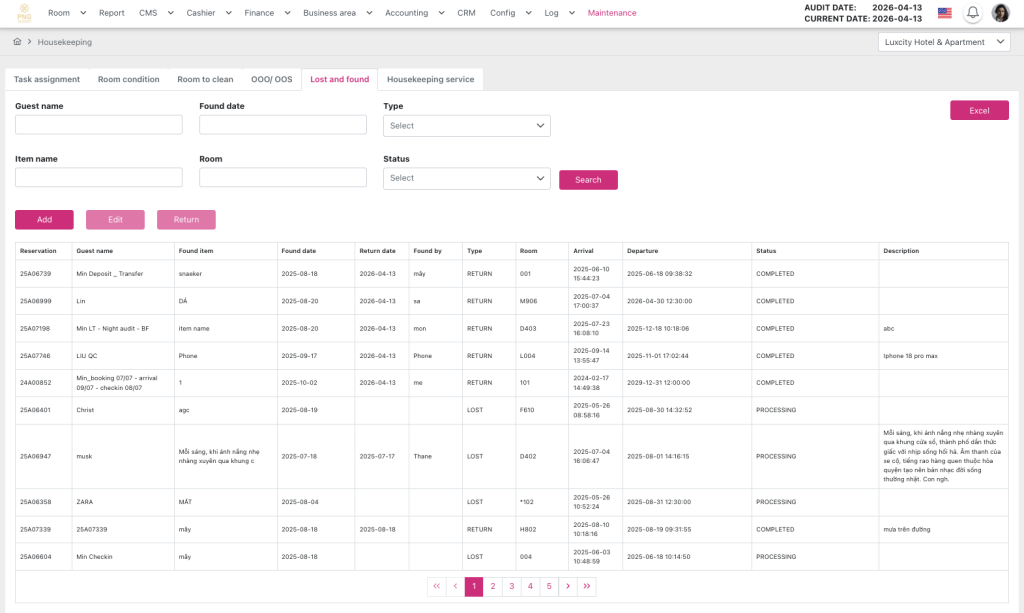
H.1.0. Màn hình Lost and found
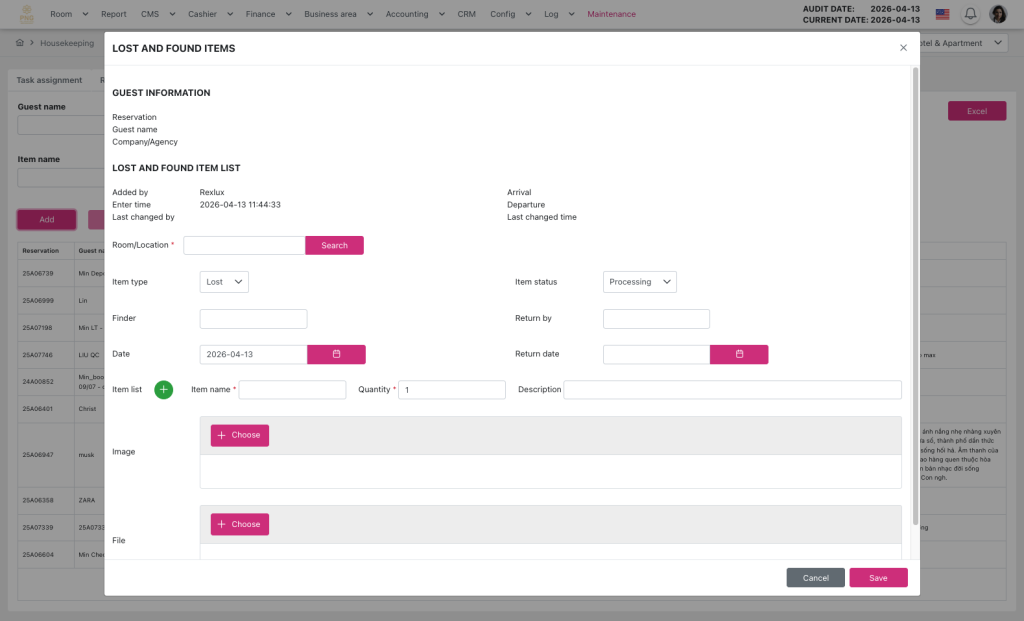
H.1.1. Popup Thêm mới item lost and found
Màn hình Lost and found bao gồm:
- Header:
- Hiển thị thông tin ngày audit hiện tại và các chức năng chính của màn hình như điều hướng menu, truy cập nhanh các thao tác quản lý hóa đơn.
- Khu vực Bộ lọc
- Khu vực bộ lọc cho phép người dùng tìm kiếm nhanh và thu hẹp danh sách các bản ghi Lost and Found theo nhiều điều kiện khác nhau.
- Thành phần giao diện
- Guest name: lọc theo tên khách hàng
- Found date: lọc theo khoảng thời gian phát hiện vật dụng (từ – đến)
- Type: lọc theo loại sự kiện (Lost / Damage / Dirty / Destroy / Return)
- Item name: lọc theo tên vật dụng
- Room: lọc theo số phòng hoặc vị trí
- Status: lọc theo trạng thái xử lý (Processing / Canceled / Completed)
- Cho phép nhập nhiều điều kiện lọc đồng thời
- Nút Search: thực thi tìm kiếm theo điều kiện đã chọn
- Đưa về mặc định: xoá tất cả dữ liệu trong các trường lọc, sau đó nhấn nút Search
- Kết quả lọc được cập nhật ngay trên Data Grid
- Khu vực Thanh thao tác
- Cung cấp các thao tác chính để người dùng quản lý dữ liệu Lost and Found.
- Chức năng:
- Excel: xuất danh sách dữ liệu theo bộ lọc hiện tại ra file Excel
- Search: kích hoạt tìm kiếm theo filter
- Add: mở popup tạo mới Lost and Found, chỉ khả dụng khi chưa chọn một bản ghi trên lưới
- Edit: mở popup chỉnh sửa bản ghi đã chọn
- Return: thực hiện xử lý trả lại vật dụng
- Quy tắc trạng thái nút
- Add: chỉ được kích hoạt khi người dùng chưa chọn bất kì bản ghi trên danh sách
- Edit và Return: chỉ được kích hoạt khi người dùng chọn 1 bản ghi hợp lệ trên danh sách
- Các nút còn lại luôn hiển thị theo quyền truy cập người dùng
- Khu vực Danh sách dữ liệu
- Hiển thị toàn bộ danh sách Lost and Found theo dạng bảng để người dùng theo dõi và xử lý.
- Cấu trúc dữ liệu hiển thị
- Reservation code: mã booking liên quan
- Guest name: tên khách
- Found item: vật dụng được ghi nhận
- Found date: ngày phát hiện
- Return date: ngày trả lại (nếu có)
- Found by: người phát hiện
- Type: loại sự kiện (Lost / Damage / Dirty / Destroy / Return)
- Room: phòng liên quan
- Arrival: ngày check-in
- Departure: ngày check-out
- Status: trạng thái xử lý
- Description: mô tả chi tiết
- Click vào 1 dòng để chọn bản ghi, highlight dòng đang chọn, sau đó nút Edit / Return được kích hoạt theo trạng thái hợp lệ
- Hỗ trợ scroll khi danh sách dài
- Khu vực Popup Create / Edit Lost and found item
- Cho phép tạo mới hoặc chỉnh sửa thông tin Lost and Found với dữ liệu chi tiết theo từng trường hợp.
- Mục thông tin khách hàng (Guest information)
- Reservation: Mã đặt phòng liên quan đến bản ghi Lost and Found
- Guest name: Tên khách hàng liên quan
- Company/Agency: Công ty hoặc đại lý liên kết với booking (nếu có)
- Mục thông tin mất và được tìm thấy (Lost and found item list)
- Added by: người tạo
- Added time: thời gian tạo
- Last changed by: người chỉnh sửa gần nhất
- Last changed time: thời gian cập nhật gần nhất
- Arrival / Departure: thông tin booking
- Enter time: thời điểm ghi nhận
- Room / Location
- Tự động lấy từ cấu hình hoặc booking
- Có thể thay đổi thông qua Search Reservation
- Search Reservation:
- Tìm kiếm theo Reservation code / Guest name / Room
- Chọn 1 booking để liên kết dữ liệu
- Item type (dropdown):
- Lost: Vật dụng bị khách bỏ quên hoặc thất lạc
- Damage: Vật dụng bị hư hỏng
- Dirty: Vật dụng bị bẩn, cần vệ sinh
- Destroy: Vật dụng bị phá hủy, không thể sử dụng
- Return: Vật dụng đã được trả lại
- Item status (dropdown):
- Processing: Đang trong quá trình xử lý
- Canceled: Đã hủy xử lý
- Completed: Đã xử lý hoàn tất
- Finder: người phát hiện
- Return by: người trả lại
- Date: ngày ghi nhận
- Return date: ngày hoàn trả
- Danh sách vật dụng (Item List Area)
- Dạng bảng con trong popup
- Cho phép thêm nhiều dòng item không giới hạn
- Thêm mới bản ghi bằng nút “+”
- Mỗi dòng gồm:
- Item name: Tên vật dụng được ghi nhận trong sự kiện Lost and Found
- Quantity: Số lượng vật dụng được ghi nhận
- Description: Mô tả chi tiết về vật dụng hoặc tình trạng liên quan
- Hỗ trợ:
- Thêm dòng mới
- Xóa dòng
- Validate dữ liệu bắt buộc
- Khu vực đính kèm (Attachment Area)
- Image upload:
- Upload hình ảnh vật dụng
- Preview trước khi lưu
- File upload:
- Upload tài liệu liên quan
- Hỗ trợ nhiều file
- Image upload:
- Hành động trong popup
- Save: lưu dữ liệu
- Cancel: đóng popup không lưu
- Validate dữ liệu bắt buộc trước khi lưu
- Popup Search Reservation
- Hỗ trợ tìm và liên kết booking với bản ghi Lost and Found.
- Reservation code
- Guest name
- Room
- Kết quả hiển thị
- Danh sách booking phù hợp điều kiện tìm kiếm
- Cho phép chọn 1 booking duy nhất
- Khi chọn booking, hệ thống tự động map dữ liệu sang form Lost and Found
- Popup tự động đóng sau khi chọn thành công
- Hỗ trợ tìm và liên kết booking với bản ghi Lost and Found.
| Function description | The Lost and Found feature in the Lost and Found sub-tab (Housekeeping screen) of the PMS allows housekeeping staff to record, track, and manage detailed information of items that are lost, damaged, dirty, destroyed, or returned by guests. It includes a data list view, search filters, operational actions, and a create/edit popup with full related information such as room, reservation, item type, status, finder, timestamps, images, and attached documents. |
|---|---|
| Version | v1.0 |
| Created at | Apr 13, 2026 |
| Prerequisites | The device must have a whitelisted IP address, a VPN, and a stable internet connection.The user must have a PMS account. If the user does not have an account, contact the Support team or Admin to create one.Users must have permission to access the Housekeeping > Lost and found feature. |
I. Introduction and Objectives
1. Introduction
The Lost and Found feature in the Lost and Found sub-tab (Housekeeping screen) within the PMS is an operational tool designed for housekeeping staff to centrally record and manage all cases related to items found within guest rooms or hotel premises that are not under direct ownership at the time of discovery. These cases include items left behind by guests, lost items, damaged items, dirty items, destroyed items, or items returned by guests or staff during operations.
This feature is designed to replace manual recording methods and standardize the process of receiving, storing, and processing Lost and Found information within the PMS system. It ensures that all data is centrally managed, has a clear history, and can be easily retrieved when needed. In addition, the system supports coordination between relevant departments by providing transparent and consistent information for each specific case.
2. Objectives
- Standardize the process of recording and managing Lost and Found cases across the entire hotel within a unified system
- Ensure all information related to discovered items is fully recorded, structured, and easily retrievable
- Support end-to-end tracking of each item lifecycle from discovery to final resolution (return, storage, or closure)
- Reduce errors and information loss caused by manual recording or fragmented handling across departments
- Enhance coordination between Housekeeping and other relevant departments in handling guest belongings
- Provide a centralized data source for internal review, control, and operational reporting
II. Primary features
- Lost and Found List Management
- Display a complete list of all Lost and Found records in the system
- Each record includes the following information:
- Reservation code
- Guest name
- Found item
- Found date
- Return date
- Found by
- Type
- Room
- Arrival / Departure
- Status
- Description
- Data Search and Filtering
- Filter records by:
- Guest name
- Found date
- Type
- Item name
- Room
- Status
- Support quick keyword search
- Filter records by:
- List Actions
- Export data to Excel
- Search records
- Add new Lost and Found record (only available when no record is selected)
- Edit record (only available when a record is selected)
- Perform Return action when a valid record is selected
- Status Management:
- The system supports three statuses:
- Processing: in progress
- Canceled: canceled
- Completed: completed
- The system supports three statuses:
- Create / Edit Lost and Found
- Popup form includes detailed information:
- System Information (Auto-filled):
- Added by
- Arrival / Departure
- Enter time
- Last changed by
- Last changed time
- Booking Information:
- Room / Location (*required, auto-filled from configuration or reservation selection)
- Search Reservation popup to select booking
- Item Information:
- Item type (Lost / Damage / Dirty / Destroy / Return)
- Item status (Processing / Canceled / Completed)
- Finder
- Return by
- Date
- Return date
- Item List:
- Multiple items per record allowed
- Each item includes:
- Item name
- Quantity
- Description
- Attachments:
- Upload images
- Upload supporting documents
III. Basic operations on the screen
Follow the steps below in order to ensure efficient and accurate operation.
- Accessing the Screen
- Log in to PMS
- Navigate to Room menu
- Select Room > Housekeeping > Lost and Found
- Viewing Records
- Open Lost and Found sub-tab
- View the full list of records
- Use filters for quick search
- Creating a New Record
- Click Add
- Fill in required information
- Add item list if needed
- Attach images or files if required
- Click Save
- Editing a Record
- Select a record
- Click Edit
- Update information
- Click Save
- Returning an Item
- Select a record
- Click Return
- Enter return details
- Confirm completion (status updated accordingly)
- Export Data
- Click Excel
- System exports filtered data to Excel file
IV. GUI Description (User Interface)
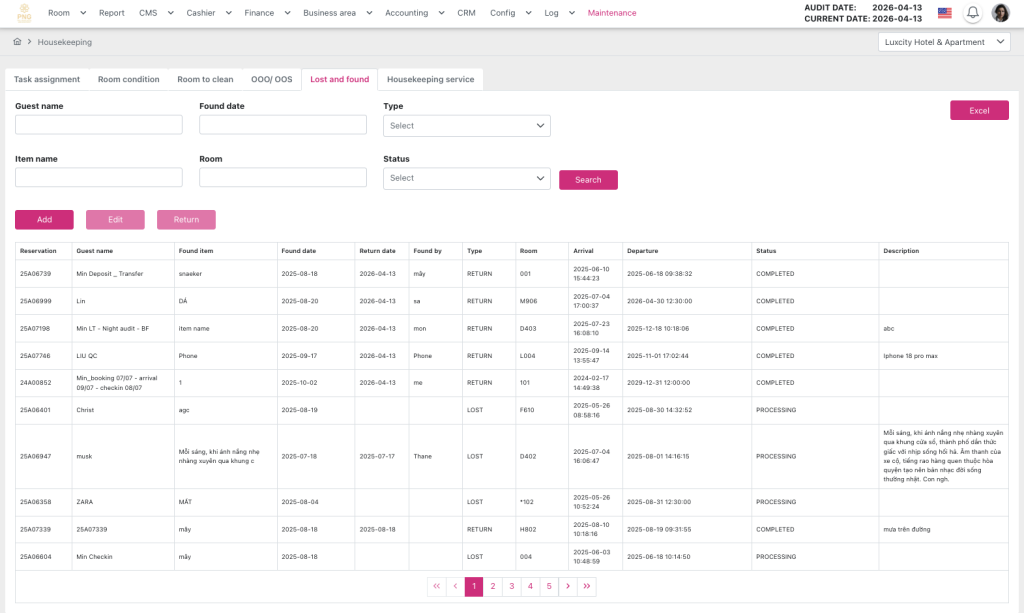
H.1.2. The Lost and found screen
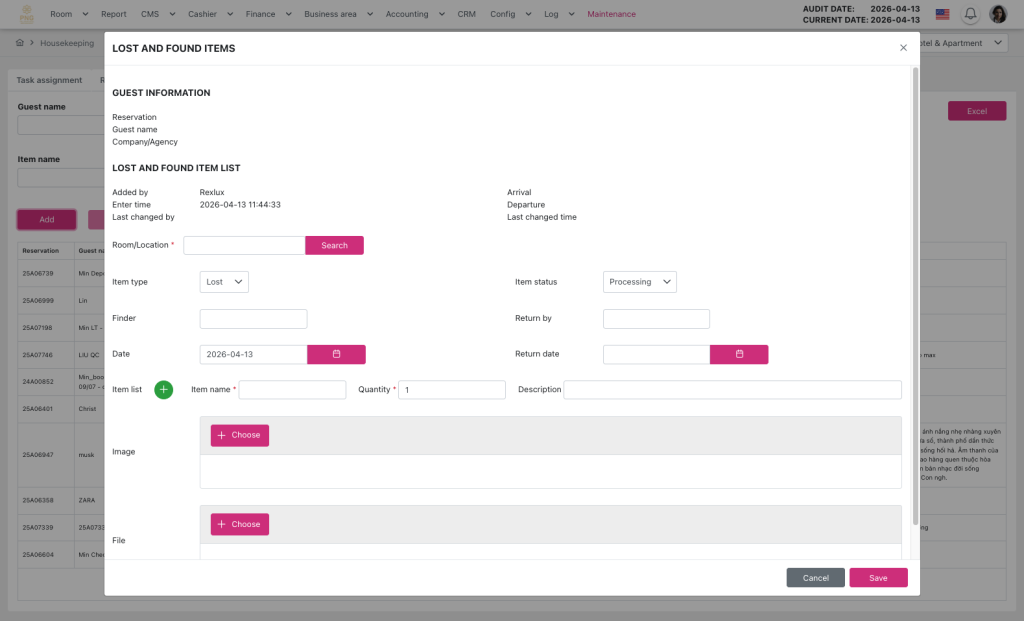
H.1.3. The Add item lost and found popup
Lost and found screen
- Header:
- Displays current audit date and main functions such as menu navigation and quick invoice operations.
- Filter Area
- Allows users to search and narrow down Lost and Found records based on multiple criteria.
- Filter Fields:
- Guest name: filter by guest name
- Found date: filter by date range (From – To)
- Type: filter by item type (Lost / Damage / Dirty / Destroy / Return)
- Item name: filter by item name
- Room: filter by room or location
- Status: filter by processing status
- Behavior:
- Supports multiple filter conditions simultaneously
- Search button: executes filtering
- Reset: clears all filter fields and re-executes search
- Results are refreshed directly in the Data Grid
- Action Bar
- Provides main operational actions for managing Lost and Found records.
- Functions:
- Excel: export current filtered list to Excel
- Search: trigger search based on filters
- Add: open Create popup (disabled when a record is selected)
- Edit: open Edit popup for selected record
- Return: process item return
- Button Rules:
- Add is enabled only when no record is selected
- Edit and Return are enabled only when a valid record is selected
- Other buttons follow user permission rules
- Data Grid Area
- Displays all Lost and Found records in a tabular format.
- Columns:
- Reservation code
- Guest name
- Found item
- Found date
- Return date
- Found by
- Type
- Room
- Arrival
- Departure
- Status
- Description
- Behavior:
- Click a row to select record
- Selected row is highlighted
- Enables Edit/Return actions based on status
- Supports vertical scrolling for large datasets
- Create / Edit Popup
- Allows users to create or edit Lost and Found records.
- Guest Information:
- Reservation: linked booking code
- Guest name
- Company/Agency
- System & Item Information:
- Added by
- Added time
- Last changed by
- Last changed time
- Arrival / Departure
- Enter time
- Room / Location
- Room/Location:
- Auto-filled from configuration or booking
- Can be updated via Search Reservation
- Item Type (Dropdown):
- Lost: Item left behind or lost by guest
- Damage: Item is damaged
- Dirty: Item is dirty and requires cleaning
- Destroy: Item is unusable or destroyed
- Return: Item has been returned
- Item Status (Dropdown):
- Processing: In progress
- Canceled: Canceled
- Completed: Completed
- Additional Fields:
- Finder: person who found the item
- Return by: person who returned the item
- Date: recorded date
- Return date: return date
- Item List Section:
- Table-based sub-list
- Supports unlimited rows
- Add row using “+” button
- Each row includes:
- Item name
- Quantity
- Description
- Supports:
- Add row
- Delete row
- Required field validation
- Attachment Area:
- Image upload with preview
- File upload (multiple files supported)
- Popup Actions:
- Save: save data
- Cancel: close without saving
- Validation applied before saving
- Search Reservation Popup
- Supports linking booking information to Lost and Found record.
- Search Fields:
- Reservation code
- Guest name
- Room
- Results:
- Displays matching reservations
- Allows single selection only
- Behavior:
- Selected reservation is mapped to Lost and Found form
- Popup closes automatically after selection
V. General Instructions and Support
- Usage tips:
- Always carefully check the figures before and during running Night Audit.
- Ensure that all mandatory steps have been completed.
- Support: If you encounter a problem, contact email support@airfeedkh.com.
- Updates: This guideline may change. Please check the latest version in the “Help” section.
<