Increase/Decrease
English below
| Chức năng (Function description) | Chức năng Screen guideline – Config > Promotions > Increase/Decrease trên PMS cho phép người dùng tạo và quản lý các mã giảm giá hoặc tăng giá, thiết lập giá trị điều chỉnh cụ thể, áp dụng linh hoạt cho các module như Booking, F&B, KTV và các dịch vụ liên quan, giúp kiểm soát chính sách giá và khuyến mãi một cách hiệu quả. |
|---|---|
| Phiên bản (Version) | v1.0 |
| Ngày tạo (Created at) | Mar 24, 2026 |
| Điều kiện sử dụng (Prerequisites) | Thiết bị đã được whitelist IP address, có VPN và có kết nối mạng ổn địnhĐã có tài khoản đăng nhập vào PMS. Trường hợp người dùng chưa có tài khoản, cần liên hệ Support team hoặc Admin để tạo tài khoản.Người dùng đã được phân quyền sử dụng chức năng Config promotions |
I. Giới Thiệu và Mục Tiêu
1. Giới thiệu
Tính năng Increase/Decrease trong hệ thống PMS là công cụ quản lý giá linh hoạt, cho phép người dùng cấu hình các mã giảm giá hoặc tăng giá, áp dụng cho nhiều module như Booking, F&B, KTV và các dịch vụ liên quan. Tính năng này hỗ trợ quản lý chính sách giá, khuyến mãi và điều chỉnh giá theo nhu cầu vận hành hàng ngày của khách sạn hoặc nhà hàng.
2. Mục tiêu
- Cho phép người dùng dễ dàng tạo, chỉnh sửa và quản lý các mã giảm giá hoặc tăng giá, với các thông số chi tiết như giá trị, phạm vi áp dụng, thời gian hiệu lực và điều kiện sử dụng.
- Đảm bảo việc áp dụng các điều chỉnh giá diễn ra chính xác và đồng bộ trên các module như Booking, F&B, KTV, giúp tránh sai sót và nhầm lẫn trong vận hành.
- Tăng cường khả năng kiểm soát chính sách giá, từ đó tối ưu hóa doanh thu và lợi nhuận cho các dịch vụ.
- Hỗ trợ linh hoạt trong việc thiết lập các chương trình khuyến mãi, ưu đãi đặc biệt hoặc điều chỉnh giá theo nhu cầu kinh doanh theo từng thời điểm.
- Nâng cao trải nghiệm người dùng và khách hàng bằng cách đảm bảo các mức giá hiển thị đúng, rõ ràng và nhất quán trên tất cả các kênh liên quan.
- Giúp phòng ban quản lý dễ dàng theo dõi, báo cáo và phân tích tác động của các mã giảm giá hoặc tăng giá đối với doanh thu và hoạt động kinh doanh.
- Tối ưu hóa quá trình vận hành PMS, giảm thiểu công việc thủ công và tăng hiệu suất quản lý khuyến mãi và giá cả.
II. Các Tính Năng Chính
- Tạo mới mã Increase/Decrease
- Cho phép người dùng tạo mã điều chỉnh giá mới, bao gồm giảm giá hoặc tăng giá.
- Thiết lập thông tin cơ bản: tên mã, loại điều chỉnh (Percent / Amount), giá trị điều chỉnh, phạm vi áp dụng và thời gian hiệu lực.
- Hỗ trợ áp dụng linh hoạt trên các module như Booking, F&B, KTV và các dịch vụ khác trong hệ thống PMS.
- Chỉnh sửa mã Increase/Decrease
- Cho phép cập nhật thông tin mã điều chỉnh đã tạo, bao gồm giá trị, phạm vi, thời gian hiệu lực hoặc trạng thái mã.
- Đảm bảo mọi thay đổi được áp dụng chính xác và đồng bộ trên tất cả các module liên quan.
- Xóa mã Increase/Decrease
- Cho phép xóa mã điều chỉnh khi không còn sử dụng hoặc hết hiệu lực.
- Hệ thống yêu cầu xác nhận trước khi xóa để tránh thao tác nhầm.
- Tìm kiếm và lọc mã
- Hỗ trợ tìm kiếm nhanh theo tên mã.
- Cho phép lọc danh sách để quản lý dễ dàng, giúp người dùng truy cập thông tin nhanh và trực quan.
- Xem thông tin chi tiết của mã
- Hiển thị toàn bộ thông tin cấu hình của mã, bao gồm giá trị, điều kiện áp dụng, module áp dụng và trạng thái.
- Giúp người dùng kiểm tra và đảm bảo chính xác trước khi áp dụng vào thực tế.
- Đồng bộ và áp dụng thay đổi
- Mọi thay đổi về mã Increase/Decrease sẽ được đồng bộ tức thì trên các module liên quan.
- Đảm bảo giá hiển thị trên Booking, F&B, KTV và các dịch vụ khác luôn chính xác, nhất quán và theo đúng chính sách kinh doanh.
III. Các Bước Thao Tác Cơ Bản Trên Màn Hình
Dưới đây là các bước thao tác tiêu chuẩn để sử dụng chức năng. Thực hiện theo thứ tự để đảm bảo hiệu quả.
- Truy cập màn hình Increase/Decrease:
- Đăng nhập vào hệ thống PMS.
- Nhấn vào menu “Config” trên thanh Header. Nhấn vào sub-tab “Promotion”.
- Hệ thống sẽ điều hướng người dùng đến tab mặc định là màn hình Increase/Decrease.
- Xem danh sách mã Increase/Decrease
- Danh sách mã hiển thị ở khu vực bên trái của màn hình.
- Mỗi dòng thể hiện các thông tin tên mã increase/decrease
- Người dùng có thể cuộn danh sách hoặc dùng thanh Search để tìm kiếm theo tên mã.
- Nhấn trực tiếp vào một mã để xem chi tiết cấu hình ở khu vực bên phải của màn hình.
- Thêm mới mã Increase/Decrease
- Nhấn nút Add để mở form tạo mã mới.
- Nhập đầy đủ thông tin cần thiết:
- Nhấn Save để lưu thông tin và thêm mã vào danh sách.
- Chỉnh sửa mã
- Nhấn trực tiếp vào mã muốn chỉnh sửa trong danh sách.
- Form chi tiết mở ra, cho phép cập nhật các thông tin cần thiết.
- Nhấn Save để lưu thay đổi.
- Hệ thống tự động đồng bộ thay đổi trên các module liên quan.
- Xóa mã
- Nhấn trực tiếp vào mã muốn chỉnh sửa trong danh sách.
- Nhấn Delete và xác nhận thao tác xóa để loại bỏ mã khỏi hệ thống.
- Lưu ý: thao tác xóa yêu cầu quyền phù hợp và hệ thống sẽ hiển thị cảnh báo xác nhận trước khi xóa.
- Kiểm tra và đồng bộ dữ liệu
- Sau khi thêm, chỉnh sửa hoặc xóa mã, kiểm tra danh sách để đảm bảo dữ liệu hiển thị chính xác.
- Đảm bảo giá điều chỉnh hiển thị đúng trên các module Booking, F&B, KTV và các dịch vụ liên quan.
IV. Mô Tả GUI (Giao Diện Người Dùng)
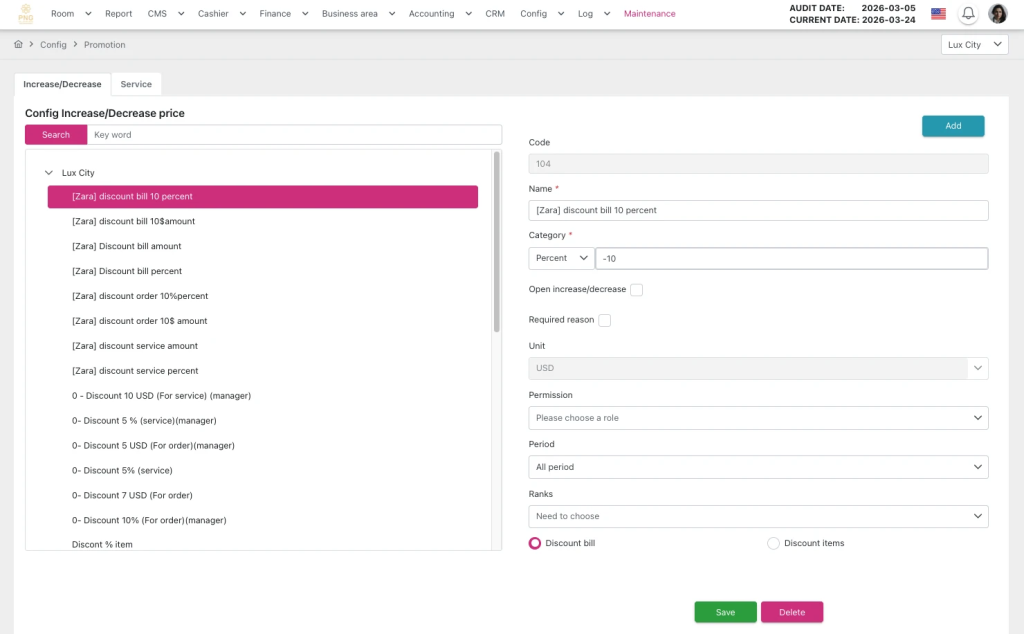
Màn hình Increase/Decrease gồm:
- Header:
- Hiển thị thông tin ngày audit hiện tại và các chức năng chính của màn hình như điều hướng menu, truy cập nhanh các thao tác quản lý hóa đơn.
- Khu vực danh sách mã:
- Nằm ở bên trái màn hình.
- Hiển thị toàn bộ danh sách các mã Increase/Decrease đã được cấu hình trong khách sạn.
- Mỗi dòng (item) trong danh sách hiển thị theo thông tin tên mã
- Hỗ trợ:
- Tìm kiếm nhanh (Search): theo tên mã.
- Cuộn: để xem toàn bộ danh sách khi dữ liệu lớn.
- Người dùng có thể click trực tiếp vào từng dòng để mở chi tiết cấu hình.
- Khu vực chi tiết cấu hình:
- Hiển thị khi người dùng chọn một mã trong danh sách hoặc nhấn vào nút “Add” để tạo mới mã.
- Nằm ở bên phải màn hình.
- Bao gồm các trường thông tin chính:
- Code: Mã định danh do hệ thống sinh ra, là mã duy nhất của chương trình Increase/Decrease, dùng để phân biệt và tra cứu trong hệ thống.
- Name: Tên của chương trình điều chỉnh giá, dùng để hiển thị cho người dùng trong quá trình vận hành.
- Category: Xác định loại giá trị dùng để điều chỉnh giá, bao gồm:
- Percent: Điều chỉnh theo phần trăm (%).
- Amount: Điều chỉnh theo số tiền cụ thể.
- Giá trị dương: Áp dụng tăng giá (Increase).
- Giá trị âm (-): Áp dụng giảm giá (Decrease).
- Open Increase/Decrease: Cho phép chỉnh sửa nhằm áp dụng linh hoạt việc tăng hoặc giảm giá trực tiếp khi sử dụng, không bị cố định theo cấu hình ban đầu (bật/tắt tùy nhu cầu vận hành).
- Required reason: Bắt buộc người dùng nhập lý do khi áp dụng Increase/Decrease, nhằm kiểm soát và minh bạch trong việc thay đổi giá.
- Unit: Xác định đơn vị được áp dụng.
- Permission: Thiết lập quyền áp dụng mã, giới hạn theo vai trò người dùng (role) nhằm kiểm soát ai được phép sử dụng chức năng này.
- Period: Khoảng thời gian hiệu lực của mã theo period đã được cấu hình.
- Ranks: Áp dụng theo hạng khách hàng hoặc agency, giúp cá nhân hóa chính sách giá. Tham khảo hướng dẫn sử dụng màn hình Config > Company , Agency > Ranks.
- Discount bill: Áp dụng điều chỉnh giá trên toàn bộ hóa đơn (tổng bill).
- Discount items: Áp dụng điều chỉnh giá trên từng item/dịch vụ cụ thể trong hóa đơn thay vì toàn bộ bill.
- Form được thiết kế rõ ràng, dễ nhập liệu và có validation để đảm bảo dữ liệu hợp lệ.
- Khu vực nút thao tác (Action Buttons) bao gồm các nút chính:
- Add: Tạo mới mã Increase/Decrease.
- Save: Lưu thông tin khi thêm mới hoặc chỉnh sửa.
- Delete: Xóa mã đã chọn (có xác nhận).
- Tính thân thiện và tối ưu trải nghiệm
- Giao diện được chia layout rõ ràng giữa danh sách và chi tiết, giúp thao tác nhanh và trực quan.
- Hỗ trợ thao tác nhanh: click chọn, chỉnh sửa trực tiếp, tìm kiếm tức thì.
- Tương thích tốt trên desktop và tablet, phù hợp cho vận hành PMS hàng ngày.
- Giảm thiểu thao tác phức tạp, giúp người dùng dễ dàng quản lý giá và chương trình khuyến mãi.
| Function description | The Screen Guideline – Config > Promotions > Increase/Decrease feature in PMS allows users to create and manage discount or surcharge codes, define specific adjustment values, and flexibly apply them across modules such as Booking, F&B, KTV, and related services, enabling effective control of pricing and promotion policies. |
|---|---|
| Version | v1.0 |
| Created at | Mar 24, 2026 |
| Prerequisites | The device must have a whitelisted IP address, a VPN, and a stable internet connection.The user must have a PMS account. If the user does not have an account, contact the Support team or Admin to create one.The user must be Config promotion function. |
I. Introduction and Objectives
1. Introduction
The Increase/Decrease feature in the PMS system is a flexible pricing management tool that allows users to configure discount or surcharge codes and apply them across multiple modules such as Booking, F&B, KTV, and related services. This feature supports the management of pricing policies, promotions, and price adjustments according to the daily operational needs of hotels or restaurants.
2. Objectives
- Enable users to easily create, edit, and manage discount or surcharge codes with detailed parameters such as adjustment value, scope, effective period, and usage conditions.
- Ensure that all price adjustments are applied accurately and consistently across modules like Booking, F&B, and KTV, preventing errors or operational confusion.
- Strengthen control over pricing policies, thereby optimizing revenue and profitability for services.
- Provide flexibility in setting up promotions, special offers, or price adjustments according to business needs at any given time.
- Enhance user and customer experience by ensuring that displayed prices are correct, clear, and consistent across all relevant channels.
- Allow management teams to easily monitor, report, and analyze the impact of discount or surcharge codes on revenue and business operations.
- Optimize PMS operations, reduce manual work, and improve the efficiency of promotion and pricing management.
II. Primary features
Create a New Increase/Decrease Code
- Allows users to create a new price adjustment code, including discounts or surcharges.
- Set up basic information: code name, adjustment type (Percent / Amount), adjustment value, scope of application, and effective period.
- Supports flexible application across modules such as Booking, F&B, KTV, and other related services in the PMS system.
Edit an Increase/Decrease Code
- Allows users to update an existing price adjustment code, including its value, scope, effective period, or status.
- Ensures all changes are applied accurately and synchronized across all related modules.
Delete an Increase/Decrease Code
- Allows users to delete a price adjustment code when it is no longer in use or has expired.
- The system requires confirmation before deletion to prevent accidental actions.
Search and Filter Codes
- Supports quick search by code name.
- Allows filtering the list for easier management, enabling users to access information quickly and intuitively.
View Code Details
- Displays all configuration information of the code, including adjustment value, application conditions, applicable modules, and status.
- Helps users verify accuracy before applying the code in practice.
Synchronize and Apply Changes
- All changes to Increase/Decrease codes are instantly synchronized across related modules.
- Ensures prices displayed in Booking, F&B, KTV, and other services are always accurate, consistent, and compliant with business policies.
III. Basic operations on the screen
Follow the steps below in order to ensure efficient and accurate operation.
- Accessing the Employee Screen:
- Log in to the PMS system.
- Click on the “Config” menu in the Header bar, then select the “Employee” sub-tab.
- The system will navigate the user to the default tab, which is the Employee screen.
- Viewing the Employee List:
- The system displays the full list of employees configured, on the left side of the screen, organized by department.
- Users can scroll or search by employee name to view details.
- Adding a New Employee:
- Click the “Add” button to open the new employee form.
- Enter the required information, such as employee code, employee name, department, description, or related details.
- Click “Save” to store the employee information in the system.
- Editing Employee Information:
- Click directly on an employee in the list to open the detail form.
- Update the information that needs modification (name, department, description, etc.).
- Click “Save” to save the changes.
- Configuring Automatic Timekeeping for Employees:
- Click directly on an employee in the list to open the detail form.
- Upload all required images according to the instructions in the “Profile image” section. If at least one image is missing in this section, the employee will not be able to use the timekeeping feature.
- Click “Save” to apply the changes.
- Deleting an Employee:
- Select the employee to be deleted from the list.
- Click “Delete” and confirm to remove the employee from the system (if you have the required permission).
- Checking and Synchronizing Data:
- After adding, editing, or deleting, review the list to ensure data is updated correctly.
- Ensure employee information is displayed correctly across related functions in the PMS system.
IV. GUI Description (User Interface)
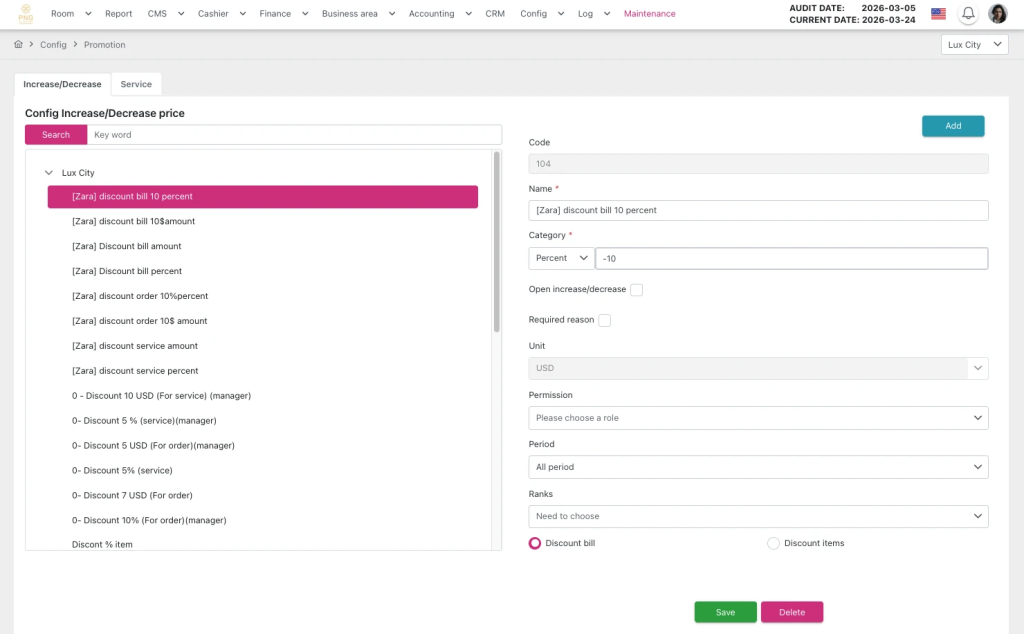
Increase/Decrease screen overview
Header
- Displays the current audit date and the main functions of the screen, such as menu navigation and quick access to transaction management actions.
Code List Area
- Located on the left side of the screen.
- Displays the full list of Increase/Decrease codes configured for the hotel.
- Each row (item) shows the code name.
- Supports:
- Quick Search: search by code name.
- Scroll: view the full list when there is a large amount of data.
- Users can click directly on a row to open the detailed configuration panel.
- Detail Configuration Area
- Appears when the user selects a code from the list or clicks “Add” to create a new code.
- Located on the right side of the screen.
- Main fields include:
- Code: System-generated unique identifier for the Increase/Decrease program, used for distinction and reference within the system.
- Name: Name of the price adjustment program, displayed to users during operation.
- Category: Specifies the type of adjustment value:
- Percent: Adjust by percentage (%).
- Amount: Adjust by specific currency amount.
- Users must enter a value corresponding to the selected type.
- The entered value also determines the adjustment type:
- Positive value (+): Apply price increase (Increase).
- Negative value (-): Apply price decrease (Decrease).
- Open Increase/Decrease: Allows flexible adjustment of price increases or decreases during usage, not fixed to the initial configuration (toggle on/off as needed).
- Required reason: Requires the user to input a reason when applying Increase/Decrease to ensure control and transparency in price changes.
- Unit: Specifies the unit to which the code is applied.
- Permission: Sets application permissions, limiting which user roles can use the function.
- Period: The effective period of the code according to the configured schedule.
- Ranks: Applies to customer tiers or agencies to personalize pricing policies. Refer to Config > Company / Agency > Ranks for guidance.
- Discount bill: Apply the adjustment to the entire bill.
- Discount items: Apply the adjustment to specific items or services within the bill rather than the entire bill.
- The form is designed clearly, supports easy data entry, and includes validation to ensure data accuracy.
Action Buttons Area
- Add: Create a new Increase/Decrease code.
- Save: Save information when adding or editing a code.
- Delete: Remove the selected code (with confirmation).
User-Friendly Design & Optimized Experience
- Clear layout separating the code list and detail panel for fast, intuitive operation.
- Supports quick actions such as clicking to select, direct editing, and instant search.
- Fully compatible with desktop and tablet devices, suitable for daily PMS operation.
- Minimizes complex steps, making it easier for users to manage pricing and promotion programs efficiently.
V. General Instructions and Support
- Usage tips:
- Always carefully check the figures before and during running Night Audit.
- Ensure that all mandatory steps have been completed.
- Support: If you encounter a problem, contact email support@airfeedkh.com.
- Updates: This guideline may change. Please check the latest version in the “Help” section.
Add a comment