[NEW] Booking Engine – Allow to input age of children for calculate room fee
Aim: Hotel would like to manage the quantity of staying guests based on their guest per Room type so that hotel can calculate extra fee and prepare additional services
- Navigation:
CMS > OTA Room sale, click Bulk update button to direct Bulk update configuration screen.
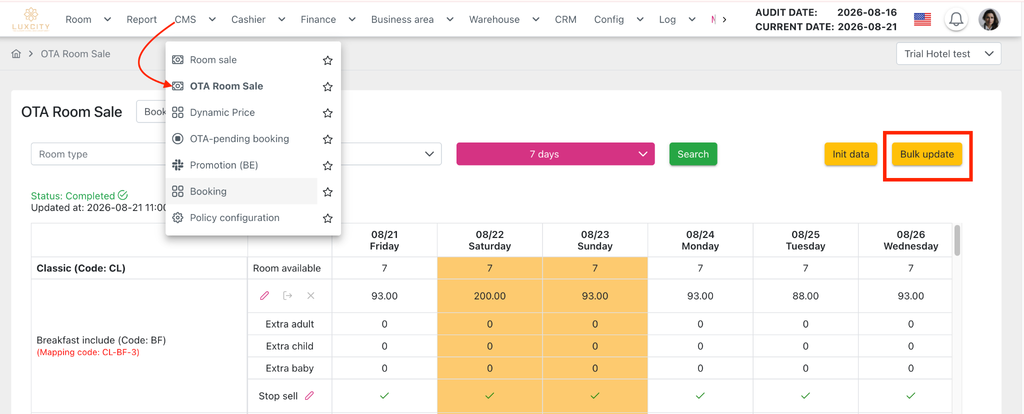
- Add Bulk Update following EXTRA RATE
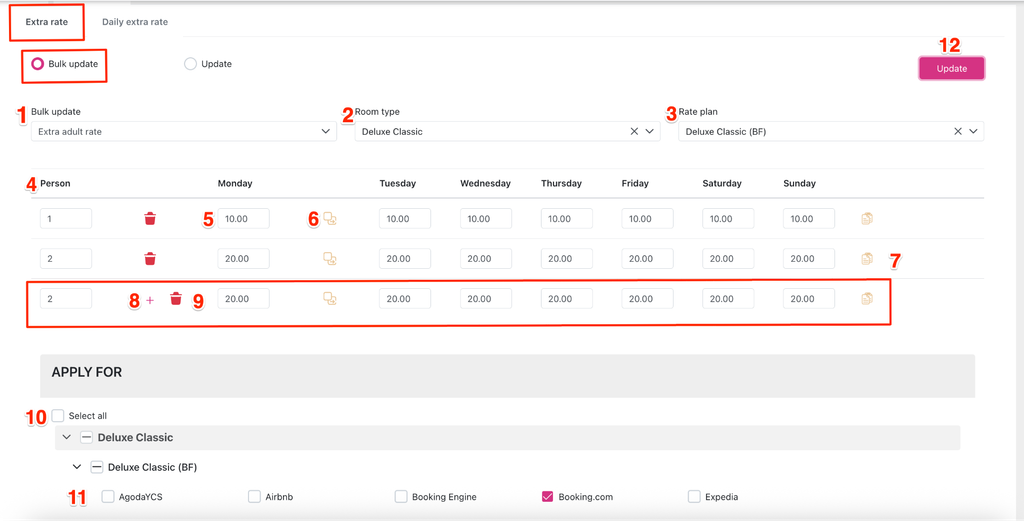
- Bulk Update (1): Select 1 of items in droplist:
- Extra Adult rate (Default)
- Extra Children rate
- Extra Baby rate
- Room type (2):
- Display list of room types are sold on CMS, can select one or multiple room type
- If no selecting, it means apply for all room types
- Rate plan (3):
- If no selecting room type → display all rate plans are active In drop list
- If select Room type at Room type droplist → display corresponding rate plans are active In drop list
- Person (4): Add quantity of person. Not allow inputting next row of number person is coincident with previous one at the same Room type – Rate plan – Channel → User clicks Update, system will appear warning message and avoid updating successfully.
- Extra rate by days of week (5): Default is 0.00
- Copy value from first available Extra rate cell and paste into the rest cells (6)
- Copy value in this row and paste it into the row below (7)
- Add more row (8)
- Delete row (9)
- Apply for:
- Select all (10): Check the checkbox of select all → apply for selected Room type – Rate plan – Channel (Currently apply for BE)
- Select Channel (11): Check the checkbox of channel that hotel desires to apply
- Update (12): Click to complete
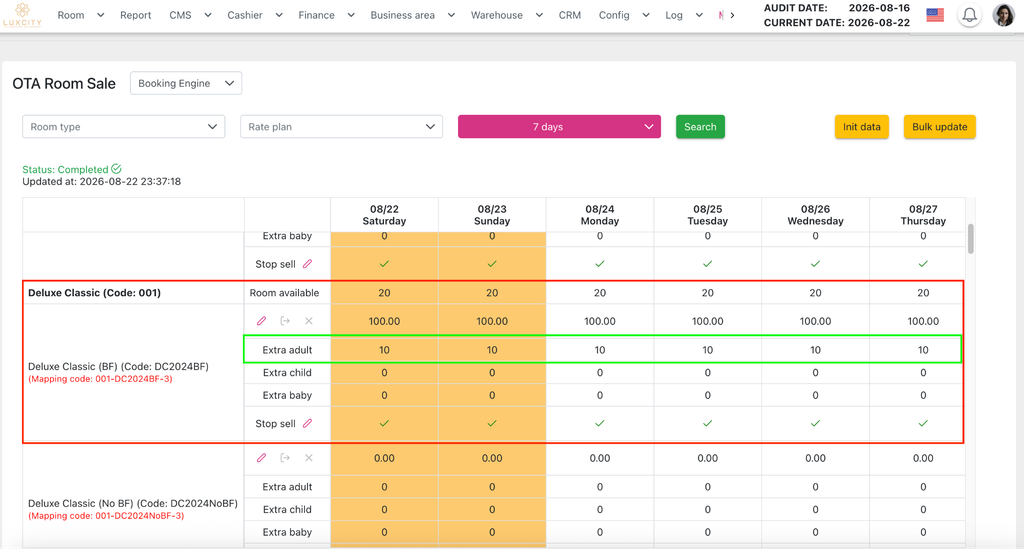
Result: Bulk update for extra adult rate is displayed on selected Room type – Rate plan on OTA room sale screen.
- Update Bulk update
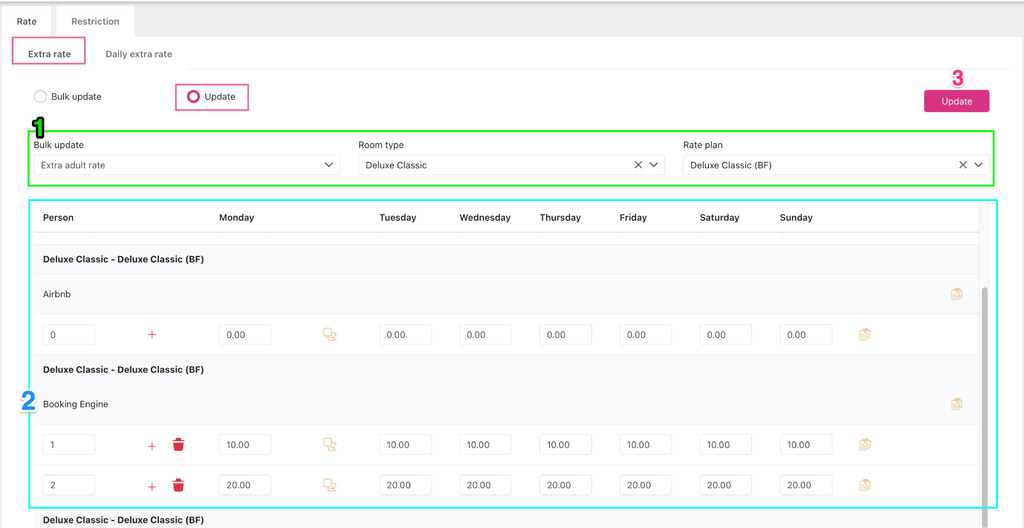
Click Update radio button to switch Update screen:
- Section 1: Select type of Bulk update to modify, including:
- Select 1 of items in Bulk update droplist:
- Extra Adult rate (Default)
- Extra Children rate
- Extra Baby rate
- Select 1 or multiple items in Room type droplist. Default is blank → it means apply for all room types
- Select 1 or multiple items in Rate plan droplist.
- If no selecting room type → display all rate plans are active In drop list
- If select Room type at Room type droplist → display corresponding rate plans are active In drop list
- Select 1 of items in Bulk update droplist:
- Section 2: Add new or Adjust Bulk update for Channels ( Currently BE)
- Section 3: Click Update button to complete the change
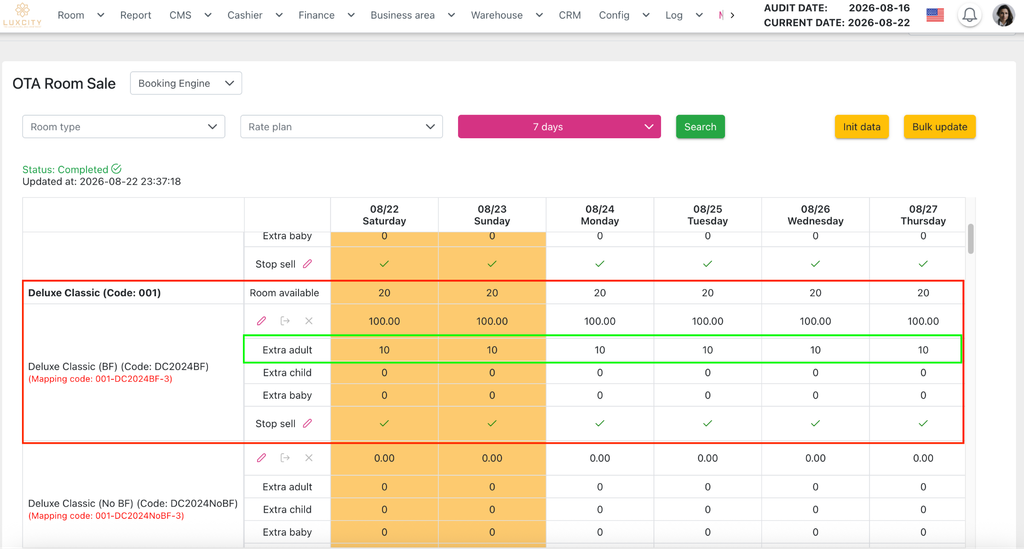
Result: Bulk update for extra adult rate is displayed on selected Room type – Rate plan on OTA room sale screen.
4. Add Bulk update following Daily extra rate
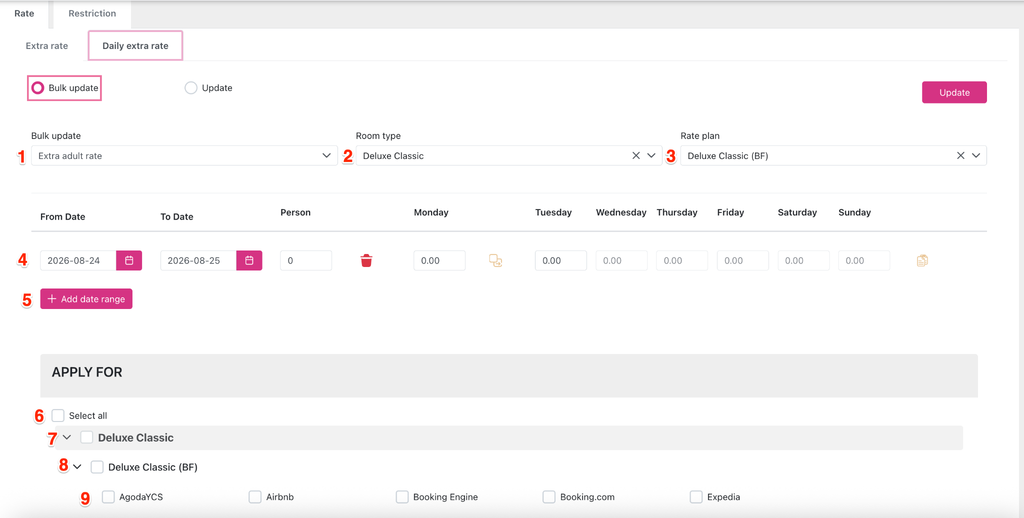
- Bulk Update (1): Select 1 of items in droplist:
- Extra Adult rate (Default)
- Extra Children rate
- Extra Baby rate
- Room type (2):
- Display list of room types are sold on CMS, can select one or multiple room type
- If no selecting, it means apply for all room types
- Rate plan (3):
- If no selecting room type → display all rate plans are active In drop list
- If select Room type at Room type droplist → display corresponding rate plans are active In drop list
- Date range (4): select From Date ( Current date) – To Date ( End Date) to apply extra person fee for BE booking. Add: quantity of person, Extra rate by days of week within selected Date range (Default is 0.00),
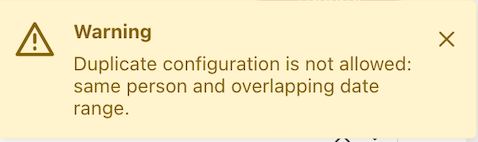
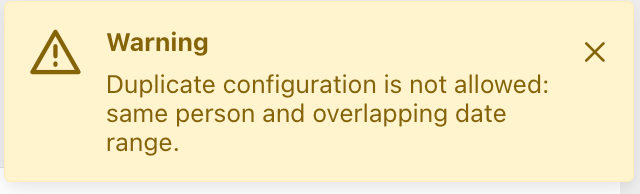
- Add Date range (5): Click this button → Display From Date (Start Date) – To Date ( End Date) that From Date ( Start date) is auto consecutive day of End date. Not allow overlapping date range → system display warning message:
- Apply for:
- Select all (6): Check the checkbox of select all → apply for Whole Room type – Rate plan – Channel (Currently apply for BE)
- Select Room type (7): Check the checkbox of Room type → apply for selected Room type – Rate plan – Channel (Currently apply for BE)
- Select Room type – Rate plan (8): Check the checkbox of Room type – Rate plan → apply for selected Room type – Rate plan – Channel (Currently apply for BE)
- Select Channel (8): Check the checkbox of channel that hotel desires to apply
5. Update Bulk update following Daily extra rate
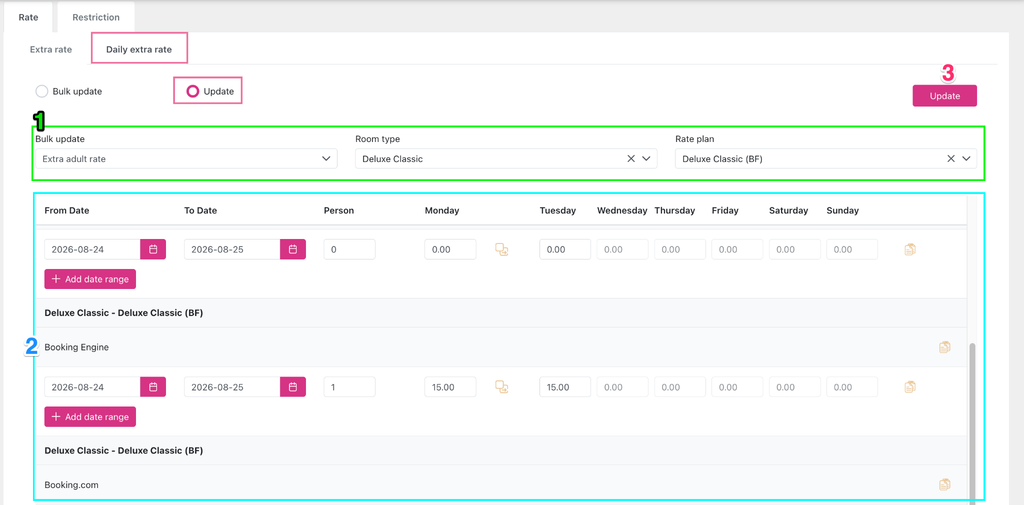
Click Update radio button to switch Update screen:
- Section 1: Select type of Bulk update to modify, including:
- Select 1 of items in Bulk update droplist:
- Extra Adult rate (Default)
- Extra Children rate
- Extra Baby rate
- Select 1 or multiple items in Room type droplist. Default is blank → it means apply for all room types
- Select 1 or multiple items in Rate plan droplist.
- If no selecting room type → display all rate plans are active In drop list
- If select Room type at Room type droplist → display corresponding rate plans are active In drop list
- Select 1 of items in Bulk update droplist:
- Section 2: Add new or Adjust Bulk update for Channels ( Currently BE)
- Section 3: Click Update button to complete the change
Result: Bulk update for extra adult rate is displayed on selected Room type – Rate plan on OTA room sale screen.
* Note:
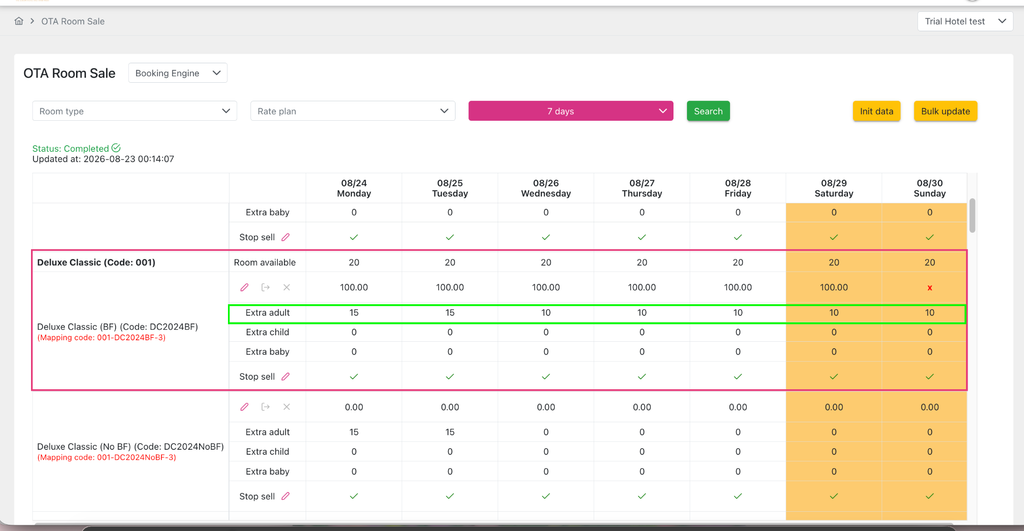
- Add/ Update Extra rate does not need to click Init data button to update the new configuration as well as push this update on BE.
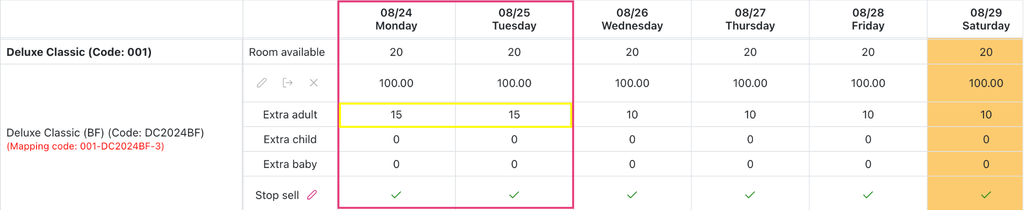
- In case, a type of extra rate ( extra adult / extra child / extra baby) is set up for both Extra rate and Daily extra rate → Daily extra rate is prioritized. For example:
- Extra rate of extra adult is 10$/pax for Deluxe Classic – Deluxe Classic (BF) – Booking Engine
- Daily extra rate of extra adult is 15$/pax for Deluxe Classic – Deluxe Classic (BF) – Booking Engine From 24/08/2026 – 25/08/2026
→ 24/08/2026 – 25/08/2026: extra adult is 15$/pax
6. Add Max age of children and Max age of baby configuration
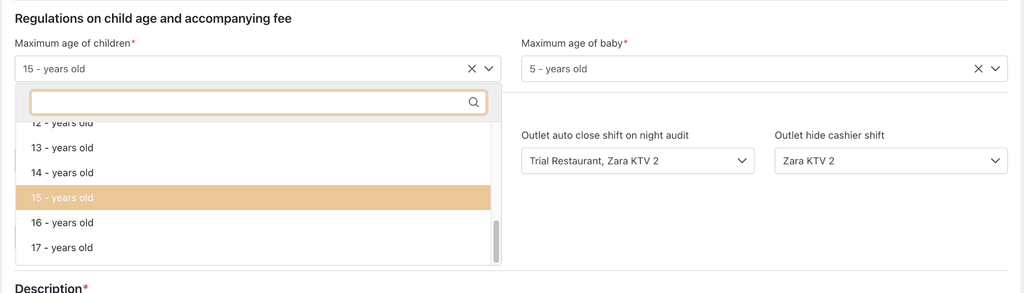
At Hotel/ Apartment config, add a Regulations on child age and accompanying fee section, user can select maximum age for children and a baby from 1 year to 17 years old.
For example: maximum age for children is 15 – years old and maximum age for baby is 5 – years old.
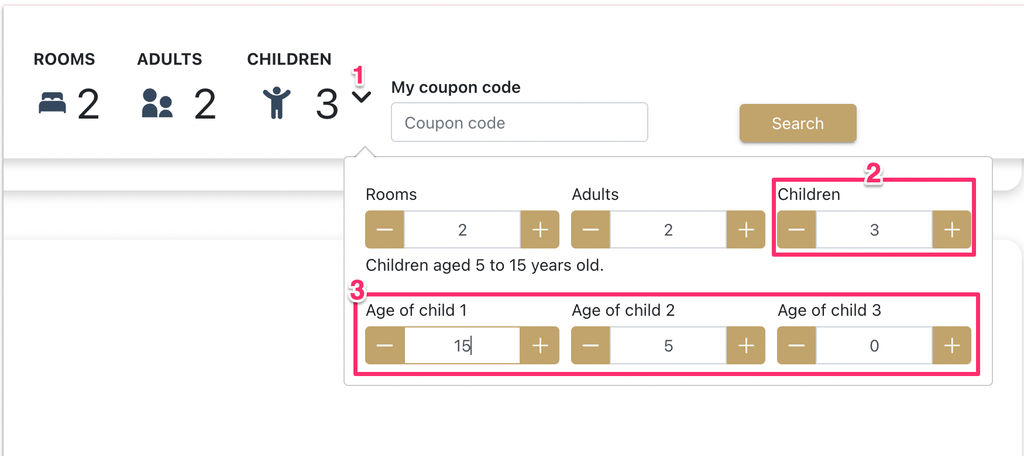
Result: At header bar of BE, click (1) to show dropdown list > input quantity of children (2) is 3 → Display the corresponding field of age of child (3), including:
- Baby: From 0 to under 5
- Children: From 5 to 15
When clicking Search, the Room type is not suitable for this reservation → Select button and Book now button are disabled and accompany with message “The above reservation is not applicable for group of 2 adults, 2 children and 1 babies”

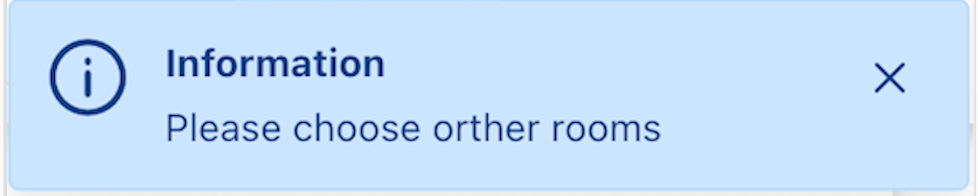
Click Select button Display message:
7. Booking detail on BE
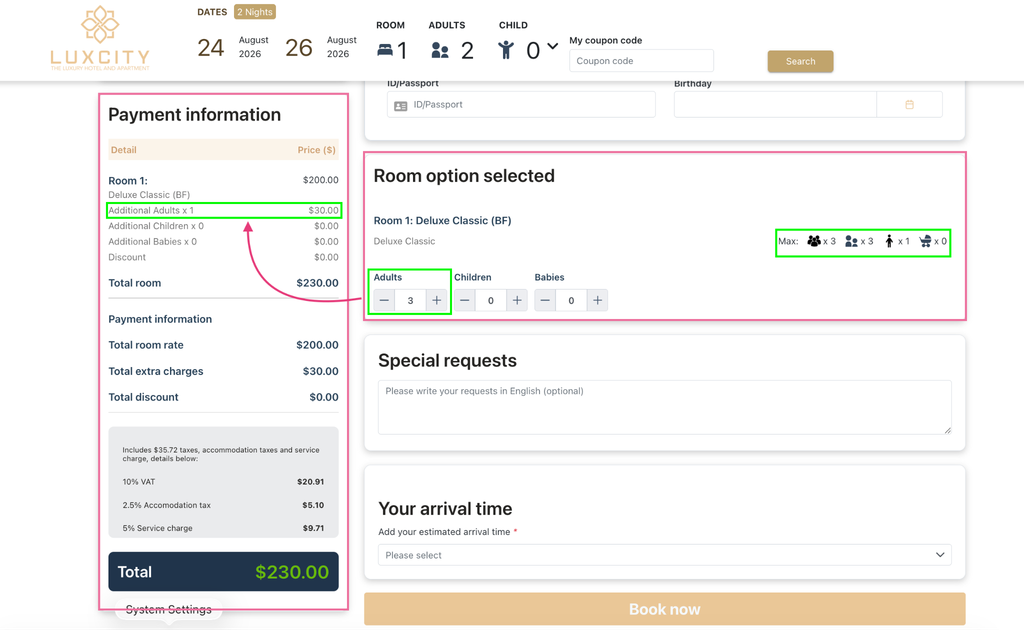
For example: Guest books 1 room, 2 nights ( From August 24th, 2026 To August 26th, 2026) for 2 adults, 0 children, room type is Deluxe Classic, Rate plan is Deluxe Classic (BF):
Room option selected displays max guest quantity of this Room type:
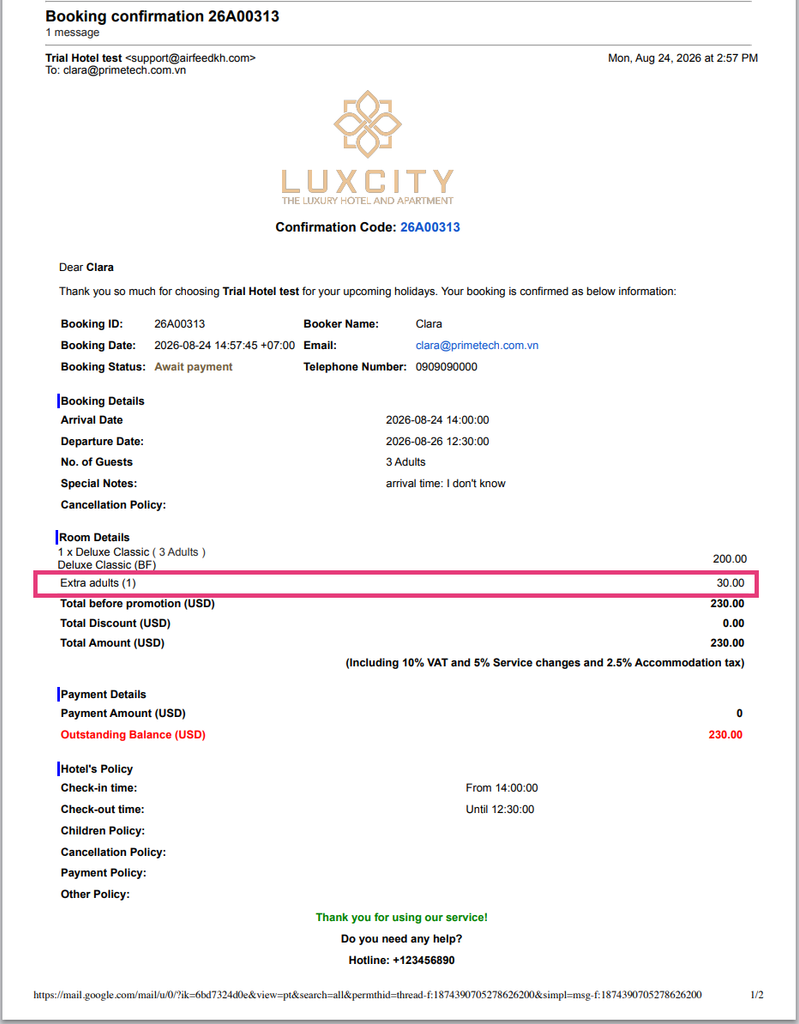
Max guest: 3, Max adult: 3, Max child: 1, Max baby: 0 → Max adult is 3 while standard adult is 2 → An extra adult will be charged based on Bulk Update configuration from 08/24 – 08/25 = 30$
8. Confirm mail
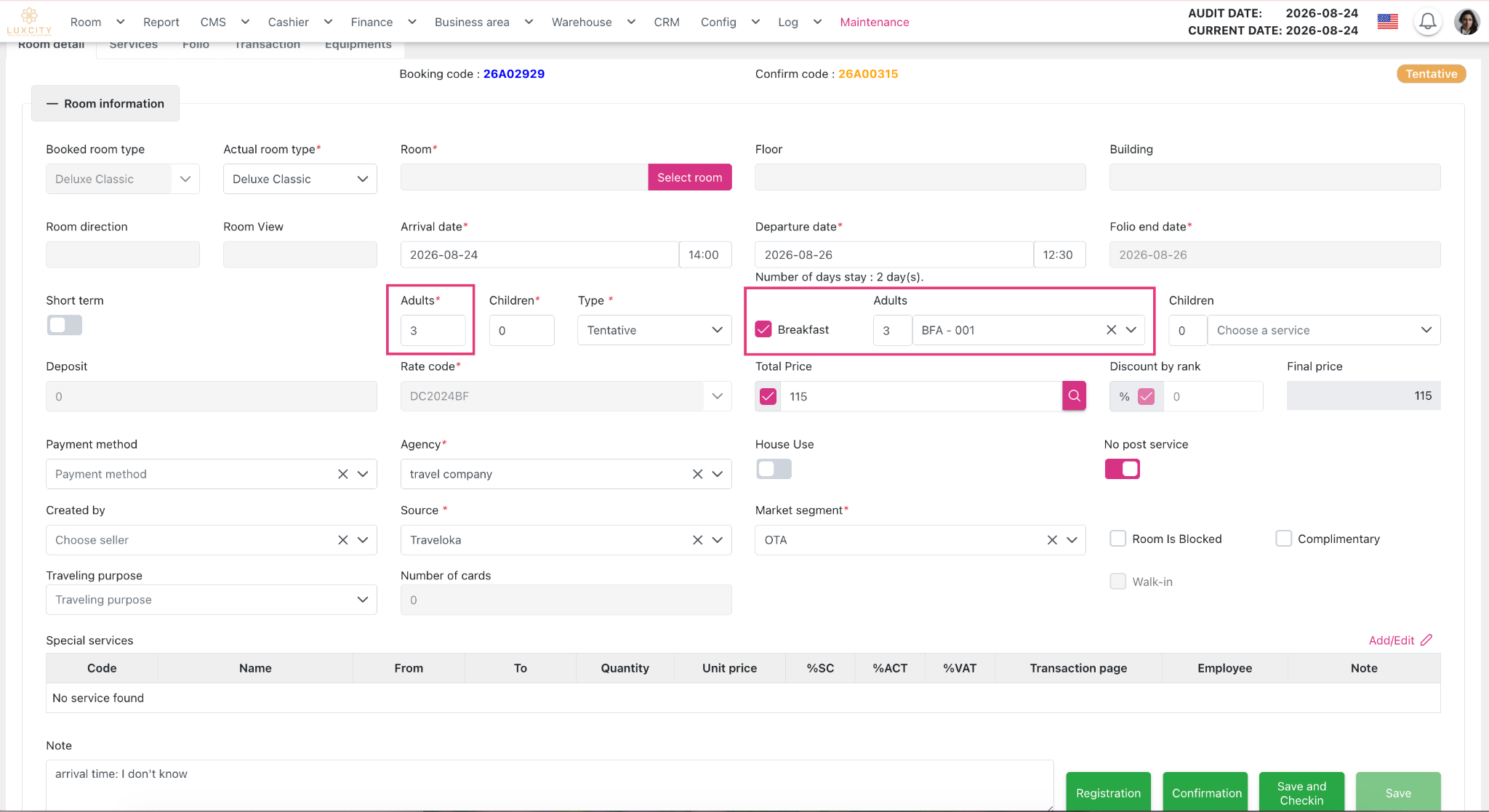
9. Booking Detail on CMS
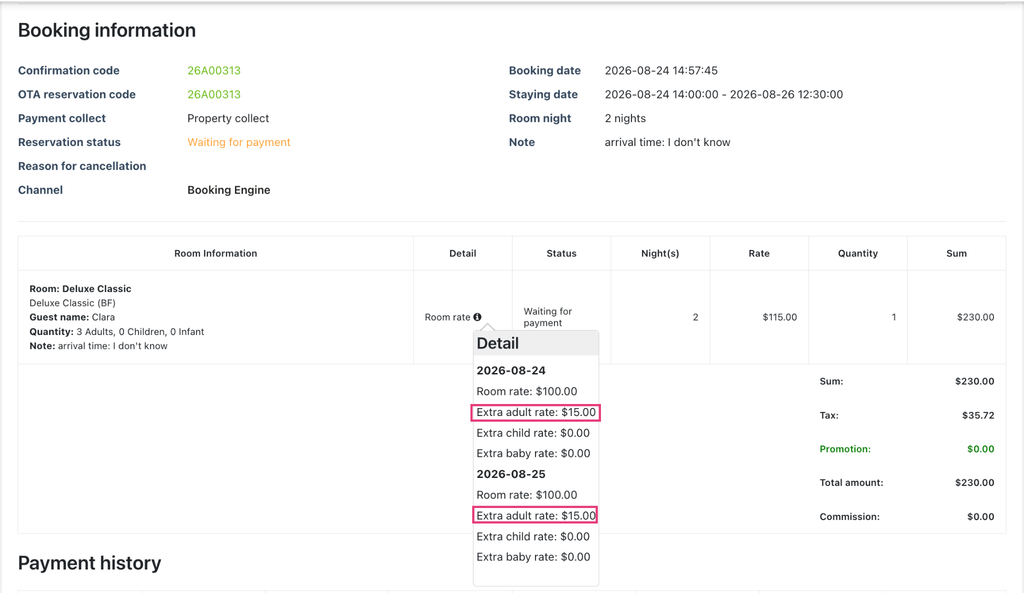
10. Booking detail on personal booking