-
Update PMS
-
- HM-2400 [UPDATE] Total Transaction Report - Change the display format for droplist Room/Table
- HM - 4767 Inhouse guest report - Filter by guest type
- HM-5505: [UPDATE] CMS - Update cancel policies
- HM-5586: [UPDATE] Menu Item Sales Report - Add Shift filter
- HM-5428 [UPDATE] Booking - Can cancel Booking that have not been CI and Balance = 0
- HM-4059[UPDATE] Report - Allow to view final bill in FnB Revenue report
- HM-4703 [UPDATE] KTV - Display the percentage (%) when the user adds a discount or surcharge to an item or order
- HM-4627 [UPDATE] FNB-Display the percentage (%) when the user adds a discount or surcharge to an item or order
- HM-4275 [UPDATE] - [FnB Report] - Combine data from the "FnB post to room" report into the "FnB revenue/ discount/ payment" report
- HM-5063 [UPDATE] FNB bill - Change line ABT & VAT tax
- HM-2300 [NEW] FNB - Allow to add Open item
- HM-4249 [HF] Add Reason when using Open discount FNB
- HM-987 [PROD] - [FnB/KTV] - Allow searching Vietnamese with diacritics
- HM-4640 [NEW] BUSINESS AREA - Allow configuring specific payment types for each Business Area
- HM-5428 [UPDATE] Booking – Can cancel Booking that have not been CI and Balance = 0
- HM-2088 [NEW] REPORT - Cancelled/ Noshow Reservation report
- HM-3551: [Update] - Create/Edit booking/Confirmation form - Add formal titles before surname/full name
- UPDATE] HM-2400 Total Transaction Report - Change the display format for droplist Room/Table
- [HM-5498] [UPDATE] OTA - Create a price configuration with tax for OTA
- Show Remaining Articles (4) Collapse Articles
-
- HM-3657 QC - [Update] - [FnB Report] - Add a filter function to get data by night audit date
- HM5301- [UPDATE] Tab Transaction > Booking Details - Allow the user to edit the Note field
- HM-3931 : [UPDATE] List reservation - Display all guest names on screen for personal booking
- HM-3126: [UPDATE] Notification - Alert when there is FnB or HK service post to room
- HM-5744: [UPDATE] FOLIO - Allow to change transaction page when booking's reservation type is Checkout/ Noshow/ Cancelled
- HM4851- [UPDATE] Room occupancy - Display number of available Special
- HM-5041 [NEW] Room status - Open popup when click on special service
- HM-4670 [UPDATE] DASHBOARD - Fix the display logic of the ‘Move Room’ field in the ‘Activity’ section of the ‘House Status’ screen
- HM-5790: Booking report - Add "Rental type" filter, "Rental type" column and report's subtitle
- HM-5813 [UPDATE] REPORT - Hide the "Search by" filter for the Breakfast report
- HM-5855 [UPDATE] DETAIL RESERVATION - Fix bug about displaying payment note after edited
- HM-3336 FnB - Add option View details at Bill list > Payment bills tab
- HM-5032: [PROD] Booking Detail - Room Detail - Optimize
- HM - 5683: [PROD] Report - Incorrect display of Booking status information.
- HM-5847 [UPDATE] Booking report - Remove the requirement to filter by From–To Date fields
- HM-5789: [UPDATE] Add column rate_change to payment_details
- HM-5700 [UPDATE] Report - FNB/KTV Menu item sales report update performance
- HM -3978 [UPDATE] Report - Breakdown Revenue for FnB reports
- HM-5636 [UPDATE] BUSINESS AREA/ RESERVATION - Automatically convert the payable amount when changing the currency type in the payment popup.
- [UPDATE] HM-5798 Room schedule - Do not allow deletion of a room if it has an OOO/OOS configuration.
- Show Remaining Articles (5) Collapse Articles
-
- HM -3978 [UPDATE] Report - Breakdown Revenue for FnB reports
- UPDATE] HM-5788 Report - Add Rental type and Rate code column to Total Transaction Report
- HM-5357 [UPDATE] Booking Service - Add function "Confirm and Print miscellaneous"
- HM-5317 [UPDATE] Night audit - Add function Export in Check rate code popup
- HM-5954 [UPDATE] Arrival report - add column Nationality
- [UPDATE] FNB/KTV/SPA - Configure to display voided items in bill/pre-check
- [UPDATE] Dashboard/ List reservation - Display room status on the “Arrival Expected” popup and the List reservation
-
- [UPDATE]-5607 Dashboard/ List reservation - Display room status on the “Arrival Expected” popup and the List reservation
- HM-5748 [UPDATE] BOOKING - Add "Walk in" checkbox on the Create/ Detail reservation/ Reservation list
- HM-4434 : [NEW] REPORT - Actual Walk-In Report
- HM-5609 [UPDATE] Cashier Transaction - Add a “Due out” checkbox to the filter section
- HM-5851 : [PRO] - Add column Transaction date in Report Move room log report
- [NEW] REPORT-H4434 - Actual Walk-In Report
- [UPDATE] Cashier Transaction - Add a “Due out” checkbox to the filter section
- [UPDATE] Create/Edit/Detail booking - Remove require of Guest Types and Payment method
- FNB - E-MENU FOR CUSTOMER
-
- HM-6083- [UPDATE] Booking Service - Not allow using the “Open Price” already been audited
- HM-2266: [NEW] REPORT - Detail Folio By Departure Date Report
- HM-6136 [UPDATE] Housekeeping - Room to clean fix sort by room number
- HM-6049: [UPDATE] CONFIGURATION - Allow configuring the rate code for specific room types
- HM-5243 [UPDATE] BOOKINGS - Add "Save and Checkin" button to the Create reservation/ Reservation detail screen
- HM-4880-02: [UPDATE]: Transfer/ Room charge to master/ Routing - update business logic - tunning code
- HM-4880-01: [UPDATE]: Transfer/ Room charge to master/ Routing - update business logic - tunning code
- HM-5468 01: E-Menu for Customer
- HM - 4267: [UDPATE] CMS - Add the "Include commission" column on the Config OTA screen
- [NEW] HM-6045 REPORT - Cancelled/ No-show reservation report
- Update “Search by” filter: Add “Cancellation date and “No-show date” option
-
- [UPDATE] FOLIO - Allow refunding deposits via a different payment method
- [UPDATE] CMS - Hide the room which have the "number of room sell on CMS" = 0 on the OTA room sale
- [Update] FnB - Add some fields in the "Update information" popup, Create the Customer Visits, Revenue & Source by Customer report, and Create the guest birthday notification feature
- Key card - Auto post service when post Lost key
- [UPDATE] Access Control - Update the text of permission "Room status update"
- [UPDATE] HOUSEKEEPING - Allow to select multiple rooms for the Room filter on the Task assignment/ Room condition/ Room to clean screen
- [NEW] REPORT - Deposit Ledger report
- [NEW] Warehouse/Report - Add a new report for inventory export management
- [UPDATE] Booking report - Add room type droplist
- [UPDATE] CRM - Customer - Allow to search by Phone number
- HM-5282: [UPDATE] Payment report - Add droplist "Payment / Paid out Type"
- HM-5610 [UPDATE] Cashier Transaction - Add a “Balance” column and the "Non-zero balance" checkbox to the Booking section
-
- FnB - Display all guests in booking when selecting room to post
- [NEW] CONFIGURATION - Add the "Feedback link" section and the feedback email flow
- [UPDATE] Booking Engine - Fix the way to display email when the hotel sends the booking confirmation
- [UPDATE] List reservation - Change position of icon OTA
- [UPDATE] Housekeeping - Allow to select "Reservation code" when posting room damage
-
- [CMS] - Revenue Manager can manage Extra Rate for BE and OTA on OTA room sale screen so that additional guest charges can be configured by date and synchronized consistently
- [CMS] Revenue Manager can set Max Stay restrictions by date for BE and OTA so that they can adjust Max Stay without leaving the OTA room sale screen
- [CMS] Revenue Manager can set Max Stay Configuration by date range in Bulk Update Restrictions
- [UPDATE] HM-3509 Create/ Detail booking/ List reservation - Add ID card and Gender field in Registration form
- [FnB/KTV] Allow users to split a finalized paid bill by item allocation
- View in-house and next booking dates on Task assignment
- [FnB/KTV] User can skip Precheck Bill printing so that the bill can proceed without printing
- [REPORT] User can filter COMP/HU reservations and view COMP/HU information on the Total transaction report so that relevant transactions are easily identified
-
- [UPDATE] Group booking – Upgrade performance for create & edit, fix bug – Check in All Booking After Release Subgroup (Group / Sub-group / Group List)
- [UPDATE] Group booking - Upgrade performance for create & edit, fix bug - View Group booking & Subgroups
- [UPDATE] Group booking - Upgrade performance for create & edit, fix bug - Search Group Booking
- [UPDATE] Group booking - Upgrade performance for create & edit, fix bug - Create Reservation Group
- [UPDATE] Group booking – Upgrade performance for create & edit, fix bug – Create Special Service
- [UPDATE] Group booking - Upgrade performance for create & edit, fix bug - Check out All Booking
-
-
Dashboard
-
Room
-
Housekeeping
-
CMS
-
Report
-
Cashier
-
Finance
-
Bussiness Area
-
- Articles coming soon
-
CRM
-
Configuration
-
- Articles coming soon
-
Log
OTA-pending booking
Menu path: CMS > OTA-pending booking
Use this screen to handle online travel agency (OTA) bookings that were not confirmed automatically. Front Office (FO) and Reservation teams review these bookings and confirm them, so that none are missed or rejected because of out-of-stock inventory.
Screen overview
The screen has four controls (A–D) above a table of pending OTA bookings.
| Callout | Control | What it does |
|---|---|---|
| A | Search | Finds OTA bookings by confirmation code, guest name, room type, and similar details. |
| B | Load | Refreshes the list and retrieves new bookings from the OTA channels. |
| C | Select all | Selects every booking in the table. |
| D | Confirm | Changes the selected bookings from Pending to Confirmed. |
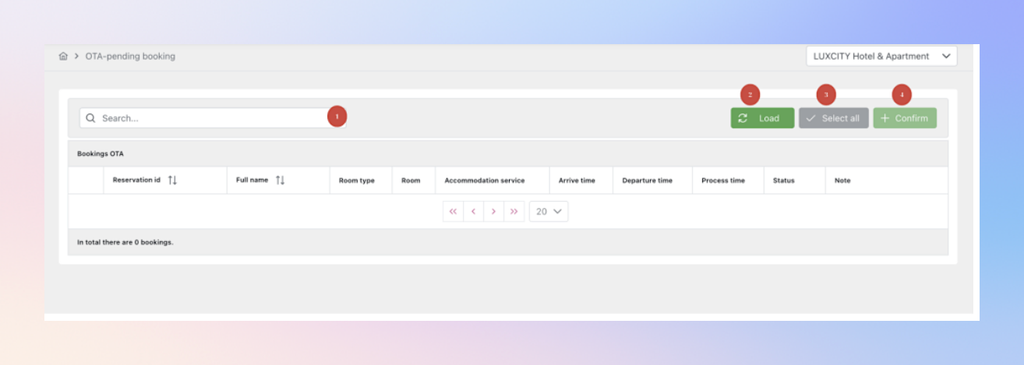
A typical session: load new bookings (B), find or review them (A), select them (C), then confirm them (D).
Search for a booking
Use Search (A) to find a specific pending booking.
- Go to CMS > OTA-pending booking.
- Enter a confirmation code, guest name, or room type in the search field.
- Select Search (A).
Result: The table shows only the OTA bookings that match your search.
Load new bookings
Use Load (B) to bring in bookings that arrived from the OTA channels after you opened the screen.
- Select Load (B).
Result: The table refreshes with the latest bookings retrieved from the OTA channels.
Select all bookings
Use Select all (C) when you want to confirm every booking in the table at once.
- Select Select all (C).
Result: Every booking in the table is selected.
Confirm bookings
Use Confirm (D) to finish handling the bookings you have checked.
- Select the bookings you want to confirm, or select Select all (C).
- Select Confirm (D).
Result: The selected bookings change from Pending to Confirmed.
Only selected bookings are updated. Bookings you do not select stay in Pending status.