[REPORT] User can filter COMP/HU reservations and view COMP/HU information on the Total transaction report so that relevant transactions are easily identified
Screen hub
Menu path: Report > Finance report > Total transaction report
The Total transaction report now shows which reservations are Complimentary (COMP) or House Use (HU). A new COMP/HU column marks them, and a new Show only COMP/HU reservations checkbox lets you list only those reservations. The totals, the Revenue table and the Payment table follow whatever rows are shown, so you can review the value of COMP and HU reservations on their own.
Before you start
- You need access to the Total transaction report.
- The checkbox is unchecked every time the report loads, so the report starts with all reservations.
- The report only reads the Complimentary and House Use marks already set on each booking. You cannot change them here.
Screen overview
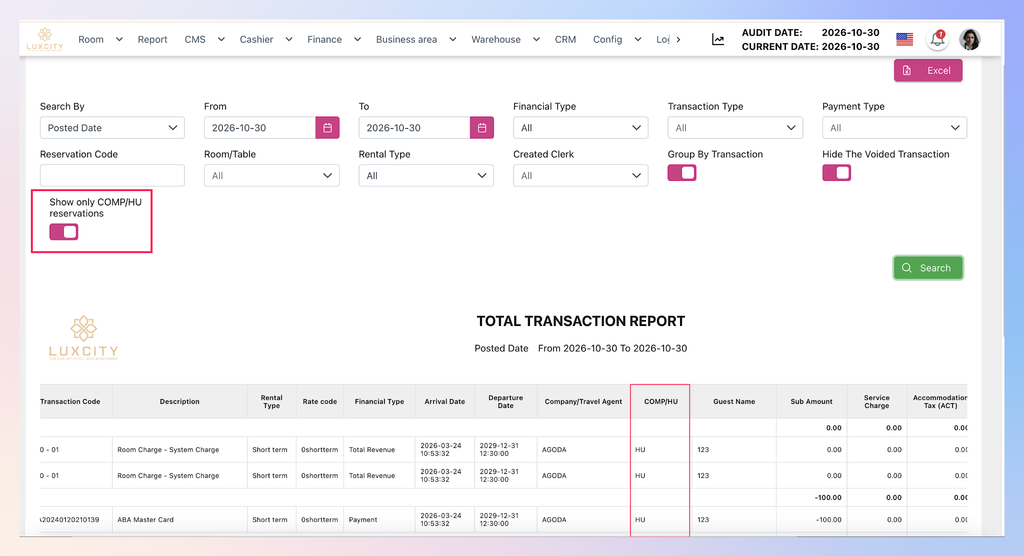
| Callout | Element | What it does |
|---|---|---|
| A | Report filters (for example, date range) | Limit the report. They work together with the COMP/HU checkbox. |
| B | Show only COMP/HU reservations checkbox | Lists only Complimentary and House Use reservations. Unchecked by default. |
| C | COMP/HU column | Shows COMP, HU or nothing for each row. It sits to the right of the Company and Travel agent columns. |
| D | Summary rows | Show the totals of the rows listed. |
| E | Revenue table | Shows revenue for the rows listed. |
| F | Payment table | Shows payments for the rows listed. |
| G | Export and print | Export or print the report as you see it. |
| H | Paging | Moves between pages of results. |
Choose which reservations to show
| Option | What it does | Value you enter | Short example |
|---|---|---|---|
| Show only COMP/HU reservations: unchecked (default) | Shows all rows that match the other filters. | Leave the checkbox empty | A date range of one week lists every reservation in that week. |
| Show only COMP/HU reservations: checked | Shows only rows of Complimentary or House Use bookings that also match the other filters. Rows with an empty COMP/HU cell are hidden. | Tick the checkbox | The same one-week range now lists only the COMP and HU reservations of that week. |
Show only COMP/HU reservations
- Open Report > Finance report > Total transaction report.
- Set the other filters you need (A), for example the date range.
- Tick Show only COMP/HU reservations (B).
Result: The table lists only rows of Complimentary or House Use bookings that match your other filters. The summary rows, the Revenue table and the Payment table are recalculated from those rows only.
Show all reservations again
- Untick Show only COMP/HU reservations (B).
Result: The table lists all rows that match the other filters. The summary rows, the Revenue table and the Payment table are recalculated from these rows.
Read the COMP/HU column
The COMP/HU column (C) is always visible, whether the checkbox is ticked or not.
| Value in the cell | What it means |
|---|---|
| COMP | The booking is marked Complimentary. |
| HU | The booking is marked House Use. |
| Empty | The booking is neither. The cell stays blank, with no “null”, “0” or “N/A”. |
Every row of the same booking shows the same value.
The column does not sort. Clicking its header does nothing, and the row order stays the same.
Understand the totals
The summary rows, the Revenue table and the Payment table are calculated from the rows you see, not from the whole report. When you tick the checkbox, they usually get smaller. When you untick it, they go back to the totals for all rows. If you compare a total with an earlier printout, check the checkbox state first.
Page through the results
- Tick or untick the checkbox (B).
- Use the paging controls (H) to move between pages.
Result: The record count and the page count are based on the rows shown. Changing the checkbox sends you back to page 1. Changing the page keeps the checkbox as it is.
Find no COMP/HU reservations
If no reservation matches, the table shows the standard empty state with a total of 0. The summary rows, the Revenue table and the Payment table show 0 or the empty state. No error message appears.
Export the report
- Set the filters and the checkbox as you want them.
- Click the export button (G).
Result: The file has a COMP/HU column to the right of the Company and Travel agent columns, with COMP, HU or an empty cell, the same as on screen. If the checkbox is ticked, the file holds only the COMP/HU rows that match your other filters.
Print the report
- Set the filters and the checkbox as you want them.
- Click the print button (G).
Result: The printout has the same COMP/HU column and values as the screen. If the checkbox is ticked, it holds only the COMP/HU rows that match your other filters.