Night audit
Language: Vietnamese
| Chức năng (Function description) | Màn hình “Night Audit”: Tài liệu này hướng dẫn người dùng cuối sử dụng màn hình Night Audit để thực hiện quy trình kiểm tra và chốt sổ cuối ngày. |
|---|---|
| Phiên bản (Version) | v1.0 |
| Ngày tạo (Created at) | Jan 23, 2026 |
| Điều kiện sử dụng (Prerequisites) | Thiết bị đã được whitelist IP address, có VPN và có kết nối mạng ổn địnhĐã có tài khoản đăng nhập vào PMS. Trường hợp người dùng chưa có tài khoản, cần liên hệ Support team hoặc Admin để tạo tài khoản.Người dùng đã được phân quyền sử dụng chức năng Night Audit. |
I. Giới Thiệu và Mục Tiêu
1. Giới thiệu
Màn hình Night Audit là công cụ để người dùng (lễ tân, kế toán, quản lý) thực hiện quy trình kiểm tra và chốt số liệu cuối ngày.
Vai trò của màn hình Night Audit:
- Kiểm tra tính chính xác: Đảm bảo tất cả giao dịch, đặt phòng, doanh thu đã được ghi nhận đầy đủ và chính xác.
- Chốt số liệu: Khóa sổ, chuyển dữ liệu sang ngày mới.
2. Mục tiêu
- Hướng dẫn người dùng thực hiện quy trình Night Audit một cách chính xác và hiệu quả.
- Đảm bảo tính toàn vẹn của dữ liệu tài chính.
- Hỗ trợ xử lý các tình huống phát sinh trong quá trình Night Audit.
II. Các Tính Năng Chính
- Danh sách các bước kiểm tra: Liệt kê các bước cần thực hiện trước khi chốt sổ (ví dụ: kiểm tra discrepancy, due out, no show…).
- Đánh dấu hoàn thành: Hệ thống tự động kiểm tra theo từng bước và đánh dấu các bước đã hoàn thành thông báo người dùng.
- Ghi nhận lỗi: Hệ thống tự động kiểm tra và ghi nhận các lỗi phát sinh trong quá trình kiểm tra để thông báo người dùng xử lý.
- Chạy Night Audit: Thực hiện quy trình chốt số liệu cuối ngày.
III. Các Bước Thao Tác Cơ Bản Trên Màn Hình
Dưới đây là các bước thao tác tiêu chuẩn để sử dụng chức năng. Thực hiện theo thứ tự để đảm bảo hiệu quả.
- Truy cập màn hình Night Audit:
i. Đăng nhập vào hệ thống.
ii. Chọn module “Room”
iii. Chọn chức năng “Night Audit”. - Thực hiện các bước kiểm tra:
i. Người dùng nhấn nút “Night audit” kích hoạt chạy audit kiểm tra
ii. Hệ thống thực hiện lần lượt các bước kiểm tra được liệt kê trên màn hình. Các bước kiểm tra gồm:
- Kiểm tra discrepancy (chênh lệch Room status của phòng đang các task dọn phòng).
- Kiểm tra booking due out (khách chưa checkout đúng ngày dự kiến trả phòng).
- Kiểm tra booking no show (khách không đến).
- Kiểm tra ca chung theo khu vực kinh doanh.
- Kiểm tra chênh lệch giá phòng theo ngày audit
- Khởi tạo doanh thu phòng và dịch vụ đặc biệt
iii. Nếu:
- Hệ thống kiểm tra dữ liệu đạt yêu cầu → tự động đánh dấu “Finished” sau khi hoàn thành kiểm tra cho bước đó.
- Hệ thống kiểm tra dữ liệu không đạt yêu cầu → tự động đánh dấu “Errors” và highlight tên bước sau khi hoàn thành kiểm tra cho bước đó.
- Chạy Night Audit:
i. User kiểm tra lại tất cả các bước mà hệ thống báo “Errors” bằng cách nhấn vào để mở popup xử lý cho bước tương ứng. Nếu:
- Bước “Check discrepancy” bị error và cách xử lý → User cần đảm bảo đã cập nhật trạng thái các task dọn phòng thành:
- Completed.
- Cancelled
- Bước “Check booking due out” bị error và cách xử lý → User cần đảm bảo các booking có ngày checkout = ngày audit hiện tại đã được:
- Checkout thành công hoặc
- Đã được chuyển ngày checkout dự kiến lớn hơn ngày audit hiện tại.
- Bước “Check booking noshow” bị error và cách xử lý → User cần đảm bảo các booking có ngày checkin = ngày audit hiện tại đã được:
- Checkin thành công hoặc
- Đã được chuyển ngày checkin dự kiến lớn hơn ngày audit hiện tại.
- Chuyển Noshow/ cancel và post doanh thu noshow/ cancel charge cho booking.
- Bước “Check shift business area” bị error và cách xử lý → User cần đảm bảo đã xác nhận đóng ca các outlet được config tự đóng ca daily shift.
- Bước “Check rate code” bị error và cách xử lý → User cần đảm bảo giá phòng đã chỉnh sửa (giá khác với giá đã cấu hình rate code) của booking tại ngày audit chính xác để khởi tạo. Nếu:
- User muốn xuất danh sách các booking có giá phòng khác với rate code config → nhấn nút “Export” để xuất file
- User muốn xác nhận giá phòng của booking khác với rate code config → chọn booking muốn xác nhận và nhấn nút “Approve”
- User muốn cảnh báo để xử lý sau cho booking có giá phòng khác với rate code config → nhấn nút “Warning” để ghi nhận vào báo cáo sau night audit thành công.
- User muốn chỉnh lại giá phòng của booking trên danh sách “Check rate code” → nhấn vào booking code để chỉnh giá tại màn hình Detail reservation.
ii. Đảm bảo các bước bắt buộc đã được đánh dấu “Finished” (trừ bước “Update revenue”)
iii. User bấm nút “Night Audit”.
iv. Hệ thống thực hiện quy trình chốt số liệu doanh thu.
v. Kiểm tra thông báo kết quả (thành công/thất bại).
IV. Mô Tả GUI (Giao Diện Người Dùng)
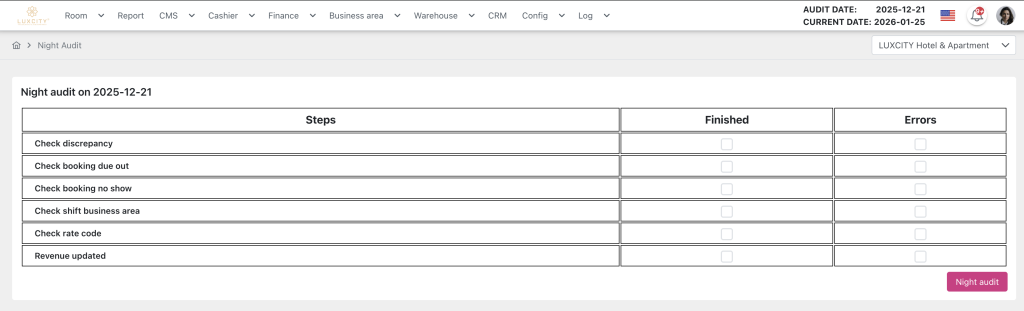
Form “Night Audit” gồm:
- Header:
- Thông tin về ngày audit hiện tại.
- Bảng các bước kiểm tra:
- Cột “Steps”: Liệt kê các bước kiểm tra.
- Cột “Finished”: Checkbox để đánh dấu hoàn thành.
- Cột “Errors”: Checkbox để đánh dấu có lỗi.
- Nút “Night Audit”: Thực hiện quy trình chốt số liệu.
- Nút “Finished”: Thực hiện kiểm tra lại các bước bị Errors. Nếu các bước bị Errors đã được user xử lý → cập nhật đánh dấu hoàn thành cho các bước đạt yêu cầu.
V. Hướng Dẫn Chung và Hỗ Trợ
- Mẹo Sử Dụng:
- Luôn kiểm tra kỹ các số liệu trước và trong khi chạy Night Audit.
- Đảm bảo tất cả các bước bắt buộc đã được hoàn thành.
- Hỗ Trợ: Nếu gặp vấn đề, liên hệ email support@airfeedkh.com.
- Cập Nhật: Guideline này có thể thay đổi. Vui lòng kiểm tra phiên bản mới nhất trong phần “Help”.
Language: English
| Chức năng (Function description) | Màn hình “Night Audit”: Tài liệu này hướng dẫn người dùng cuối sử dụng màn hình Night Audit để thực hiện quy trình kiểm tra và chốt sổ cuối ngày. |
|---|---|
| Phiên bản (Version) | v1.0 |
| Ngày tạo (Created at) | Jan 23, 2026 |
| Điều kiện sử dụng (Prerequisites) | The device has been whitelisted by IP address, has VPN, and has a stable network connection.A PMS login account has already been created. If the user does not yet have an account, they need to contact the Support team or Admin to create one.The user has been granted permission to use the Night Audit function. |
I. Introduction and Objectives
1. Introduction
The Night Audit screen is a tool for users (receptionists, accountants, managers) to perform the end-of-day checking and closing process.
Roles of the Night Audit screen:
- Verify accuracy: Ensure that all transactions, reservations, and revenue have been fully and accurately recorded.
- Close figures: Close the books and roll data over to the new day.
2. Objectives
- Guide users to perform the Night Audit process accurately and efficiently.
- Ensure the integrity of financial data.
- Support handling issues that arise during the Night Audit process.
II. Primary features
- List of verification steps: Lists the steps that must be performed before closing the books (for example: check discrepancy, due out, no show…).
- Mark as completed: The system automatically checks step by step and marks the steps that have been completed, then notifies the user.
- Error logging: The system automatically checks and records errors that arise during the verification process in order to notify the user to handle them.
- Run Night Audit: Execute the end-of-day closing process.
III. Normal flow
Below are the standard operation steps to use this function. Perform them in order to ensure effectiveness.
- Access the Night Audit screen:
i. Log in to the system.
ii. Select the “Room” module.
iii. Select the “Night Audit” function. - Perform the verification steps:
i. The user clicks the “Night audit” button to trigger running the audit checks.ii. The system sequentially executes the verification steps listed on the screen. The verification steps include:- Check discrepancy (difference in Room status for rooms that currently have housekeeping tasks).
- Check booking due out (guests who have not checked out on the scheduled checkout date).
- Check booking no show (guests who did not arrive).
- Check shared shifts by business area.
- Check room rate discrepancies for the audit date.
- Initialize room revenue and special service revenue.
- The system checks the data and it meets the requirements → it automatically marks “Finished” after completing the check for that step.
- The system checks the data and it does not meet the requirements → it automatically marks “Errors” and highlights the step name after completing the check for that step.
- Run Night Audit:
i. The user reviews all the steps that the system reported as “Errors” by clicking on them to open the processing popup for the corresponding step. If:
- The “Check discrepancy” step has an error and how to handle it → The user must ensure that the housekeeping tasks’ statuses have been updated to:
- Completed.
- Cancelled.
- The “Check booking due out” step has an error and how to handle it → The user must ensure that bookings with checkout date = the current audit date have been:
- Successfully checked out, or
- Had their scheduled checkout date changed to a date later than the current audit date.
- The “Check booking noshow” step has an error and how to handle it → The user must ensure that bookings with check-in date = the current audit date have been:
- Successfully checked in, or
- Had their scheduled check-in date changed to a date later than the current audit date, or
- Changed to No-show / Cancel and posted no-show / cancel revenue charges for the booking.
- The “Check shift business area” step has an error and how to handle it → The user must ensure that they have confirmed closing the shifts for outlets that are configured for automatic daily shift closing.
- The “Check rate code” step has an error and how to handle it → The user must ensure that the edited room rates (rates that differ from the configured rate code) of the bookings on the audit date are correct for initialization. If:
- The user wants to export the list of bookings with room rates different from the rate code configuration → click the “Export” button to export the file.
- The user wants to confirm the room rate of a booking that is different from the rate code configuration → select the booking to confirm and click the “Approve” button.
- The user wants to flag the booking for later handling where the room rate is different from the rate code configuration → click the “Warning” button to record it into the report after Night Audit is successfully completed.
- The user wants to adjust the room rate of a booking in the “Check rate code” list → click the booking code to adjust the rate on the Detail Reservation screen.
ii. Ensure that all mandatory steps have been marked “Finished” (except the “Update revenue” step).
iii. The user clicks the “Night Audit” button.
iv. The system executes the revenue closing process.
v. Check the result notification (success/failure).
IV. GUI Description (User Interface)
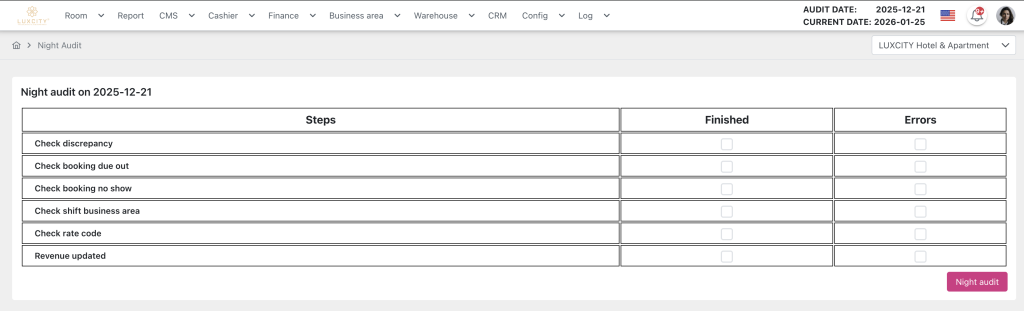
The “Night Audit” form includes:
- Header:
- Information about the current audit date.
- Table of verification steps:
- “Steps” column: Lists the verification steps.
- “Finished” column: Checkbox to mark completion.
- “Errors” column: Checkbox to mark that there is an error.
- “Night Audit” button: Executes the closing process.
- “Finished” button: Rechecks the steps that have Errors. If the steps with Errors have been handled by the user → updates and marks as completed for the steps that meet the requirements.
V. General Instructions and Support
- Usage tips:
- Always carefully check the figures before and during running Night Audit.
- Ensure that all mandatory steps have been completed.
- Support: If you encounter a problem, contact email support@airfeedkh.com.
- Updates: This guideline may change. Please check the latest version in the “Help” section.