[FnB/KTV] Allow users to split a finalized paid bill by item allocation
Part 1: Screen hub
Menu path: Business area > FnB > Bills list > Payment bills
Use the Payment bills screen to find bills that have already been paid and finalized. From here you can open a bill, reprint it, or split it into separate invoices. A split shares the items and amounts of the original bill across new invoices, so each one can be printed and used on its own.
Before you start
- The bill must be paid and finalized. It appears on the Payment bills tab.
- You split one bill at a time. The original bill stays in the list and the new invoices appear under it.
Screen overview
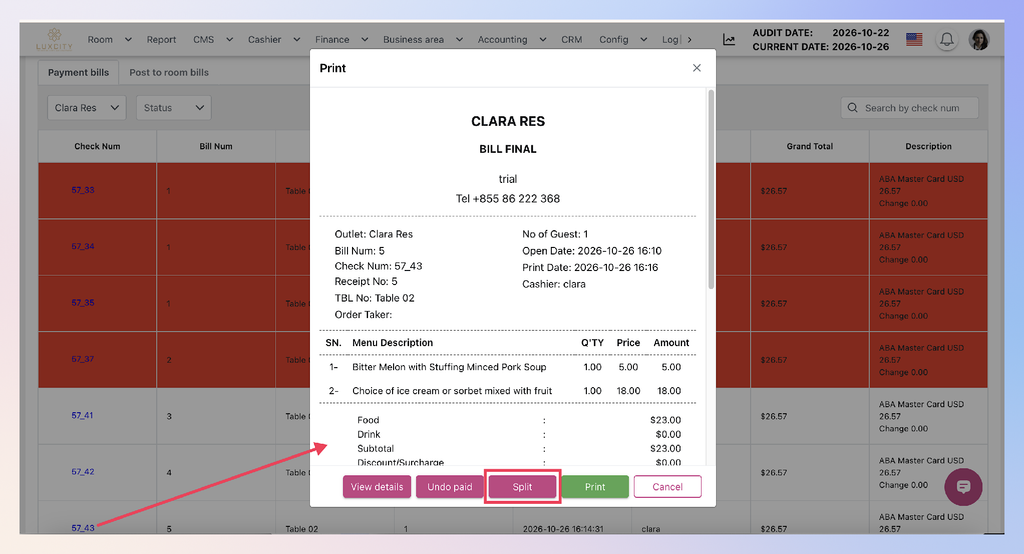
Callouts A–F mark the Payment bills list. Callouts G–H mark the Print dialog that opens from it. Add the callouts to your screenshots before publishing.
| Callout | Element | What it does |
|---|---|---|
| A | Payment bills / Post to room bills tabs | Switch between paid bills and bills posted to a room. Splitting starts from Payment bills. |
| B | Outlet filter (for example, Clara Res) | Shows bills for one outlet only. |
| C | Status filter | Narrows the list by bill status: paid, undo paid |
| D | Search by check num | Finds a bill by its check number. |
| E | Check Num link (for example, 57_43) | Opens the bill in the Print dialog. |
| F | Bill grid | Shows Check Num, Bill Num, table, date and time, cashier, Grand Total and Description (payment method, amount and change). |
| G | Split button in the Print dialog | Starts the split wizard for this bill. |
| H | View details, Undo paid, Print, Cancel | Other actions in the Print dialog. They are not covered here. |
Find a paid bill
- Go to Business area > FnB > Bills list > Payment bills.
- Select the outlet in the first filter (B). Optionally set Status (C).
- Type the check number in Search by check num (D), or scroll the grid (F).
Result: The grid lists the matching bills with their Grand Total and payment details.
Open a bill
- Click the bill’s Check Num link (E).
Result: The Print dialog shows the final bill: outlet, bill number, check number, table, items, totals and cashier.
Split a bill into separate invoices
- Open the bill (see above).
- Click Split (G).
Result: The split wizard opens. Follow Part 2 below for the full procedure.
Review the split invoices
- Return to Payment bills and find the original bill.
- Click the arrow next to its check number to expand it.
Part 2: Split a paid bill into separate invoices
Menu path: Business area > FnB > Bills list > Payment bills
Split a paid bill into two or more invoices by moving items, quantities, amounts or percentages from one invoice to another. The new invoices add up to the original paid total.
Steps
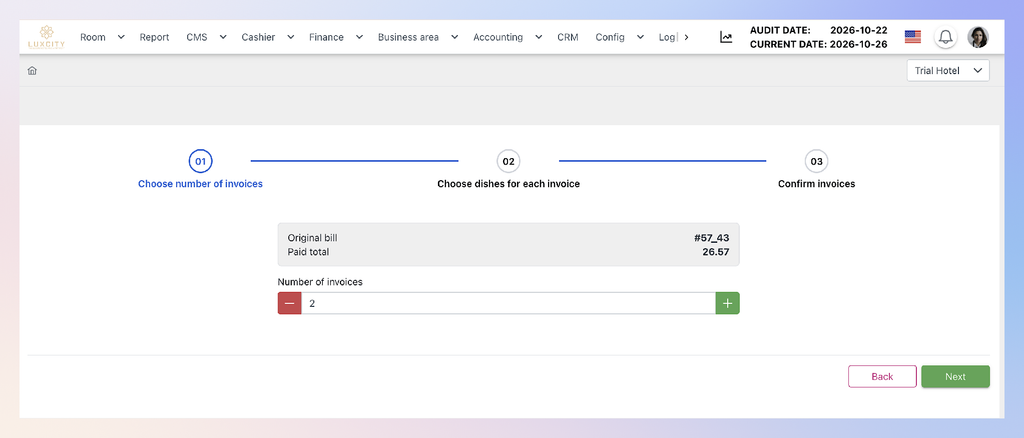
- On Payment bills, click the check number of the bill, then click Split. Result: The wizard opens at step 01 Choose number of invoices. It shows the original bill (for example, #57_43) and its paid total (26.57).
- Under Number of invoices, use − and + to set how many invoices you need. The default is 2. Click Next. Result: Step 02 Choose dishes for each invoice opens. All items start on Invoice 1. The other invoices are empty with a Grand Total of 0.00 USD.
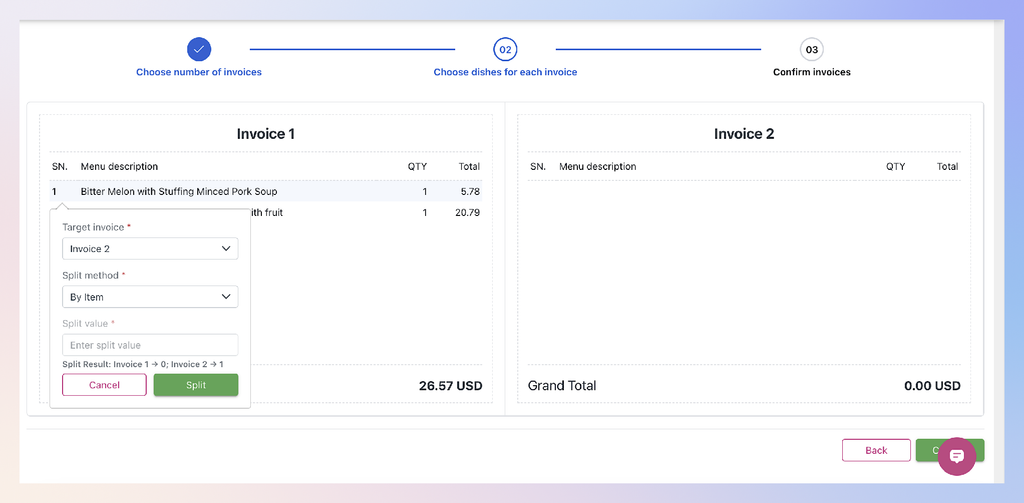
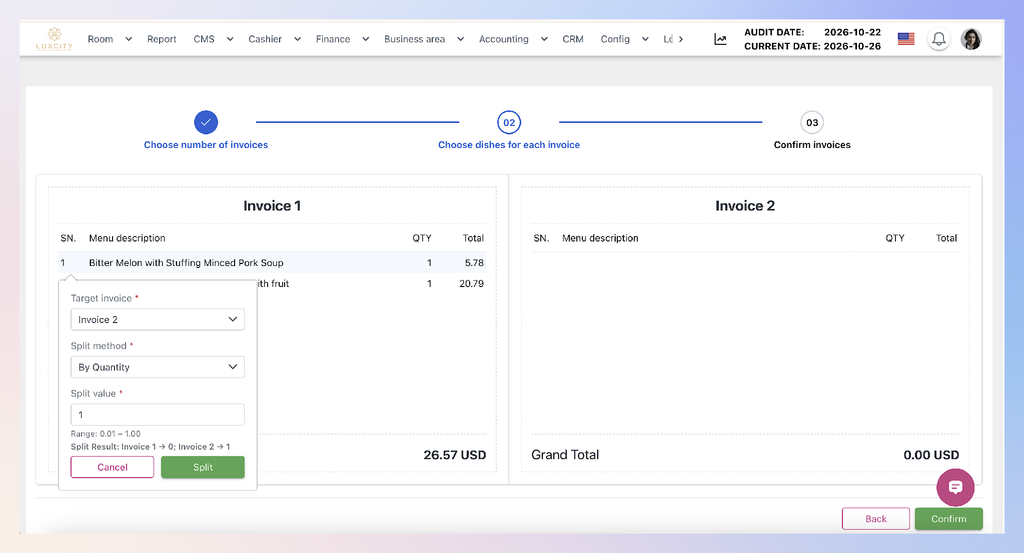
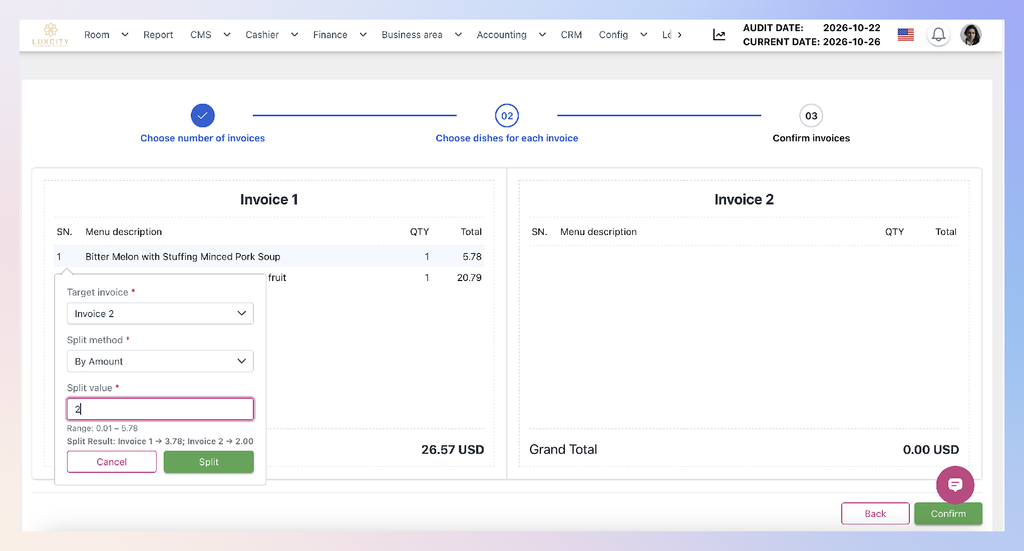
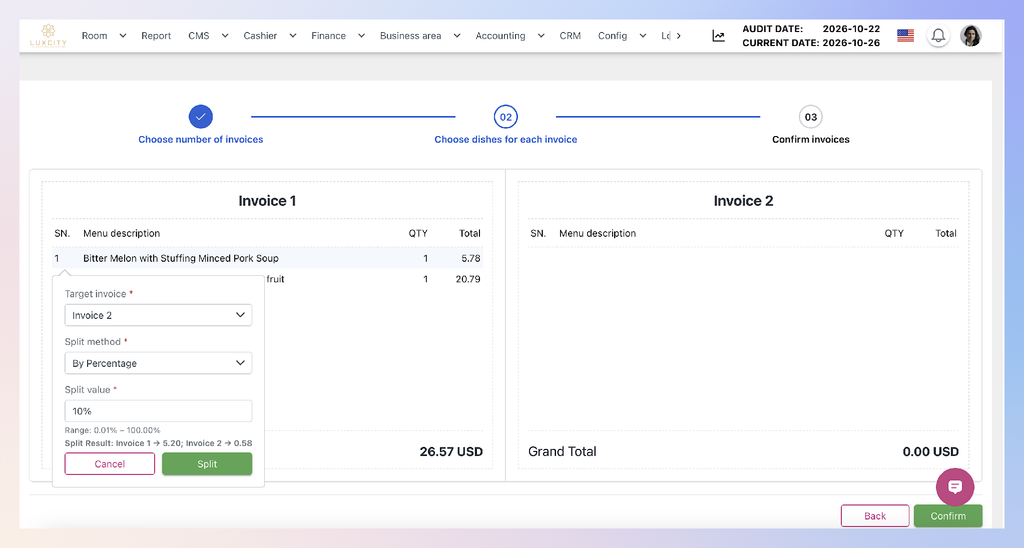
- Click the item you want to move. Result: A panel opens with Target invoice, Split method and Split value.
- Choose the Target invoice, choose a Split method (see the table below), and enter the Split value. You don’t enter a value for By Item. Result: The range you can enter appears under the value field. Split Result previews the new amount on each invoice before you apply anything.
- Click Split. Repeat steps 3–5 for other items. Result: The item, quantity or amount moves to the target invoice, and both Grand Totals update.
- To correct a mistake, click Undo last (reverses the latest split) or Reset (clears all splits).
- When the invoices are right, click Confirm. Result: Step 03 Confirm invoices shows each invoice as a final bill with its own check number (for example, 57_43.1 and 57_43.2).
- Click Print under each invoice you need, then click Done. Result: The new invoices are saved under the original bill in the Payment bills list.
Screenshots for steps 1–2 and step 7:
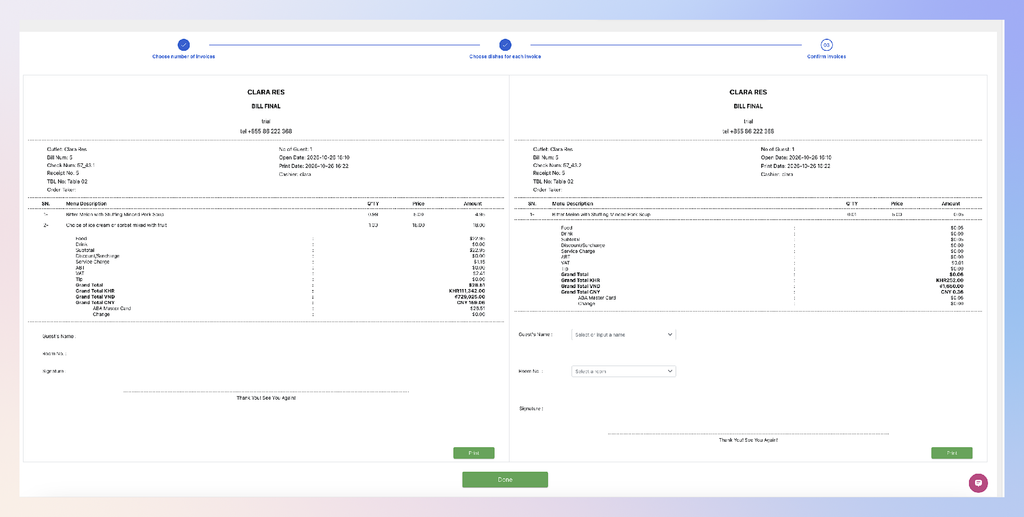
Result: The new invoices appear as child rows under the original, numbered with a suffix (for example, 57_43.1 and 57_43.2). They keep the same bill number, table and cashier. The original row keeps its payment details.

Choose a split method
| Option | What it does | Value you enter | Short example |
|---|---|---|---|
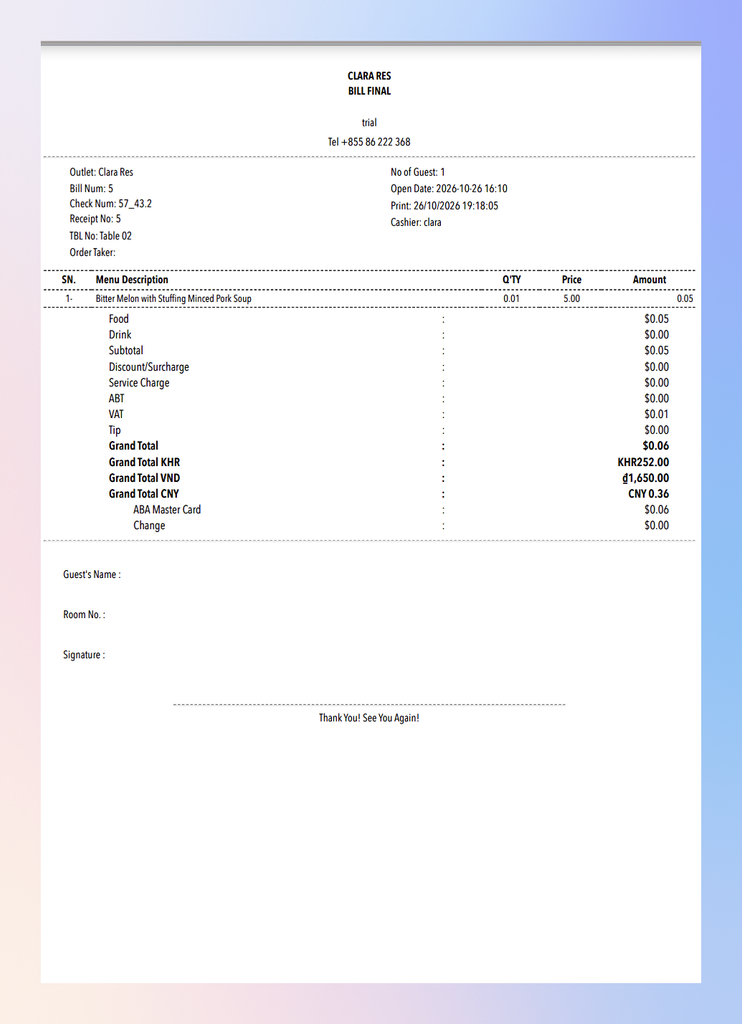
| By Item | Moves the whole line item to the target invoice. | None | Bitter Melon with Stuffing Minced Pork Soup (1 portion, 5.78) moves to Invoice 2. Invoice 1 → 0, Invoice 2 → 1. |
| By Quantity | Moves part of the line’s quantity. | A quantity from 0.01 up to the line’s quantity | Enter 1 for a quantity of 1. Invoice 1 → 0, Invoice 2 → 1. |
| By Amount | Moves a money amount from the line. | An amount from 0.01 up to the line’s total | Enter 2 on a 5.78 line. Invoice 1 → 3.78, Invoice 2 → 2.00. |
| By Percentage | Moves a share of the line’s total. | A percentage from 0.01% to 100.00% | Enter 10% on a 5.78 line. Invoice 1 → 5.20, Invoice 2 → 0.58. |
Split panel for each method, in table order:
Worked example: moving a tiny quantity
The wizard works with each line’s total, not its menu price. The soup’s menu price is 5.00, but its line total in the wizard is 5.78. The extra covers 5% service charge and 10% VAT. Each invoice recalculates tax and service charge on its own share, so the pieces can differ by a cent from what you’d expect.
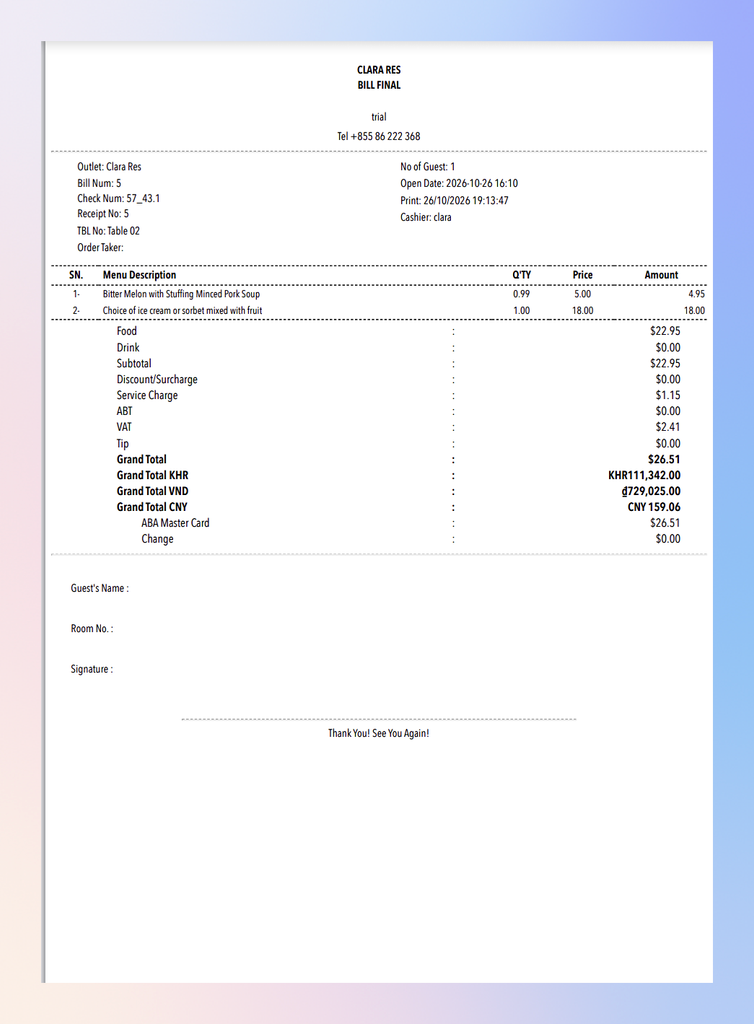
Original bill: Soup 5.00 and Ice cream 18.00, with a paid total of 26.57. Move 0.01 of the soup to Invoice 2 using By Percentage:
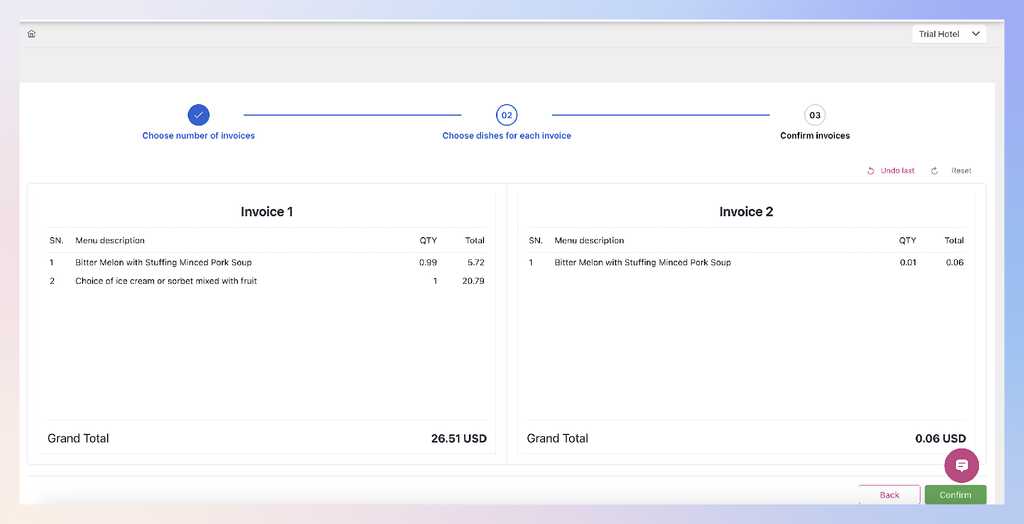
| Invoice 1 | Invoice 2 | |
|---|---|---|
| Soup quantity | 0.99 | 0.01 |
| Soup amount | 0.99 × 5.00 = 4.95 | 0.01 × 5.00 = 0.05 |
| Ice cream | 18.00 | — |
| Subtotal | 22.95 | 0.05 |
| Service charge | 1.15 | 0.00 |
| VAT | 2.41 | 0.01 |
| Grand Total | 26.51 | 0.06 |
26.51 + 0.06 = 26.57, which matches the original paid total.
Tips
- Invoices are numbered from the original check number (57_43 → 57_43.1, 57_43.2). Quote the suffix when you print or look up an invoice.
- Each invoice shows the payment method used on the original bill (for example, ABA Master Card) for its own amount.
- On the final screen, some invoices show Guest’s Name and Room No. fields you can fill in before printing.