Room view
English below
| Chức năng (Function description) | Tính năng Room view trên màn hình Room cho phép bạn thêm, chỉnh sửa và quản lý chi tiết các view của phòng nghỉ theo từng facility, hỗ trợ việc cấu hình danh sách phòng và thống kê dễ dàng thông qua các thao tác Add, Save, Delete. |
|---|---|
| Phiên bản (Version) | v1.0 |
| Ngày tạo (Created at) | Apr 2, 2026 |
| Điều kiện sử dụng (Prerequisites) | Thiết bị đã được whitelist IP address, có VPN và có kết nối mạng ổn địnhĐã có tài khoản đăng nhập vào PMS. Trường hợp người dùng chưa có tài khoản, cần liên hệ Support team hoặc Admin để tạo tài khoản.Người dùng đã được phân quyền sử dụng chức năng Config rooms |
I. Giới Thiệu và Mục Tiêu
1. Giới thiệu
Tính năng Room view trên sub-tab Room view configuration trong màn hình Room của PMS giúp người dùng quản lý và thiết lập danh sách các view (góc nhìn/phong cách) của từng loại phòng nghỉ tại khách sạn. Mỗi room view được liên kết với facility tương ứng, giúp hệ thống nhận diện và áp dụng trong các tính năng khác như cấu hình phòng, thống kê và báo cáo.
2. Mục tiêu
- Cho phép thêm, sửa, xóa và quản lý chi tiết các room view theo từng facility.
- Hỗ trợ end-user dễ dàng trong việc cấu hình danh sách phòng và liên kết view với các tính năng vận hành khác.
- Đảm bảo dữ liệu room view được tổ chức khoa học, thuận tiện tra cứu và báo cáo.
II. Các Tính Năng Chính
- Danh sách room view theo facility: Hiển thị các room view đã được tạo, sắp xếp theo cấu trúc: tên facility > tên room view.
- Tạo mới / chỉnh sửa chi tiết: Cho phép nhập thông tin Name, Description của room view; facility được hệ thống tự ghi nhận khi người dùng chọn từ danh sách.
- Các nút thao tác:
- Add – Thêm room view mới.
- Save – Lưu thông tin vừa nhập hoặc chỉnh sửa.
- Delete – Xóa room view không còn sử dụng.
III. Các Bước Thao Tác Cơ Bản Trên Màn Hình
Dưới đây là các bước thao tác tiêu chuẩn để sử dụng chức năng. Thực hiện theo thứ tự để đảm bảo hiệu quả.
- Truy cập màn hình Room class configuration
- Đăng nhập vào hệ thống PMS.
- Nhấn vào menu “Config” trên thanh Header.
- Chọn Config > Room > Room view.
- Hệ thống hiển thị màn hình Room view configuration.
- Xem danh sách room view:
- Trên màn hình Room view, bạn sẽ thấy danh sách room view được hiển thị theo từng facility.
- Dễ dàng tìm kiếm view theo tên facility hoặc tên view.
- Thêm room view mới:
- Click Add để mở màn hình tạo mới.
- Nhập Name (tên view) và Description (mô tả chi tiết).
- Chọn facility tương ứng từ danh sách, hệ thống sẽ liên kết tự động.
- Click Save để lưu.
- Chỉnh sửa room view:
- Click vào room view cần chỉnh sửa từ danh sách.
- Thay đổi thông tin Name, Description nếu cần.
- Click Save để cập nhật.
- Xóa room view:
- Chọn room view muốn xóa.
- Click Delete, xác nhận để xóa khỏi hệ thống.
IV. Mô Tả GUI (Giao Diện Người Dùng)
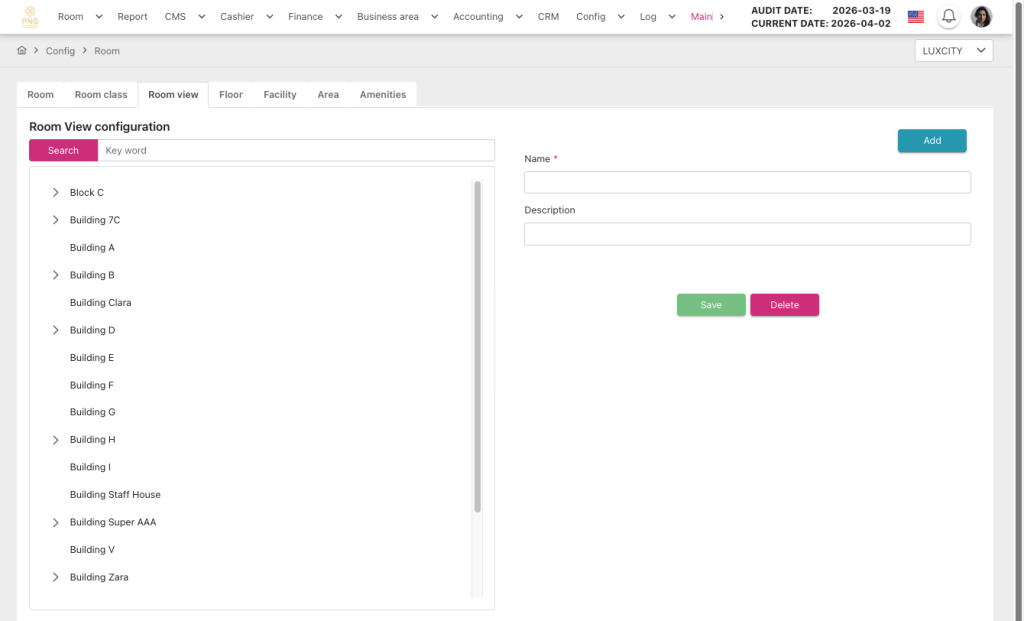
Màn hình Room view configuration gồm:
- Header:
- Hiển thị thông tin ngày audit hiện tại và các chức năng chính của màn hình như điều hướng menu, truy cập nhanh các thao tác quản lý hóa đơn.
- Danh sách room view:
- Hiển thị dạng bảng hoặc danh sách phân cấp: Facility > Room view.
- Cột hiển thị chính: Name, Description, Facility.
- Màn hình chi tiết / tạo mới:
- Name: Trường nhập tên room view.
- Description: Trường nhập mô tả chi tiết.
- Facility: Hệ thống tự liên kết khi người dùng chọn facility từ danh sách.
- Các nút thao tác:
- Add: Nằm ở đầu danh sách, mở form nhập thông tin room view mới.
- Save: Lưu thông tin mới hoặc cập nhật thông tin chỉnh sửa.
- Delete: Xóa room view đã chọn, hiển thị hộp xác nhận trước khi xóa.
- Tìm kiếm & lọc:
- Cho phép tìm kiếm room view theo tên facility hoặc tên view để dễ quản lý.
- Hỗ trợ lọc nhanh để xem các view thuộc facility cụ thể.
| Function description | The Room view feature on the Room screen allows you to add, edit, and manage detailed views of hotel rooms by facility, supporting easy room list configuration and reporting through the Add, Save, and Delete actions. |
|---|---|
| Version | v1.0 |
| Created at | Apr 2, 2026 |
| Prerequisites | The device must have a whitelisted IP address, a VPN, and a stable internet connection.The user must have a PMS account. If the user does not have an account, contact the Support team or Admin to create one.The user must be Config rooms function. |
Version log
| ID | Version | Description | Updated at | Updated by |
|---|---|---|---|---|
| 1 | ver1.0 | Released document | Apr 2, 2026 | Rex |
I. Introduction and Objectives
1. Introduction
The Room view feature on the Room view configuration sub-tab in the Room screen of the PMS allows users to manage and set up a list of views (perspectives/styles) for each type of hotel room. Each room view is linked to its corresponding facility, enabling the system to recognize and apply it in other functions such as room configuration, reporting, and analytics.
2. Objectives
- Enable users to add, edit, delete, and manage detailed room views by facility.
- Help end-users easily configure the room list and link views with other operational features.
- Ensure room view data is organized logically, making it easy to reference and report.
II. Primary features
- Room view list by facility: Displays all created room views, organized as: Facility name > Room view name.
- Create / Edit details: Allows users to input Name and Description for a room view; the system automatically links the selected facility from the list.
- Action buttons:
- Add – Create a new room view.
- Save – Save newly added or edited information.
- Delete – Remove unused room views.
III. Basic operations on the screen
Follow the steps below in order to ensure efficient and accurate operation.
- Access the Room class configuration Screen:
- Log in to the PMS system.
- Click the Config menu on the header.
- Navigate to Config → Room > Room view.
- The Room view configuration screen is displayed.
- View the room view list:
- The Room view screen shows all room views organized by facility.
- You can easily search by facility name or room view name.
- Add a new room view:
- Click Add to open the creation form.
- Enter Name (room view name) and Description (detailed description).
- Select the corresponding facility from the list; the system will link it automatically.
- Click Save to store the information.
- Edit an existing room view:
- Click the room view you want to edit from the list.
- Update Name and Description if needed.
- Click Save to apply changes.
- Delete a room view:
- Select the room view you want to delete.
- Click Delete, then confirm to remove it from the system.
IV. GUI Description (User Interface)
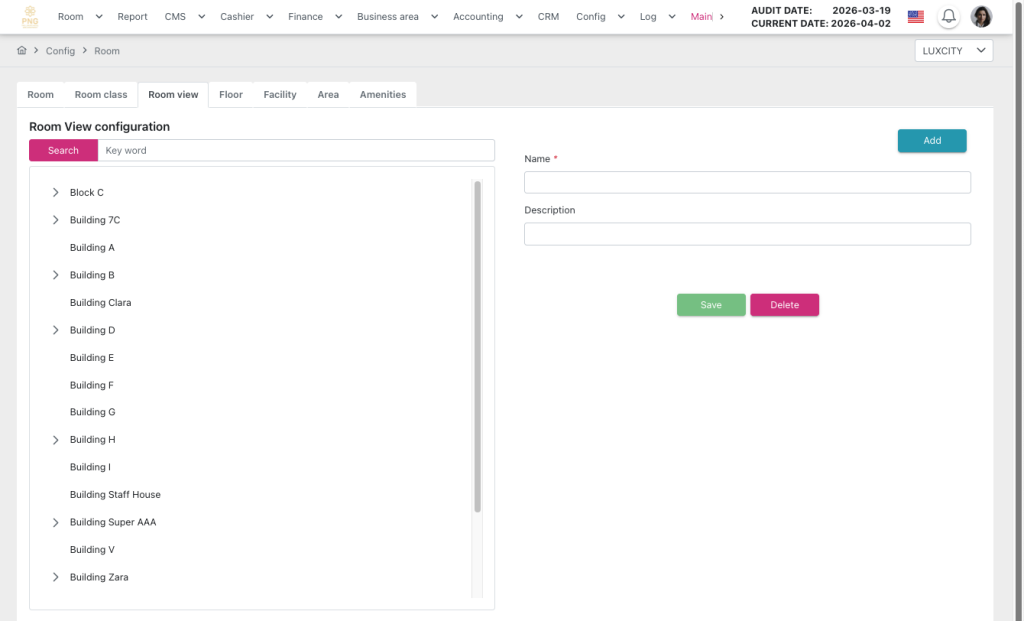
Room view configuration screen overview
- Header
- Displays the current audit date and the main functions of the screen, such as menu navigation and quick access to transaction management actions.
- Room view list:
- Displayed as a table or hierarchical list: Facility > Room view.
- Key columns: Name, Description, Facility.
- Detail / creation screen:
- Name: Input field for the room view name.
- Description: Input field for detailed description.
- Facility: Automatically linked when a facility is selected from the list.
- Action buttons:
- Add: Located at the top of the list, opens the form for creating a new room view.
- Save: Saves new information or updates edited data.
- Delete: Deletes the selected room view; a confirmation dialog appears before deletion.
- Search & Filter:
- Allows searching room views by facility name or room view name for easy management.
- Supports quick filtering to view room views belonging to a specific facility..
V. General Instructions and Support
- Usage tips:
- Always carefully check the figures before and during running Night Audit.
- Ensure that all mandatory steps have been completed.
- Support: If you encounter a problem, contact email support@airfeedkh.com.
- Updates: This guideline may change. Please check the latest version in the “Help” section.