Menu
English below
| Chức năng (Function description) | Tính năng Menu trong Config > Business area > FnB > Menu cho phép người dùng cấu hình danh sách món ăn làm cơ sở xây dựng menu nhà hàng, bao gồm các thông tin như code, tên, giá bán, giá vốn, open item, open price, đơn vị, nhóm, kho, số lượng, ghi chú, đồng thời hỗ trợ các thao tác nhanh như tải file mẫu, import dữ liệu, thêm nhóm, thêm món và xóa. |
|---|---|
| Phiên bản (Version) | v1.0 |
| Ngày tạo (Created at) | Mar 25, 2026 |
| Điều kiện sử dụng (Prerequisites) | Thiết bị đã được whitelist IP address, có VPN và có kết nối mạng ổn địnhĐã có tài khoản đăng nhập vào PMS. Trường hợp người dùng chưa có tài khoản, cần liên hệ Support team hoặc Admin để tạo tài khoản.Người dùng đã được phân quyền sử dụng chức năng Config FNB |
I. Giới Thiệu và Mục Tiêu
1. Giới thiệu
Tính năng Menu trong màn hình FnB của hệ thống PMS là công cụ cho phép người dùng cấu hình danh sách món ăn/dịch vụ làm nền tảng để xây dựng và quản lý menu cho nhà hàng. Người dùng có thể thiết lập đầy đủ thông tin cho từng món như mã món, tên món, giá bán, giá vốn, đơn vị, nhóm, kho và các thuộc tính liên quan, đồng thời hỗ trợ import dữ liệu hàng loạt và tổ chức menu theo nhóm một cách linh hoạt.
2. Mục tiêu
- Cho phép người dùng tạo, chỉnh sửa và quản lý danh sách món ăn một cách dễ dàng, đầy đủ và có hệ thống.
- Cung cấp nền tảng dữ liệu chuẩn để phục vụ cấu hình menu, order và thanh toán trong module F&B.
- Đảm bảo thông tin món ăn (giá bán, giá vốn, đơn vị, tồn kho…) được thiết lập chính xác và đồng bộ trong toàn hệ thống.
- Hỗ trợ quản lý món ăn theo nhóm (group), giúp tổ chức menu khoa học, dễ tìm kiếm và dễ sử dụng trong vận hành thực tế.
- Tăng hiệu quả vận hành thông qua việc hỗ trợ import dữ liệu hàng loạt, giảm thiểu thao tác nhập liệu thủ công.
- Hỗ trợ các tình huống linh hoạt như open item, open price nhằm đáp ứng đa dạng nhu cầu bán hàng tại nhà hàng.
- Giúp kiểm soát chi phí và lợi nhuận thông qua việc cấu hình giá vốn (costing) cho từng món.
- Nâng cao trải nghiệm người dùng với giao diện trực quan, thao tác nhanh và dễ sử dụng trên các thiết bị như desktop và tablet.
II. Các Tính Năng Chính
- Quản lý danh sách món ăn
- Cho phép người dùng tạo, chỉnh sửa và xóa các món ăn trong hệ thống.
- Mỗi món ăn được cấu hình đầy đủ thông tin như: code, tên, giá bán, giá vốn (costing), đơn vị, nhóm, kho, số lượng và ghi chú.
- Đảm bảo dữ liệu món ăn được quản lý tập trung và đồng bộ trong toàn bộ hệ thống PMS.
- Cấu hình thuộc tính linh hoạt cho món ăn
- Hỗ trợ các tùy chọn như:
- Open item: Cho phép tạo món linh hoạt ngoài danh sách có sẵn.
- Open price: Cho phép nhập giá bán trực tiếp khi order.
- Đáp ứng các tình huống vận hành thực tế tại nhà hàng với yêu cầu linh hoạt cao.
- Hỗ trợ các tùy chọn như:
- Quản lý nhóm món (Group)
- Cho phép tạo và quản lý các nhóm món (menu group).
- Giúp phân loại món ăn (ví dụ: món chính, đồ uống, tráng miệng…) một cách rõ ràng.
- Hỗ trợ xây dựng menu khoa học, dễ tìm kiếm và thao tác khi order.
- Import dữ liệu hàng loạt
- Cho phép tải file mẫu (Sample file) để nhập dữ liệu theo đúng định dạng.
- Hỗ trợ Import danh sách món ăn hàng loạt vào hệ thống.
- Giúp tiết kiệm thời gian và giảm thiểu sai sót so với nhập liệu thủ công.
- Quản lý kho và số lượng (Store & Quantitative)
- Cho phép liên kết món ăn với kho (store) tương ứng.
- Thiết lập số lượng (quantitative) để phục vụ kiểm soát tồn kho.
- Hỗ trợ quản lý nguyên vật liệu và đảm bảo tính chính xác trong vận hành F&B.
- Tìm kiếm và thao tác nhanh
- Hỗ trợ tìm kiếm nhanh món ăn theo tên.
- Cho phép thao tác trực tiếp trên danh sách như chọn, chỉnh sửa nhanh hoặc xóa.
- Giúp người dùng tiết kiệm thời gian trong quá trình cấu hình và quản lý menu.
- Nút thao tác chính (Action Buttons)
- Sample file: Tải file mẫu để chuẩn bị dữ liệu import.
- Import: Nhập dữ liệu món ăn hàng loạt từ file.
- Add group: Tạo mới nhóm món.
- Add item: Tạo mới món ăn.
- Delete: Xóa món ăn hoặc nhóm món đã chọn.
III. Các Bước Thao Tác Cơ Bản Trên Màn Hình
Dưới đây là các bước thao tác tiêu chuẩn để sử dụng chức năng. Thực hiện theo thứ tự để đảm bảo hiệu quả.
- Truy cập màn hình Menu
- Đăng nhập vào hệ thống PMS.
- Nhấn vào menu “Config” trên thanh Header.
- Chọn Business area > FnB > Menu.
- Hệ thống hiển thị màn hình Menu.
- Xem danh sách món ăn
- Danh sách món ăn hiển thị tại khu vực bên trái màn hình.
- Mỗi dòng thể hiện các thông tin tên món
- Người dùng có thể cuộn để xem toàn bộ danh sách.
- Sử dụng thanh Search để tìm kiếm nhanh theo tên món.
- Nhấn trực tiếp vào món ăn để xem hoặc chỉnh sửa thông tin chi tiết.
- Thêm mới món ăn (Add item)
- Nhấn nút Add item.
- Nhập đầy đủ các thông tin cần thiết:
- Code
- Alternative Code
- Name
- Price
- Costing
- Unit
- Group
- Store
- Quantitative
- Note
- Các tùy chọn như Open item, Open price (nếu cần)
- Nhấn Save để lưu và thêm món vào danh sách.
- Thêm mới nhóm món (Add group)
- Nhấn nút Add group.
- Nhập thông tin nhóm món:
- Code
- Name
- Note
- Nhấn Save để lưu nhóm món.
- Nhóm món sẽ được sử dụng để phân loại các món ăn khi cấu hình menu.
- Chỉnh sửa món ăn
- Nhấn trực tiếp vào món ăn cần chỉnh sửa trong danh sách.
- Form chi tiết hiển thị, cho phép cập nhật các thông tin.
- Nhấn Save để lưu thay đổi.
- Chỉnh sửa nhóm món ăn
- Nhấn trực tiếp vào nhóm món ăn cần chỉnh sửa trong danh sách.
- Form chi tiết hiển thị, cho phép cập nhật các thông tin.
- Nhấn Save để lưu thay đổi.
- Xóa món ăn hoặc nhóm món
- Chọn món ăn hoặc nhóm món cần xóa.
- Nhấn nút Delete.
- Xác nhận thao tác để xóa khỏi hệ thống.
- Lưu ý: thao tác xóa yêu cầu quyền phù hợp và hệ thống sẽ hiển thị cảnh báo xác nhận.
- Import dữ liệu món ăn
- Nhấn Sample file để tải file mẫu.
- Nhập dữ liệu món ăn theo đúng định dạng trong file.
- Nhấn Import và chọn file cần tải lên.
- Hệ thống xử lý và cập nhật danh sách món ăn tương ứng.
- Kiểm tra và đồng bộ dữ liệu
- Sau khi thêm, chỉnh sửa hoặc import, kiểm tra lại danh sách món ăn.
- Đảm bảo thông tin hiển thị chính xác (giá, nhóm, đơn vị…).
- Kiểm tra việc hiển thị và sử dụng món ăn trong các chức năng liên quan như order, menu bán hàng.
IV. Mô Tả GUI (Giao Diện Người Dùng)
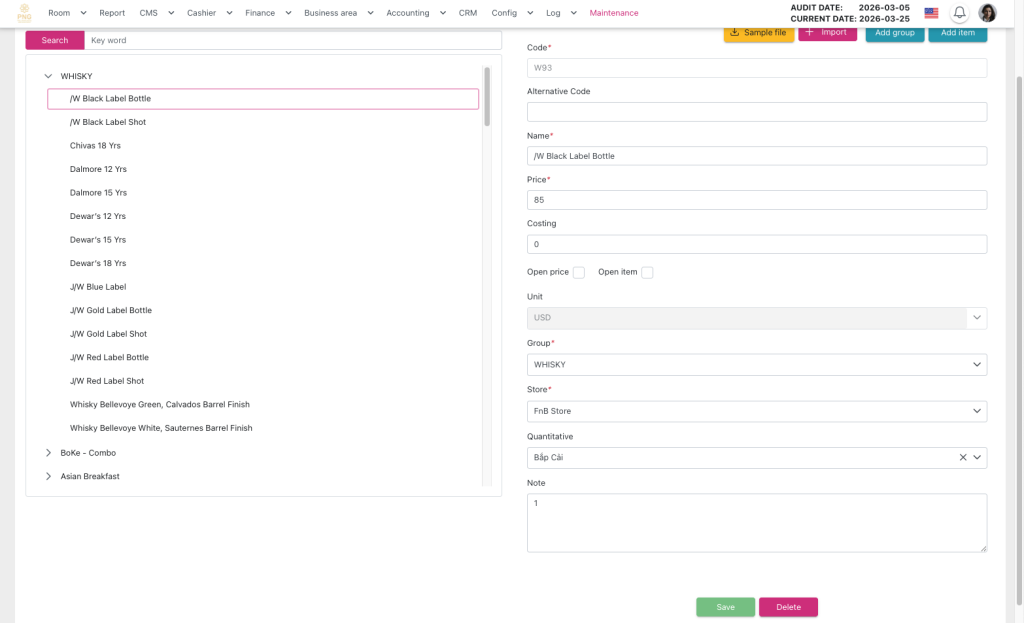
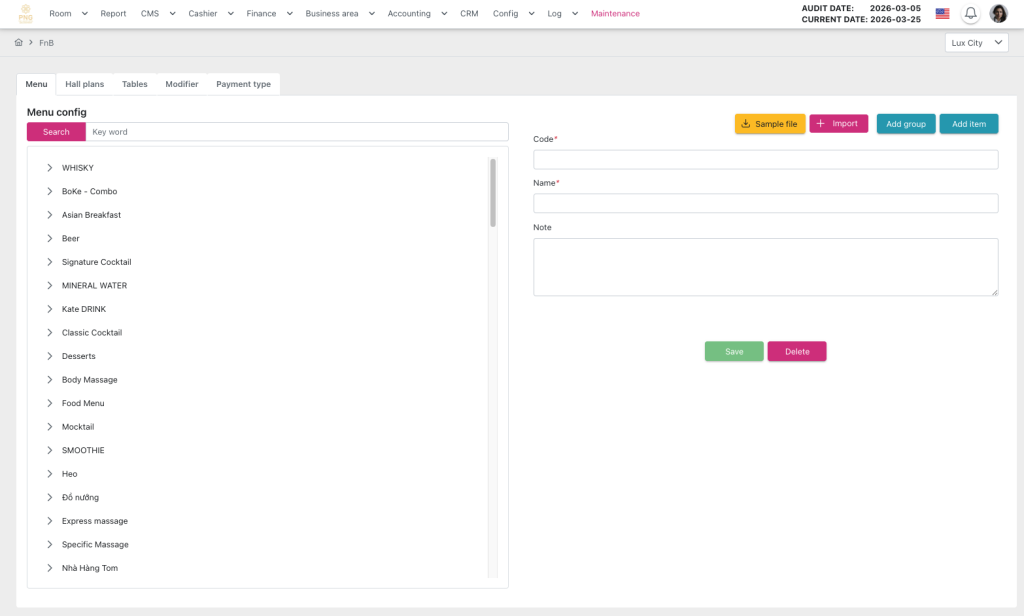
Màn hình Menu gồm:
- Header:
- Hiển thị thông tin ngày audit hiện tại và các chức năng chính của màn hình như điều hướng menu, truy cập nhanh các thao tác quản lý hóa đơn.
- Khu vực danh sách món và nhóm (List & Group Area)
- Nằm ở trung tâm hoặc bên trái màn hình.
- Hiển thị danh sách nhóm món (group) và món ăn (item) theo cấu trúc phân cấp.
- Mỗi item hiển thị các thông tin tên nhóm món ăn hoặc tên món tương đương
- Hỗ trợ:
- Search: Tìm kiếm nhanh theo tên món.
- Click trực tiếp vào món hoặc nhóm để xem/chỉnh sửa thông tin chi tiết.
- Khu vực chi tiết món ăn / nhóm (Detail Form)
- Hiển thị khi người dùng nhấn chọn một món/nhóm hoặc thực hiện thêm mới.
- Form thông tin nằm ở bên phải màn hình.
- Đối với món ăn (Item), bao gồm các trường chính:
- Code: Mã món ăn. Dữ liệu được bảo vệ, người dùng không thể chỉnh sửa.
- Name: Tên món.
- Price: Giá bán.
- Costing: Giá vốn.
- Unit: Đơn vị tính.
- Group: Nhóm món.
- Store: Kho áp dụng.
- Quantitative: Số lượng/tồn kho.
- Open item: Cho phép nhập món linh hoạt.
- Open price: Cho phép nhập giá trực tiếp khi bán.
- Note: Ghi chú bổ sung.
- Đối với nhóm món (Group):
- Code: Mã nhóm món ăn. Dữ liệu được bảo vệ, người dùng không thể chỉnh sửa.
- Name: Tên nhóm món ăn.
- Note: Ghi chú bổ sung.
- Form được thiết kế rõ ràng, dễ nhập liệu và có validation đảm bảo dữ liệu hợp lệ.
- Khu vực nút thao tác (Action Buttons)
- Thường nằm phía trên danh sách hoặc trong khu vực thao tác chính, bao gồm các nút:
- Sample file: Tải file mẫu để import dữ liệu.
- Import: Nhập dữ liệu món ăn từ file.
- Add group: Tạo mới nhóm món.
- Add item: Tạo mới món ăn.
- Delete: Xóa món hoặc nhóm đã chọn (có xác nhận).
- Save (nếu có trong form): Lưu thông tin khi thêm mới hoặc chỉnh sửa.
- Thường nằm phía trên danh sách hoặc trong khu vực thao tác chính, bao gồm các nút:
- Trạng thái và phản hồi hệ thống
- Hiển thị thông báo khi thực hiện các thao tác như thêm mới, chỉnh sửa, import hoặc lỗi dữ liệu.
- Có popup xác nhận khi thực hiện thao tác quan trọng như xóa.
- Validation hiển thị trực tiếp tại các trường nhập liệu khi dữ liệu không hợp lệ.
- Tính thân thiện và tối ưu trải nghiệm
- Giao diện được chia rõ giữa danh sách và chi tiết, giúp thao tác nhanh và trực quan.
- Hỗ trợ thao tác nhanh như click chọn, chỉnh sửa trực tiếp và tìm kiếm tức thì.
- Tương thích tốt trên desktop và tablet, phù hợp cho vận hành F&B hàng ngày.
- Giảm thiểu thao tác phức tạp, giúp người dùng dễ dàng quản lý menu, món ăn và dữ liệu liên quan.
| Function description | The Menu feature in Config > Business area > FnB > Menu allows users to configure a list of dishes as the foundation for building the restaurant menu, including information such as code, name, selling price, costing, open item, open price, unit, group, store, quantity, and notes, while also supporting quick actions such as downloading a sample file, importing data, adding groups, adding items, and deleting. |
|---|---|
| Version | v1.0 |
| Created at | Mar 25, 2026 |
| Prerequisites | The device must have a whitelisted IP address, a VPN, and a stable internet connection.The user must have a PMS account. If the user does not have an account, contact the Support team or Admin to create one.The user must be Config FNB function. |
I. Introduction and Objectives
1. Introduction
The Menu feature in the FnB screen of the PMS system is a tool that allows users to configure a list of dishes or services as the foundation for building and managing the restaurant menu. Users can set up complete information for each item, including item code, name, selling price, costing, unit, group, store, and other relevant attributes. The feature also supports bulk data import and flexible organization of the menu by groups.
2. Objectives
- Enable users to easily create, edit, and manage the list of dishes in a structured and comprehensive manner.
- Provide a standardized data foundation to support menu configuration, ordering, and billing within the F&B module.
- Ensure that item information (selling price, costing, unit, inventory, etc.) is accurate and synchronized throughout the system.
- Support managing items by groups, helping organize menus efficiently, making them easy to search and use in daily operations.
- Improve operational efficiency through bulk data import, reducing manual data entry tasks.
- Support flexible scenarios such as open item and open price to meet diverse restaurant sales needs.
- Help control costs and profitability by configuring costing for each item.
- Enhance user experience with a clear, intuitive interface and fast, easy-to-use operations on devices like desktops and tablets.
II. Primary features
Dish List Management
- Allows users to create, edit, and delete dishes within the system.
- Each dish can be fully configured with details such as code, name, selling price, costing, unit, group, store, quantity, and notes.
- Ensures that all dish data is centrally managed and synchronized across the entire PMS system.
Flexible Item Attributes Configuration
- Supports options such as:
- Open item: Allows creating flexible dishes outside the pre-defined list.
- Open price: Allows entering the selling price directly during order.
- Designed to meet real operational scenarios in restaurants that require high flexibility.
Menu Group Management
- Allows users to create and manage menu groups.
- Helps classify dishes clearly (e.g., main course, drinks, desserts).
- Supports building a well-structured menu that is easy to search and use during ordering.
Bulk Data Import
- Allows downloading a Sample file to prepare data in the correct format.
- Supports importing large numbers of dishes into the system.
- Saves time and reduces errors compared to manual data entry.
Store and Quantity Management
- Allows linking each dish to the corresponding store.
- Sets quantitative values to control inventory levels.
- Supports managing ingredients and ensures accuracy in F&B operations.
Quick Search and Actions
- Supports quick search of dishes by name.
- Allows direct actions on the list such as select, quick edit, or delete.
- Helps users save time while configuring and managing the menu.
Main Action Buttons
- Sample file: Download the sample file to prepare data for import.
- Import: Import dishes in bulk from a file.
- Add group: Create a new menu group.
- Add item: Create a new dish.
- Delete: Remove selected dish or group.
III. Basic operations on the screen
Follow the steps below in order to ensure efficient and accurate operation.
- Access the Menu Screen
- Log in to the PMS system.
- Click the “Config” menu on the header bar.
- Select Business area > FnB > Menu.
- The system displays the Menu screen.
- View Dish List
- The dish list is displayed on the left side of the screen.
- Each row shows the dish name and basic information.
- Scroll to view the full list.
- Use the Search bar to quickly find dishes by name.
- Click directly on a dish to view or edit detailed information.
Add a New Dish (Add item)
- Click Add item.
- Fill in the required information:
- Code
- Alternative Code
- Name
- Price
- Costing
- Unit
- Group
- Store
- Quantitative
- Note
- Optional settings such as Open item or Open price (if needed)
- Click Save to add the dish to the list.
Add a New Group (Add group)
- Click Add group.
- Enter group information:
- Code
- Name
- Note
- Click Save to create the group.
- The group will be used to categorize dishes when configuring the menu.
Edit a Dish
- Click directly on the dish to be edited in the list.
- The detailed form appears, allowing updates to the information.
- Click Save to save changes.
Edit a Dish Group
- Click directly on the group to be edited in the list.
- The detailed form appears, allowing updates to the information.
- Click Save to save changes.
Delete a Dish or Group
- Select the dish or group to delete.
- Click the Delete button.
- Confirm the action to remove it from the system.
- Note: Deletion requires appropriate permissions, and the system will display a confirmation alert.
Import Data
- Click Sample file to download the template file.
- Fill in the dish data according to the template format.
- Click Import and select the file to upload.
- The system processes and updates the dish list accordingly.
Verify and Synchronize Data
- After adding, editing, or importing, review the dish list.
- Ensure information is displayed accurately (price, group, unit, etc.).
- Check that dishes are correctly shown and usable in related functions such as ordering or menu display.
IV. GUI Description (User Interface)
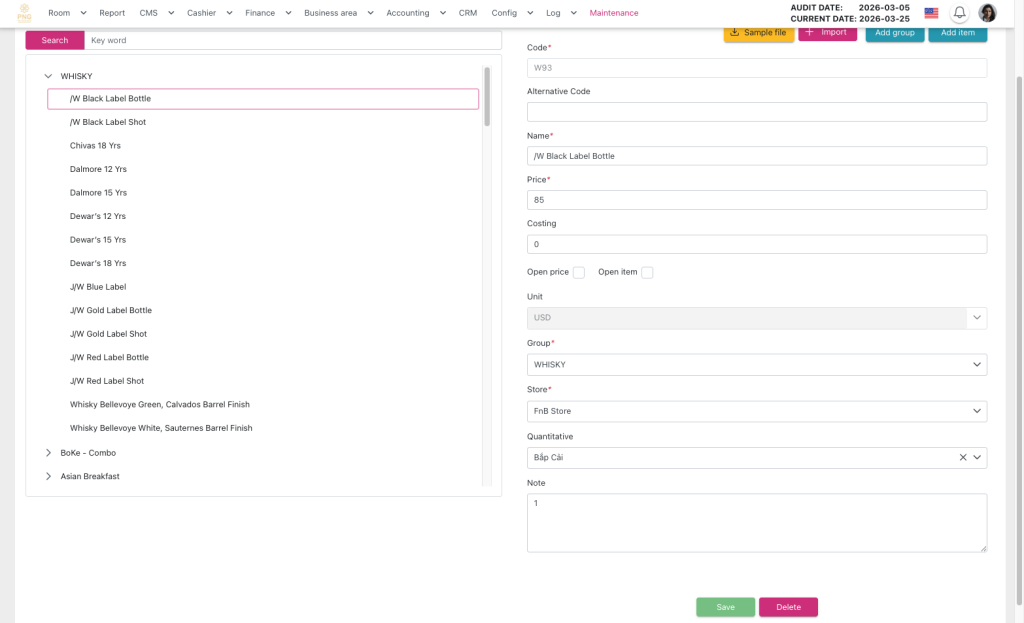
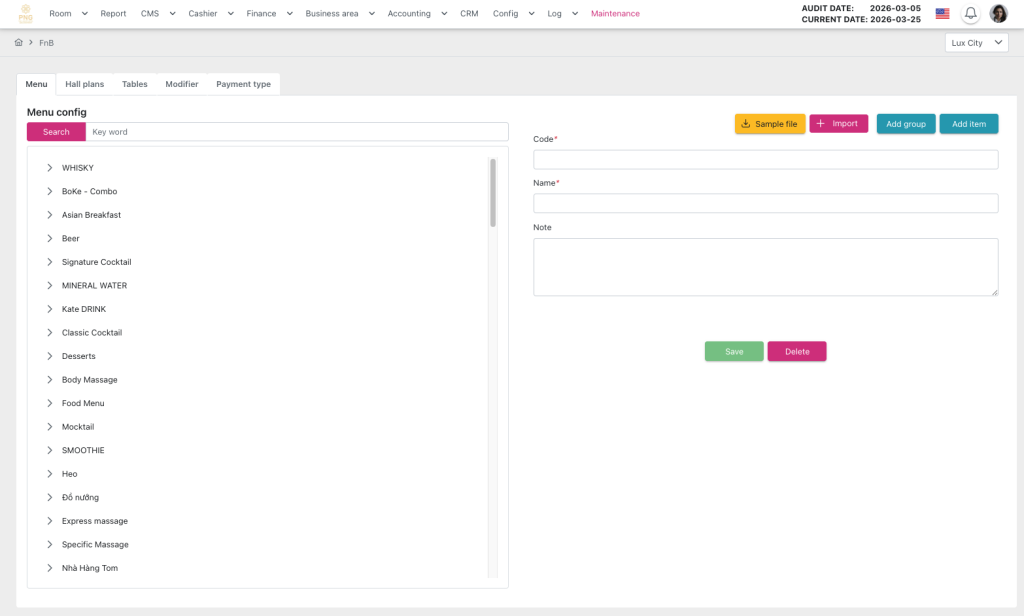
Menu screen overview
Header
- Displays the current audit date and the main functions of the screen, such as menu navigation and quick access to transaction management actions.
List & Group Area
- Located in the center or left side of the screen.
- Displays the list of menu groups (Group) and dishes (Item) in a hierarchical structure.
- Each item shows the group name or dish name accordingly.
- Supports:
- Search: Quickly find items by name.
- Direct click: Click on a dish or group to view or edit detailed information.
Detail Form Area
- Displayed when a user selects a dish/group or adds a new one.
- The form is located on the right side of the screen.
For dishes (Item), the main fields include:
- Code: Dish code; protected, not editable by users.
- Name: Dish name.
- Price: Selling price.
- Costing: Cost price.
- Unit: Unit of measurement.
- Group: Menu group.
- Store: Applied store.
- Quantitative: Quantity/inventory.
- Open item: Allows creating flexible dishes outside the predefined list.
- Open price: Allows entering selling price directly during order.
- Note: Additional notes.
For menu groups (Group):
- Code: Group code; protected, not editable by users.
- Name: Group name.
- Note: Additional notes.
- The form is designed clearly and intuitively, with validations to ensure data accuracy.
Action Buttons Area
- Usually located above the list or in the main action area.
- Includes the following buttons:
- Sample file: Download the template file for data import.
- Import: Import dishes from a file.
- Add group: Create a new menu group.
- Add item: Create a new dish.
- Delete: Remove the selected dish or group (with confirmation).
- Save (if available in form): Save information when adding or editing.
System Status and Feedback
- Displays notifications for operations such as adding, editing, importing, or data errors.
- Confirmation popups appear for critical actions like deleting.
- Field-level validation shows immediately if input data is invalid.
User-Friendly and Optimized Experience
- The interface is clearly divided between the list and detail areas for fast and intuitive operations.
- Supports quick actions such as selecting, direct editing, and instant searching.
- Fully compatible with desktop and tablet, suitable for daily F&B operations.
- Reduces complex steps, enabling users to easily manage menus, dishes, and related data efficiently.
V. General Instructions and Support
- Usage tips:
- Always carefully check the figures before and during running Night Audit.
- Ensure that all mandatory steps have been completed.
- Support: If you encounter a problem, contact email support@airfeedkh.com.
- Updates: This guideline may change. Please check the latest version in the “Help” section.