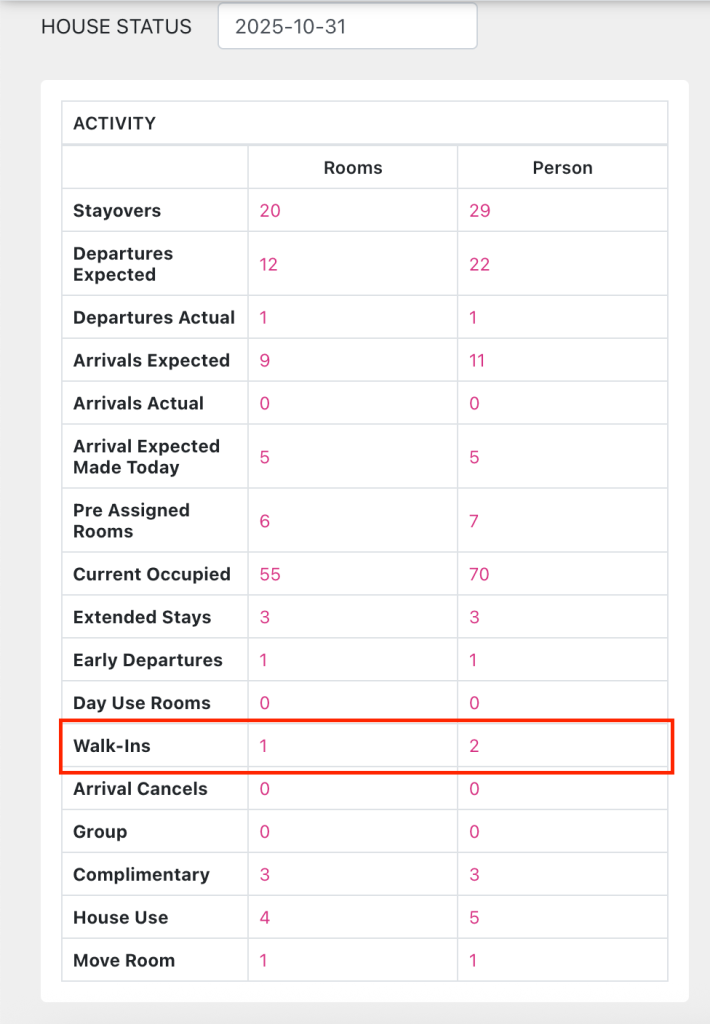
HM-5748 [UPDATE] BOOKING – Add “Walk in” checkbox on the Create/ Detail reservation/ Reservation list
In the booking management process, hotels need to clearly distinguish between bookings made through OTAs , websites, agents and walk-ins (guests who come directly to the hotel without making a reservation).
The “Walk-in” checkbox function when creating/editing a booking will help:
- Mark bookings made from walk-in guests.
- Support walk-in rate reporting and analysis.
- Allows applying Rate plan, Agency, Market segment, Source for walk-in customers.
- Help FO team quickly identify booking types to process check-in, revenue, and reporting.
1. Add “Walkin” checkbox on Create/ Detail reservation/ Config Ratecode screen
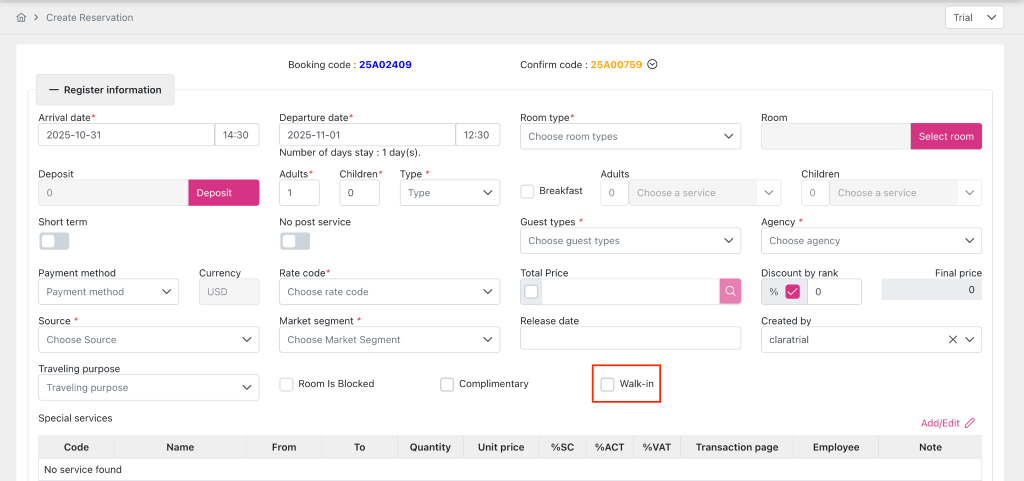
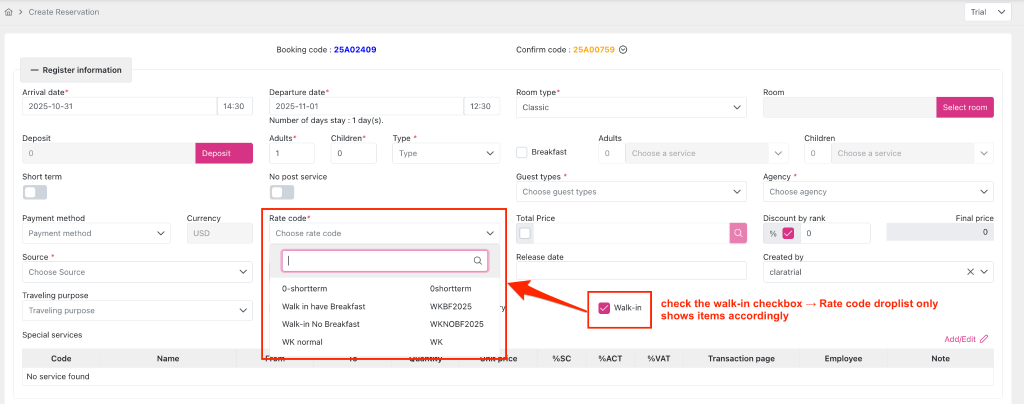
1.1. On the Create/Detail personal reservation screen, add the “Walk-in” checkbox to the “Register information” section
- Create reservation screen:
Detail reservation screen:
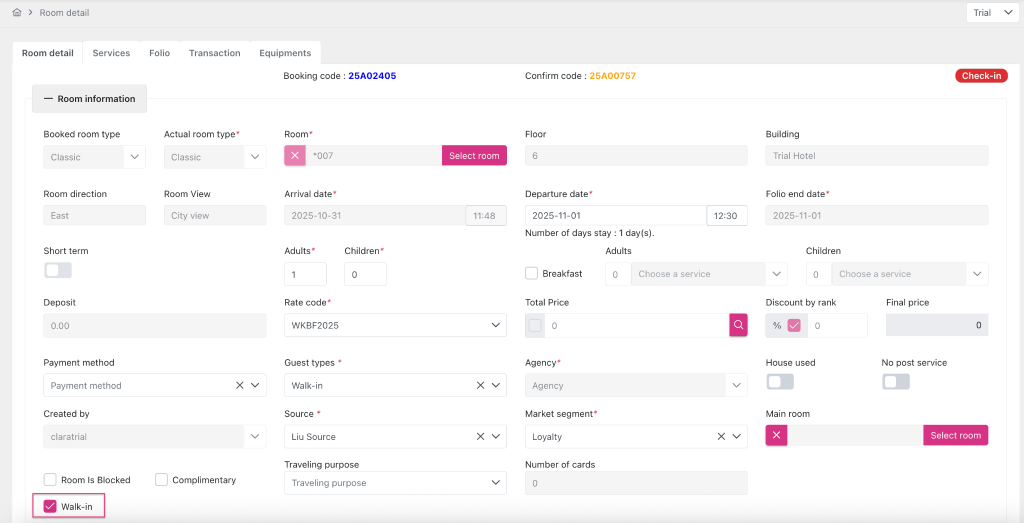
When pressing 1 of the 4 buttons “Save and Print Confirmation”/ “Save and Print Registration”/ “Save and Checkin”/ “Save”, the system checks:
- If state checkbox “Walkin” = checked → save db column booking.is_walkin = 1.
- If state checkbox “Walkin” = unchecked → save db column booking.is_walkin = 0
For booking:
- Reservation type = “Checkout”/ “Cancelled” → Disable “Walk-in” checkbox to prevent users from editing
- Có Reservation type = “Definite”/ “Tentative”/ “Waiting”/ “Checkin” → Enable checkbox “Walk-in” allow user to adjust
- Transferred from BE/ OTA with any Reservation type → Disable checkbox “Walk-in” does not allow user to edit
1.2. At the Config > Currency > Tabe Rate code screen, add the “Walk-in” checkbox to the “Basic information” section
When user creates/edits Rate code information, after clicking “Save” button, the system checks:
- If state checkbox “Walk-in” = checked → save db column price.is_walkin = 1.
- If state checkbox “Walk-in” = unchecked → save db column price.is_walkin = 0
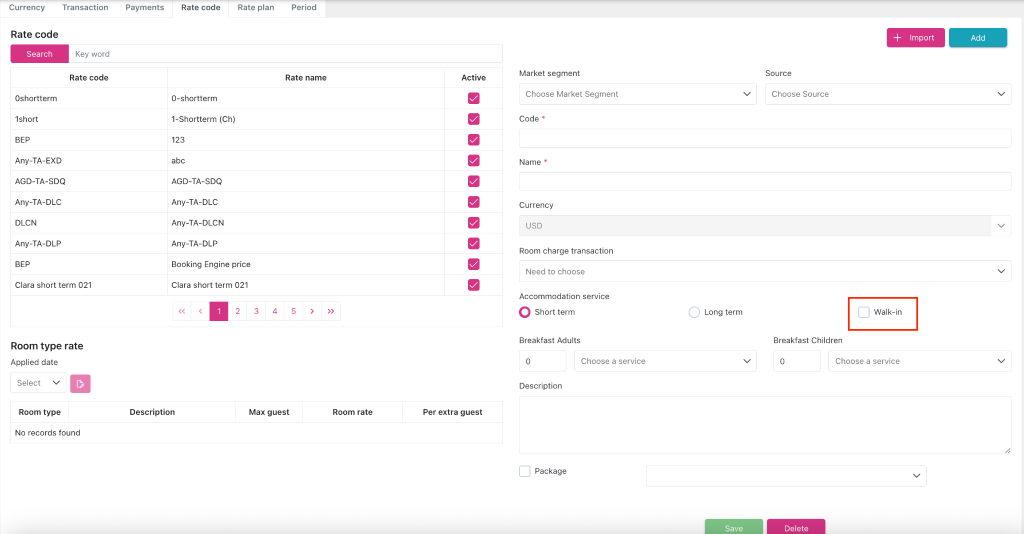
At the Create/Detail reservation screen, if:
- State checkbox “Walk-in” = checked, field “Rate code” only displays rate code options with price.is_walkin = 1.
- State checkbox “Walk-in” = unchecked, field “Rate code” only displays rate code options with price.is_walkin = 0.
2. Add “Is walkin” column on the grid of List reservation screen
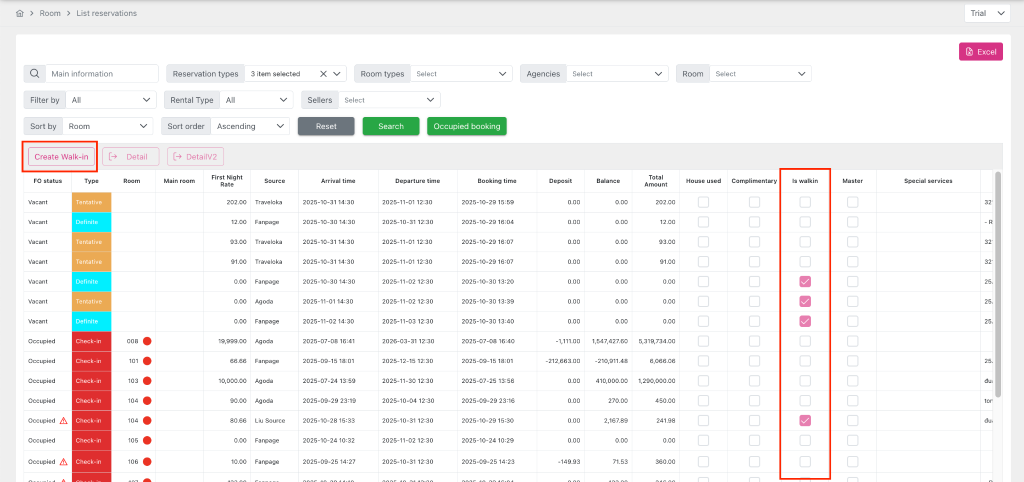
2.1. Add “Is walkin” column to the grid on the List reservation screen
On the List reservation screen, add the column “Is walkin” to show the Walkin status of the booking.
If:
- Booking has booking.is_walkin = 1 → display checkbox with state = checked
- Booking has booking.is_walkin = 0 → display checkbox with state = unchecked
2.2. Update the “Reservation list” template when the user exports from the List reservation screen
Add “Is walkin” column to grid on “Reservation list” template when user presses “Export” button on List reservation screen.
If:
- Booking has booking.is_walkin = 1 → display checkbox with state = checked
- Booking has booking.is_walkin = 0 → display checkbox with state = unchecked
3. Allows filtering booking walkin in Arrival/ Departure/ Inhouse guest report/ Booking report
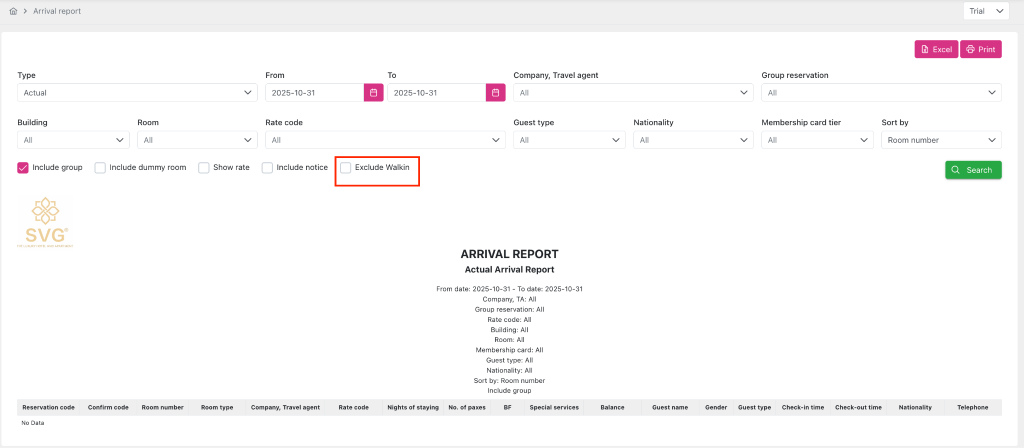
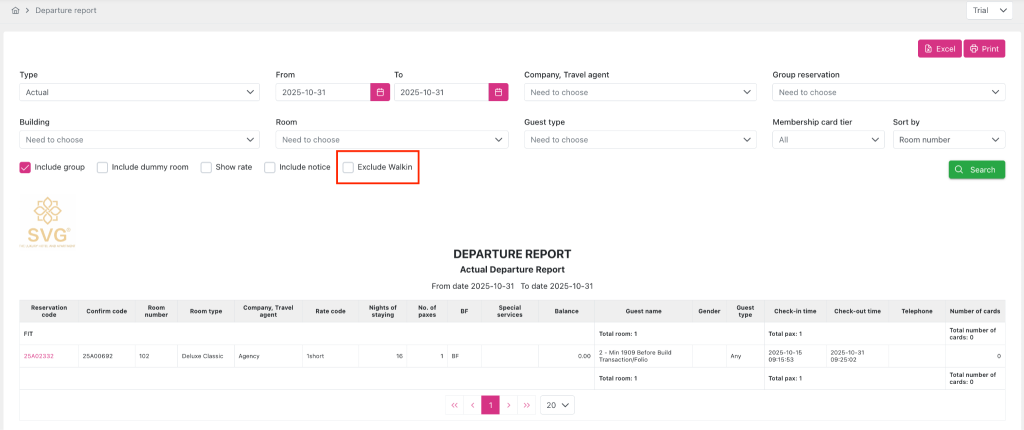
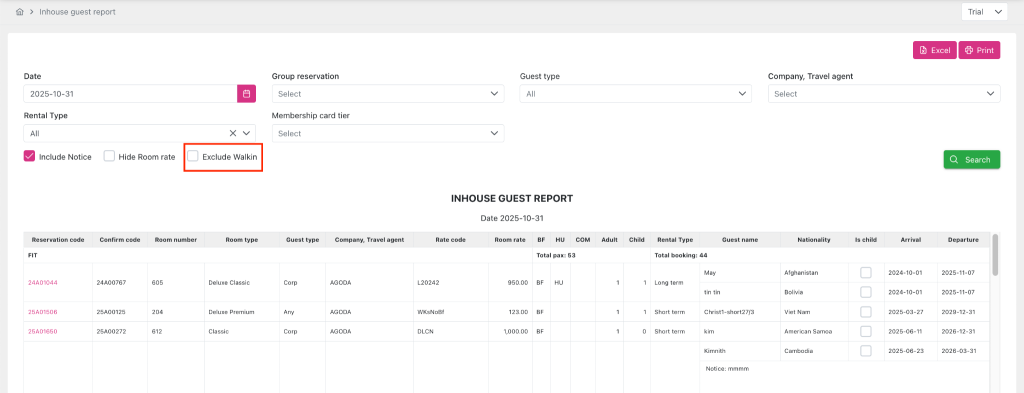
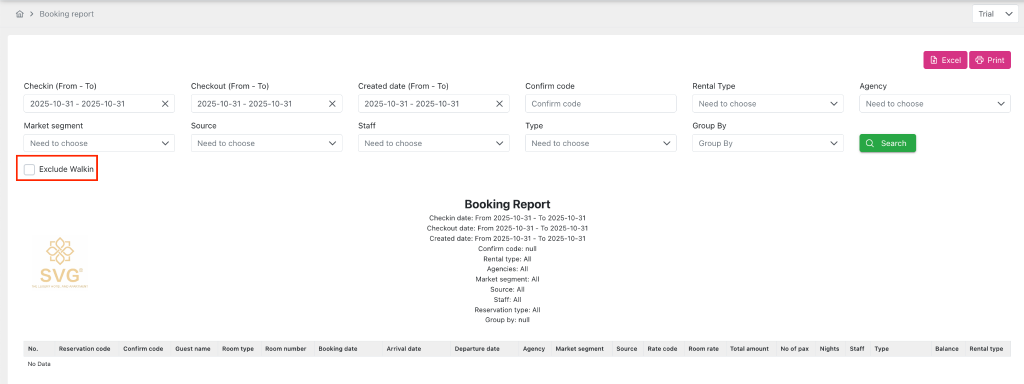
- Add “Exclude Walkin” checkbox on “Arrvial report”/ “Departure report”/ “Inhouse guest report”/ “Booking report” report screens. By default, the “Exclude Walkin” checkbox is not selected when a new user accesses the report screen for the first time. If:
- State checkbox “Exclude Walkin” = 1 → displays data of bookings with booking.is_walkin = 1 and whose values match the criteria the user is filtering.
- State checkbox “Exclude Walkin” = 0 → does not display data of bookings with booking.is_walkin = 1 and has/does not have values matching the criteria the user is filtering.
- Add a subtitle that displays the filter criteria for the report when the user uses the filter. If:
- State checkbox “Exclude Walkin” = 1 → display subtitle with text “Exclude Walkin” under report name.
- State checkbox “Exclude Walkin” = 0 → do not display subtitle with text “Exclude Walkin” under report name.
Report UI after adding “Exclude Walkin” checkbox and Subtitle display position:
- Arrival report
- Departure report
- Inhouse guest report:
- Booking report:
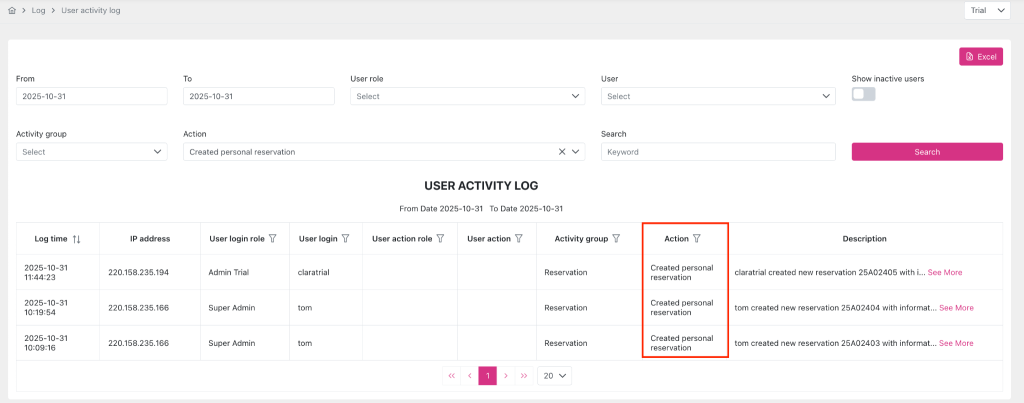
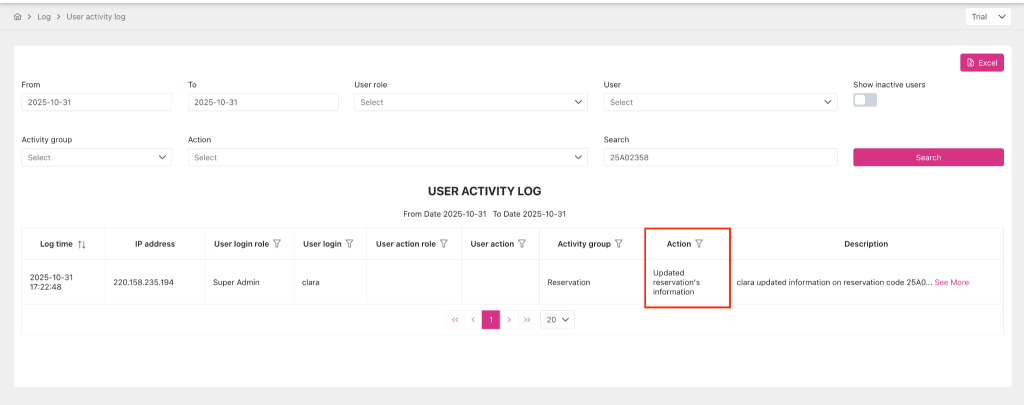
4. Update UAL for booking screen related action
Update UAL content for action:
- Create personal reservation
- Update reservation’s information
5. Update how to get data for the “Walkin” field on the Dashboard screen
Update how to get data for the “Walkin” field in the Activity grid on the Dashboard screen.
For:
- “Rooms” column: Counts bookings with booking.is_walkin = 1 and booking.checkin date = audit_date
- “Person” column: Counts the number of adult and child guests in bookings with booking.is_walkin = 1 and booking.checkin date = audit_date