-
Update PMS
-
- HM-2400 [UPDATE] Total Transaction Report - Change the display format for droplist Room/Table
- HM - 4767 Inhouse guest report - Filter by guest type
- HM-5505: [UPDATE] CMS - Update cancel policies
- HM-5586: [UPDATE] Menu Item Sales Report - Add Shift filter
- HM-5428 [UPDATE] Booking - Can cancel Booking that have not been CI and Balance = 0
- HM-4059[UPDATE] Report - Allow to view final bill in FnB Revenue report
- HM-4703 [UPDATE] KTV - Display the percentage (%) when the user adds a discount or surcharge to an item or order
- HM-4627 [UPDATE] FNB-Display the percentage (%) when the user adds a discount or surcharge to an item or order
- HM-4275 [UPDATE] - [FnB Report] - Combine data from the "FnB post to room" report into the "FnB revenue/ discount/ payment" report
- HM-5063 [UPDATE] FNB bill - Change line ABT & VAT tax
- HM-2300 [NEW] FNB - Allow to add Open item
- HM-4249 [HF] Add Reason when using Open discount FNB
- HM-987 [PROD] - [FnB/KTV] - Allow searching Vietnamese with diacritics
- HM-4640 [NEW] BUSINESS AREA - Allow configuring specific payment types for each Business Area
- HM-5428 [UPDATE] Booking - Can cancel Booking that have not been CI and Balance = 0
- HM-2088 [NEW] REPORT - Cancelled/ Noshow Reservation report
- HM-3551: [Update] - Create/Edit booking/Confirmation form - Add formal titles before surname/full name
- UPDATE] HM-2400 Total Transaction Report - Change the display format for droplist Room/Table
- [HM-5498] [UPDATE] OTA - Create a price configuration with tax for OTA
- Show Remaining Articles (4) Collapse Articles
-
- HM-3657 QC - [Update] - [FnB Report] - Add a filter function to get data by night audit date
- HM5301- [UPDATE] Tab Transaction > Booking Details - Allow the user to edit the Note field
- HM-3931 : [UPDATE] List reservation - Display all guest names on screen for personal booking
- HM-3126: [UPDATE] Notification - Alert when there is FnB or HK service post to room
- HM-5744: [UPDATE] FOLIO - Allow to change transaction page when booking's reservation type is Checkout/ Noshow/ Cancelled
- HM4851- [UPDATE] Room occupancy - Display number of available Special
- HM-5041 [NEW] Room status - Open popup when click on special service
- HM-4670 [UPDATE] DASHBOARD - Fix the display logic of the ‘Move Room’ field in the ‘Activity’ section of the ‘House Status’ screen
- HM-5790: Booking report - Add "Rental type" filter, "Rental type" column and report's subtitle
- HM-5813 [UPDATE] REPORT - Hide the "Search by" filter for the Breakfast report
- HM-5855 [UPDATE] DETAIL RESERVATION - Fix bug about displaying payment note after edited
- HM-3336 FnB - Add option View details at Bill list > Payment bills tab
- HM-5032: [PROD] Booking Detail - Room Detail - Optimize
- HM - 5683: [PROD] Report - Incorrect display of Booking status information.
- HM-5847 [UPDATE] Booking report - Remove the requirement to filter by From–To Date fields
- HM-5789: [UPDATE] Add column rate_change to payment_details
- HM-5700 [UPDATE] Report - FNB/KTV Menu item sales report update performance
- HM -3978 [UPDATE] Report - Breakdown Revenue for FnB reports
- HM-5636 [UPDATE] BUSINESS AREA/ RESERVATION - Automatically convert the payable amount when changing the currency type in the payment popup.
- [UPDATE] HM-5798 Room schedule - Do not allow deletion of a room if it has an OOO/OOS configuration.
- Show Remaining Articles (5) Collapse Articles
-
- HM -3978 [UPDATE] Report - Breakdown Revenue for FnB reports
- UPDATE] HM-5788 Report - Add Rental type and Rate code column to Total Transaction Report
- HM-5357 [UPDATE] Booking Service - Add function "Confirm and Print miscellaneous"
- HM-5317 [UPDATE] Night audit - Add function Export in Check rate code popup
- HM-5954 [UPDATE] Arrival report - add column Nationality
- [UPDATE] FNB/KTV/SPA - Configure to display voided items in bill/pre-check
- [UPDATE] Dashboard/ List reservation - Display room status on the “Arrival Expected” popup and the List reservation
-
- [UPDATE]-5607 Dashboard/ List reservation - Display room status on the “Arrival Expected” popup and the List reservation
- HM-5748 [UPDATE] BOOKING - Add "Walk in" checkbox on the Create/ Detail reservation/ Reservation list
- HM-4434 : [NEW] REPORT - Actual Walk-In Report
- HM-5609 [UPDATE] Cashier Transaction - Add a “Due out” checkbox to the filter section
- HM-5851 : [PRO] - Add column Transaction date in Report Move room log report
- [NEW] REPORT-H4434 - Actual Walk-In Report
- [UPDATE] BOOKING - Add "Walk in" checkbox on the Create/ Detail reservation/ Reservation list
- [UPDATE] Cashier Transaction - Add a “Due out” checkbox to the filter section
- [UPDATE] Create/Edit/Detail booking - Remove require of Guest Types and Payment method
- FNB - E-MENU FOR CUSTOMER
-
- HM-6083- [UPDATE] Booking Service - Not allow using the “Open Price” already been audited
- HM-2266: [NEW] REPORT - Detail Folio By Departure Date Report
- HM-6136 [UPDATE] Housekeeping - Room to clean fix sort by room number
- HM-6049: [UPDATE] CONFIGURATION - Allow configuring the rate code for specific room types
- HM-5243 [UPDATE] BOOKINGS - Add "Save and Checkin" button to the Create reservation/ Reservation detail screen
- HM-4880-02: [UPDATE]: Transfer/ Room charge to master/ Routing - update business logic - tunning code
- HM-4880-01: [UPDATE]: Transfer/ Room charge to master/ Routing - update business logic - tunning code
- HM-2383 [UPDATE] List Reservation - Add "Group reservation code"
- HM-5468 01: E-Menu for Customer
- HM - 4267: [UDPATE] CMS - Add the "Include commission" column on the Config OTA screen
- [NEW] HM-6045 REPORT - Cancelled/ No-show reservation report
- Update “Search by” filter: Add “Cancellation date and “No-show date” option
-
-
Dashboard
-
Room
-
-
Housekeeping
-
CMS
-
Report
-
Cashier
-
Finance
-
Bussiness Area
-
CRM
-
Configuration
-
Log
HM-5468 01: E-Menu for Customer
The E-MENU module was developed to allow restaurant customers to view and order dishes online via mobile devices or tablets, with separate interactions for customers, staff, and management. This feature optimizes the ordering, order confirmation, and dish preparation processes.
1. Customer
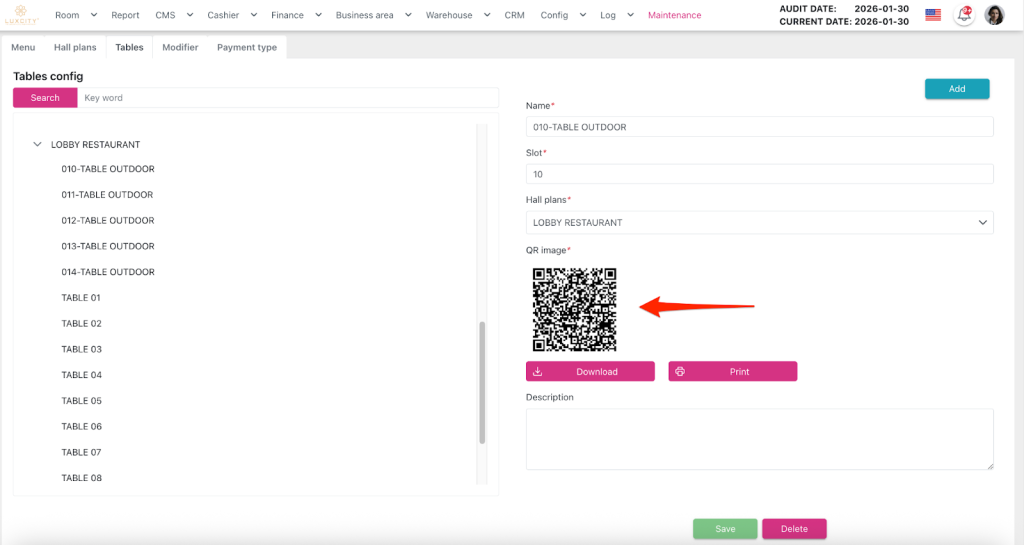
QR code scanning feature: This feature allows customers to scan a QR code placed on the table to access the store’s E-Menu and it is located at Config > Business Area > FnB > Tables
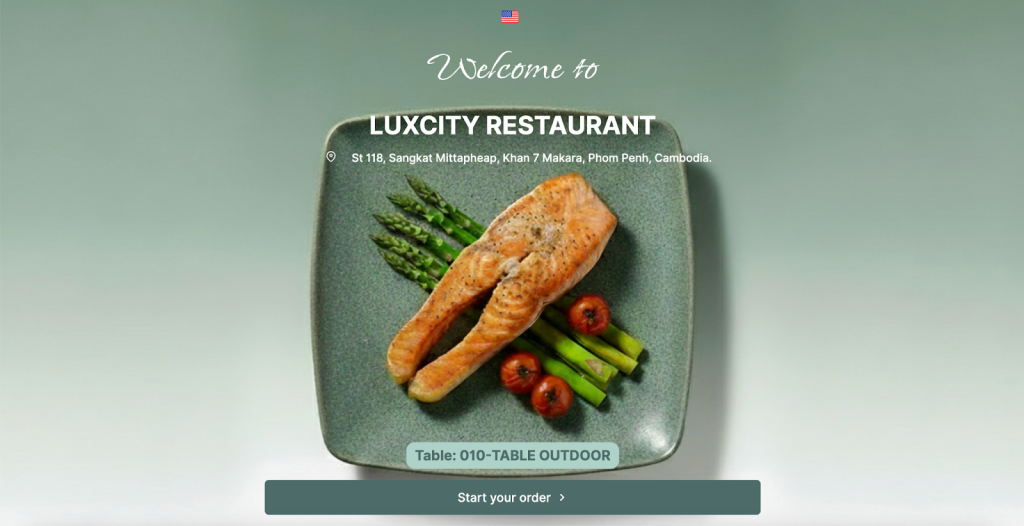
After accessing the E-Menu, users can order food on their mobile devices with steps below:
Step1: View the electronic menu categorized by type (drinks, food, desserts, etc.)
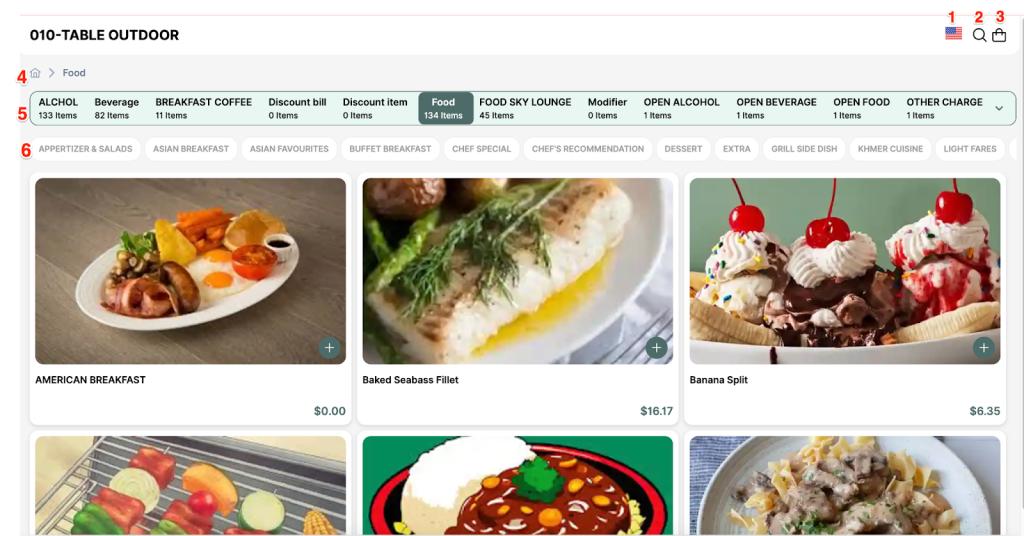
- Click (1) to display the list of languages, which includes:
- ENG: English
- AR: Arabic
- English is displayed by default.
- Click magnifying icon (2) allows users to search by food category name or food name.

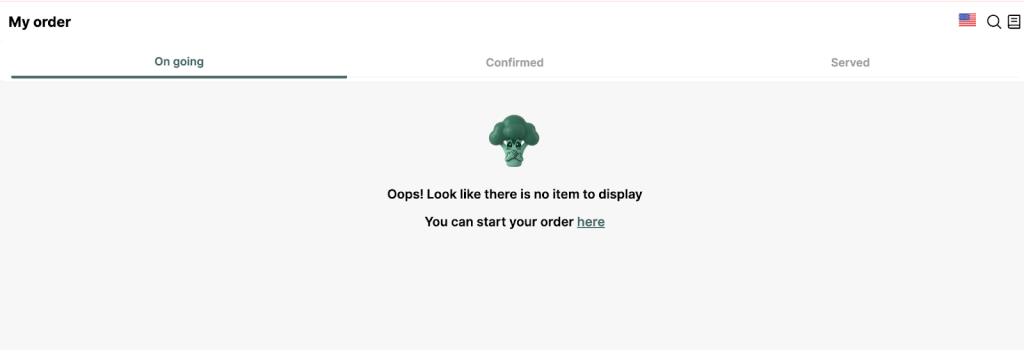
- Click Shopping cart (3) to navigate to the My Order screen:
- No items are selected into Shopping cart (3) view:
- Items are selected into Shopping cart (3) view:

- (4) Display category paths (4) in a hierarchical structure:
- Example: Icon Home > Food > ASIAN BREAKFAST

- Display the parent category (5) currently available in the restaurant:
- The list is sorted alphabetically (from a to z).
- Only display food categories that have an Active status.
- Clicking on it displays subcategories belonging to the corresponding parent category.
- Display the subcategory (6) corresponding to the selected parent category.
- The list is sorted alphabetically (from a to z).
- Only display food categories that have an Active status.
Step 2: Search and filter dishes by criteria.
- Click magnifying icon (2) to search by food category name or food name.
- Searching items by selecting Parent Category (5) > Sub-catergory (6)
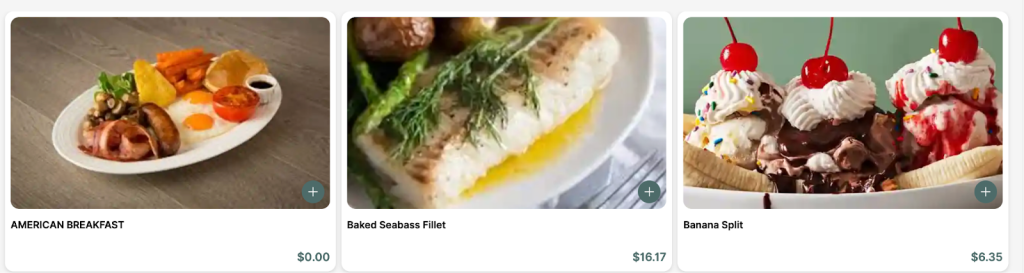
Step 3: View details of the dish (photo, description, price).
Step 4: Add/remove items from your personal order list.
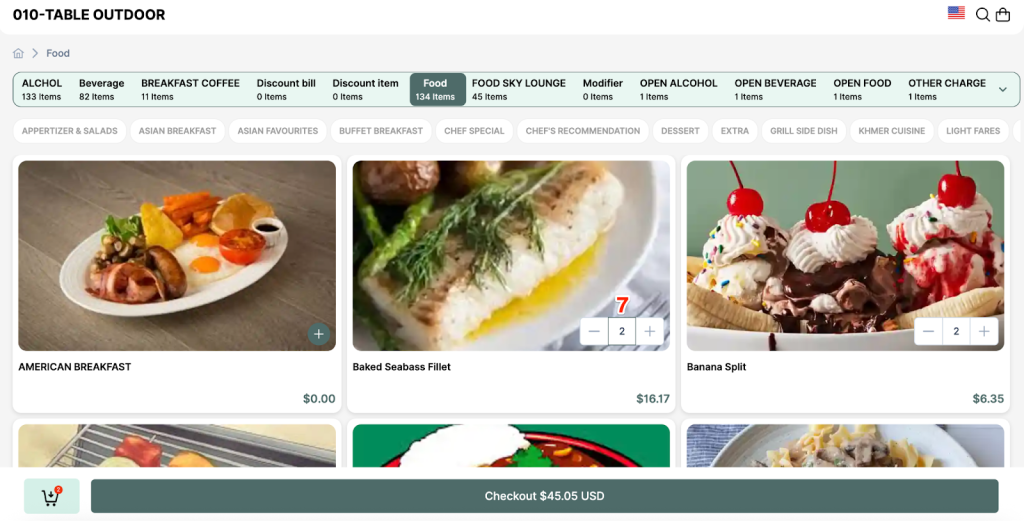
- Add items from your personal order list:
- Click on Button + or Button – (7) the system will update the item count by +1 or -1
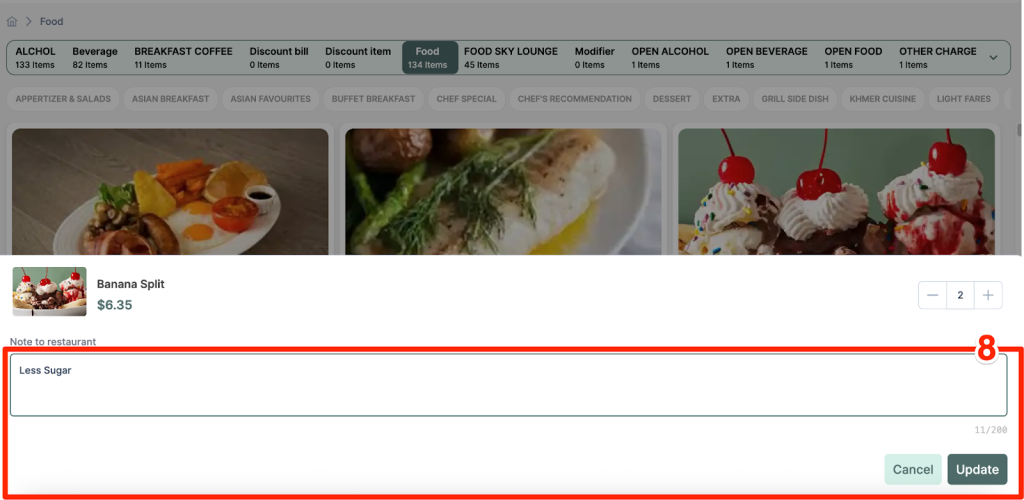
- Add Note (8) for item and click update to confirm, click Cancel to no change:
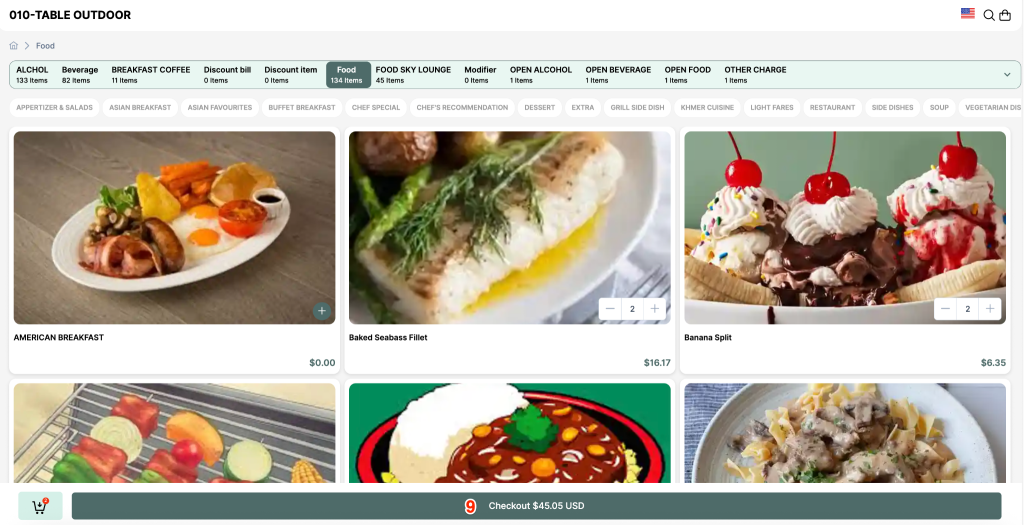
- After choosing items and quantities of items, click Checkout including subtotal price on button (9) (Formula = Number of items * Price including VAT of the dish)
- Remove items from your personal order list.
- Click Edit button (10) displays the Edit Item popup, allowing the user to edit the selected item
- Click Remove button (11) displays the Remove Item popup, allowing the user to Remove the selected item
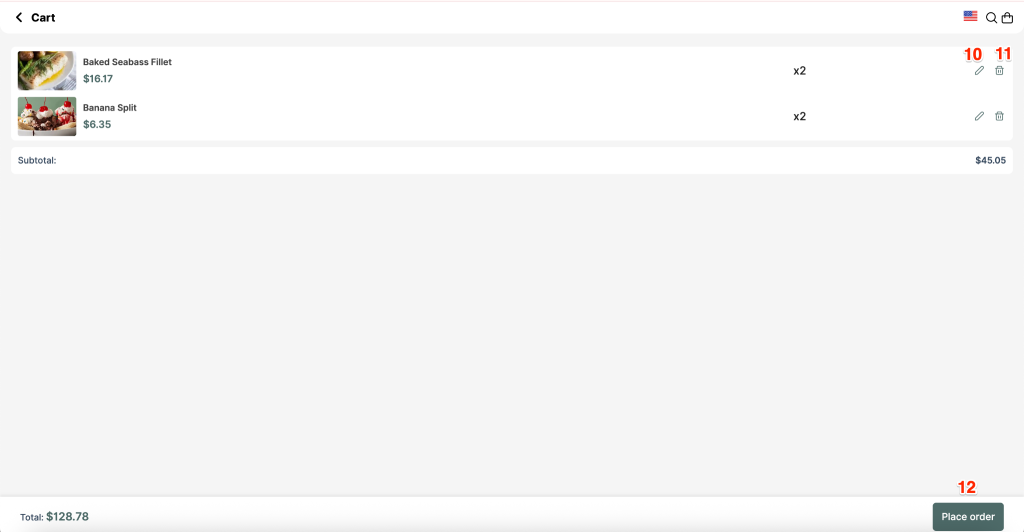
Step 5: Submit your order for confirmation.
- If there is no change, Click Place order button (12) to do next process
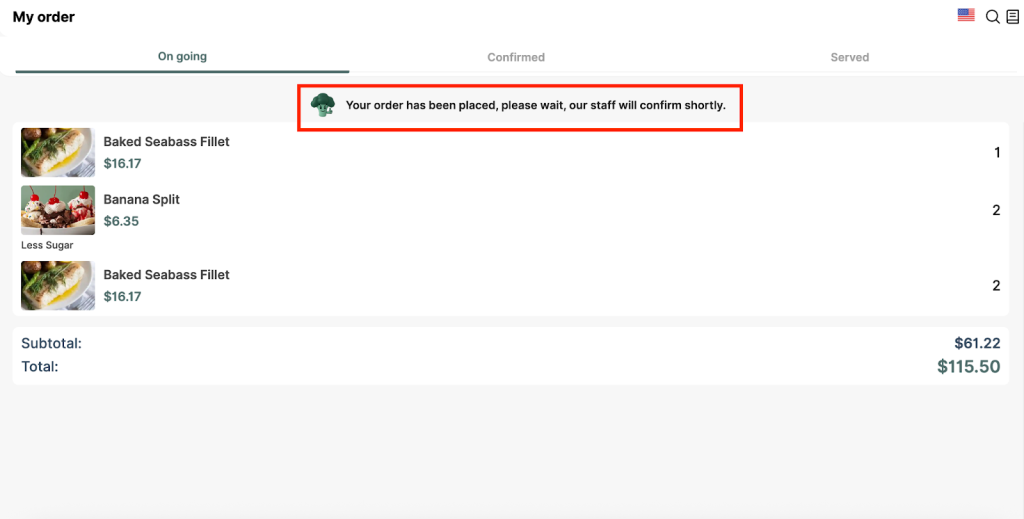
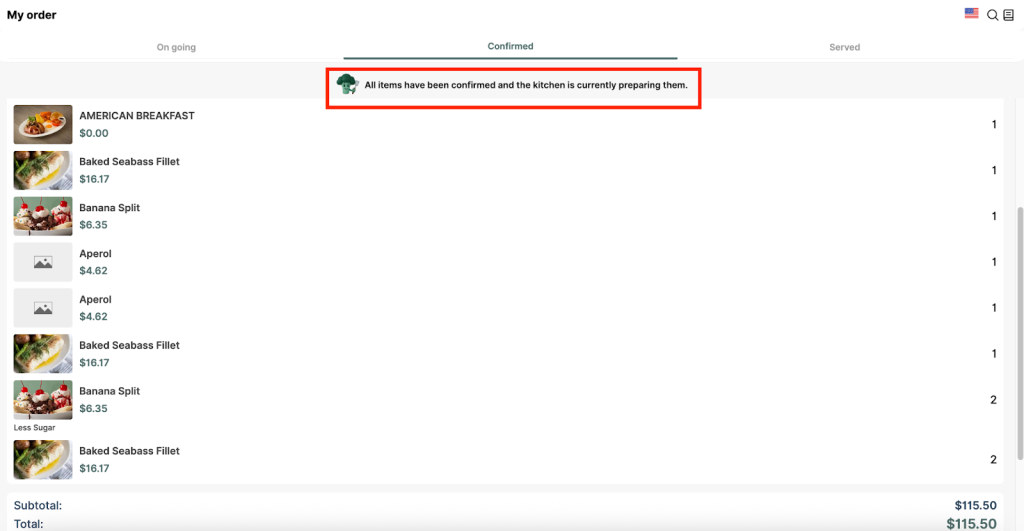
Step 6: Track order status (awaiting confirmation, in preparation, etc.).
- Awaiting confirmation
- in preparation
- Served: Order is delivered
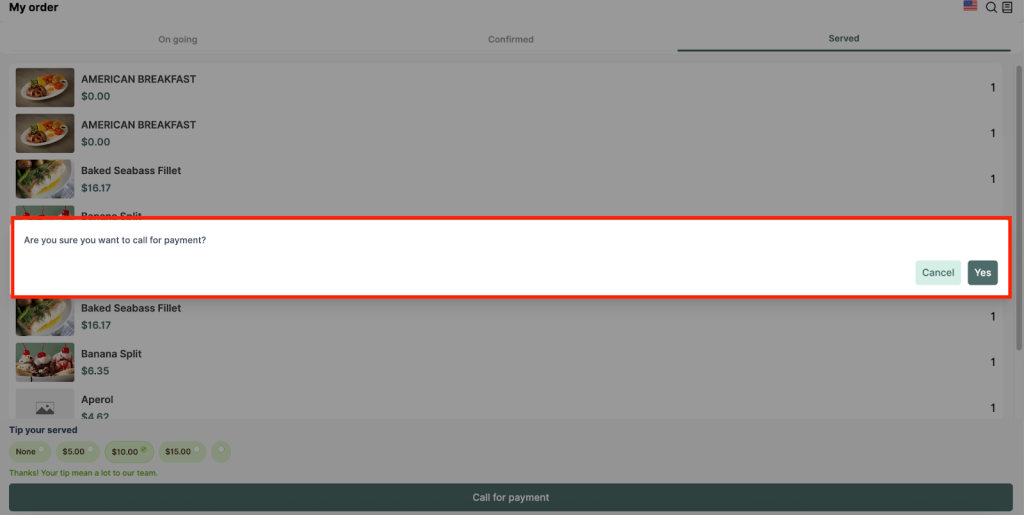
- customers to choose a tip (13) for the store’s service staff on their bill.
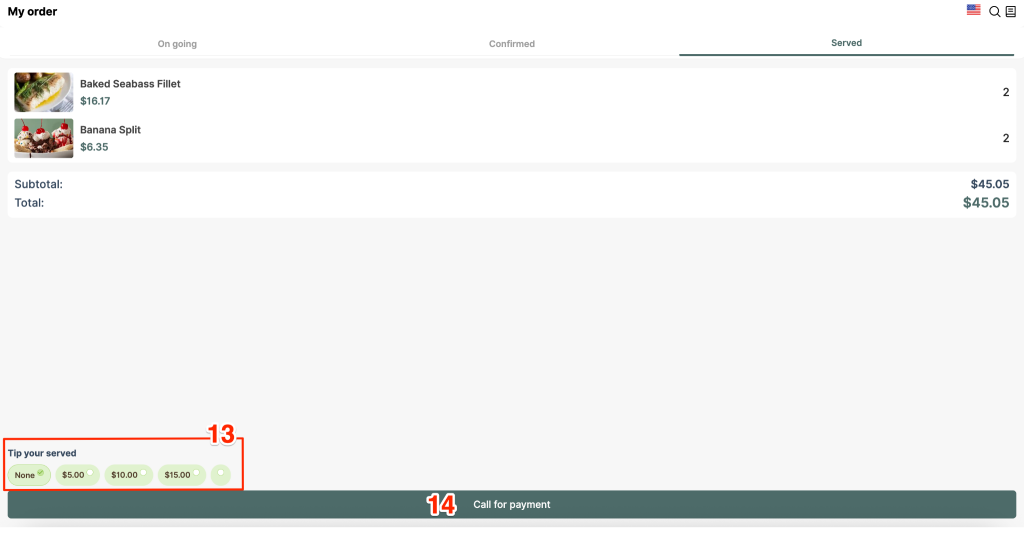
- Click Call for payment (14) to show pop up “Are you sure you want to call for payment?”
- Cancel button: click to close the popup.
- Button Yes: Press this button and the system will proceed.
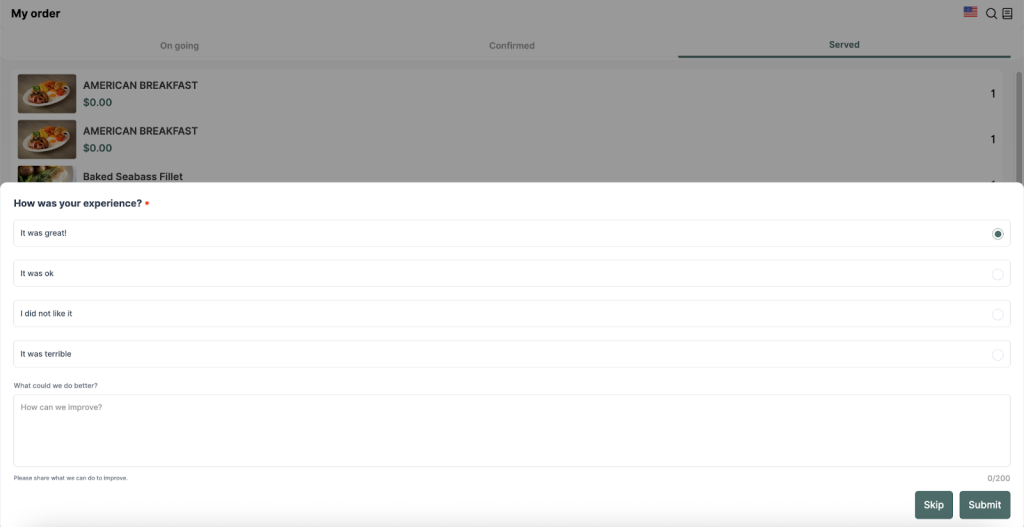
Step 7: Rating or feedback (optional).
This feature allows customers to write reviews before requesting payment.
Step 8: View payment (15)
- This feature allows customers to view payment details after completing a payment request (call for payment).
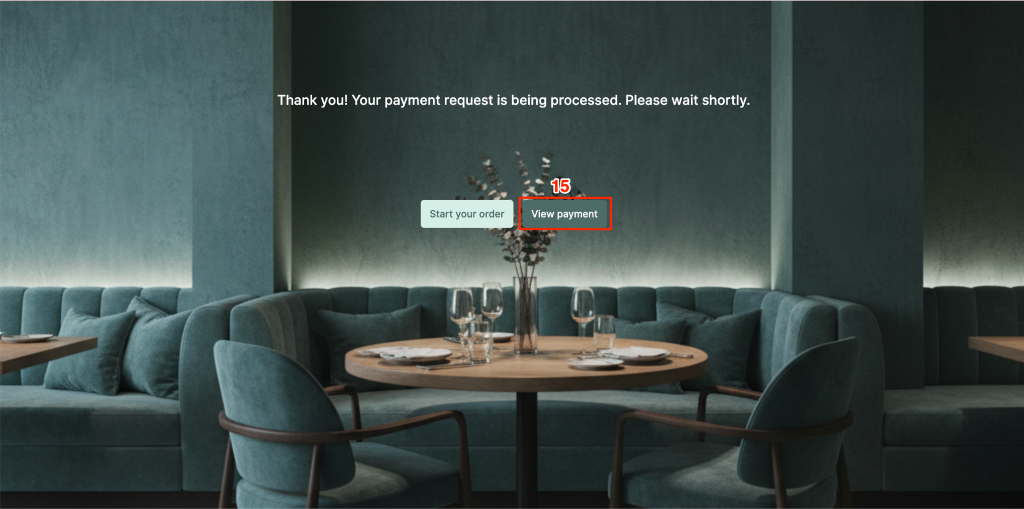
- Payment Detail of this order:

After staff settles payment on PMS completely, your order is done!