-
Update PMS
-
- HM-2400 [UPDATE] Total Transaction Report - Change the display format for droplist Room/Table
- HM - 4767 Inhouse guest report - Filter by guest type
- HM-5505: [UPDATE] CMS - Update cancel policies
- HM-5586: [UPDATE] Menu Item Sales Report - Add Shift filter
- HM-5428 [UPDATE] Booking - Can cancel Booking that have not been CI and Balance = 0
- HM-4059[UPDATE] Report - Allow to view final bill in FnB Revenue report
- HM-4703 [UPDATE] KTV - Display the percentage (%) when the user adds a discount or surcharge to an item or order
- HM-4627 [UPDATE] FNB-Display the percentage (%) when the user adds a discount or surcharge to an item or order
- HM-4275 [UPDATE] - [FnB Report] - Combine data from the "FnB post to room" report into the "FnB revenue/ discount/ payment" report
- HM-5063 [UPDATE] FNB bill - Change line ABT & VAT tax
- HM-2300 [NEW] FNB - Allow to add Open item
- HM-4249 [HF] Add Reason when using Open discount FNB
- HM-987 [PROD] - [FnB/KTV] - Allow searching Vietnamese with diacritics
- HM-4640 [NEW] BUSINESS AREA - Allow configuring specific payment types for each Business Area
- HM-5428 [UPDATE] Booking - Can cancel Booking that have not been CI and Balance = 0
- HM-2088 [NEW] REPORT - Cancelled/ Noshow Reservation report
- HM-3551: [Update] - Create/Edit booking/Confirmation form - Add formal titles before surname/full name
- UPDATE] HM-2400 Total Transaction Report - Change the display format for droplist Room/Table
- [HM-5498] [UPDATE] OTA - Create a price configuration with tax for OTA
- Show Remaining Articles (4) Collapse Articles
-
- HM-3657 QC - [Update] - [FnB Report] - Add a filter function to get data by night audit date
- HM5301- [UPDATE] Tab Transaction > Booking Details - Allow the user to edit the Note field
- HM-3931 : [UPDATE] List reservation - Display all guest names on screen for personal booking
- HM-3126: [UPDATE] Notification - Alert when there is FnB or HK service post to room
- HM-5744: [UPDATE] FOLIO - Allow to change transaction page when booking's reservation type is Checkout/ Noshow/ Cancelled
- HM4851- [UPDATE] Room occupancy - Display number of available Special
- HM-5041 [NEW] Room status - Open popup when click on special service
- HM-4670 [UPDATE] DASHBOARD - Fix the display logic of the ‘Move Room’ field in the ‘Activity’ section of the ‘House Status’ screen
- HM-5790: Booking report - Add "Rental type" filter, "Rental type" column and report's subtitle
- HM-5813 [UPDATE] REPORT - Hide the "Search by" filter for the Breakfast report
- HM-5855 [UPDATE] DETAIL RESERVATION - Fix bug about displaying payment note after edited
- HM-3336 FnB - Add option View details at Bill list > Payment bills tab
- HM-5032: [PROD] Booking Detail - Room Detail - Optimize
- HM - 5683: [PROD] Report - Incorrect display of Booking status information.
- HM-5847 [UPDATE] Booking report - Remove the requirement to filter by From–To Date fields
- HM-5789: [UPDATE] Add column rate_change to payment_details
- HM-5700 [UPDATE] Report - FNB/KTV Menu item sales report update performance
- HM -3978 [UPDATE] Report - Breakdown Revenue for FnB reports
- HM-5636 [UPDATE] BUSINESS AREA/ RESERVATION - Automatically convert the payable amount when changing the currency type in the payment popup.
- [UPDATE] HM-5798 Room schedule - Do not allow deletion of a room if it has an OOO/OOS configuration.
- Show Remaining Articles (5) Collapse Articles
-
- HM -3978 [UPDATE] Report - Breakdown Revenue for FnB reports
- UPDATE] HM-5788 Report - Add Rental type and Rate code column to Total Transaction Report
- HM-5357 [UPDATE] Booking Service - Add function "Confirm and Print miscellaneous"
- HM-5317 [UPDATE] Night audit - Add function Export in Check rate code popup
- HM-5954 [UPDATE] Arrival report - add column Nationality
- [UPDATE] FNB/KTV/SPA - Configure to display voided items in bill/pre-check
- [UPDATE] Dashboard/ List reservation - Display room status on the “Arrival Expected” popup and the List reservation
-
- [UPDATE]-5607 Dashboard/ List reservation - Display room status on the “Arrival Expected” popup and the List reservation
- HM-5748 [UPDATE] BOOKING - Add "Walk in" checkbox on the Create/ Detail reservation/ Reservation list
- HM-4434 : [NEW] REPORT - Actual Walk-In Report
- HM-5609 [UPDATE] Cashier Transaction - Add a “Due out” checkbox to the filter section
- HM-5851 : [PRO] - Add column Transaction date in Report Move room log report
- [NEW] REPORT-H4434 - Actual Walk-In Report
- [UPDATE] BOOKING - Add "Walk in" checkbox on the Create/ Detail reservation/ Reservation list
- [UPDATE] Cashier Transaction - Add a “Due out” checkbox to the filter section
- [UPDATE] Create/Edit/Detail booking - Remove require of Guest Types and Payment method
- FNB - E-MENU FOR CUSTOMER
-
- HM-6083- [UPDATE] Booking Service - Not allow using the “Open Price” already been audited
- HM-2266: [NEW] REPORT - Detail Folio By Departure Date Report
- HM-6136 [UPDATE] Housekeeping - Room to clean fix sort by room number
- HM-6049: [UPDATE] CONFIGURATION - Allow configuring the rate code for specific room types
- HM-5243 [UPDATE] BOOKINGS - Add "Save and Checkin" button to the Create reservation/ Reservation detail screen
- HM-4880-02: [UPDATE]: Transfer/ Room charge to master/ Routing - update business logic - tunning code
- HM-4880-01: [UPDATE]: Transfer/ Room charge to master/ Routing - update business logic - tunning code
- HM-2383 [UPDATE] List Reservation - Add "Group reservation code"
- HM-5468 01: E-Menu for Customer
- HM - 4267: [UDPATE] CMS - Add the "Include commission" column on the Config OTA screen
- [NEW] HM-6045 REPORT - Cancelled/ No-show reservation report
- Update “Search by” filter: Add “Cancellation date and “No-show date” option
-
-
Dashboard
-
Room
-
-
Housekeeping
-
CMS
-
Report
-
Cashier
-
Finance
-
Bussiness Area
-
CRM
-
Configuration
-
Log
< All Topics
Print
HM-4434 : [NEW] REPORT – Actual Walk-In Report
Posted
Updated
ByKim Admin
The “Actual Walk-in report” allows users to track, analyze and export detailed reports on all Walk-in bookings in the hotel.
This report assists FO , hotel management and sales department in :
- Evaluate the performance of Walkin booking channel and make business decisions
- Easily track and analyze the number of Walk-in bookings over a specific period of time.
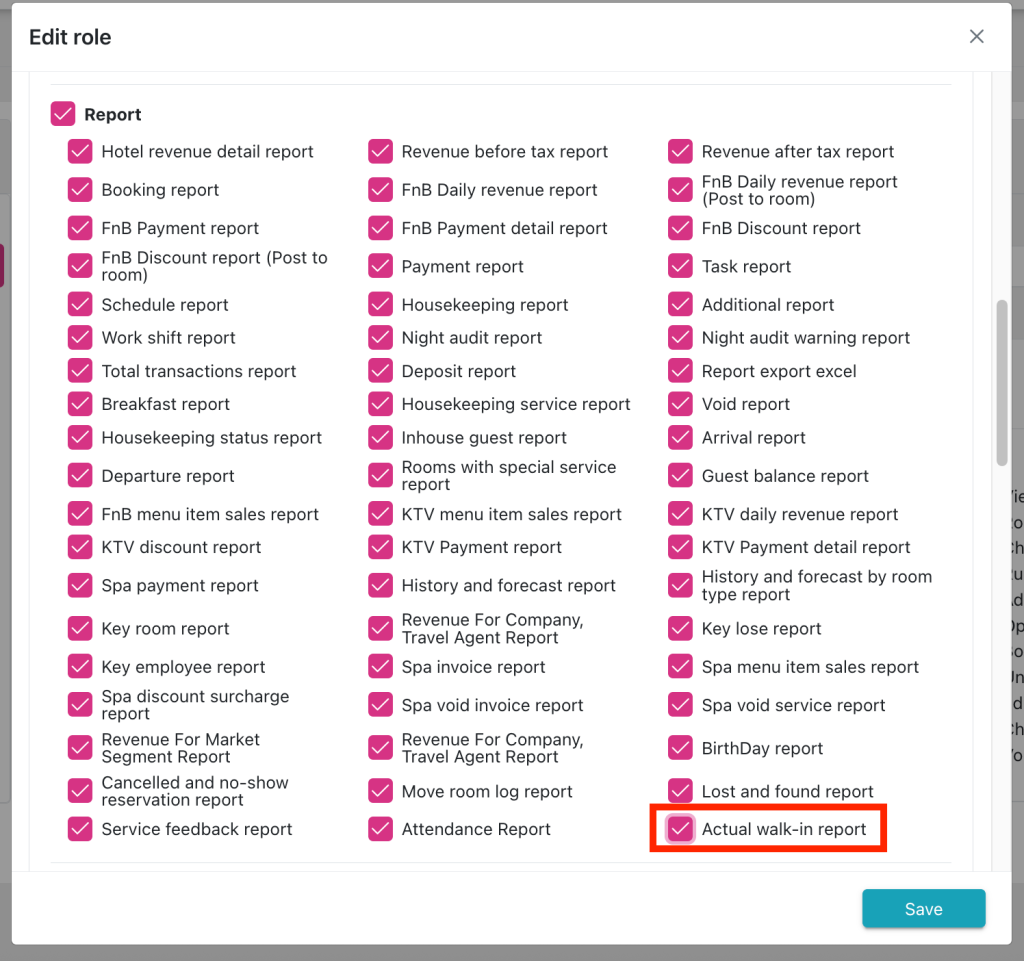
1. Add access to the report screen Report > FO report > Actual Walk-in report
In the Config > Access control screen, add the checkbox option “Actual walk-in report” to:
- Popup “New role” when user clicks “New” button
- Popup “Edit role” when user clicks “Edit” button
2. Add the “Actual walk-in report” option to the Report > FO report group
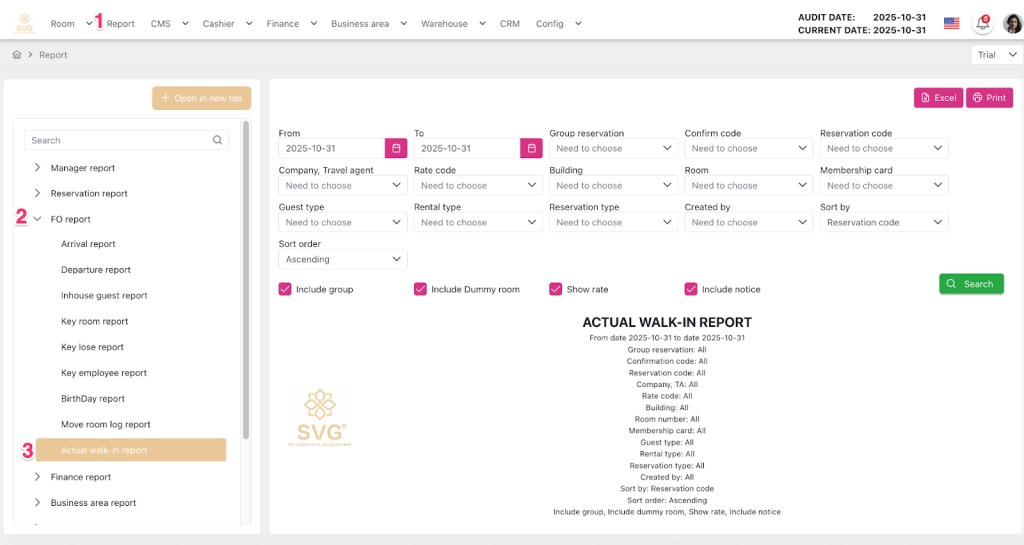
On the Report screen, add the option “Actual walk-in report” to the report droplist when the user clicks on the report group “ FO report”.
When the user clicks on the “Actual walk-in report” option, the report template will be displayed on the right side of the report menu bar.
Navigation: Report (1) > FO report (2) > Actual Walk-in report (3)
3. Create the Actual Walk-in Report screen .
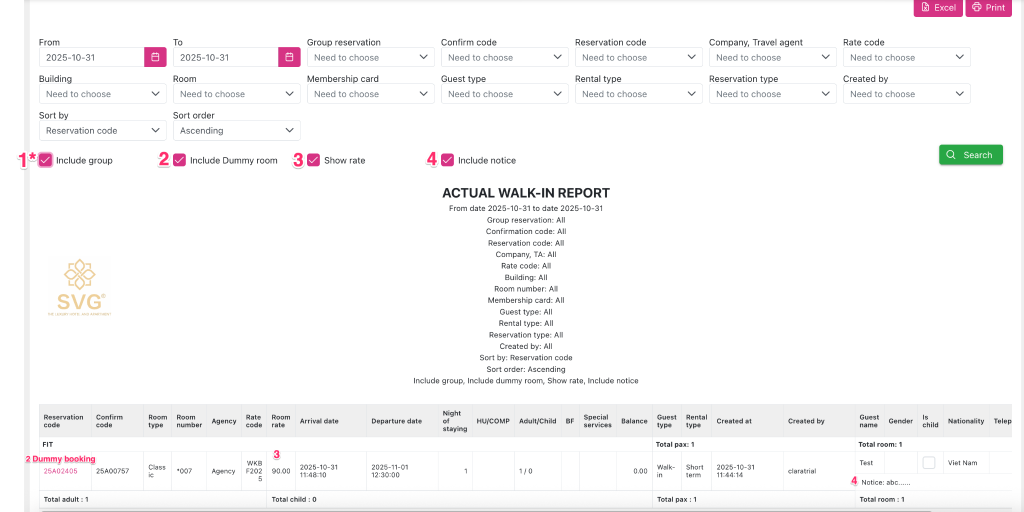
3.1. There are 4 views to view the report based on the status of the checkboxes
- View 1 (Default): Displayed when a new user accesses the report UI for the first time (checkbox states Include Group (1*), Include Dummy room (2), Show rate (3), Include Notice (4) = ON)
- “Include Group (1*): currently the child booking, walk in checkbox is disabled, therefore, “Include group checkbox” in report is not impossible.
- View 2 and View 3: Display when state checkbox:
- “Include Group” = OFF (or when there is no group booking walk in in the date range)
- “Show rate” = OFF
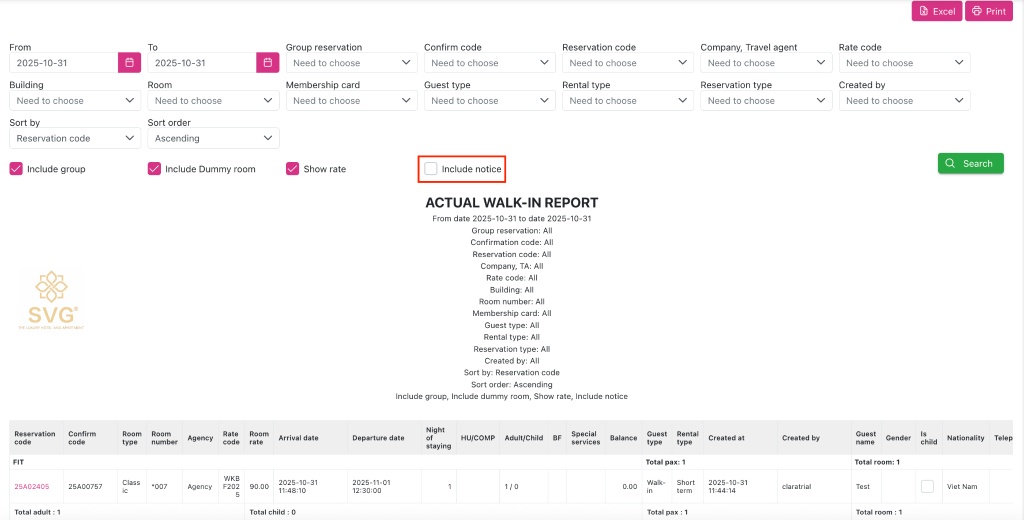
- View 4: Display when only state checkbox “Include Notice” = OFF