-
Update PMS
-
- HM-2400 [UPDATE] Total Transaction Report - Change the display format for droplist Room/Table
- HM - 4767 Inhouse guest report - Filter by guest type
- HM-5505: [UPDATE] CMS - Update cancel policies
- HM-5586: [UPDATE] Menu Item Sales Report - Add Shift filter
- HM-5428 [UPDATE] Booking - Can cancel Booking that have not been CI and Balance = 0
- HM-4059[UPDATE] Report - Allow to view final bill in FnB Revenue report
- HM-4703 [UPDATE] KTV - Display the percentage (%) when the user adds a discount or surcharge to an item or order
- HM-4627 [UPDATE] FNB-Display the percentage (%) when the user adds a discount or surcharge to an item or order
- HM-4275 [UPDATE] - [FnB Report] - Combine data from the "FnB post to room" report into the "FnB revenue/ discount/ payment" report
- HM-5063 [UPDATE] FNB bill - Change line ABT & VAT tax
- HM-2300 [NEW] FNB - Allow to add Open item
- HM-4249 [HF] Add Reason when using Open discount FNB
- HM-987 [PROD] - [FnB/KTV] - Allow searching Vietnamese with diacritics
- HM-4640 [NEW] BUSINESS AREA - Allow configuring specific payment types for each Business Area
- HM-5428 [UPDATE] Booking - Can cancel Booking that have not been CI and Balance = 0
- HM-2088 [NEW] REPORT - Cancelled/ Noshow Reservation report
- HM-3551: [Update] - Create/Edit booking/Confirmation form - Add formal titles before surname/full name
- UPDATE] HM-2400 Total Transaction Report - Change the display format for droplist Room/Table
- [HM-5498] [UPDATE] OTA - Create a price configuration with tax for OTA
- Show Remaining Articles (4) Collapse Articles
-
- HM-3657 QC - [Update] - [FnB Report] - Add a filter function to get data by night audit date
- HM5301- [UPDATE] Tab Transaction > Booking Details - Allow the user to edit the Note field
- HM-3931 : [UPDATE] List reservation - Display all guest names on screen for personal booking
- HM-3126: [UPDATE] Notification - Alert when there is FnB or HK service post to room
- HM-5744: [UPDATE] FOLIO - Allow to change transaction page when booking's reservation type is Checkout/ Noshow/ Cancelled
- HM4851- [UPDATE] Room occupancy - Display number of available Special
- HM-5041 [NEW] Room status - Open popup when click on special service
- HM-4670 [UPDATE] DASHBOARD - Fix the display logic of the ‘Move Room’ field in the ‘Activity’ section of the ‘House Status’ screen
- HM-5790: Booking report - Add "Rental type" filter, "Rental type" column and report's subtitle
- HM-5813 [UPDATE] REPORT - Hide the "Search by" filter for the Breakfast report
- HM-5855 [UPDATE] DETAIL RESERVATION - Fix bug about displaying payment note after edited
- HM-3336 FnB - Add option View details at Bill list > Payment bills tab
- HM-5032: [PROD] Booking Detail - Room Detail - Optimize
- HM - 5683: [PROD] Report - Incorrect display of Booking status information.
- HM-5847 [UPDATE] Booking report - Remove the requirement to filter by From–To Date fields
- HM-5789: [UPDATE] Add column rate_change to payment_details
- HM-5700 [UPDATE] Report - FNB/KTV Menu item sales report update performance
- HM -3978 [UPDATE] Report - Breakdown Revenue for FnB reports
- HM-5636 [UPDATE] BUSINESS AREA/ RESERVATION - Automatically convert the payable amount when changing the currency type in the payment popup.
- [UPDATE] HM-5798 Room schedule - Do not allow deletion of a room if it has an OOO/OOS configuration.
- Show Remaining Articles (5) Collapse Articles
-
- HM -3978 [UPDATE] Report - Breakdown Revenue for FnB reports
- UPDATE] HM-5788 Report - Add Rental type and Rate code column to Total Transaction Report
- HM-5357 [UPDATE] Booking Service - Add function "Confirm and Print miscellaneous"
- HM-5317 [UPDATE] Night audit - Add function Export in Check rate code popup
- HM-5954 [UPDATE] Arrival report - add column Nationality
- [UPDATE] FNB/KTV/SPA - Configure to display voided items in bill/pre-check
- [UPDATE] Dashboard/ List reservation - Display room status on the “Arrival Expected” popup and the List reservation
-
- [UPDATE]-5607 Dashboard/ List reservation - Display room status on the “Arrival Expected” popup and the List reservation
- HM-5748 [UPDATE] BOOKING - Add "Walk in" checkbox on the Create/ Detail reservation/ Reservation list
- HM-4434 : [NEW] REPORT - Actual Walk-In Report
- HM-5609 [UPDATE] Cashier Transaction - Add a “Due out” checkbox to the filter section
- HM-5851 : [PRO] - Add column Transaction date in Report Move room log report
- [NEW] REPORT-H4434 - Actual Walk-In Report
- [UPDATE] BOOKING - Add "Walk in" checkbox on the Create/ Detail reservation/ Reservation list
- [UPDATE] Cashier Transaction - Add a “Due out” checkbox to the filter section
- [UPDATE] Create/Edit/Detail booking - Remove require of Guest Types and Payment method
- FNB - E-MENU FOR CUSTOMER
-
- HM-6083- [UPDATE] Booking Service - Not allow using the “Open Price” already been audited
- HM-2266: [NEW] REPORT - Detail Folio By Departure Date Report
- HM-6136 [UPDATE] Housekeeping - Room to clean fix sort by room number
- HM-6049: [UPDATE] CONFIGURATION - Allow configuring the rate code for specific room types
- HM-5243 [UPDATE] BOOKINGS - Add "Save and Checkin" button to the Create reservation/ Reservation detail screen
- HM-4880-02: [UPDATE]: Transfer/ Room charge to master/ Routing - update business logic - tunning code
- HM-4880-01: [UPDATE]: Transfer/ Room charge to master/ Routing - update business logic - tunning code
- HM-2383 [UPDATE] List Reservation - Add "Group reservation code"
- HM-5468 01: E-Menu for Customer
- HM - 4267: [UDPATE] CMS - Add the "Include commission" column on the Config OTA screen
- [NEW] HM-6045 REPORT - Cancelled/ No-show reservation report
- Update “Search by” filter: Add “Cancellation date and “No-show date” option
-
-
Dashboard
-
Room
-
-
Housekeeping
-
CMS
-
Report
-
Cashier
-
Finance
-
Bussiness Area
-
CRM
-
Configuration
-
Log
CREATE GROUP BOOKING
Navigation: Room > Create Reservation Group
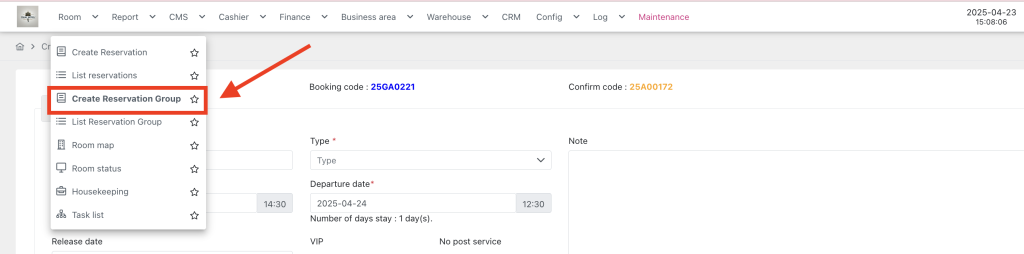
This form is used to create new group reservation for guests. Please follow the instructions below to properly fill out the form:
- Register information:
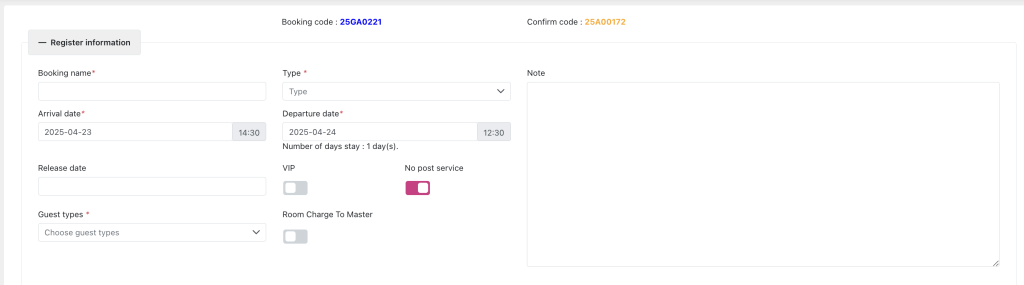
- Booking Code: This is automatically generated and will be used to identify the booking.
- Confirm Code: This is also generated and will serve as the confirmation code for the guest.
- Booking Name: Enter the name of the booking (this could be the guest’s name or the group name).
- Type: Select the reservation type of group booking, including Definite, Tentative, Waiting.
- Arrival Date: Select the arrival date for the guest. The time of arrival should also be selected (e.g., 09:30 AM).
- Departure Date: Select the departure date and time for the guest (e.g., 12:30 PM).
- Number of Days Stay: This is automatically calculated based on the arrival and departure dates.
- Release Date: Optionally enter the release date for the booking if applicable.
- Guest Types: Select the type of guests (e.g., adult, child, or specific group type).
- VIP: Mark if the guest is a VIP.
- No Post Service: By default, it’s turned on. When turning on, user cannot post service to the room (including FnB/Spa post to room).
- Room Charge to Master: This option allows you to charge all the room fee to a master room.
- Note: Add any special notes related to the booking (e.g., special requests, preferences).
2. Billing information
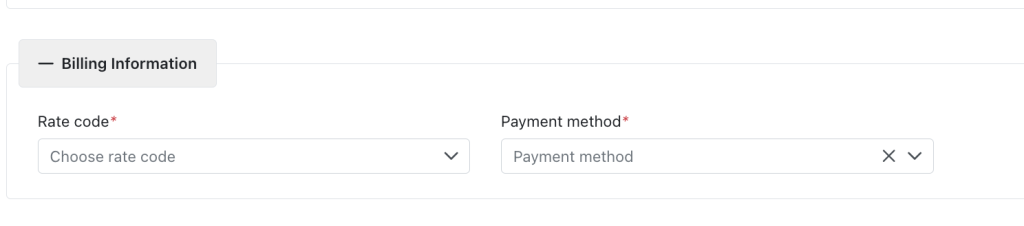
- Rate Code: Choose the applicable rate code for the booking. This will define the price and terms of the room.
- Payment Method: Select the payment method (e.g., credit card, cash, bank transfer) for the booking.
3. Sales information

- Agency: Choose the agency responsible for the booking. This is typically the travel agency or booking platform through which the reservation was made.
- Seller: Select the seller (e.g., the employee or system through which the booking was made).
- Source: Choose the source of the booking (e.g., direct, online, phone, etc.). This helps identify where the booking came from.
- Market Segment: Select the market segment (e.g., corporate, leisure, government, etc.) to categorize the booking.
4. Special services: If any special services are required (e.g., additional services, amenities), they can be added here.
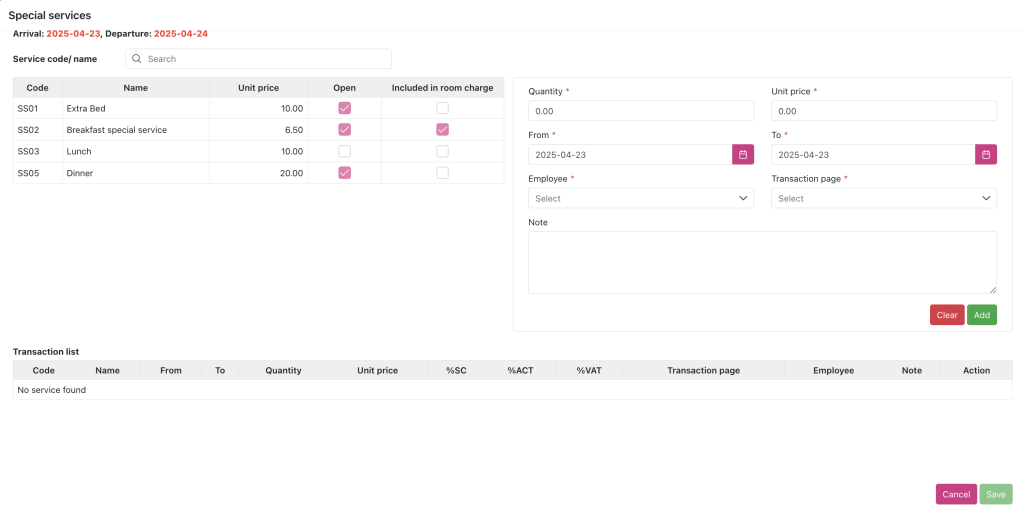
- Special service is NOT affected by the No post service button.
- If you add special service on the Group booking screen and do not check “Room charge to master”, after the night audit run, the child bookings belonging to that group booking will automatically generate service revenue. With services configured as “Include in room charge”, they will be generated with room fee after the night audit run -> if the group booking has “Room charge to master” checked, the service revenue with room charge will be displayed together with the room charge revenue line on the Folio screen of the master room booking.
- If there is a child booking that wants to use a separate special service, it will go to the child booking screen to add more.
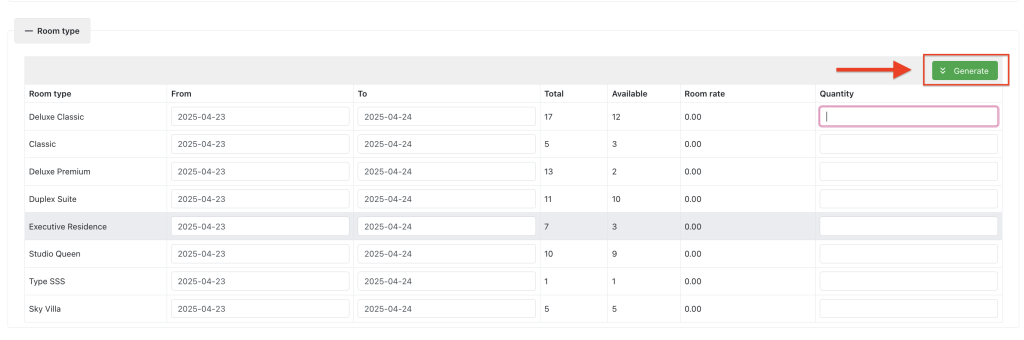
5. Room type: Filling out the availability and rates for the selected room types, click the Generate button to save and generate child booking accordingly to the inputted quantity và dates.
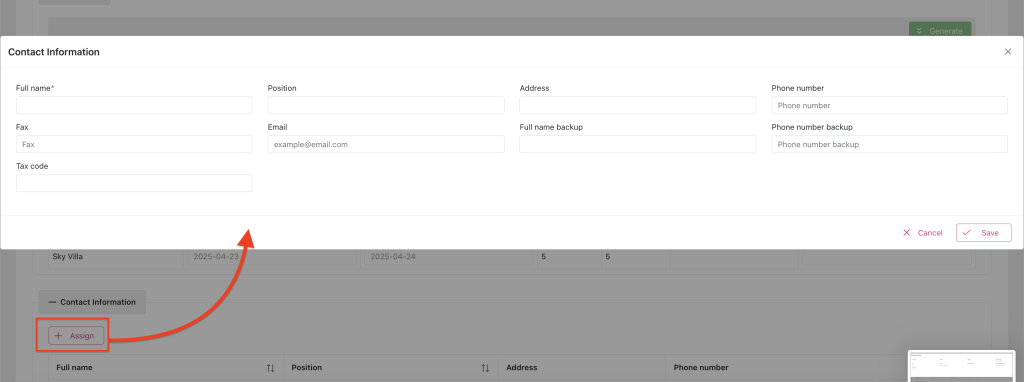
6. Contact information: Allow to add information of the contact person. The name of contact person will be used as guest name for child booking when first generated, click assign to show pop up
7. Guest list: Display the child booking created from Room type section. Note that user can select a child booking to be the master room, master room will be the booking that receives the room charges from other child bookings transferred to it.

8. Actions:

- Save and Print Confirmation: After entering all the information, you can save the booking and print the confirmation.
- Save and Print Registration: Save the booking details and print the registration form.
- Save: If you just need to save the booking details, click the Save button.