HM-4880-01: [UPDATE]: Transfer/ Room charge to master/ Routing – update business logic – tunning code
Update the display of the Detail reservation screen > Folio tab:
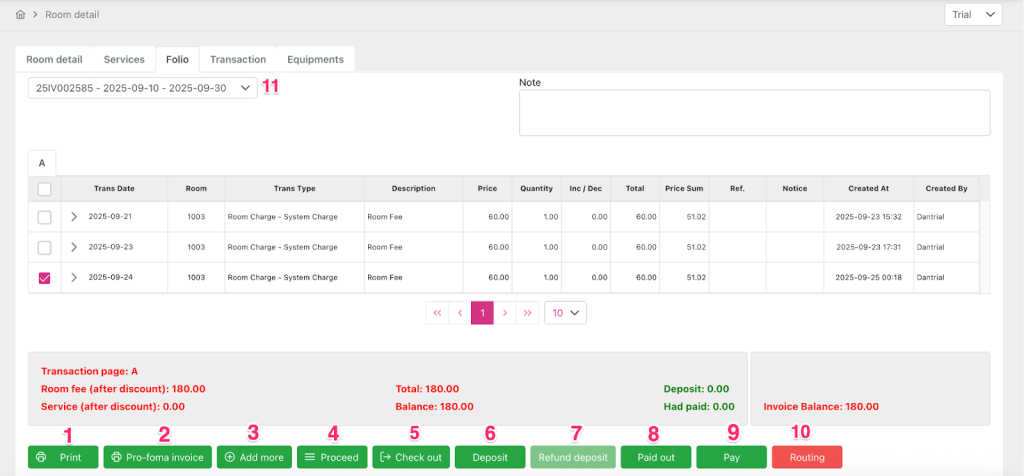
Explanation of the function buttons on the Tab Folio screen:
Print button (1) including: All invoice (1.1), This invoice (1.2), Transaction page (1.3)

All invoice (1.1):
Print all transactions in master invoice.
When clicked, a popup “Print option” will appear allowing the user to customize printing of all transactions of the booking’s master invoice.
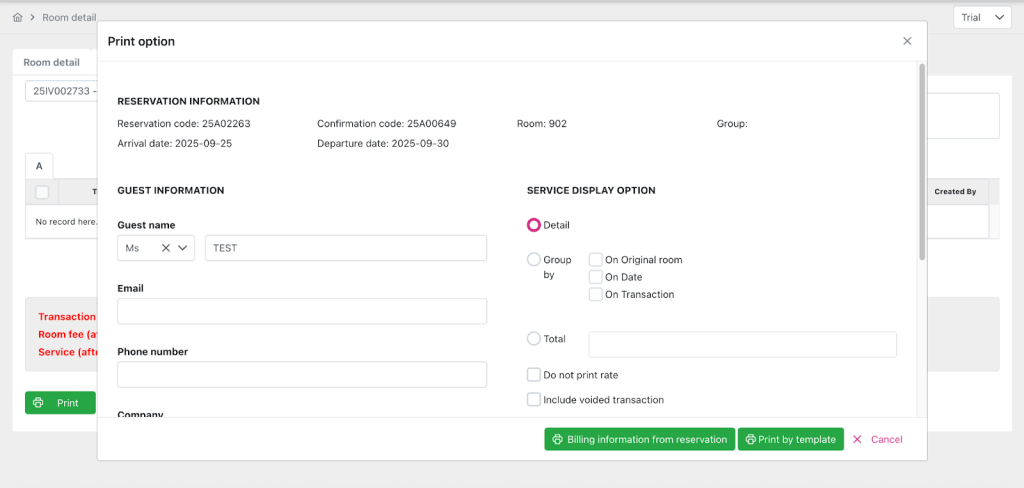
This invoice (1.2):
Print all transactions in the currently accessed master invoice.
When clicked, a popup “Print option” will appear allowing the user to customize printing of all transactions in the invoice of the booking the user is accessing.
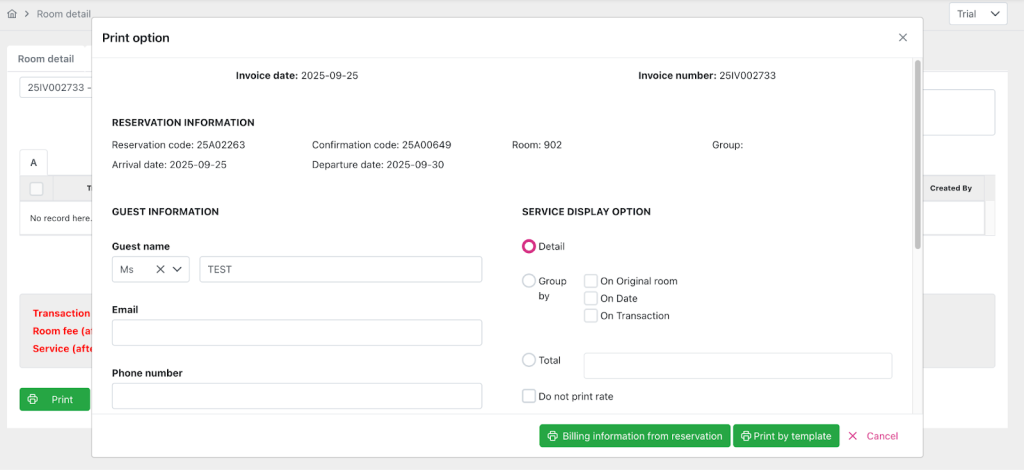
Transaction page (1.3):
Print all transactions in the transaction page of the currently accessed master invoice.
When clicking, a popup “Print option” will appear allowing the user to customize printing of all transactions on the transaction page on the invoice of the booking the user is accessing.
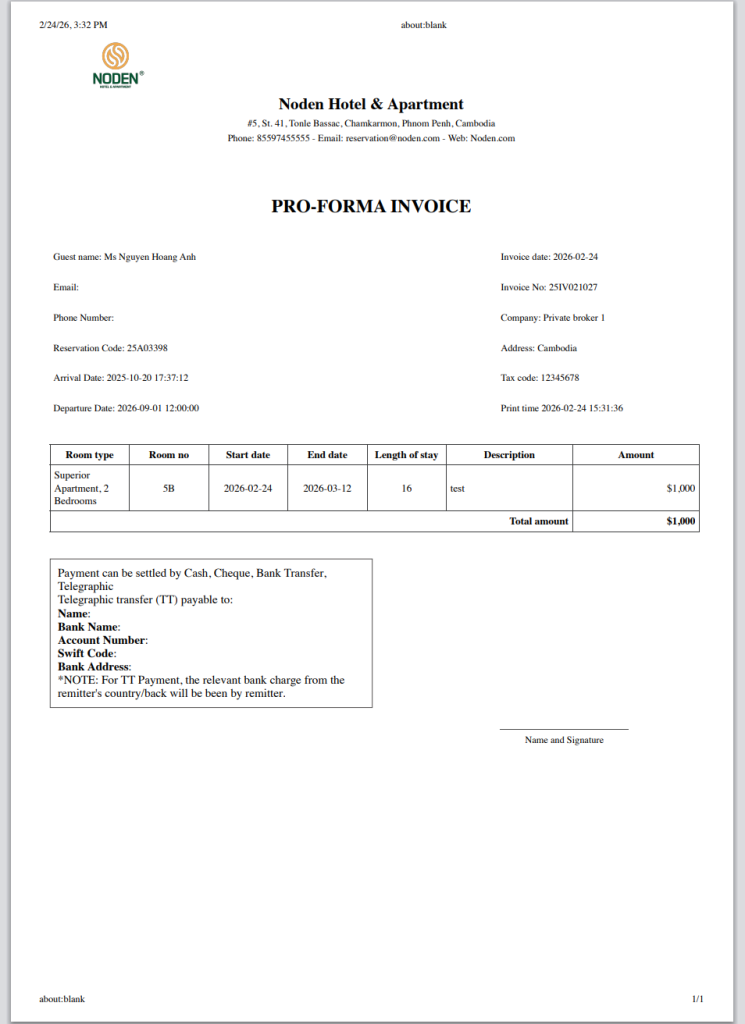
Pro-foma invoice (2):
In pro-forma invoice.
After the user clicks, a popup “Print option” will appear and allow the user to customize the invoice printing with the content and amount to be paid to the customer.
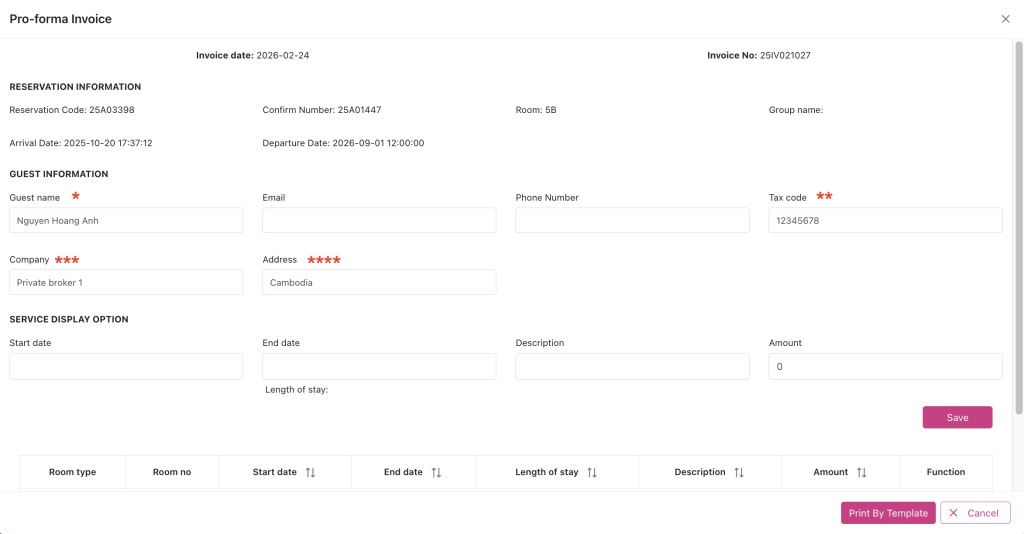
* Guest name: auto display name of main guest
** Taxcode, *** Company, **** Address: auto display information according to Agency’s in Booking Detail.
Add more (3): includes Add Advance Room Charge (3.1), Post housekeeping service (3.2)

Add Advance Room Charge (3.1):
Enable khi booking có Reservation type = “Checkin”
Disable khi booking có Reservation type = “Noshow”/ “Cancelled”/ “Checkout”/ “Definite”/ “Tentative”/ “Waiting”/
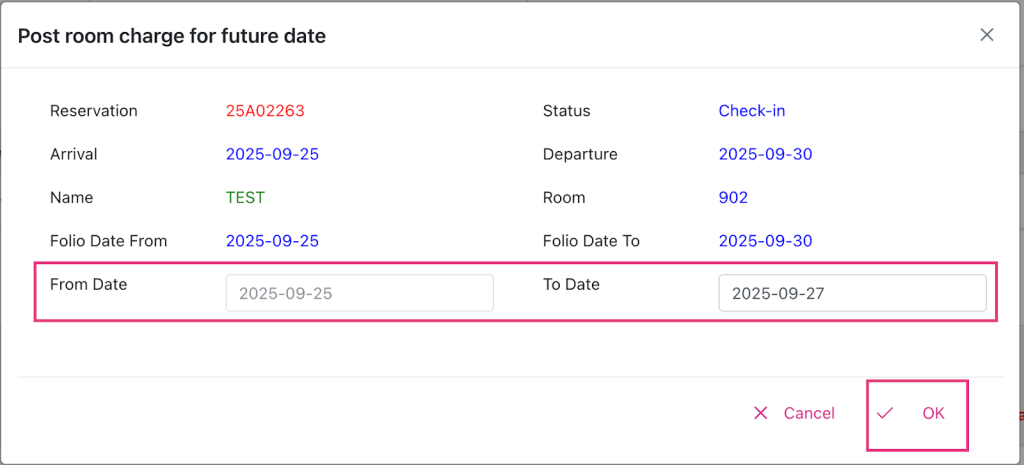
Post room charges for future dates.
When clicked, the Advance room charge popup will appear, allowing the user to post the room charge in advance without going through the night audit.
The transaction for room revenue posted for a future date will be recorded as follows:
On reports showing room revenue by Posted date: shows room revenue posted on the date of post advance room charge.
On reports showing room revenue by Transaction date: show room revenue by audit date.
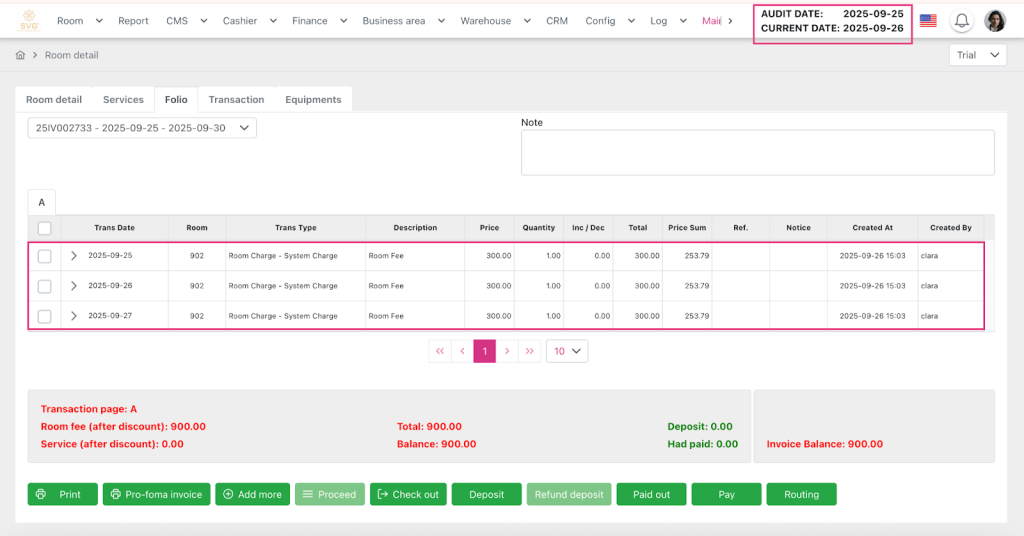
For example: The date to post advance room charge is Audit date: Sep 25; Current date: Sep 26. Post advance room charge on the nights of Sep 25, 26, and 27 for booking 25A02263:
The folio table:
View revenue report by date Posted date Sep 26: shows 3 lines of room charges just posted
View revenue report by date Audit date June 17: only shows room rates for the night of June 17. Similarly when viewing revenue report by date Audit date June 18, 19.
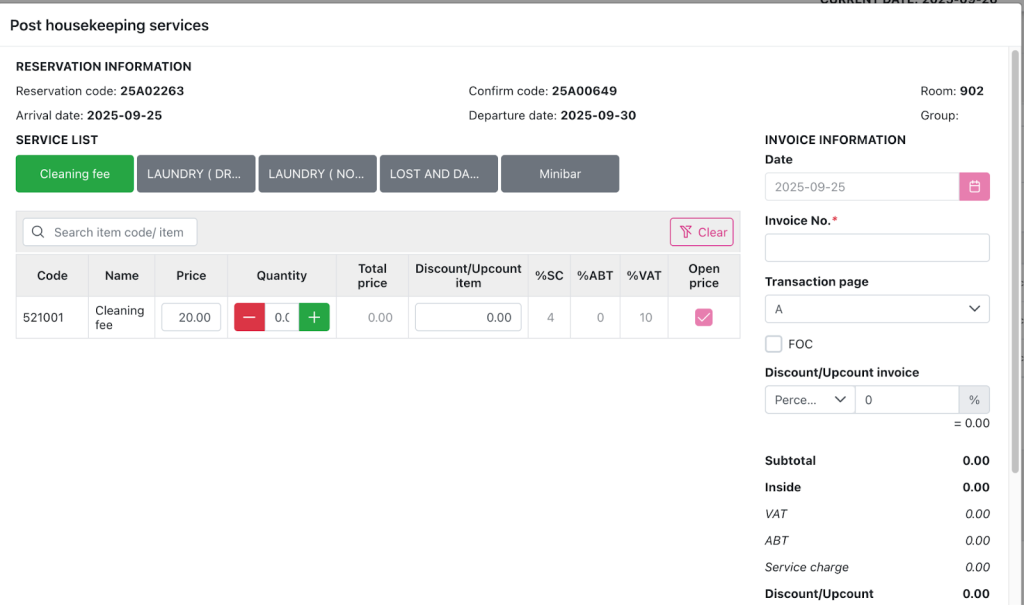
Housekeeping service (3.2):
Enable khi booking có Reservation type = “Definite”/ “Tentative”/ “Waiting”/ “Checkin”/ “Noshow”.
Disable khi booking có Reservation type = “Cancelled”/ “Checkout”
Post room service revenue.
When clicking, the Post housekeeping service popup appears, allowing the user to select a service to create a transaction to post revenue to the folio.
Proceed (4) includes View housekeeping (4.1), Edit housekeeping service (4.2), Change page (4.3), Transfer and Split (4.4), Void item (4.5)
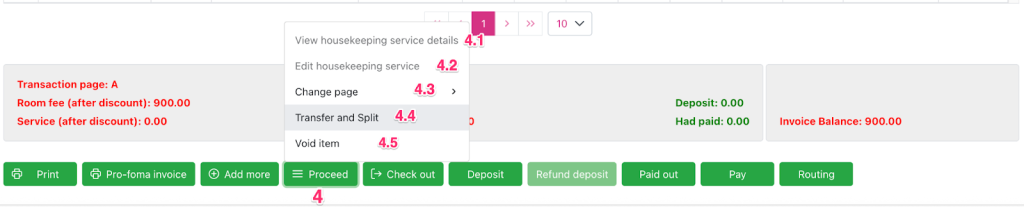
View housekeeping (4.1):
Enable when selecting Housekeeping service transaction on booking invoice with Reservation type = “Definite”/ “Tentative”/ “Waiting”/ “Checkin”/ “Noshow”
Disable when no transaction is selected or when booking has Reservation type = “Cancelled”/ “Checkout”
View transaction details of posted housekeeping service.
When clicked, a popup “Housekeeping service details” appears allowing the user to view the total bill information of the selected housekeeping service transaction.
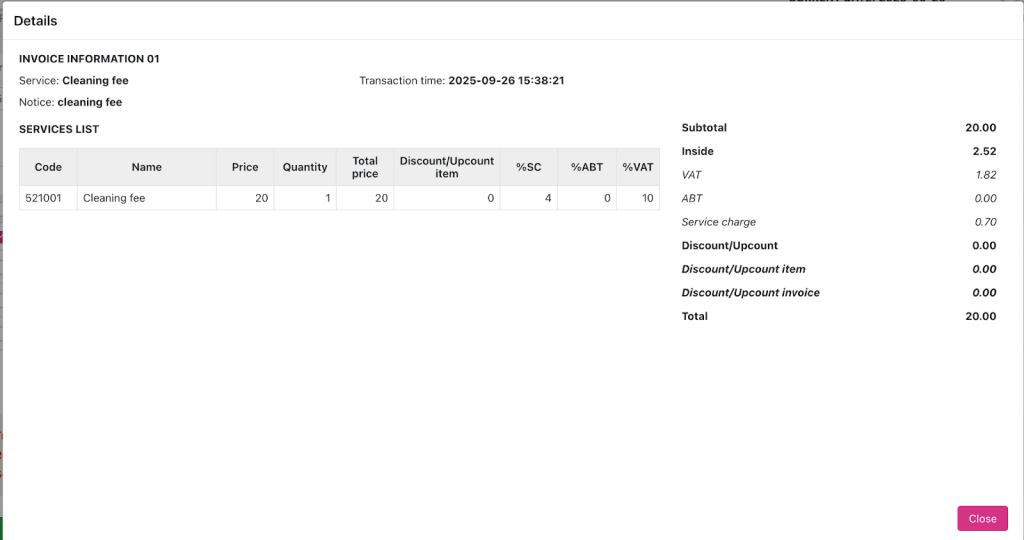
Edit housekeeping service (4.2):
Enable when selecting a Housekeeping service transaction with status active and void_status = 0 on the booking invoice with Reservation type = “Definite”/ “Tentative”/ “Waiting”/ “Checkin”/ “Noshow”.
Disable when no transaction is selected or when booking has Reservation type = “Cancelled”/ “Checkout”
View and edit service details of posted housekeeping service transactions.
When clicked, the “Edit housekeeping service” popup appears allowing the user to edit the service of the selected housekeeping service transaction.
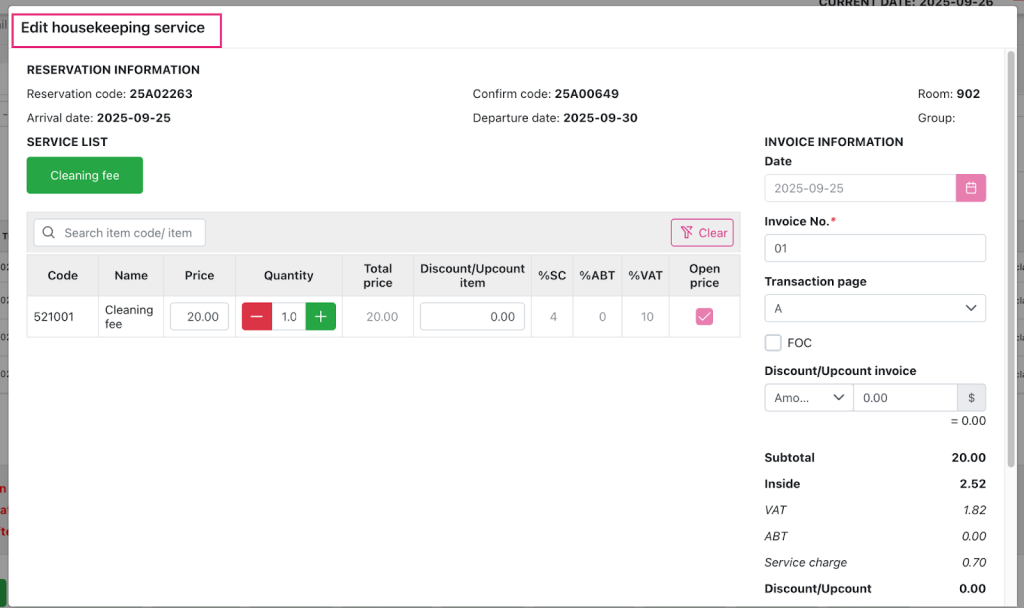
Change page (4.3):
Enable when selecting a transaction with status active and void_status = 0 on the invoice of a booking with Reservation type = “Definite”/ “Tentative”/ “Waiting”/ “Checkin”
Disable when no transaction is selected or when booking has Reservation type = “Noshow”/ “Cancelled”/ “Checkout” or when selecting Transaction on page V.
Change the transaction page for the selected transaction.
When clicked, it will display a list of pages from A → Z (no page V) allowing the user to transfer the selected transaction to another page.
Transaction information after changing page will not be changed, only the displayed transaction page will change.
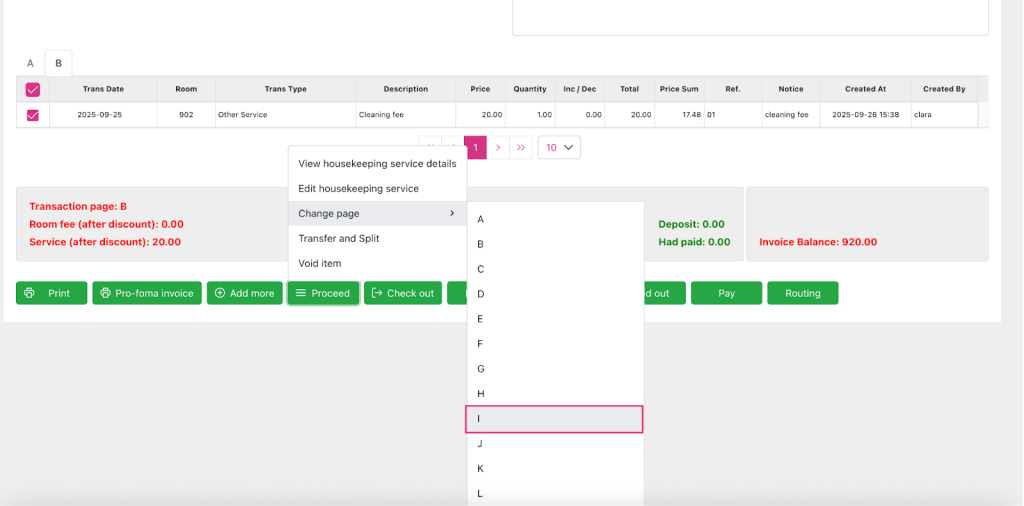
Transfer and Split (4.4):
Enable when selecting a transaction with status active and void_status = 0 on the invoice of a booking with Reservation type = “Definite”/ “Tentative”/ “Waiting”/ “Checkin”/ “Noshow”.
Disable when no transaction is selected or when booking has Reservation type = “Cancelled”/ “Checkout” or when selecting Transaction on page V
Move/Split selected transaction.
When clicking, the “Transfer and Split” popup will appear, the user can select the booking and select the Page (except page V) to receive the transaction transferred to and enter the %/ amount to transfer.
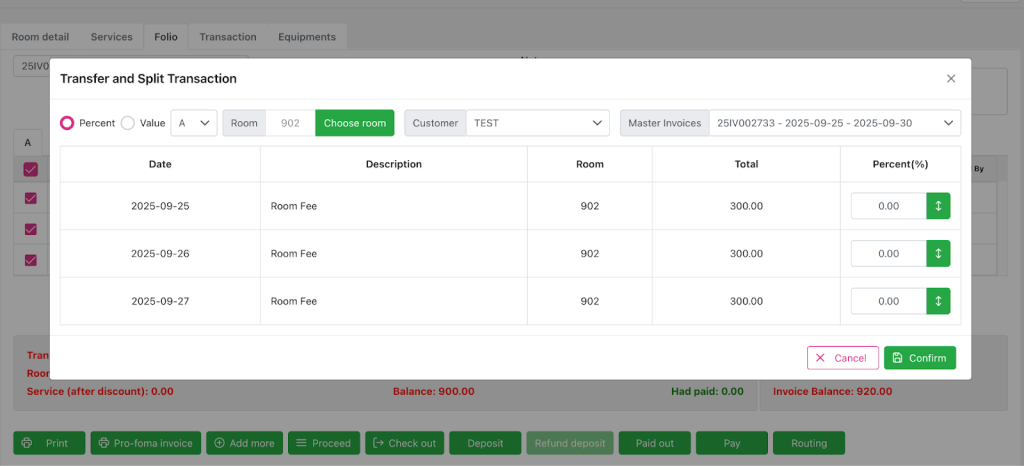
After the transaction is confirmed to be transferred/split, it will generate a void original transaction line, and generate 2 transaction lines with the same information as the original line but different values based on the %/ amount the user wants to transfer/split.
Transaction created after transfer/split operation must keep the information like created_at, created_by. And save additional data in transferred_at and transferred_by columns.
After performing a transfer/split transaction, do not make any changes that affect audited data.
After successful transfer, the data displayed on the Tab Folio screen grid is as follows:
- Transfer/Split 1 part:
- A void line has the same information as the original line and has a numeric value relative to the value of the original line.
- 2 lines have the same information as the original line and have the same value after being split. In which:
- 1 line in new folio with the value user entered during transfer
- 1 row in old folio with remaining value after subtracting transferred value
- Full transfer/split:
- A void line has the same information as the original line and has a numeric value relative to the value of the original line.
- 1 row has the same information as the original row and has the same value as the original row
- 1 line has the same information as the original line and has value = 0 (this line is not displayed on the UI)
After successful transfer, the data displayed on the report is as follows:
- For void lines: If the report has the “Include voided transaction” checkbox enabled, the data will be displayed on the report.
- If user views report by Transaction date: Display voided transaction with audit_date in From-To date range of corresponding Transaction date.
- If user views report by Posted date/ Voided date: display voided transaction with created_at date in From-To date range of corresponding Posted date
- For the data stream generated after transfer/ split:
- If user views report by Transaction date: Displays transaction with audit_date in From-To date range of corresponding Transaction date.
- If user views report by Posted date: display voided transaction with transferred_at date in From-To date range of corresponding Posted date
Void item (4.5):
Enable when selecting a transaction with status active and void_status = 0 on the invoice of a booking with Reservation type = “Definite”/ “Tentative”/ “Noshow”/ “Waiting”/ “Checkin”
Disable when:
Do not select or select multiple transactions
When the transaction has been voided
When booking has Reservation type = “Cancelled”/ “Checkout” or when selecting Transaction on page V
Post Void transaction to cancel the selected transaction.
Only allow void operation on 1 master_invoice_item..
- If the entered username/password is of a user without void transaction permission (configured at Add/ Edit role > Access Control > Config):
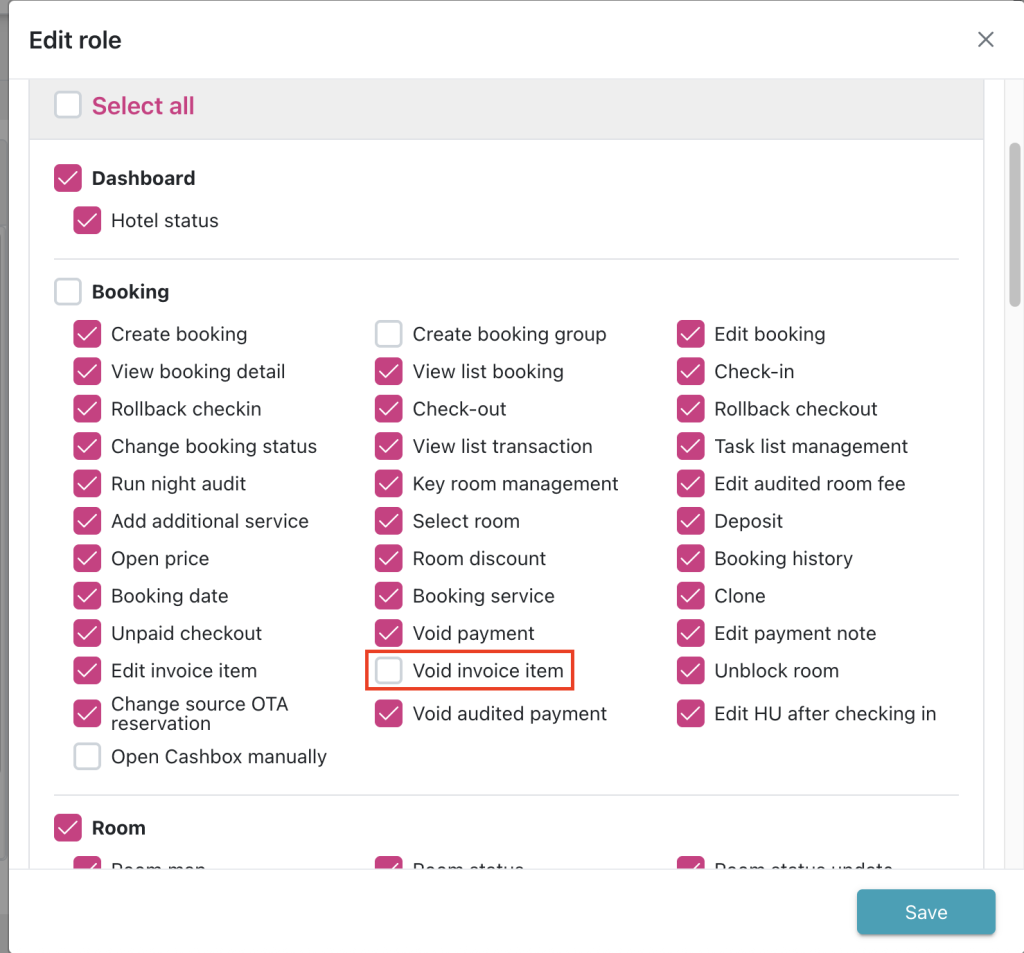
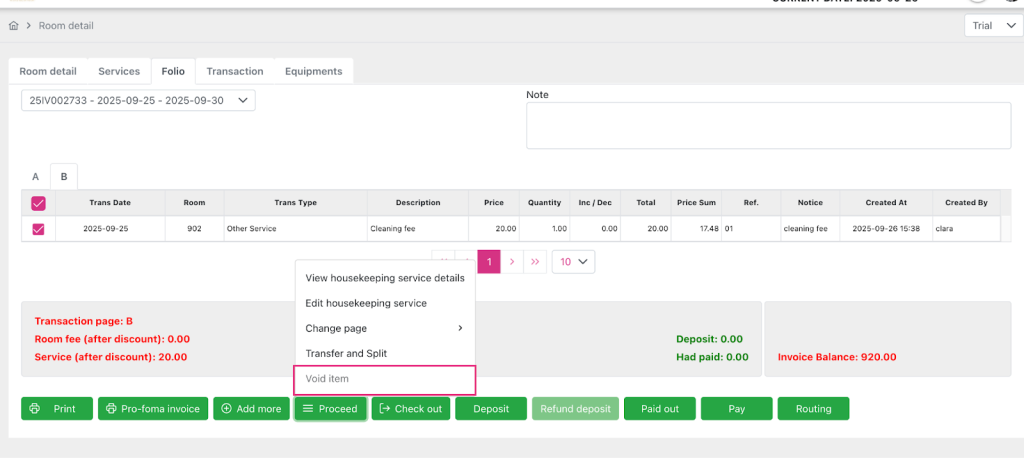
→ Void process is de-activated:
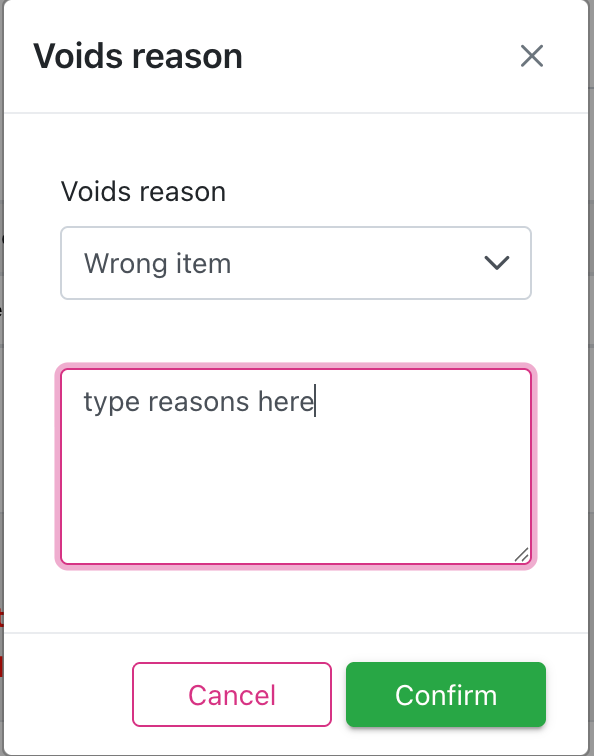
- If the entered username/password is of a user with void transaction rights → a “Confirm” popup will appear allowing the user to enter the Username/Password of the person the an another popup “Void reason” will be displayed allowing the user to select/enter the void reason.
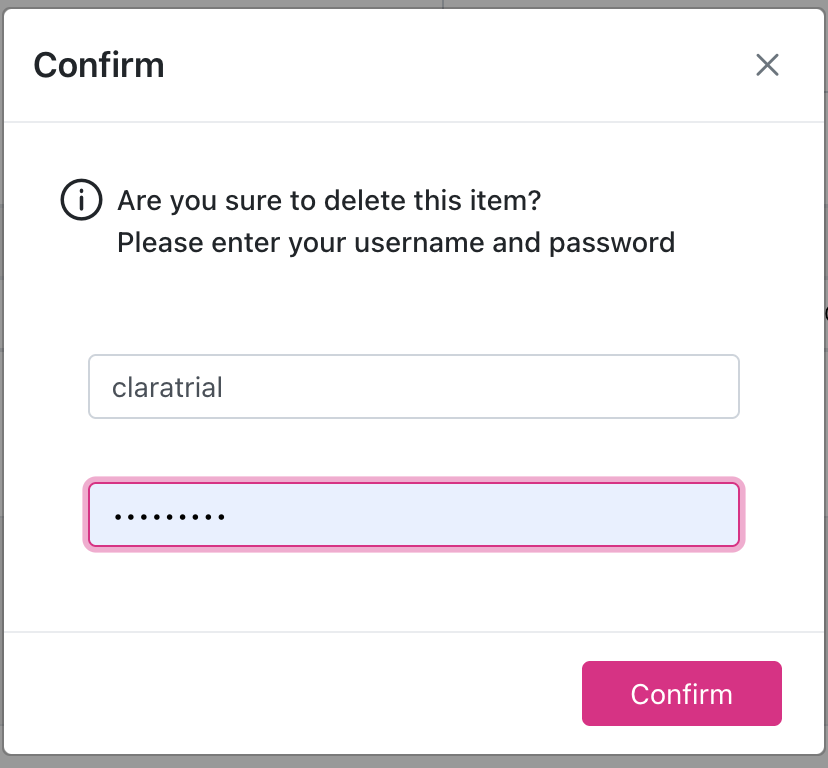
After voiding the transaction, it will generate another transaction line with the same information as the original transaction line but with a numerical value for the original line and will be transferred to page V.
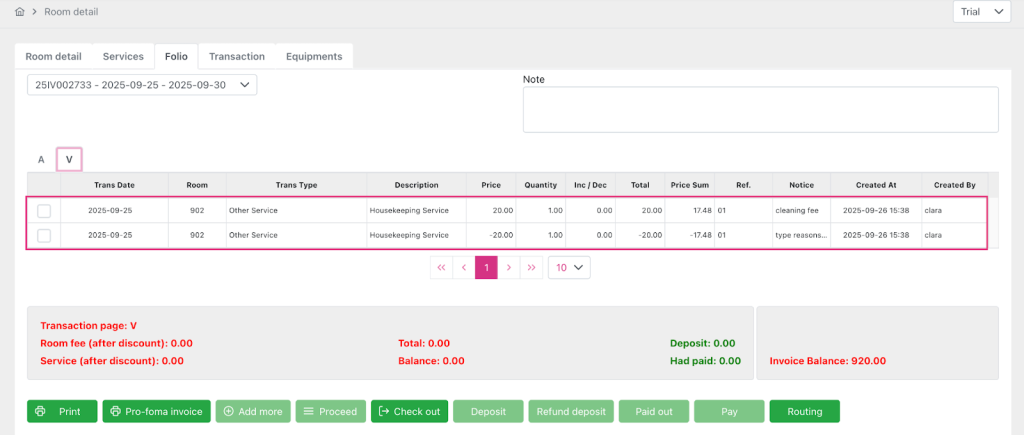
After successful voiding, the voided transaction is recorded on the report as follows:
- If user views report by Transaction date: Display voided transaction with audit_date in From-To date range of corresponding Transaction date.
- If user views report by Posted date/ Voided date: display voided transaction with created_at date in From-To date range of corresponding Posted date
Check out (5):
Enable khi booking có Reservation type = “Checkin”
Disable khi booking có Reservation type = “Definite”/ “Tentative”/ “Waiting”/“Noshow”/ “Cancelled”/ “Checkout”
Checkout booking is accessible.
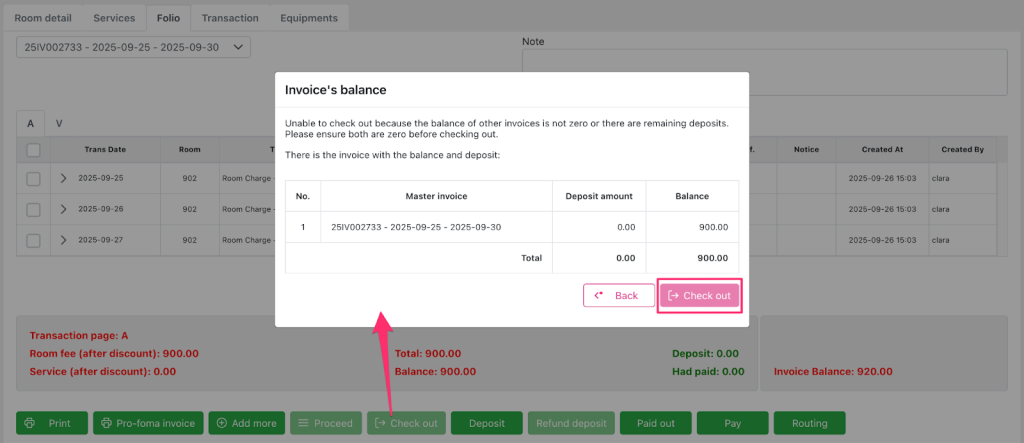
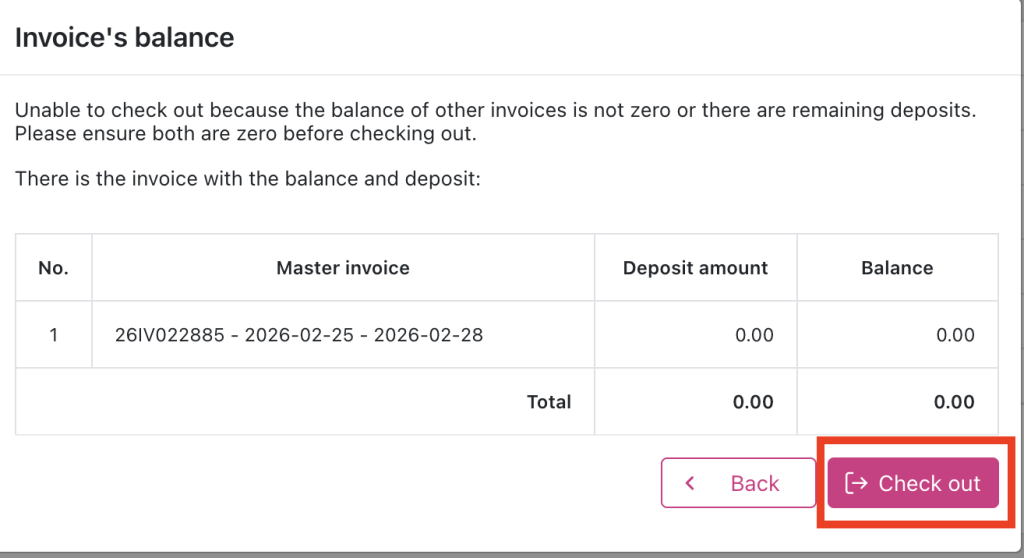
When clicked, the popup “Invoice’s balance” will appear showing invoices with balances other than 0 and the total balance of the booking. The system will check:
- If the booking total balance is different from 0 → disable the Checkout button in the popup.
- If the booking has a total balance of 0 → enable the Checkout button in the popup.
Deposit (6) includes Post Deposit (6.1), Transfer/Split (6.2):
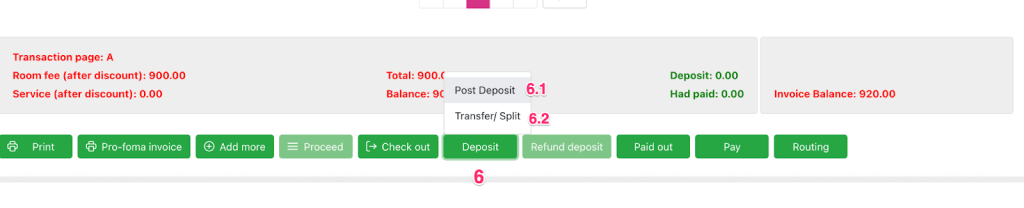
Post Deposit (6.1):
Enable khi booking có Reservation type = “Checkin”/ “Definite”/ “Tentative”/ “Waiting”/ “Noshow”.
Disable khi booking có Reservation type = “Cancelled”/ “Checkout”.
Post the guest’s deposit to the hotel.
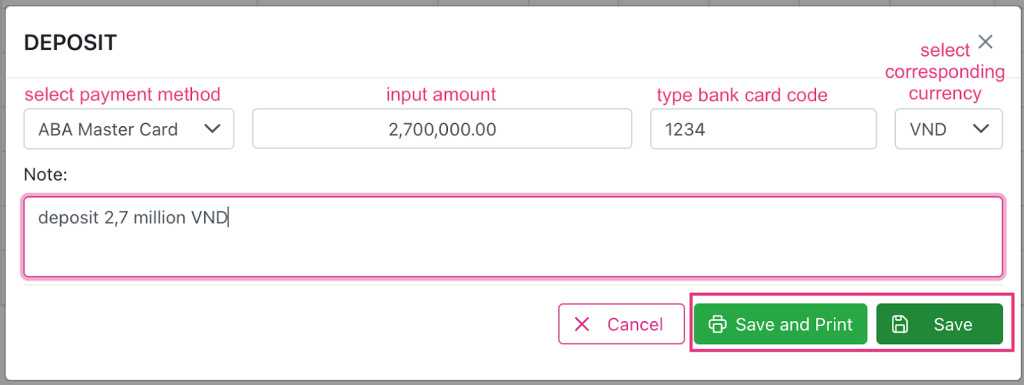
When clicked, a popup “Deposit” will appear allowing the user to choose a payment method, enter the amount of deposit they want to make and select a page from A → Z (no page V).
After posting, the deposit amount on the Summary table of the Folio tab screen will increase, affecting the amount in the “Balance” field on the transaction page being operated.
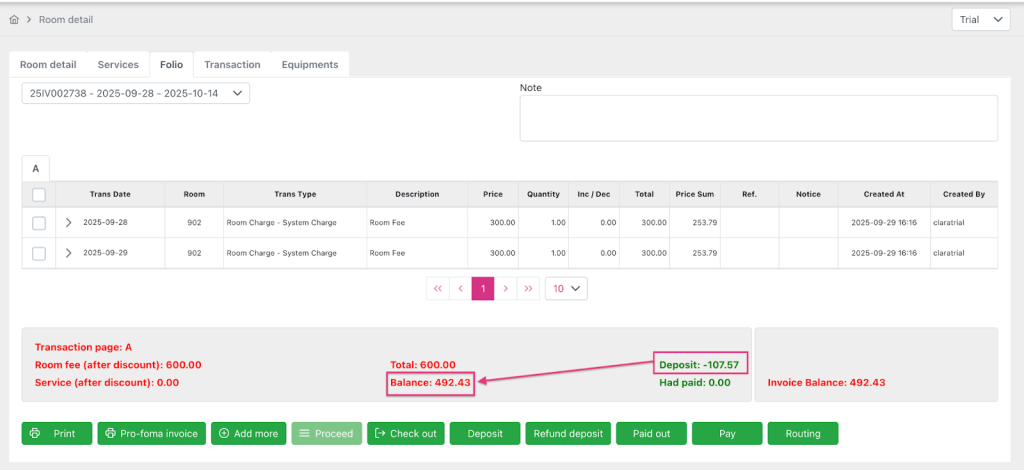
Transaction “Deposit” is recorded as a negative number on the Summary table and reports, except Deposit report
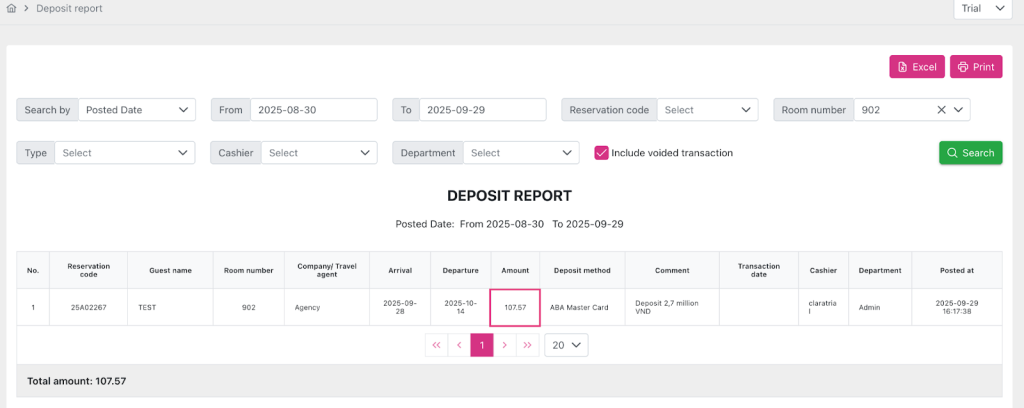
and Transaction Tab screen will show a positive number:
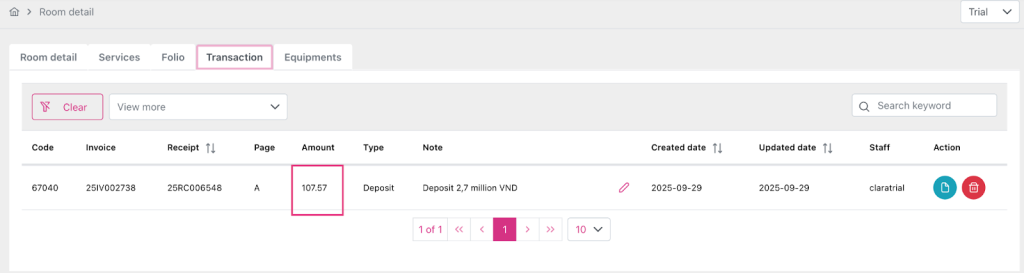
The deposit data line will be calculated on the Transaction page/ Master invoice of the selected booking, recorded with the audit_id that the user performed the Post Deposit.
Transfer and Split (6.2)
Transfer/Split the remaining deposit on the transaction page being operated.
When clicking, the popup “Transfer and Split Deposit” will appear, the user can select booking and select Page (except page V) to receive the deposit transferred to and enter %/ amount to transfer on each deposit detail with amount > 0.
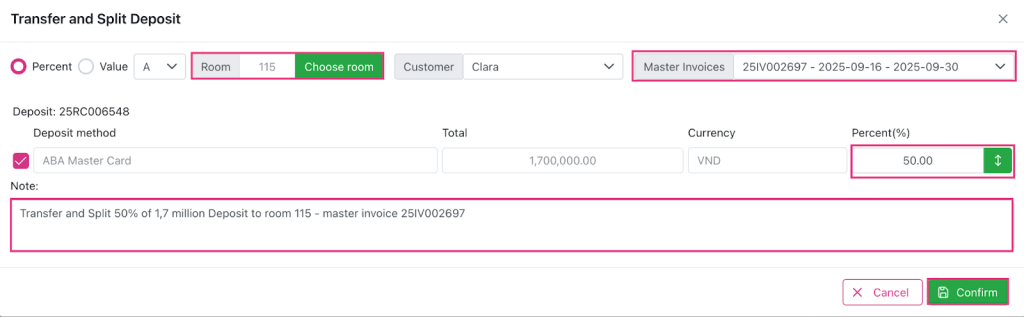
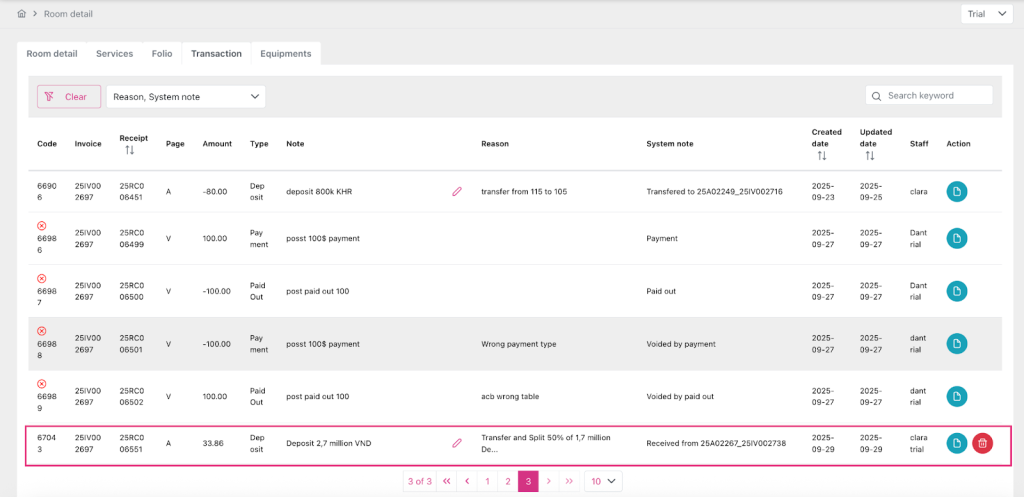
After being confirmed, the transfer/split will generate deposit lines with opposite values to the original deposit (opposite values on each deposit detail), and generate deposit lines with the same information as the corresponding original deposit line and with values on the deposit detail calculated based on the %/ amount the user wants to transfer/split.
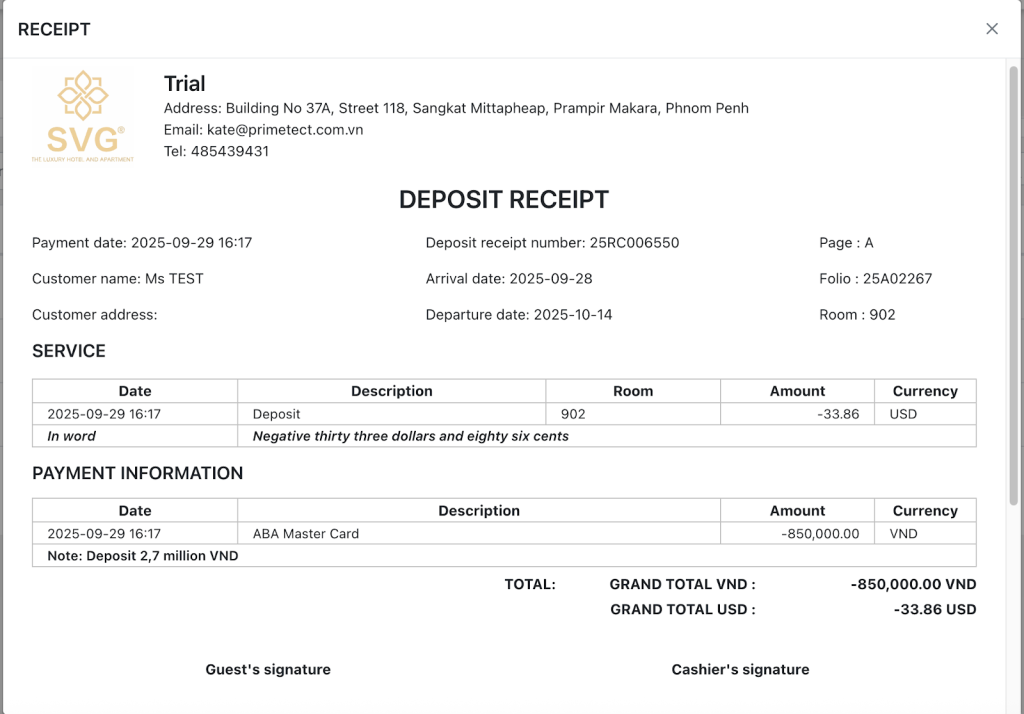
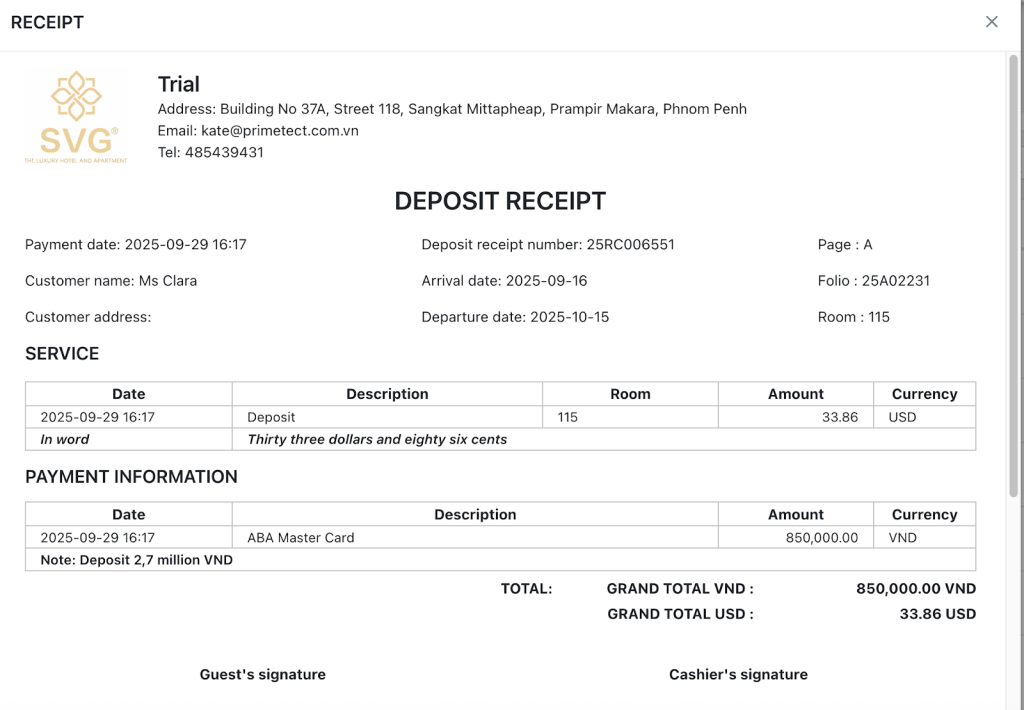
Receipt Detail:
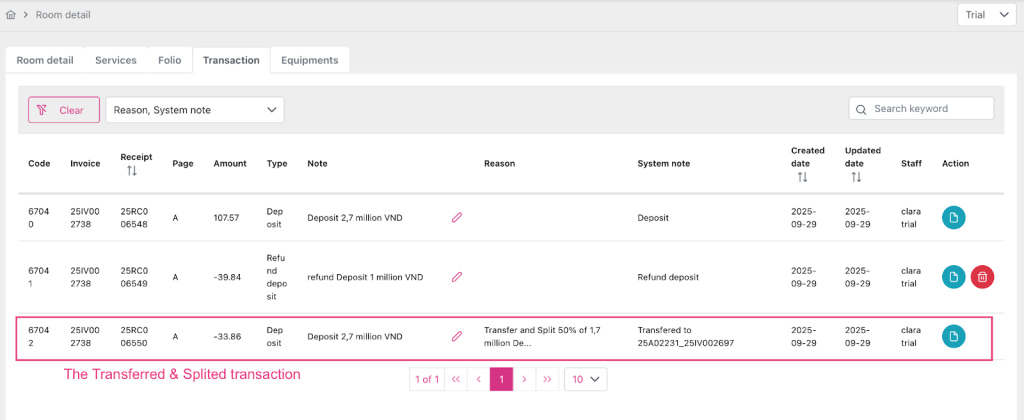
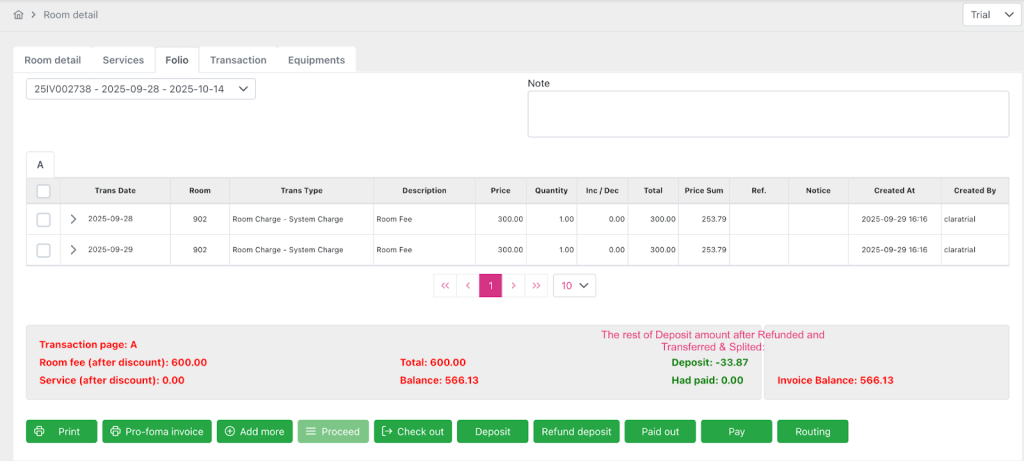
The rest of Deposit amount after refunded and Transferred & Splited:
The booking’s transaction tab receives transferred Deposit transaction:
Receipt Detail:
Deposit created after transfer/split operation must keep the same information such as created_at, created_by. And save additional data in transferred_at and transferred_by columns.
After making a transfer/ split deposit:
- Do not edit audited data.
- Void deposits that have been transferred/split or transferred to payment are not allowed.
After successful transfer, the data displayed on the Transaction Tab screen grid is as follows:
- Deposit lines have the same information as the original line and have a value calculated based on the value/% the user entered on the Transfer and Split Deposit popup
After successful transfer, the data displayed on the report is as follows:
- If user views report by Transaction date: Displays deposit with audit_date in From-To date range of corresponding Transaction date.
- If user views report by Posted date: displays deposit with transferred_at date in From-To date range of corresponding Posted date
Refund Deposit (7)
Enable when booking has Reservation type = “Checkin”/ “Definite”/ “Tentative”/ “Waiting”/“Noshow” and has Deposit balance other than 0.
Disable khi booking có Reservation type = “Cancelled”/ “Checkout”
Post refund deposit returns the remaining deposit to the customer.
When clicked, a popup “Refund deposit” will appear, automatically displaying the entire remaining deposit amount of the folio and allowing the user to select a page from A → Z (no page V).
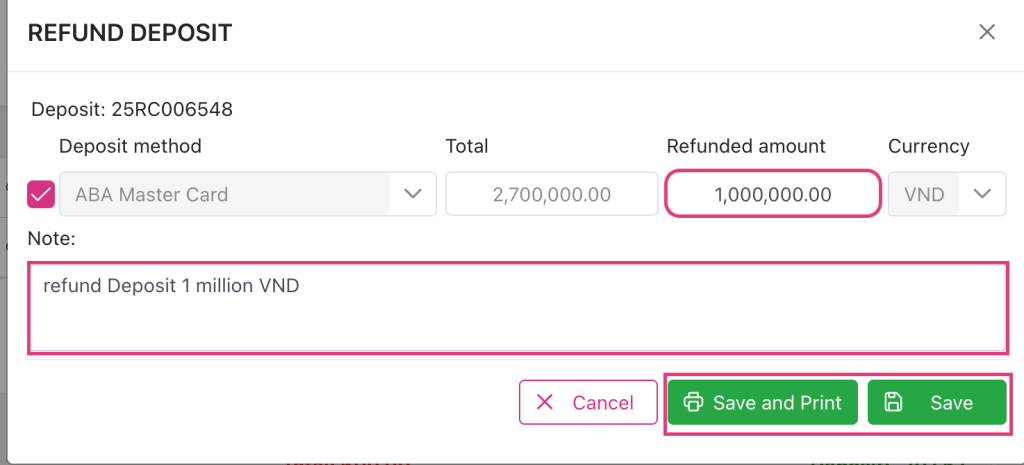
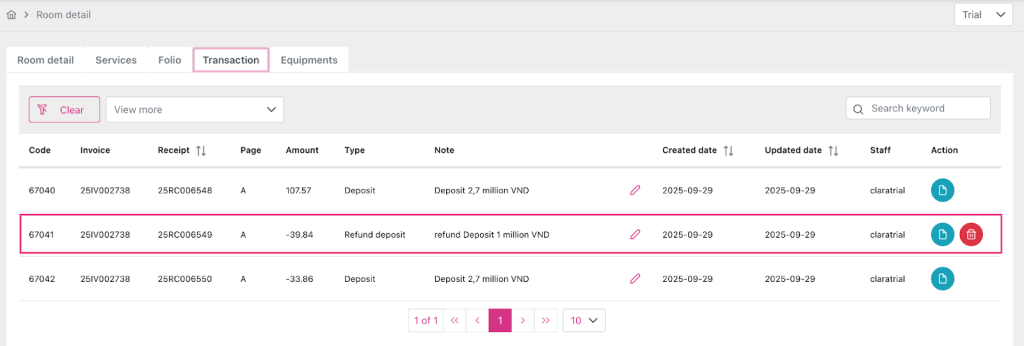
Transaction tab:
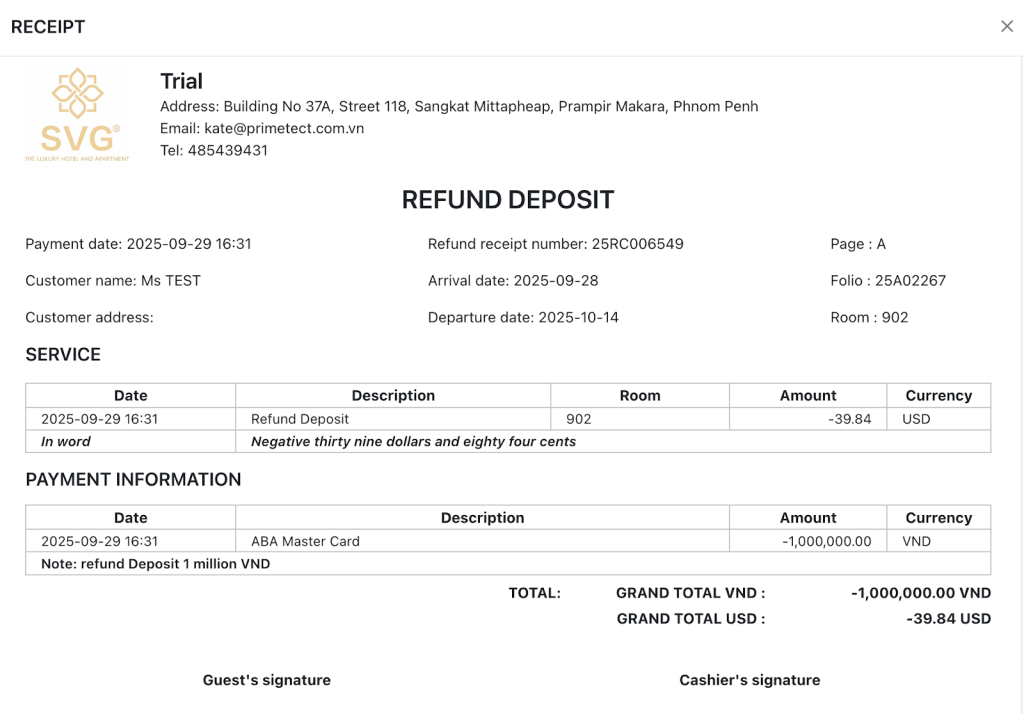
Receipt detail:
After posting, the deposit amount on the Folio screen will decrease, affecting the amount in the “Balance” field in the Summary table on the transaction page being operated.
Transaction “Refund deposit” is recorded as a positive number on the Summary panel in the Folio Tab screen and reports (except the Payment report and Transaction Tab screen will show a negative number).
The Refund deposit data line will be calculated on the Transaction page/ Master invoice of the selected booking, recorded with the audit_id that the user performed the Post Refund deposit.
Paid out (8)
Enable khi booking có Reservation type = “Checkin”/ “Definite”/ “Tentative”/ “Waiting”/“Noshow”/
Disable khi booking có Reservation type = “Cancelled”/ “Checkout”
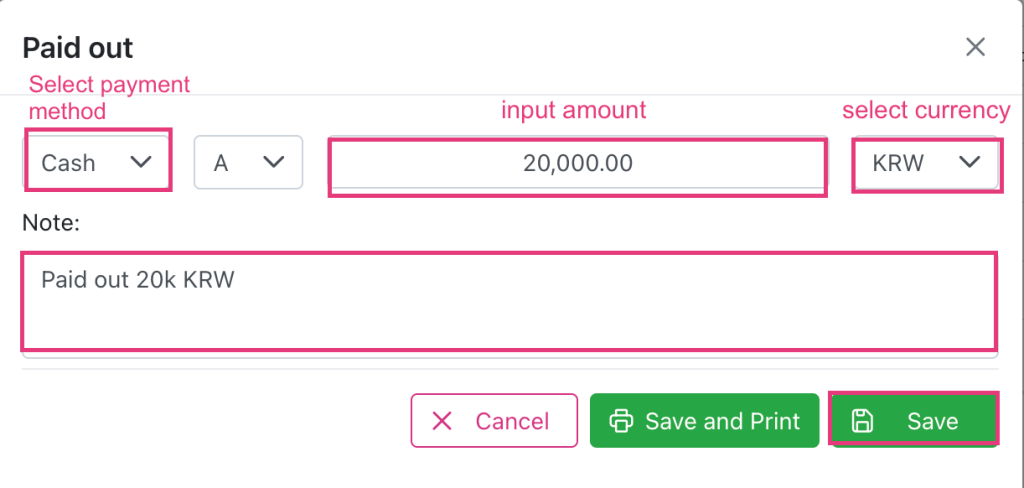
Post payment returns the remaining payment to the customer.
When clicked, a popup “Paid out” will appear allowing the user to enter the amount they want to pay the customer and select a page from A → Z (no page V).
Transaction tab:
After posting, the payment amount on the Folio screen will decrease, affecting the amount in the “Balance” field in the Summary table on the transaction page being operated.
Transaction “Paid out” is recorded as a positive number on the Summary panel in the Folio Tab screen and reports (except the Payment report which will show a negative number).
The paid out data line will be calculated on the Transaction page/ Master invoice of the selected booking recorded with the audit_id user performing the Post Paid out.
Pay (9)

Post Payment (9.1)
Enable khi booking có Reservation type = “Checkin”/ “Definite”/ “Tentative”/ “Waiting”/ “Noshow”.
Disable khi booking có Reservation type = “Cancelled”/ “Checkout”
Post payment to pay for services used for hotel.
When clicked, a popup “Payment” will appear allowing the user to enter the amount they want to pay for the hotel and select a page from A → Z (no page V).
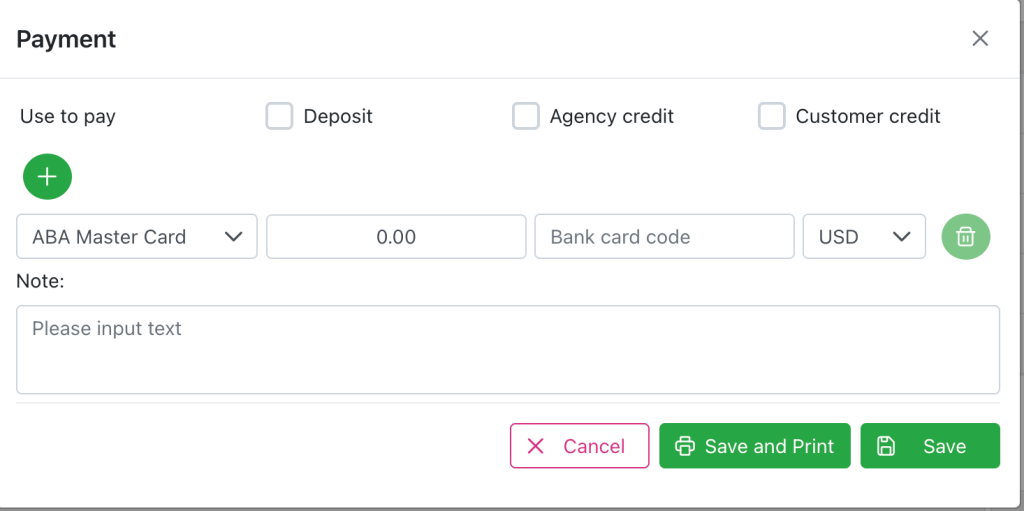
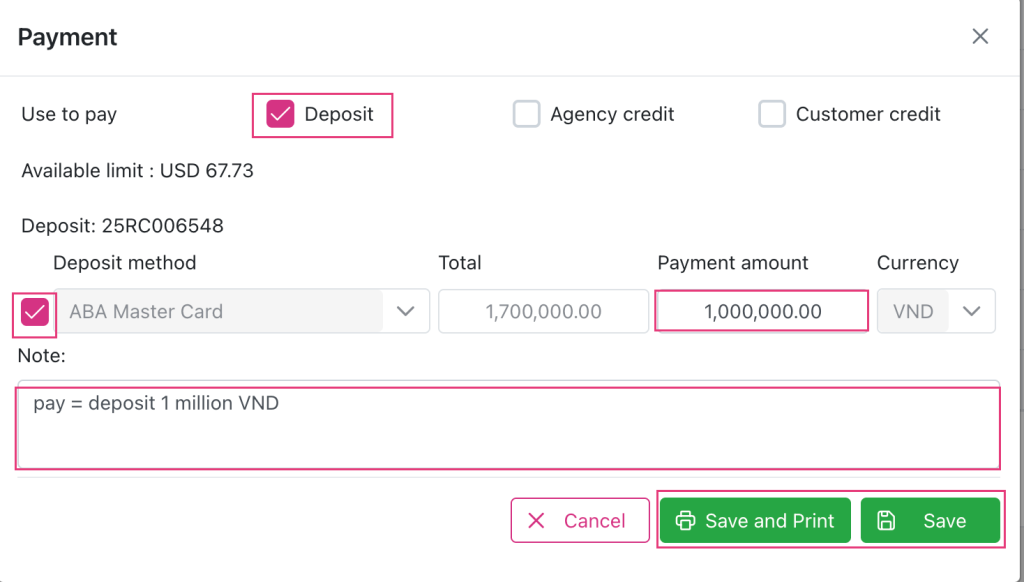
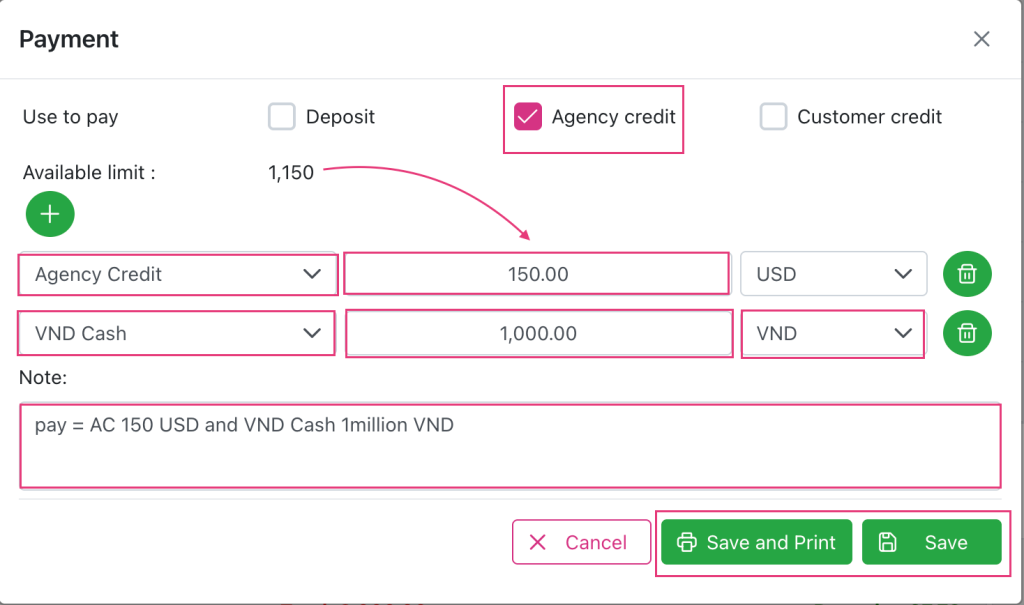
You can select 1 of 3 payment methods if they have remaining amount at use to pay section (except Deposit) and combine with various the payment methods:
Example:
Payment 1: Pay = deposit with amount 1,000,000 VND:
Payment 2: Pay = AC 150 USD and Cash 1,000,000 VND:
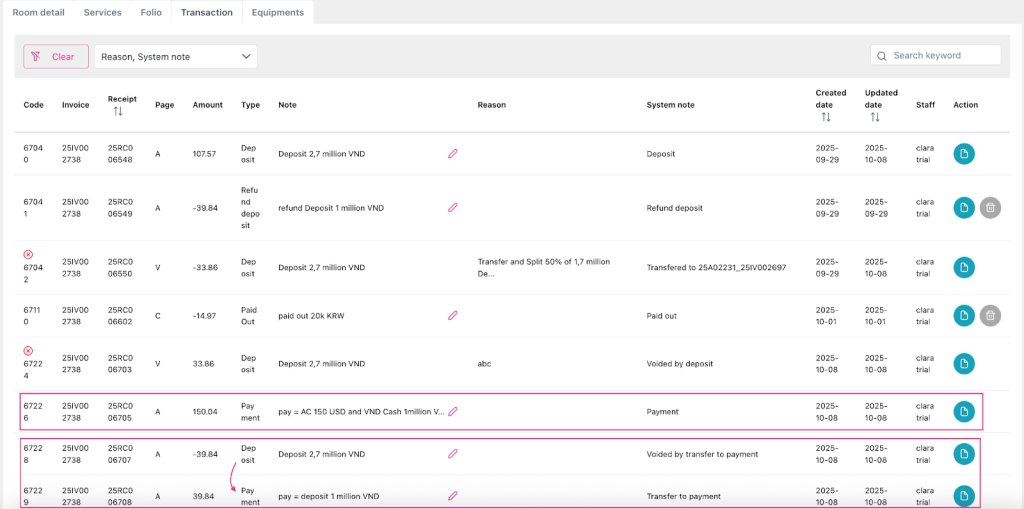
Transaction tab:
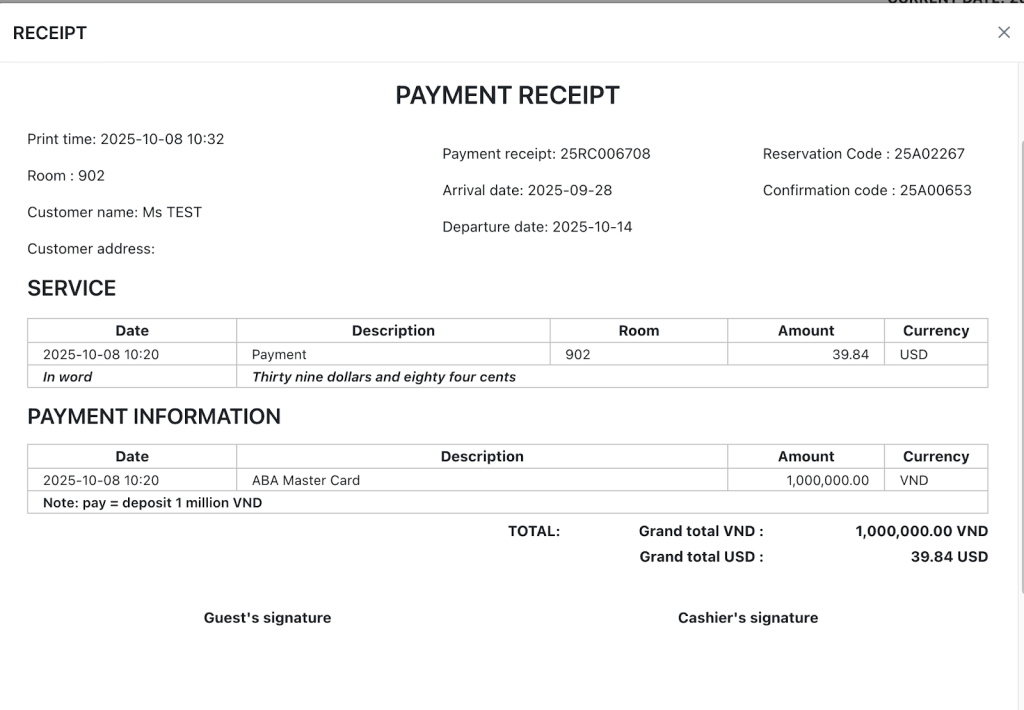
Receipt Detail:
Payment 1’s
Payment 2’s
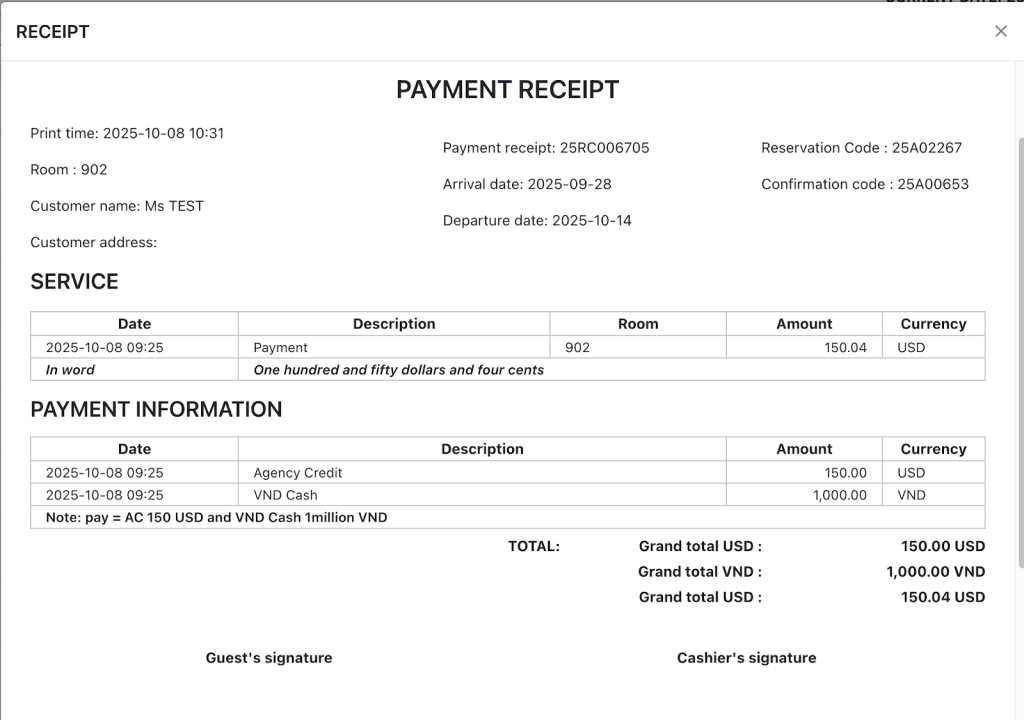
After posting, the payment amount on the Folio screen will increase, affecting the amount in the “Balance” field in the Summary table on the transaction page being operated.
Transaction “Payment” is recorded as a negative number on the Summary panel on the Folio tab screen and reports (except for the Payment report and the Detail reservation screen > Transaction tab will display a positive number)
The payment data line will be calculated on the Transaction page/ Master invoice of the selected booking recorded for the audit_id user who made the Post payment.
Transfer and Split (9.2)
Transfer/Split remaining payment on the transaction page currently active.
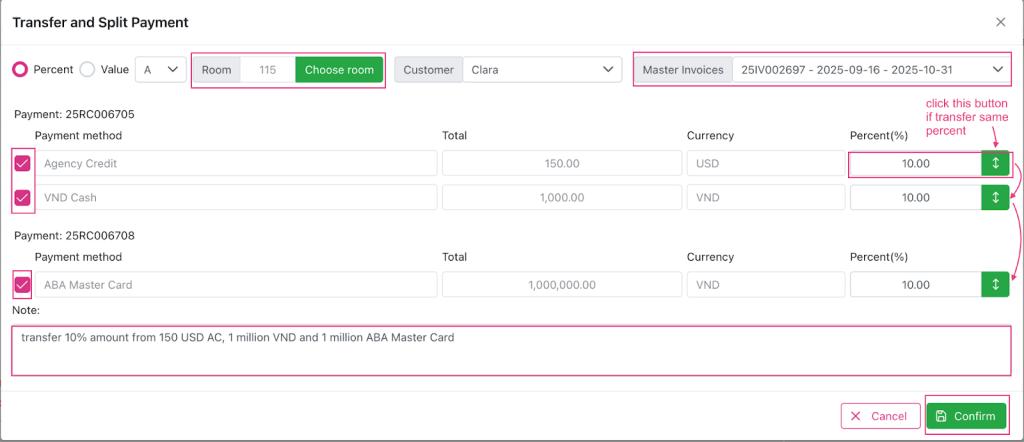
Transaction tab:

Transaction tab of received booking:

When clicking, the “Transfer and Split Payment” popup will appear, the user can select the booking and select the Page (except page V) to receive the payment transferred to and enter the %/ amount to transfer on each payment detail with amount > 0.
After being confirmed, the transfer/split will generate payment lines with opposite values to the original payment (opposite values on each payment detail), and generate payment lines with the same information as the corresponding original payment line and with values on the payment detail calculated based on the %/ amount the user wants to transfer/split.
Payment created after transfer/split operation must keep the same information such as created_at, created_by. And save additional data in transferred_at and transferred_by columns.
After making a transfer/split payment if users DO NOT have void payment/ Audited payment permission,
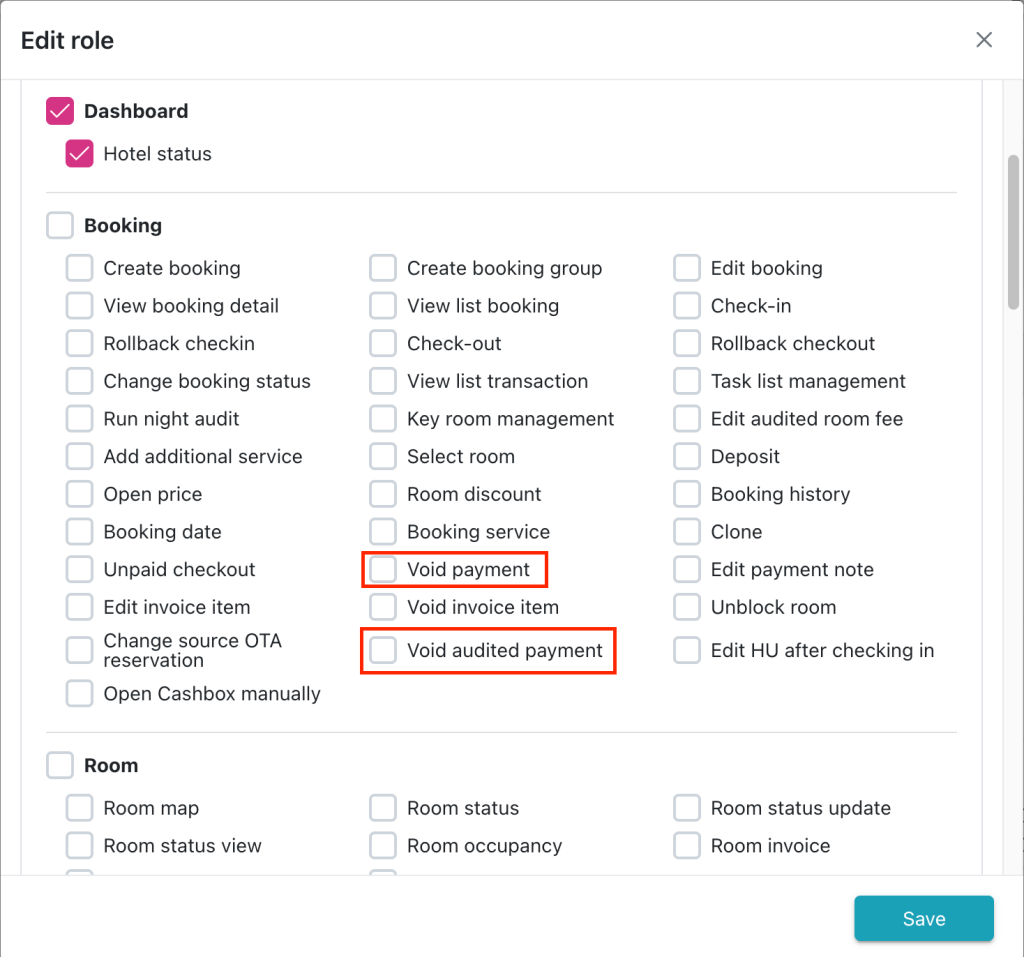
then:
- Do not edit audited data.
- Void payment transfer/ split not allowed
After successful transfer, the data displayed on the Transaction Tab screen grid is as follows:
- n payment lines have the same information as the original line and have a value calculated based on the value/% the user entered on the Transfer and Split Payment popup
After successful transfer, the data displayed on the report is as follows:
- If user views report by Transaction date: Displays payment with audit_date in From-To date range of corresponding Transaction date.
- If user views report by Posted date: display payment with transferred_at date in From-To date range of corresponding Posted date
Routing (10)
Enable khi booking có Reservation type = “Checkin”/ “Definite”/ “Tentative”/ “Waiting”/ “Noshow”.
Disable khi booking có Reservation type = “Cancelled”/ “Checkout”.
Automatically transfer transactions when transactions occur.
Not applicable for Dummy bookings because Dummy bookings do not generate transactions.
When clicked, a “Routing” popup will appear allowing the user to select the Transaction type and booking (including Dummy booking) they want to transfer to.
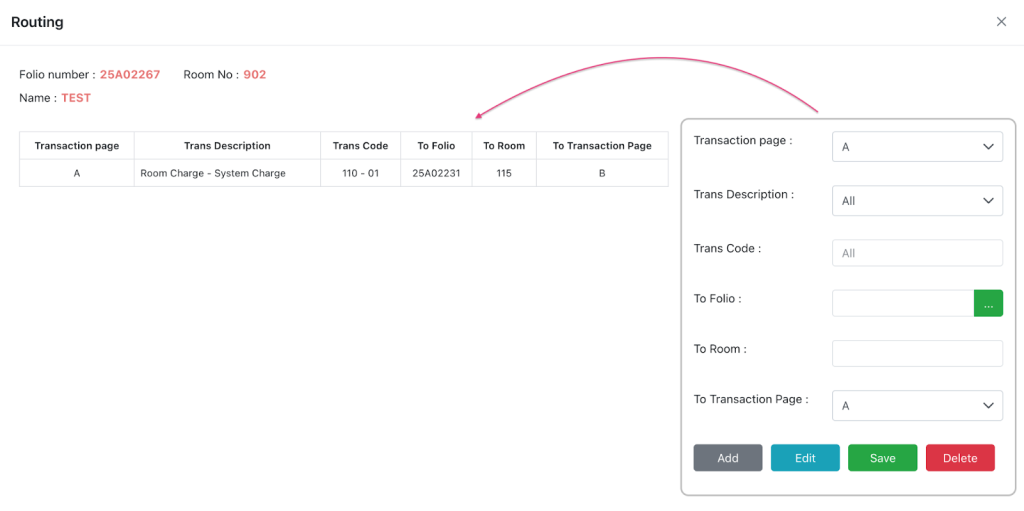
After setting routing, the transactions selected in the routing set will automatically be transferred to the selected folio when a transaction occurs.
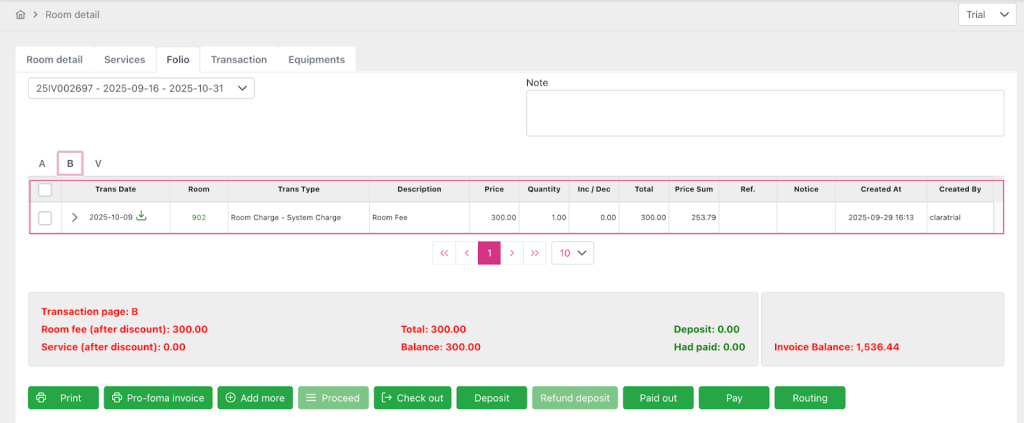
Master invoice droplist (11)
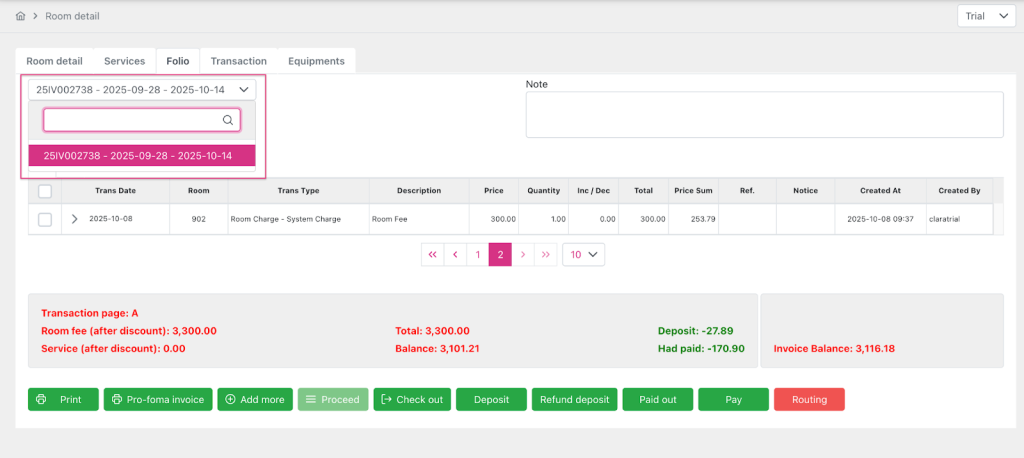
Remove Select All in Master invoice droplist → users do not need to select it to check out any more, just click check out button to proceed.