HM-6049: [UPDATE] CONFIGURATION – Allow configuring the rate code for specific room types
Hotel management wants to be able to select specific room categories to apply to each rate code, ensuring that the rate code attributes only apply to the appropriate room categories and avoiding pricing errors caused by using the wrong room category.
1. Allow users to select the room category applicable to each rate code via checkboxes.
Add a checkbox column to the “Room type rate” table in the Config > Currency > Rate code tab. Allow users to select at least one room type to apply to each rate code.
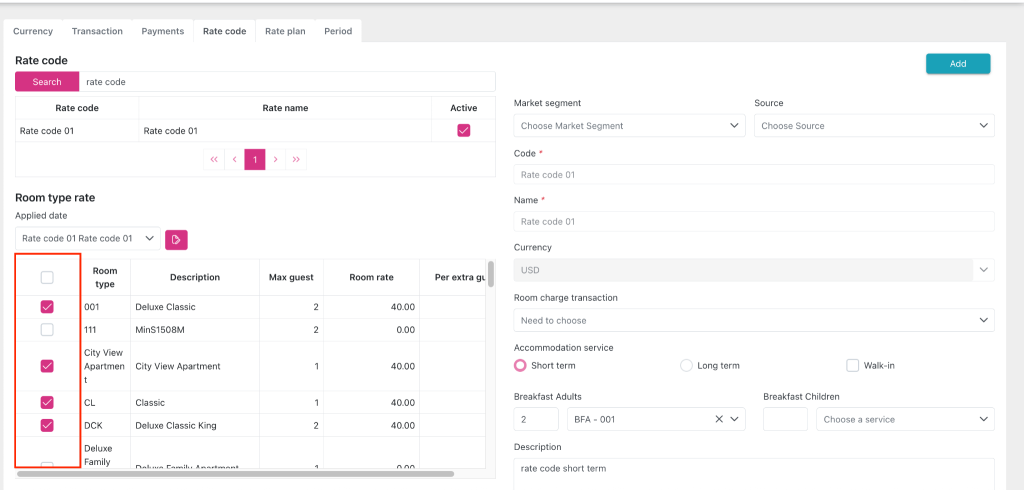
When the user clicks the “Save” button to save the information for creating a new rate code, the system performs further validation:
- Saving the rate code is not allowed unless at least one room type is selected. Pressing the “Save” button will display a toast warning with the message “Please select at least one room type”.
- Upon successful saving, a “Hotel configuration changed” popup will be displayed for logged-in sessions with the message “Hotel configuration is changed. Please reload hotel configuration again” and a “Reload” button allowing the user to reload the current screen.
When the user clicks the “Save” button to save the update rate code, the system validates:
- Saving the rate code is not allowed unless at least one room type is selected. Pressing the “Save” button will display a toast warning with the message “Please select at least one room type”.
- Do not update the new prices and remove the room category currently assigned to old bookings and bookings created before the rate code update.
- If there is an update to the room category applying the rate code during the in-house booking process at the hotel, the booking will not have any changes to the room rate or category. If the room category is changed after the rate code update, the booking will apply the new room rate, allowing the user to select the newly applied room category, but the user will not be able to select the old room category again (if the old room category has been removed from the corresponding rate code).
- Bookings made after the new prices and room categories have been updated will be subject to the new prices and will allow users to select the applicable room category.
- Upon successful saving, a “Hotel configuration changed” popup will be displayed for logged-in sessions with the message “Hotel configuration is changed. Please reload hotel configuration again” and a “Reload” button allowing the user to reload the current screen.

2. Update the validation rule on the Create booking/Detail booking/Create group booking/Detail group booking screen.
Automatically check the validity between room type and rate code during the create/edit booking/group booking process.
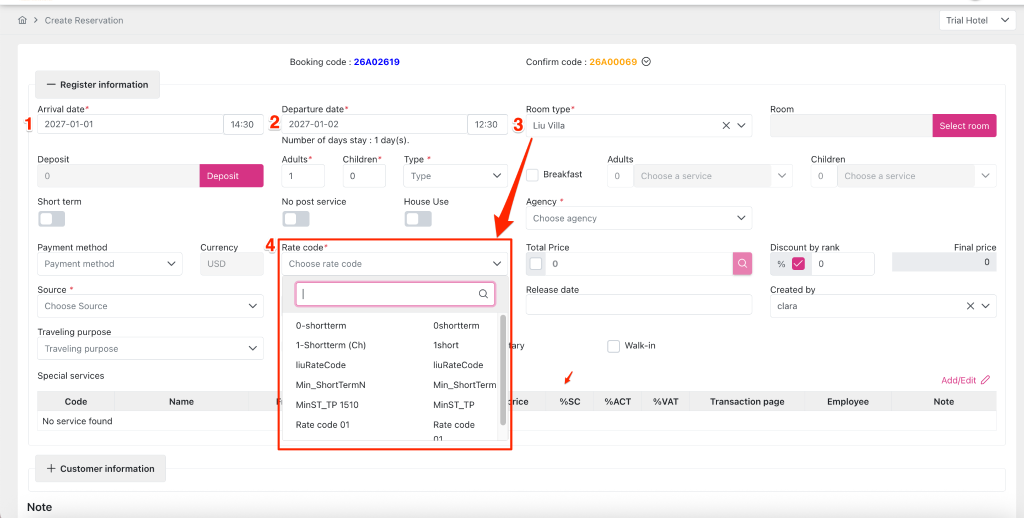
On the Create reservation/Create group reservation screen, when:
- The user selects the room category before selecting the rate code, if:
- The selected room category has a non-null price set in the active config rate code in the Room type rate table.
- The “Rate code” field displays the active rate code applicable to the selected room type.
- The “Total price” field will display the price of the room category corresponding to the configured price.
- If the selected room category has a value set to null in the active config rate code in the Room type rate table, then that rate code will not be displayed in the list under the “Rate code” field.
- The selected room category has a non-null price set in the active config rate code in the Room type rate table.
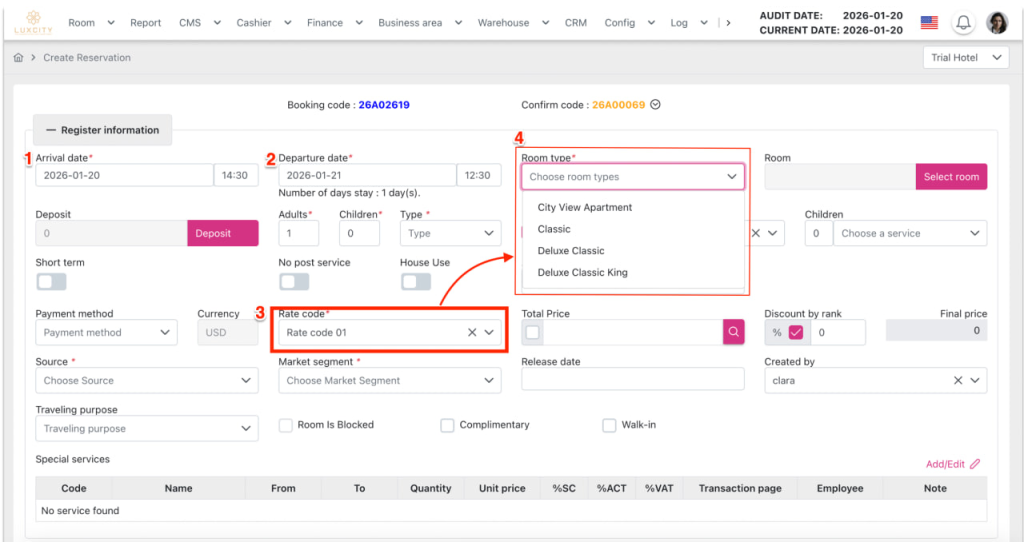
- The user selects the rate code before choosing a room category if:
- The room category corresponding to the rate code selected by the user has a non-null value set in the Room type rate table.
- The “Room type” field displays a list of active room types that have the selected rate code applied.
- The “Total price” field will display the price of the room category corresponding to the configured price.
- The room category corresponding to the rate code selected by the user is set to null in the Room type rate table -> that room category is not displayed in the list under the “Room type” field.
- The room category corresponding to the rate code selected by the user has a non-null value set in the Room type rate table.
In the case where edit booking/group booking assigned to a rate code has been deleted/deactivated:
- If the user selects a different rate code from the original rate code in the list of rate code items when clicking the “Rate code” dropdown on the Detail reservation/ Detail group reservation screen and does not click the “Save”/ “Save and print registration”/ “Save and print confirmation”/ “Save and check-in” button, the booking will retain the old rate code, the room price will remain unchanged, and the room category will not change.
- The user selects a different rate code and clicks the “Save”/ “Save and print registration”/ “Save and print confirmation”/ “Save and check-in” button. The booking will then apply the new rate code and display the current room price for the corresponding rate code. The user will not be able to select the old rate code again
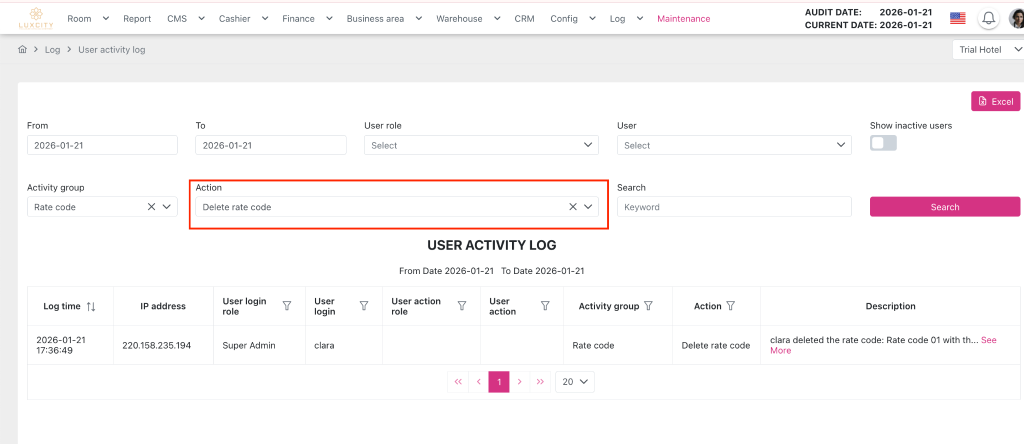
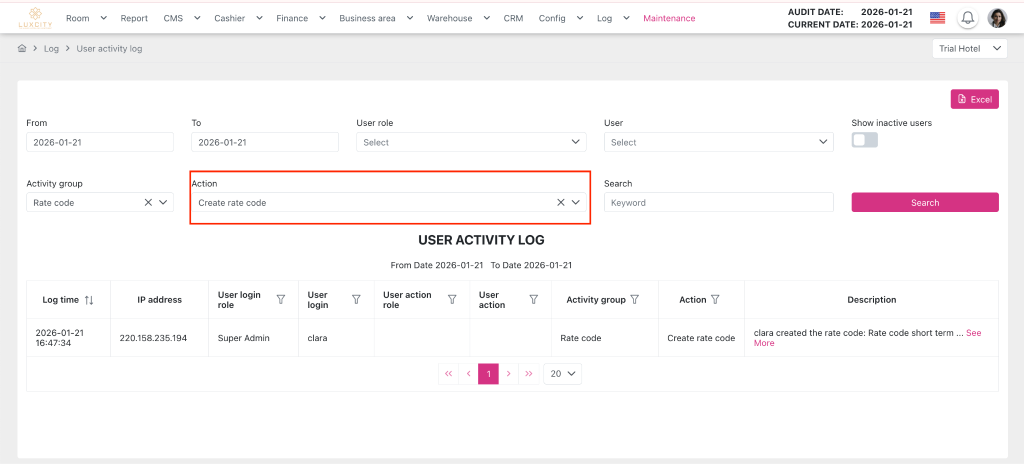
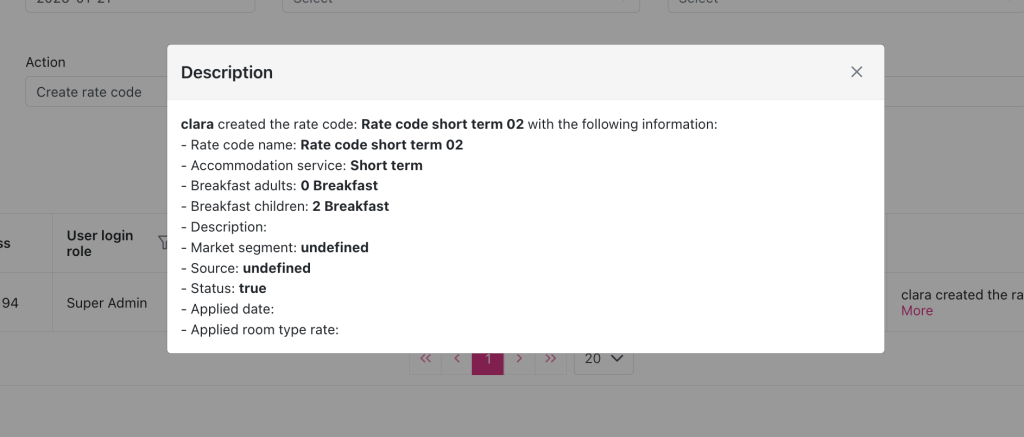
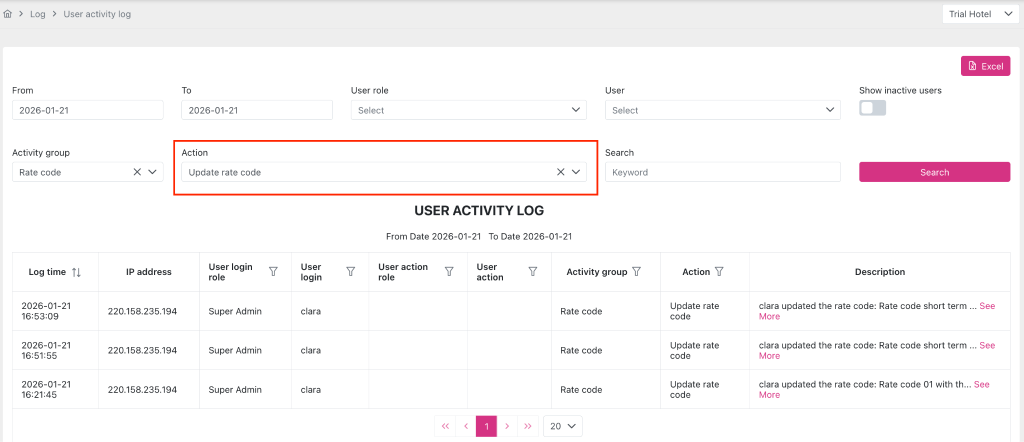
3. Update the UAL for the Config > Currency > Rate Code tab screen.
- Activity group: Rate code
- Action:
- Create Rate Code
- Detail of Create Rate Code:
- Update rate code:
- Delete rate code: